
Fix a count mistake
Most mistakes can be fixed while the count is still open. Once it’s submitted, it’s closed for good, and anything left wrong is fixed with a new count.
A product or lot isn’t on the list
Section titled “A product or lot isn’t on the list”-
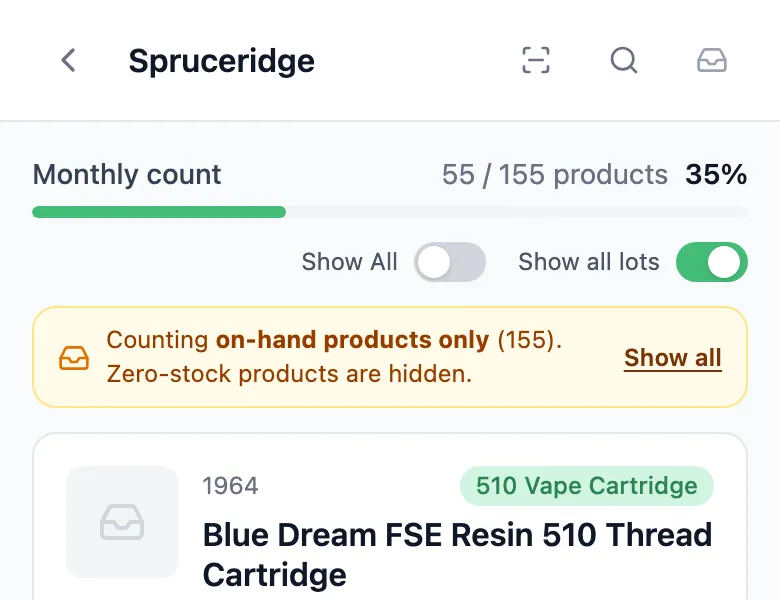
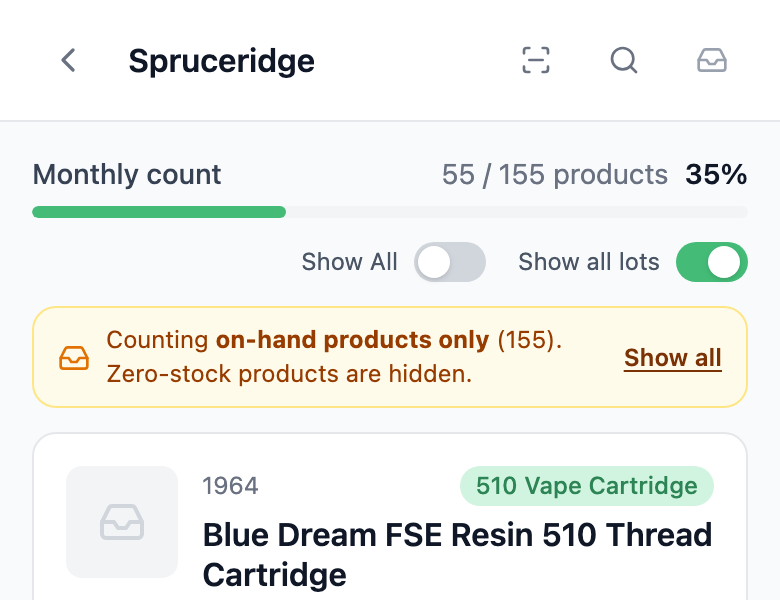
On the counting screen, turn on Show All. Products with no stock at your store are hidden until you do. The yellow bar saying Counting on-hand products only means it’s off.
-
If a lot is missing, turn on Show all lots. With it off, lots that had no stock when the count started and haven’t turned up in recent counts are hidden.
-
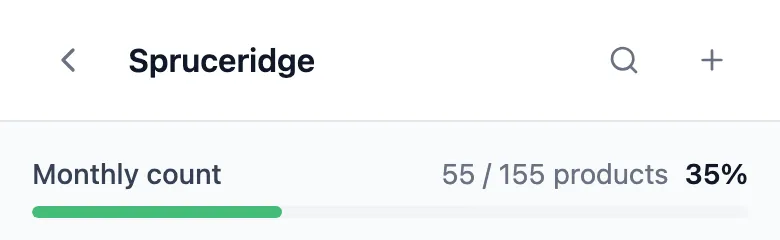
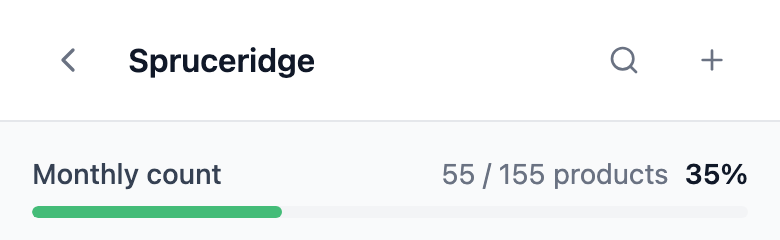
If the product still isn’t there, it isn’t in the count. Open the product list and tap + (top right).
-
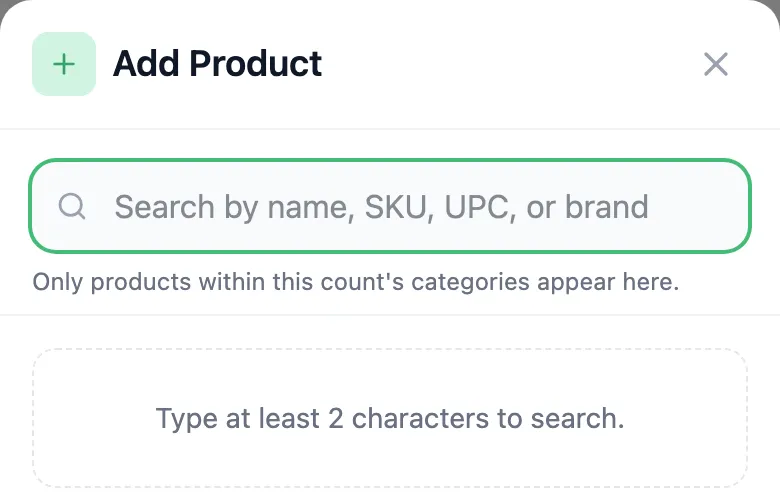
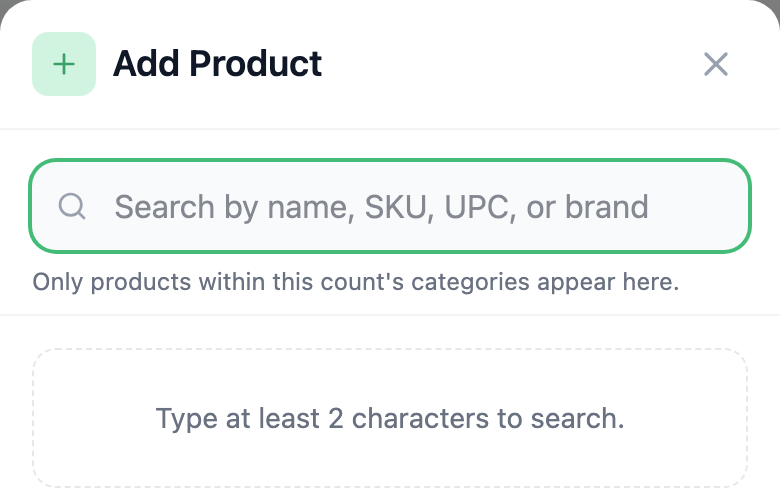
Search for it and tap it. It’s added to the count and opens for counting. Only products in the count’s categories can be added. For anything else, start a new count.
A lot was added by mistake
Section titled “A lot was added by mistake”Lots can’t be removed from a count.
- If nothing was entered on it, leave it blank. It doesn’t change stock.
- If a number was entered on it, tap that lot and type 0, then enter the units on the right lot.
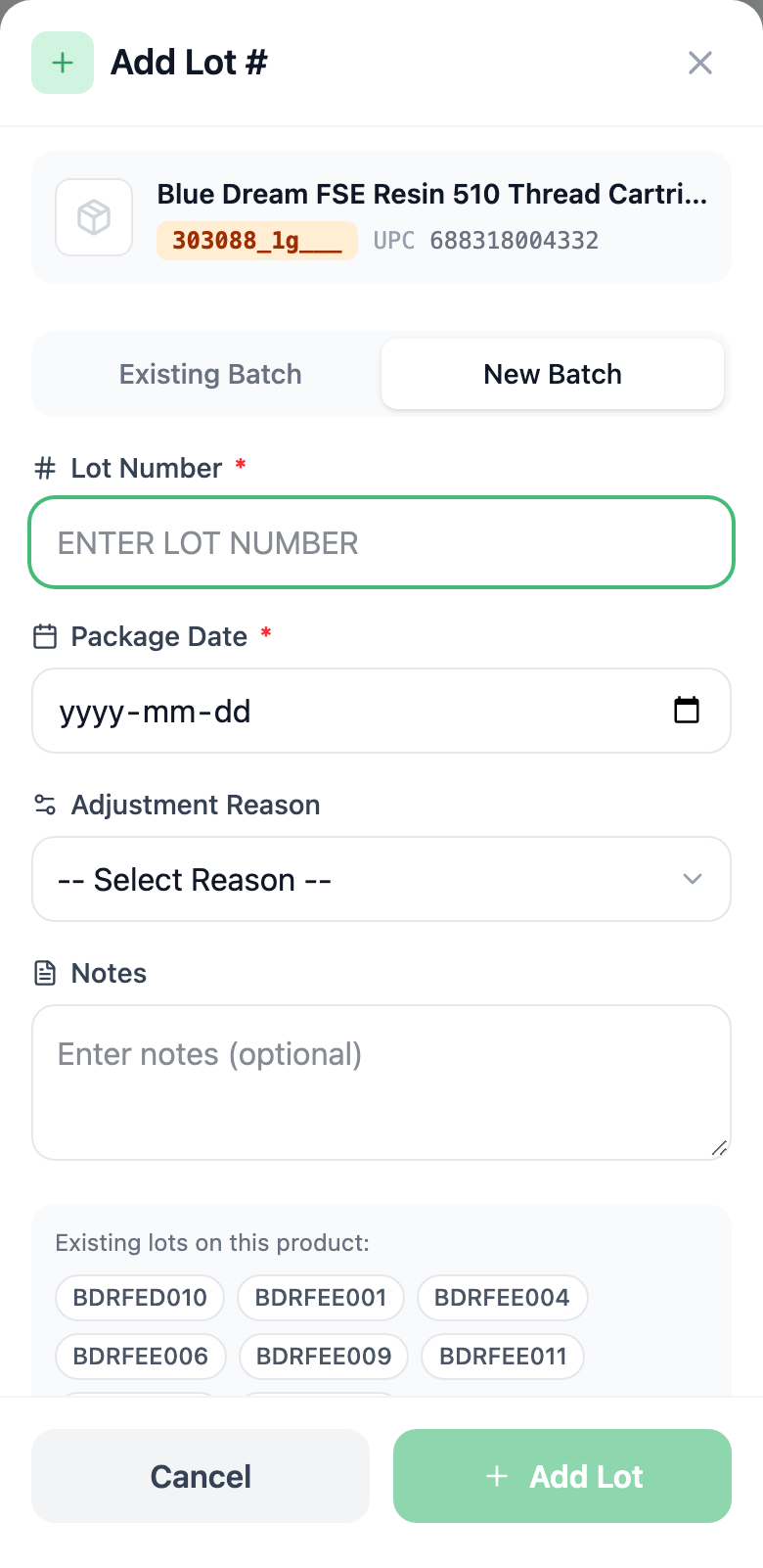
New Batch in Add Lot # works straight away: it makes that lot and its Package Date the product’s current lot at your store, before the count is submitted. Cancelling the count doesn’t undo that. For a lot already in the system, pick Existing Batch.
A wrong number was entered
Section titled “A wrong number was entered”- While the count is open: open the product, tap the lot and type the right number. It replaces the old one. If there are none, type 0, because emptying the box keeps the saved number. You can also retype it in the portal; see Review a count and accept it.
- After it’s submitted: the count can’t be reopened. Count the product again in a new count (pick Products under Count and scan it), or adjust its on-hand for a few units.
The count was submitted too early
Section titled “The count was submitted too early”A submitted count can’t be reopened or undone.
- Products nobody counted kept their on-hand.
- Products that were counted are set to what was entered.
- On a product where only some lots were entered, the lots left blank were set to 0. Start a new count with those products and count every lot.
Two staff counted the same product
Section titled “Two staff counted the same product”- In the same count, numbers don’t add up. The last number saved for a product or lot replaces the one before it. If it was on two shelves, add them together and enter the total. The portal’s Counted by column shows who saved it last.
- In two different counts, each one sets the stock as at the moment it was counted, so the one counted later stands.
To stop two people counting the same products, split the count by percentage. See Manage or cancel a count.