
Find or edit a customer
Use this to fix a customer’s name, phone or email, or to stop someone from buying. To add someone new at the register, see Add a new customer.
-
In the menu, click Customers.
-
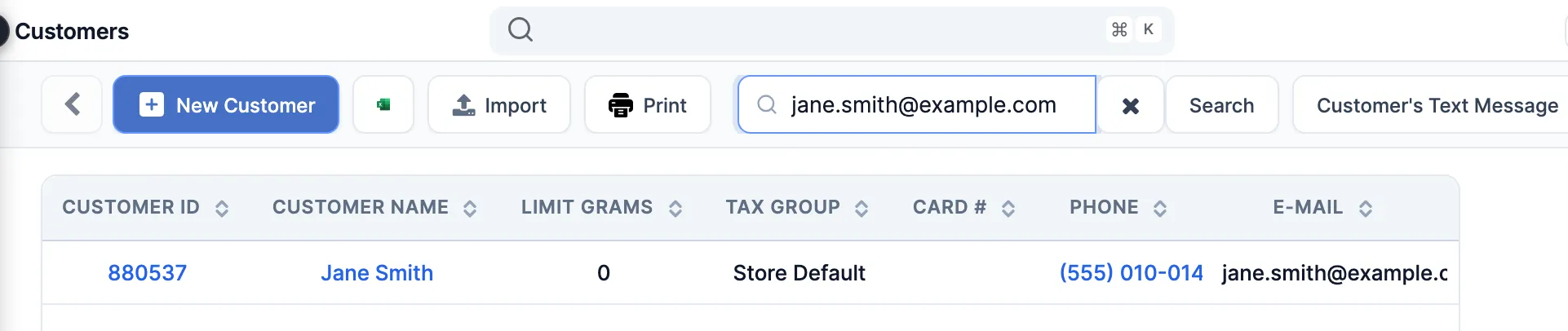
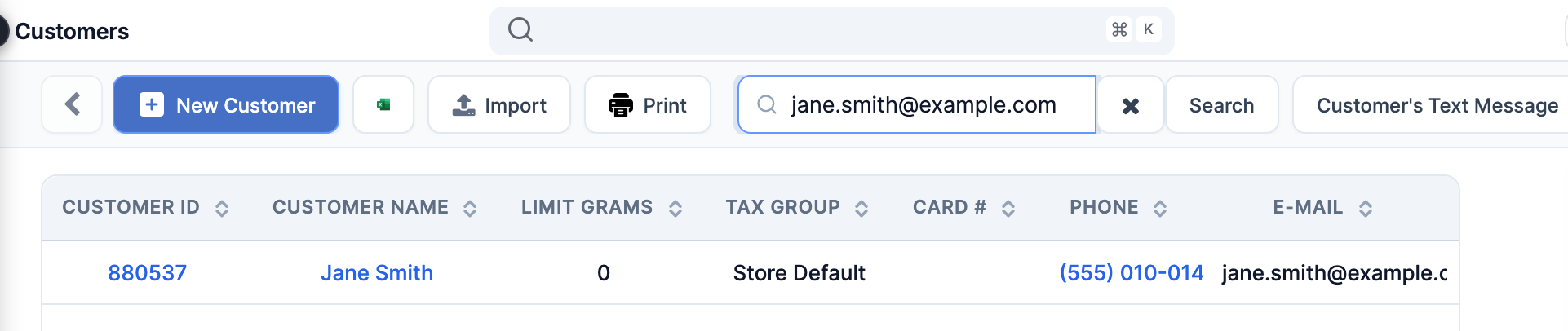
Type their email, phone number or name in Search and press Enter. Their Customer ID, company name, street or city work too.
-
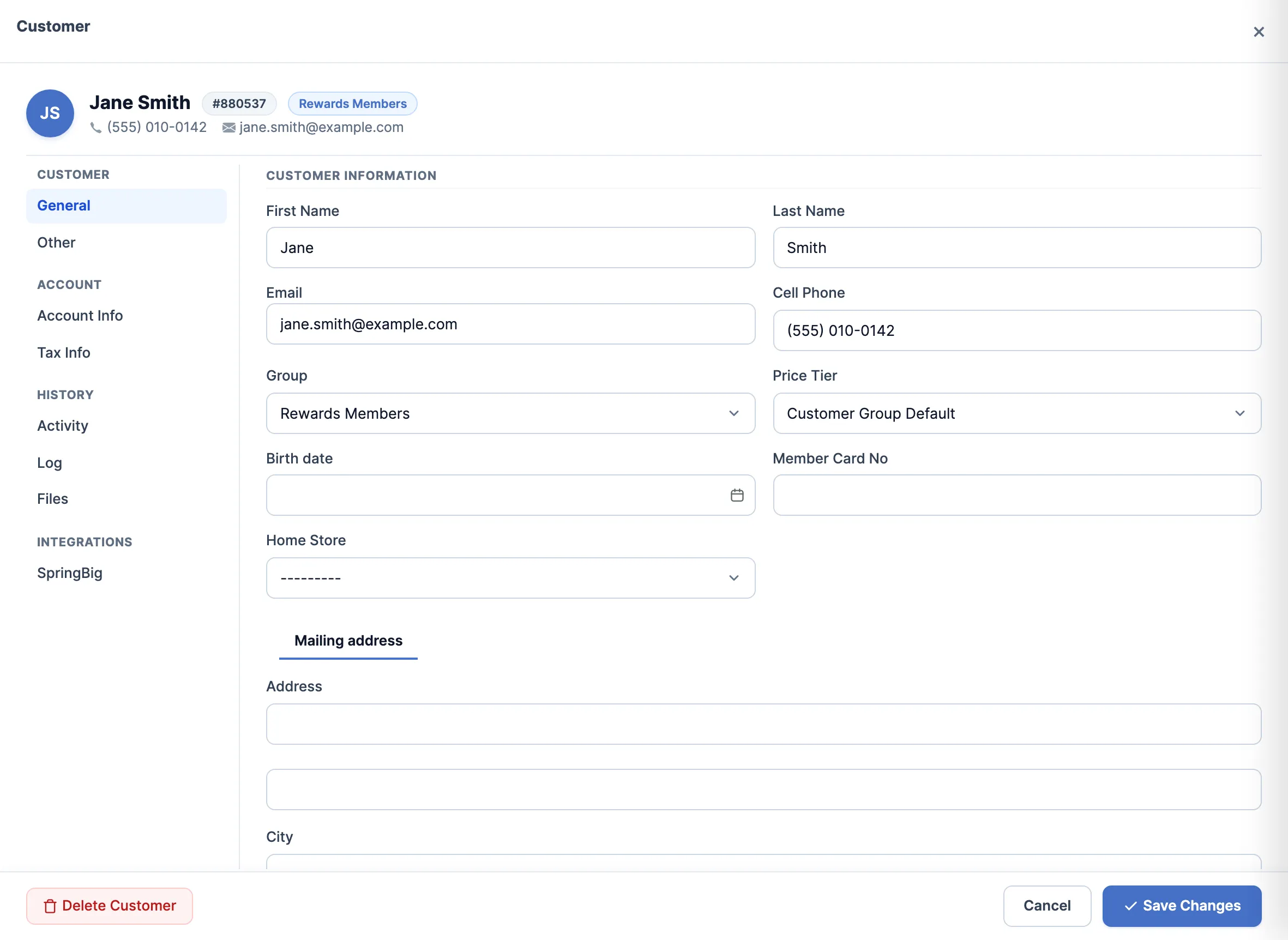
Click their name. Their details open beside the list, on General.
-
Change what you need. The tabs on the left:
- General: name, email, phone, Group, Price Tier, birth date, home store and address.
- Other: sales rep, referrer and a standing Discount.
- Account Info: store credit, Credit Limit, Receive On Account, Pay From Account, and Is blocked.
- Tax Info: their tax group and any tax they’re exempt from.
- Activity: what they bought over a period.
- Log: changes to their name, phone, email and Customer ID, with who made them.
- SpringBig, if you use it: their SpringBig balance and rewards.
-
Click Save Changes. The editor reloads with your changes.
Block a customer
Section titled “Block a customer”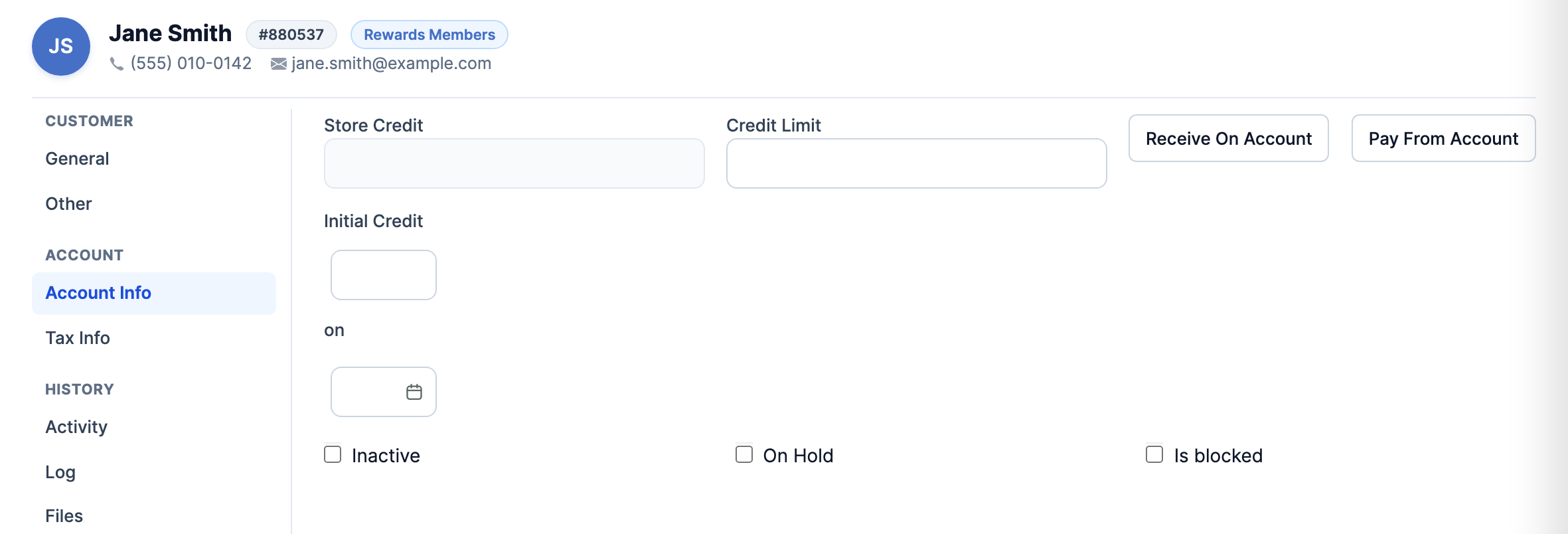
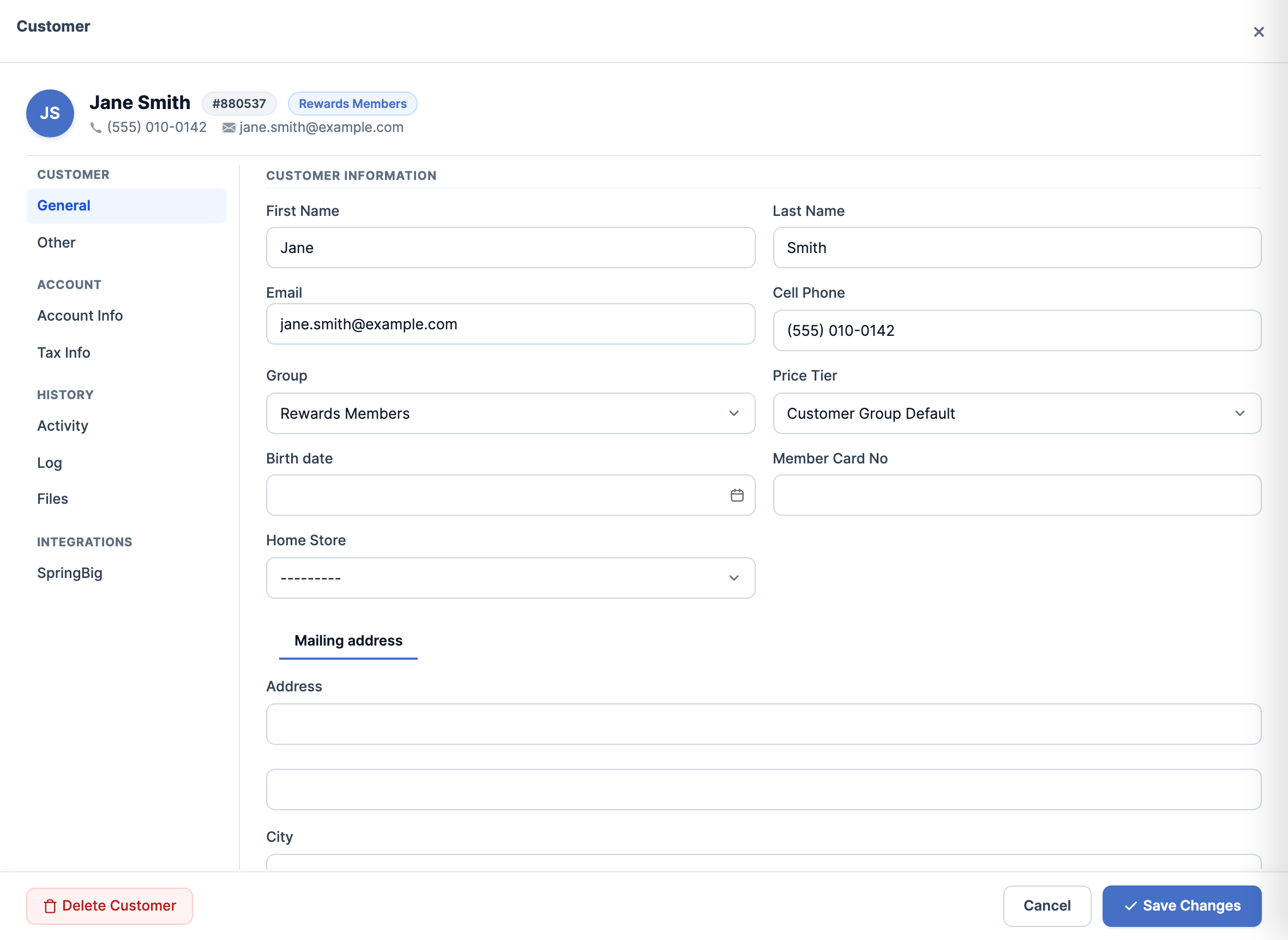
On the POS they show a red Blocked badge on their card and on the sale. You can still add them to a sale to read their notes, but taking payment stops with Customer Blocked. They can’t sign in or order online either. Untick Is blocked to lift it.
Good to know
Section titled “Good to know”- Tick Is blocked instead of typing “BANNED” or “DO NOT SERVE” into their name. Only the tick stops the sale.
- Delete Customer (bottom left) asks you to confirm, then removes them from the customer list. Their past sales stay.
- If one person has two profiles, report a problem to get them combined.