
Change a price or price group
Use this to change what a product sells for. For a sale that ends on its own, use a discount schedule instead.
One or more products
Section titled “One or more products”-
In the menu, click Products, then Products.
-
Search for the products and tick them.
-
Click Update 1 item (it counts what you ticked), then Price.
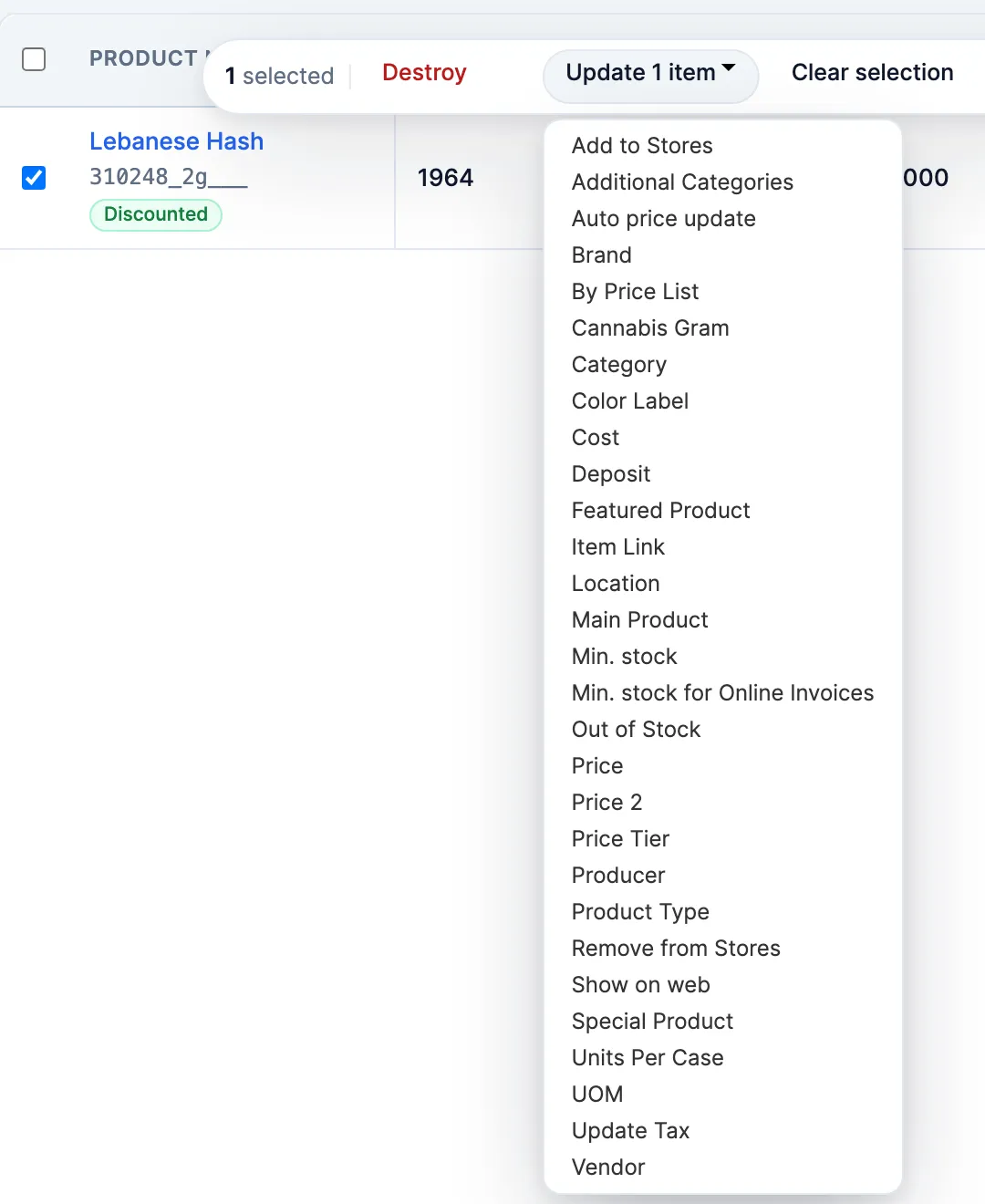
-
Type the new Price.
-
At Head Office, under Apply to Stores:, untick the stores that keep their price. Every store is ticked to start.
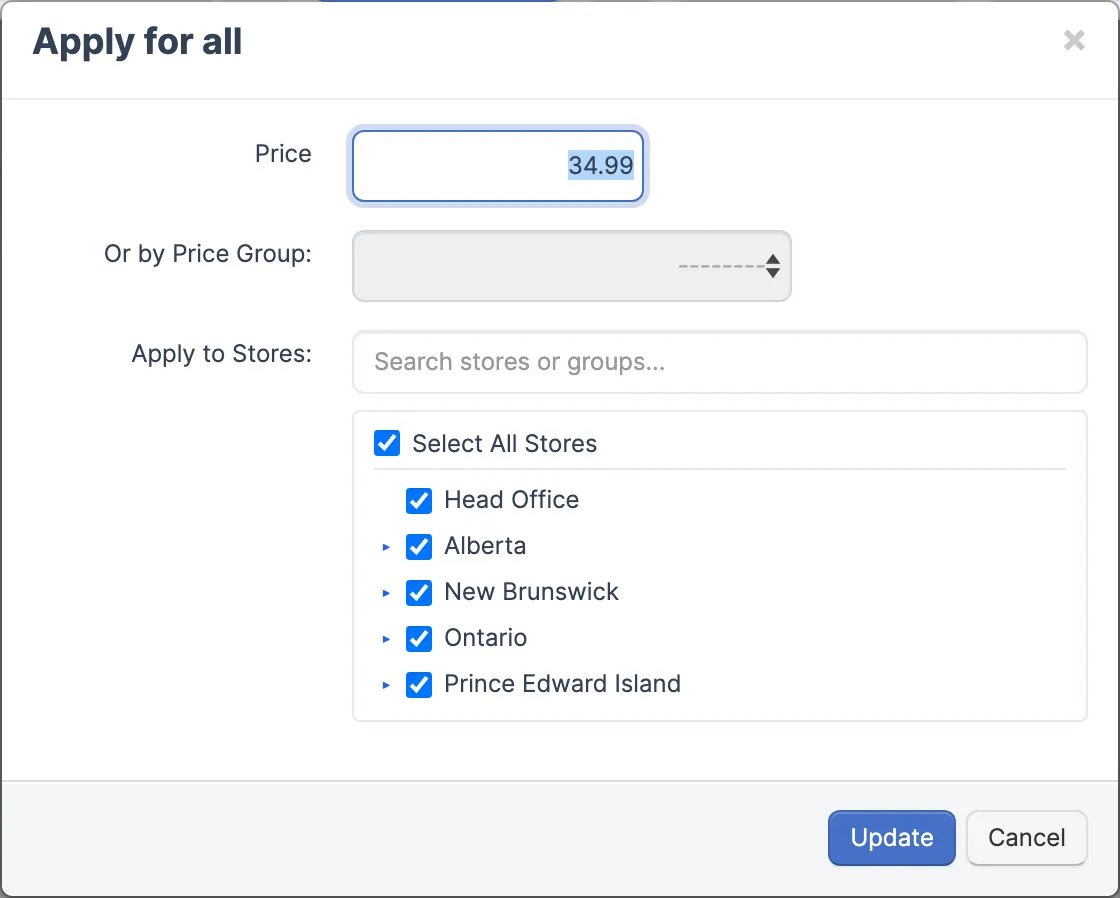
-
Click Update. A progress bar shows while it runs. It carries on if you close the page, and Price Update Queue shows how far it got.
One product, store by store (Head Office)
Section titled “One product, store by store (Head Office)”-
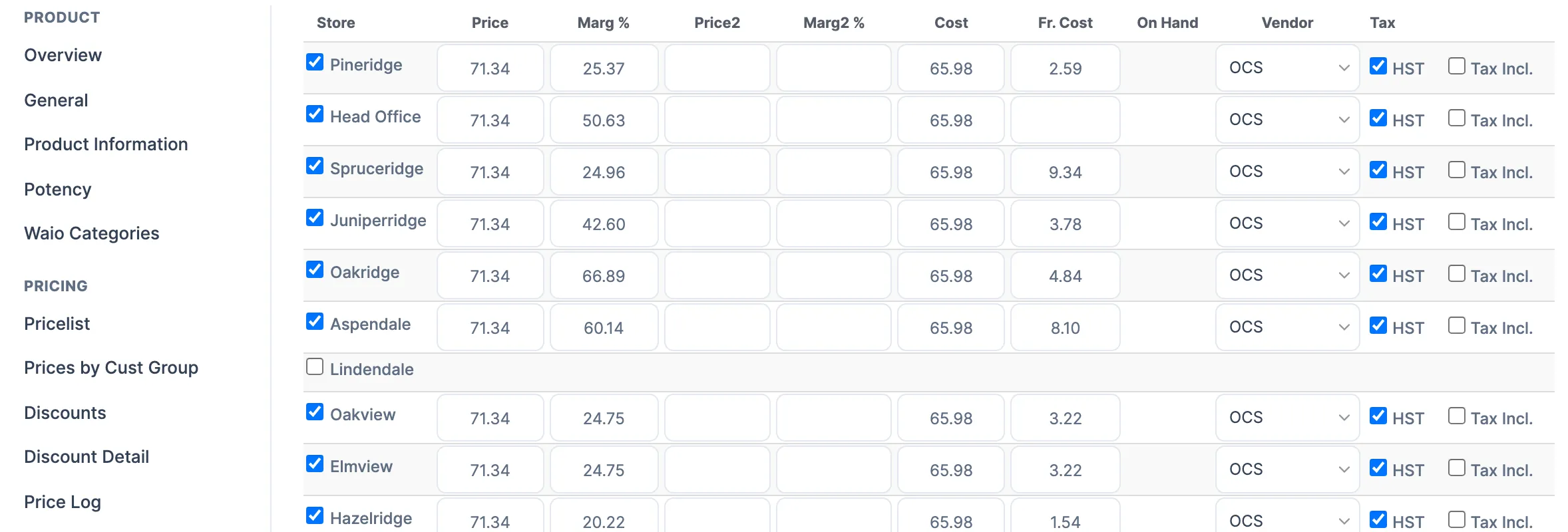
Open the product and click Stores (under Inventory & Stock).
-
Change the Price on each store’s row.
-
Click Save Changes.
Price groups (tiers)
Section titled “Price groups (tiers)”A price group works the price out from the cost, by a Margin % or a Markup %.
-
In the menu, click Products, then Settings.
-
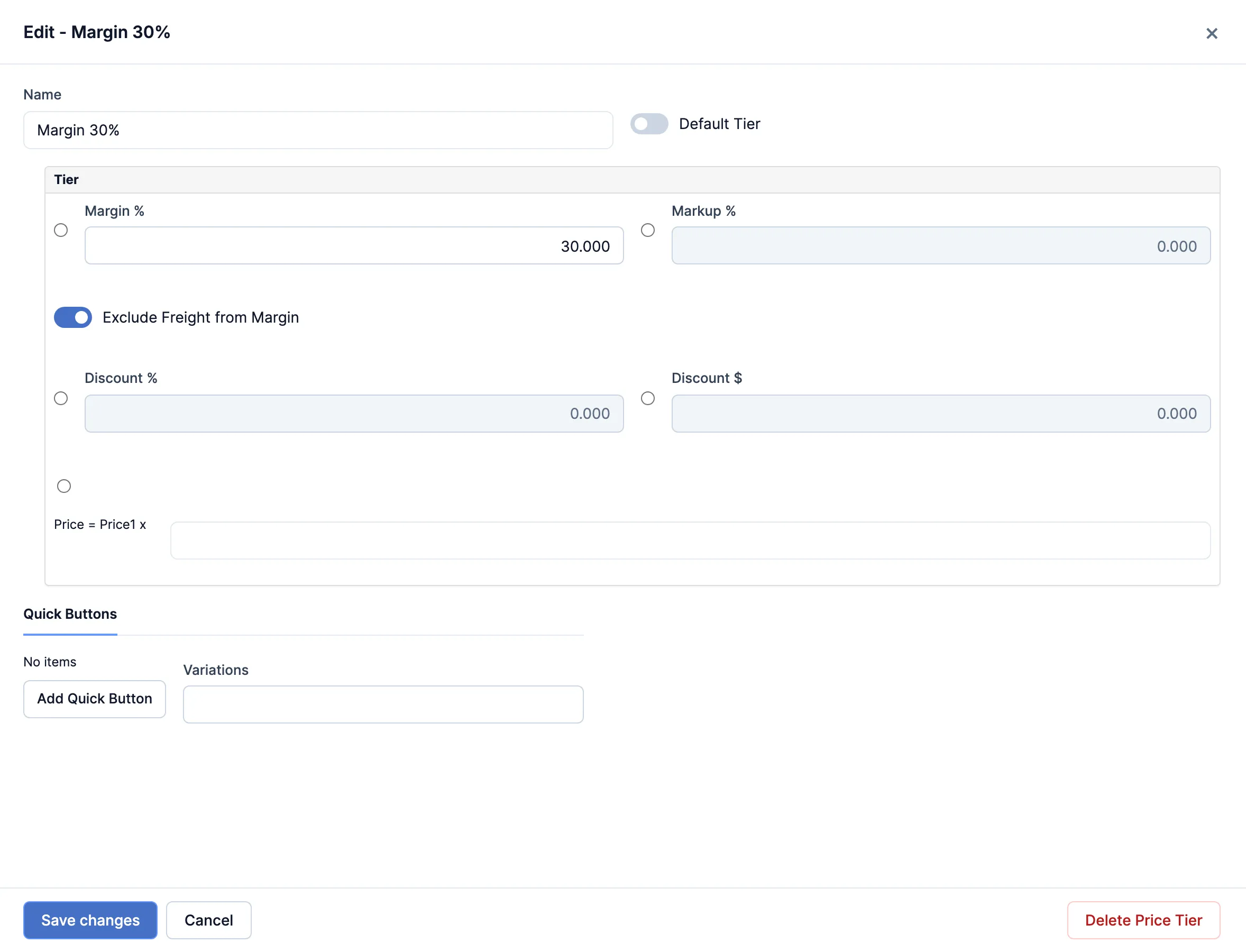
Click Price Groups/Tiers (under Pricing). Click a price group to change it, or Add Price Group/Tier for a new one.
-
Type the Name, then the Margin % or the Markup %.
-
Click Save changes.
-
Saving the price group doesn’t change any prices. To use it, tick the products in the product list, click Update 1 item, then Price Tier.
-
Pick it under Price Tier, pick the stores at Head Office, and click Update.
-
When it asks Would you like to update the prices now?, click OK. Cancel gives the products the price group but leaves their prices.
New prices after a cost change
Section titled “New prices after a cost change”When a receiving invoice changes a product’s cost, the store gets a suggested new price that keeps the old margin. It waits until someone activates it.
- At the store, click Products, then Settings, then New Prices Activation (under Pricing).
- Check the Suggest price, and change it if you want a different one.
- Tick the rows and click Activate selected prices, or Abandon selected prices to keep the old ones.
Good to know
Section titled “Good to know”- Change prices with one of the ways above, not the Selling Price box on a product’s General tab.
- Changing a price group’s margin doesn’t reprice anything until you run Price Tier again.
- Without Price Change and Adjust Pricing & Margins, Price isn’t in the Update menu.