
Edit a product's details
Every detail of a product is in one editor, grouped into tabs down its left side. For prices, see Change a price or price group.
-
In the menu, click Products, then Products.
-
Search for the item and click its name. Edit Product opens.
-
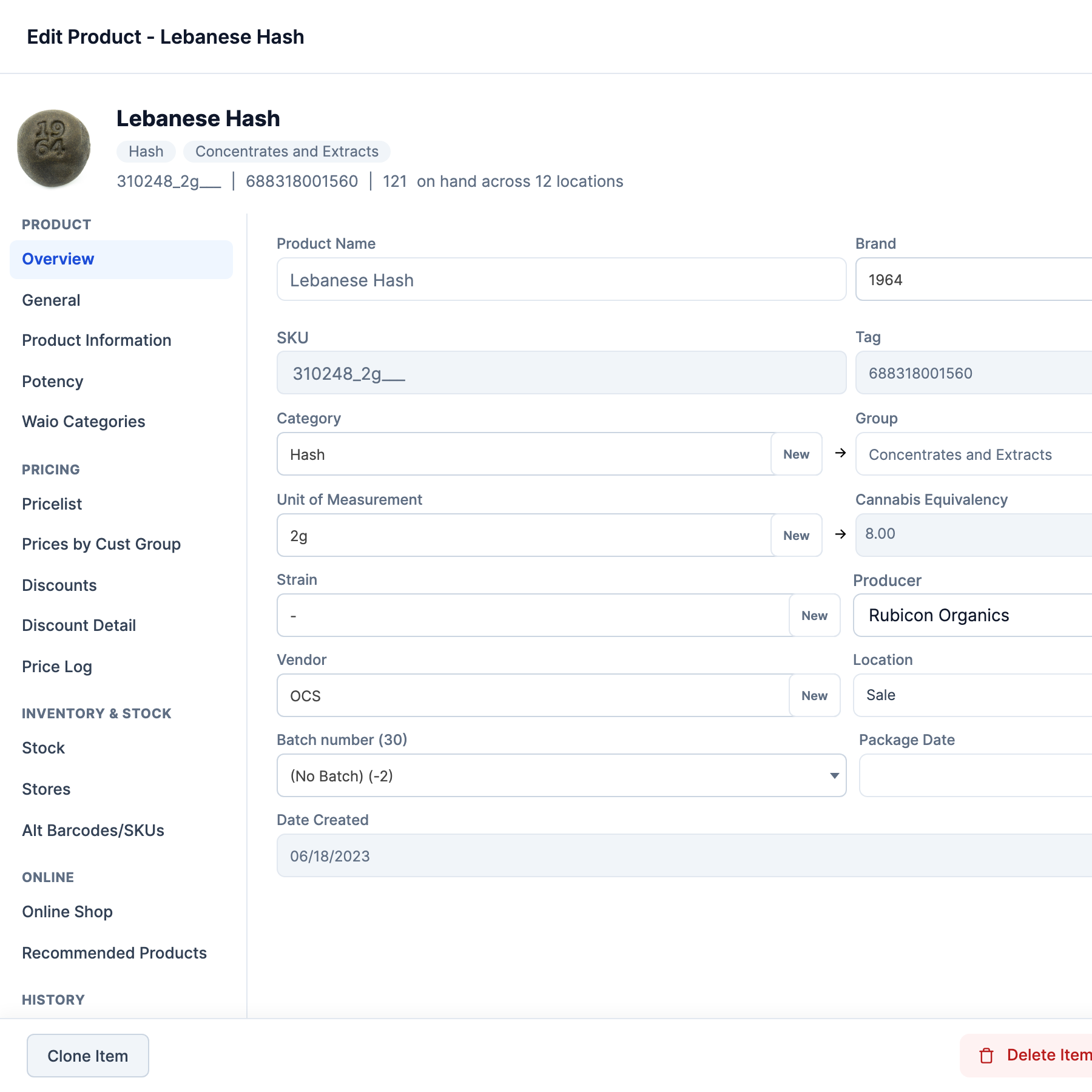
Click the tab that holds the detail:
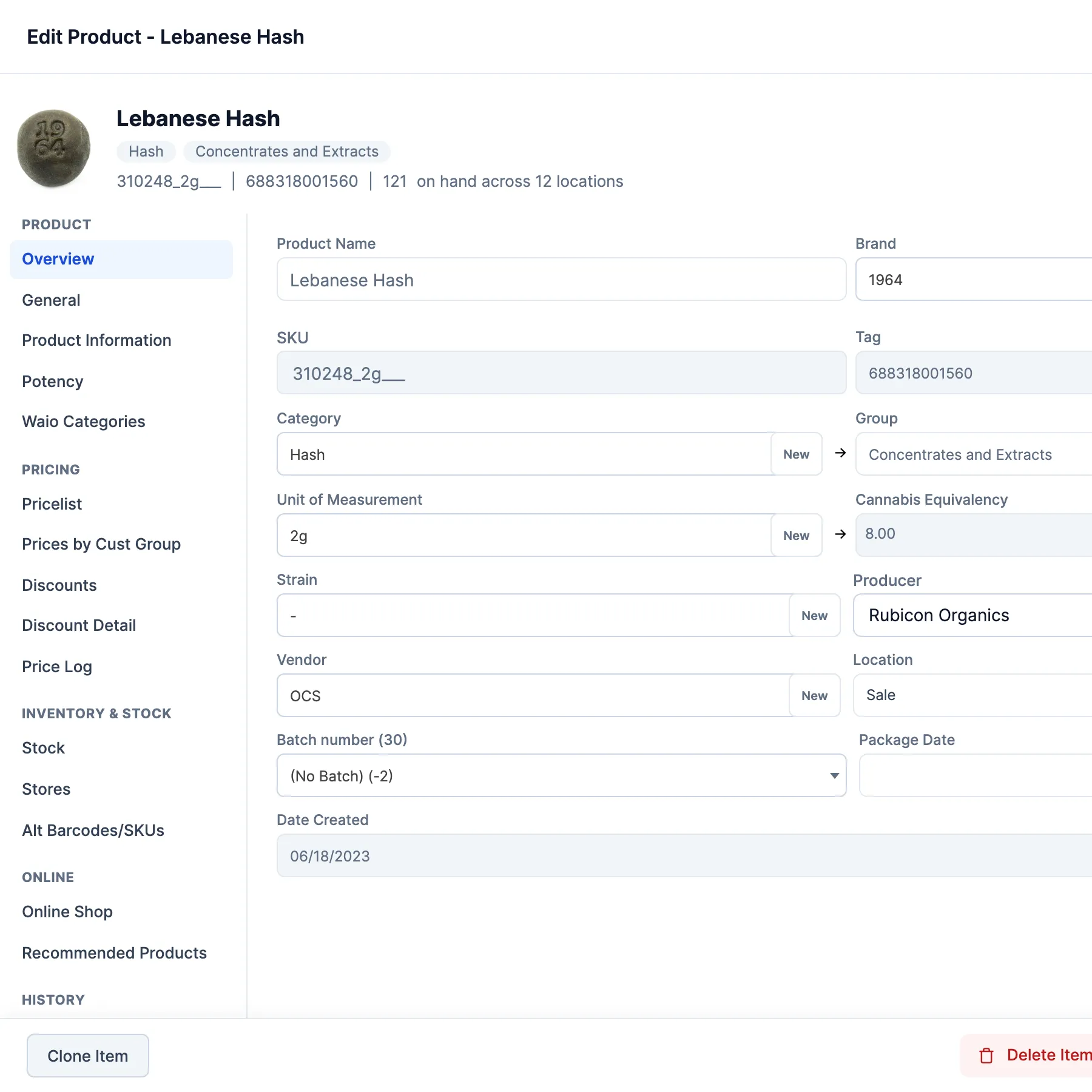
- Overview: name, brand, SKU, barcode, category, unit, producer, vendor, batch number and package date.
- General: cost, margin, Price group, Discount Exempt and taxes.
- Product Information: pictures, keywords and the description.
- Potency (cannabis): THC and CBD. See Edit THC and CBD.
- Prices by Cust Group: what each customer group pays. It only shows when a group has its own price group.
- Discount Detail: the discount schedules this product is in.
- Price Log: past price changes.
- Stock: Active, Out of Stock and minimum stock.
- Stores (Head Office only): each store’s price, cost, vendor and taxes.
- Alt Barcodes/SKUs: extra codes. See Add an alternative SKU or barcode.
- Online Shop: what the website shows, like Featured Product and the descriptions.
- Activity: the product’s history.
-
Change the detail and click Save Changes.
Head Office or a store
Section titled “Head Office or a store”- The name, brand, SKU, barcode, category and unit belong to the product. Changing them, even from a store, changes them at every store.
- Price, cost, vendor, Active and Out of Stock are each store’s own. At a store you change only that store’s.
- At a store, SKU and Barcode are locked once both are filled in.
- At Head Office, changing a price, cost, vendor, freight or a tax asks Would you like to apply … to all stores? Yes copies the new value to every store on the Stores tab. No leaves the stores as they are. Nothing is saved until you click Save Changes.
Good to know
Section titled “Good to know”- Without Price Change, changes to an existing product’s price or cost aren’t saved. You also need Adjust Pricing & Margins to change the price group.