
Transfer stock between stores
Use a transfer to send stock to another of your stores. You create it while signed in to the sending store, and the other store receives it.
Send a transfer
Section titled “Send a transfer”-
In the menu, click Inventory > Inventory Transfers.
-
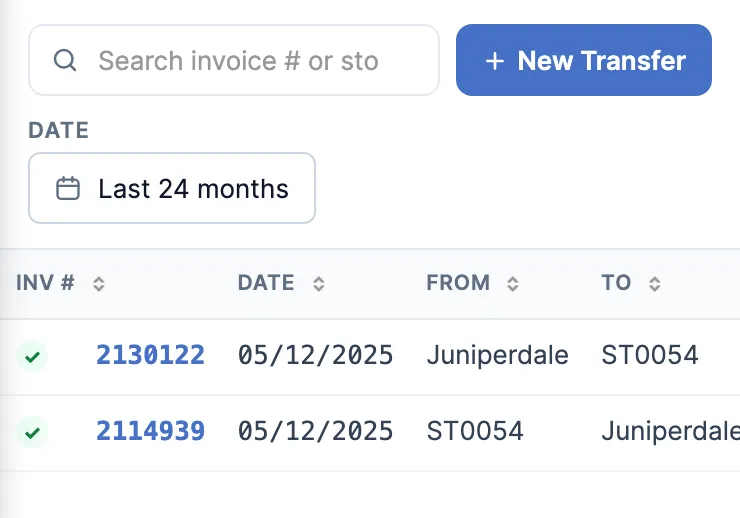
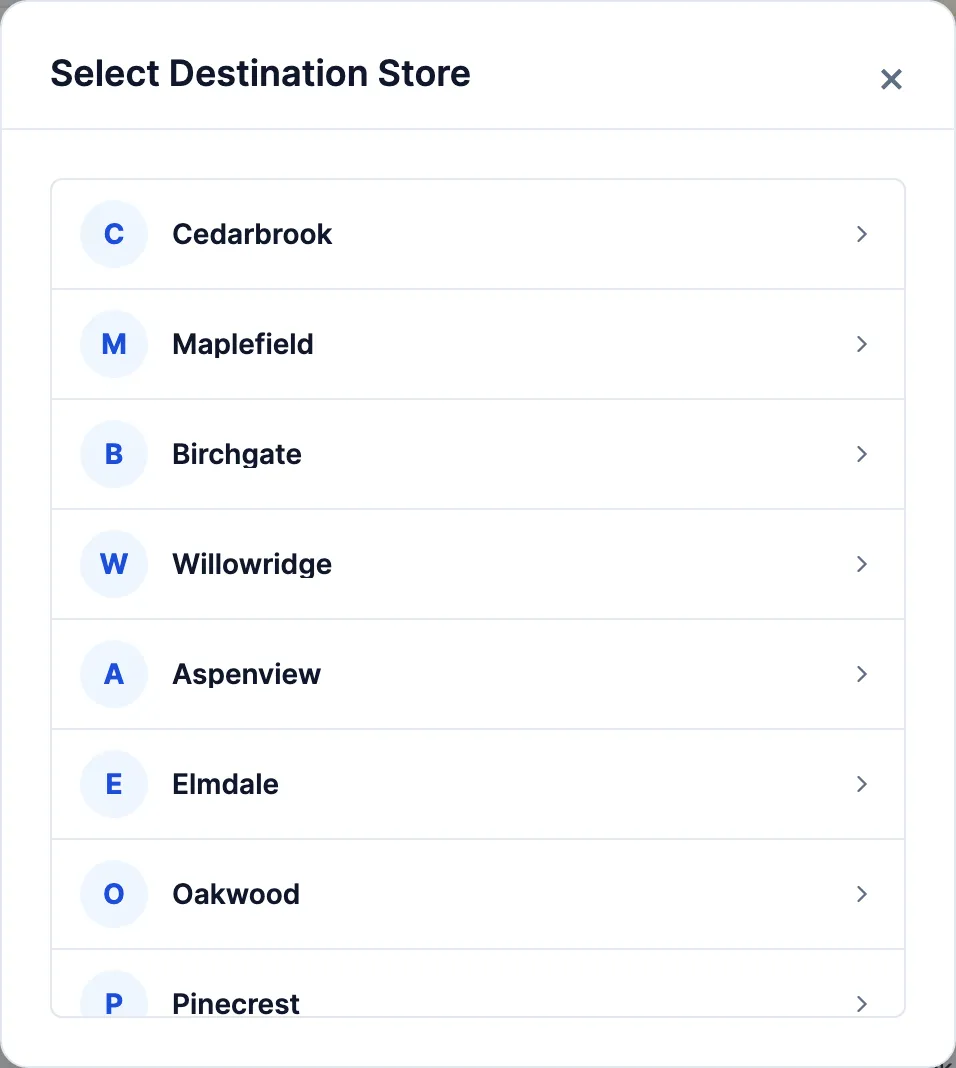
Click New Transfer (top of the list). A new transfer opens on the right, with Select Destination Store on top.
-
Click the store you’re sending to.
-
In the search box above the lines (SKU, Barcode, Description, Category), search for the product and pick it. It’s added with Qty 1 and your store’s current lot in Lot #.
-
Change Qty to the number you’re sending, and the Lot # if it’s from another lot. Repeat for each product.
-
Pick a Driver and Vehicle if you track them, and add Remarks for the receiving store.
-
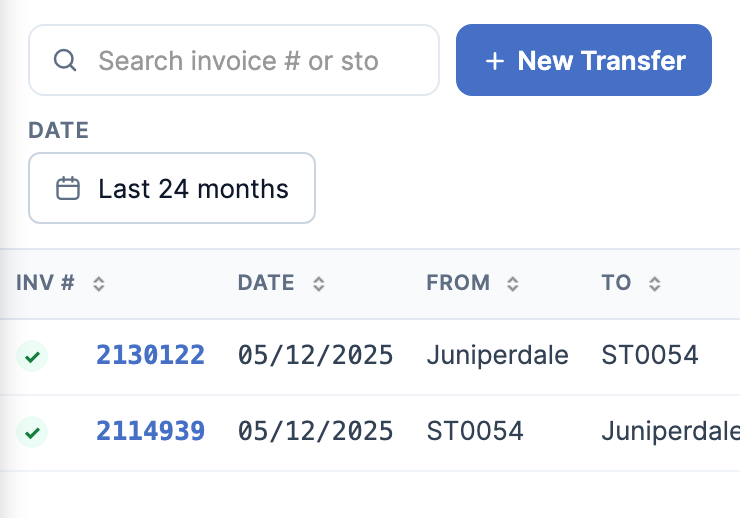
Click Save and Transfer. The stock comes off your store’s on hand and the transfer shows In transit.
Receive a transfer
Section titled “Receive a transfer”At the receiving store:
- Open Inventory > Inventory Transfers and click the transfer. A transfer on its way to you shows Incoming at the top.
- Check the lines. You can correct Lot #, THC and CBD, but not the quantities.
- Click Receive Transfer. The Receive Transfer window opens.
- Leave Receive date / time on now, unless it arrived earlier. It can’t be before the transfer’s own date.
- Click Continue. The stock is added to your store’s on hand and the transfer shows Received.
Good to know
Section titled “Good to know”- Until it’s received, the sending store can open the transfer, change it and click Save.
- Delete (sending store, with Delete/Void Invoices) voids the transfer at both stores and puts the stock back where it came from.
- The list starts on the last 30 days. Click the date to see older transfers.