
Look up a customer's purchase history
Use this when a customer asks for “the same as last time”, or you need a receipt from one of their past visits.
-
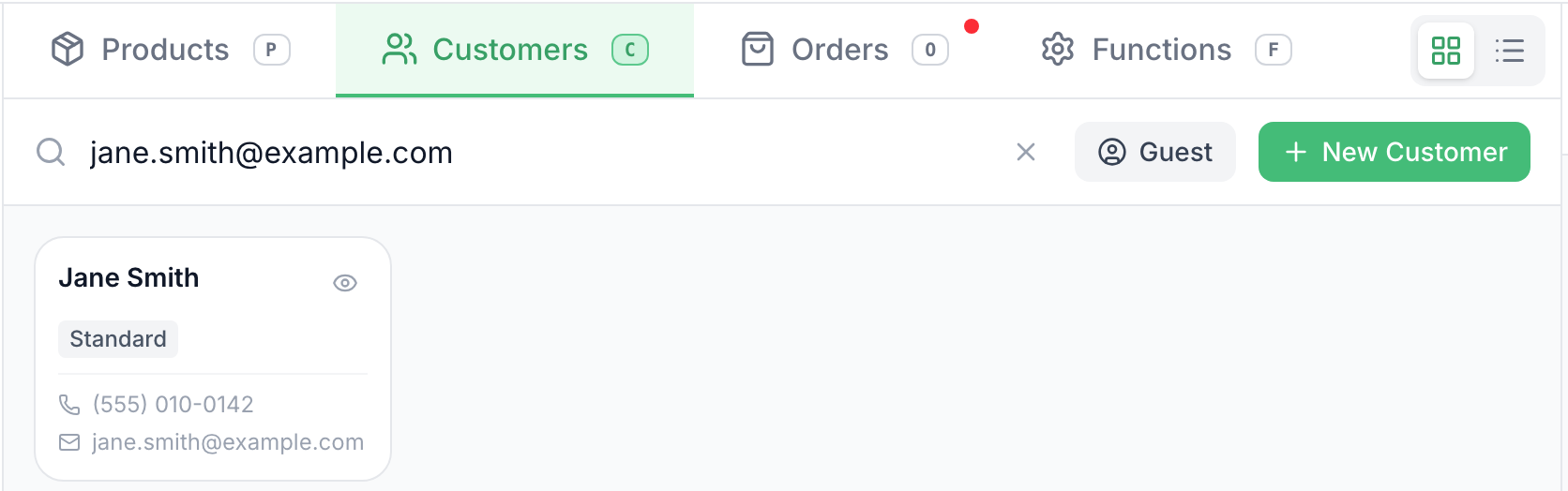
Open Customers and search for them by name, phone or email.
-
Tap the eye on their card. Looking doesn’t add them to the sale.
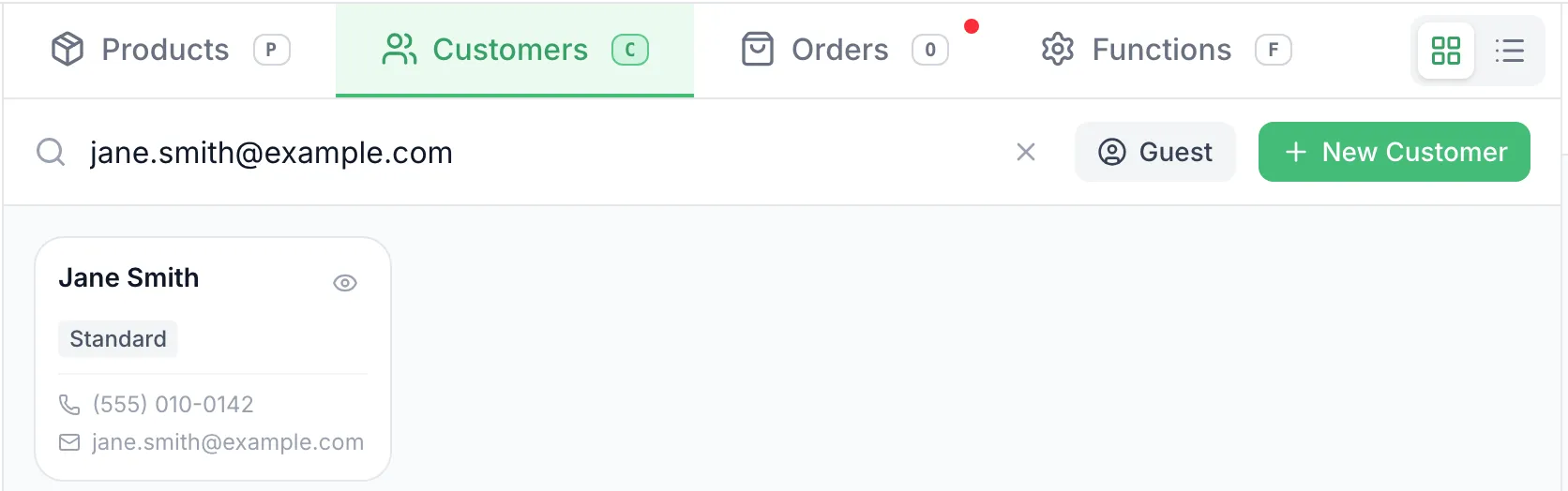
If they’re already on the sale, tap their name at the top of the cart instead.
-
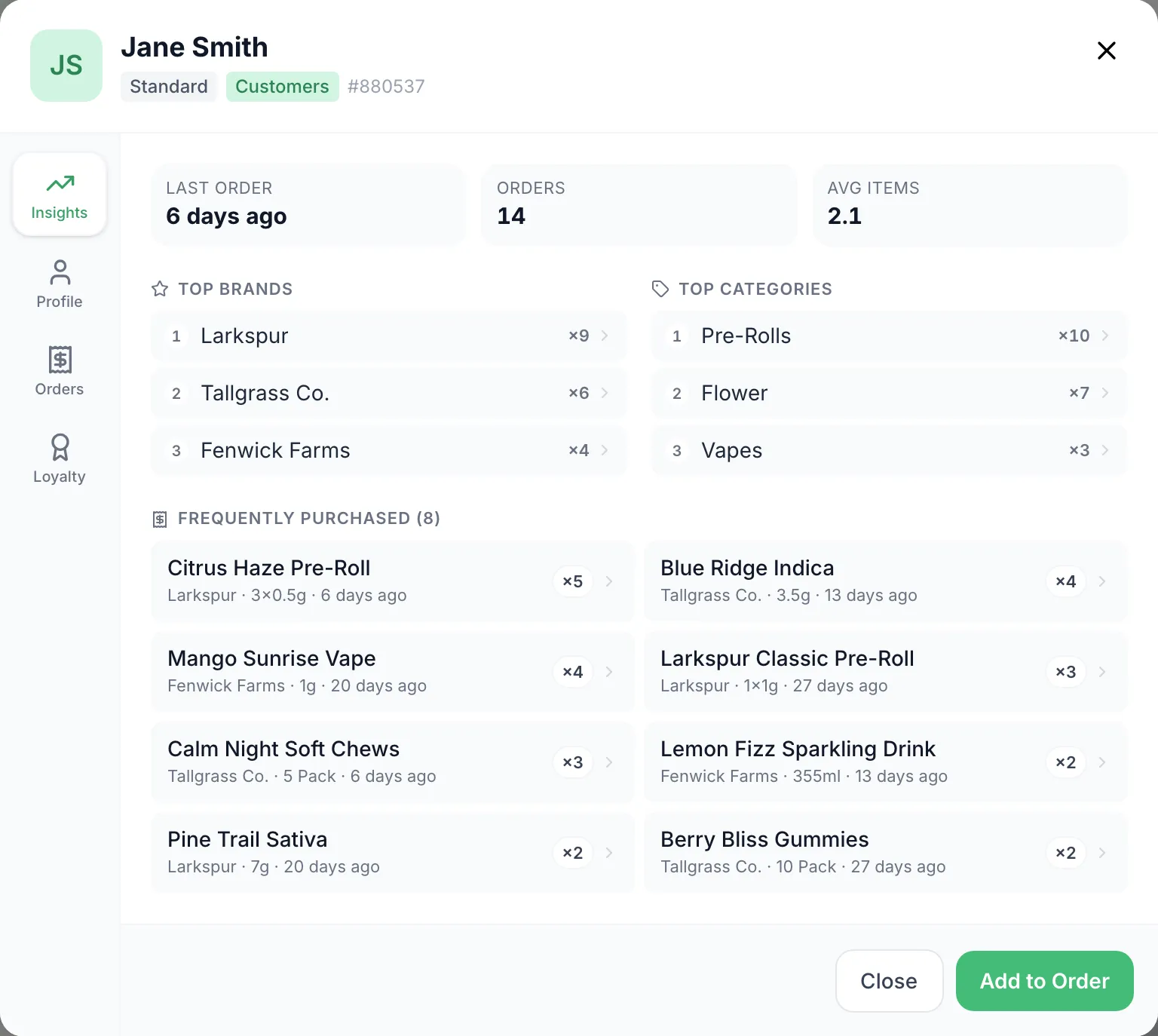
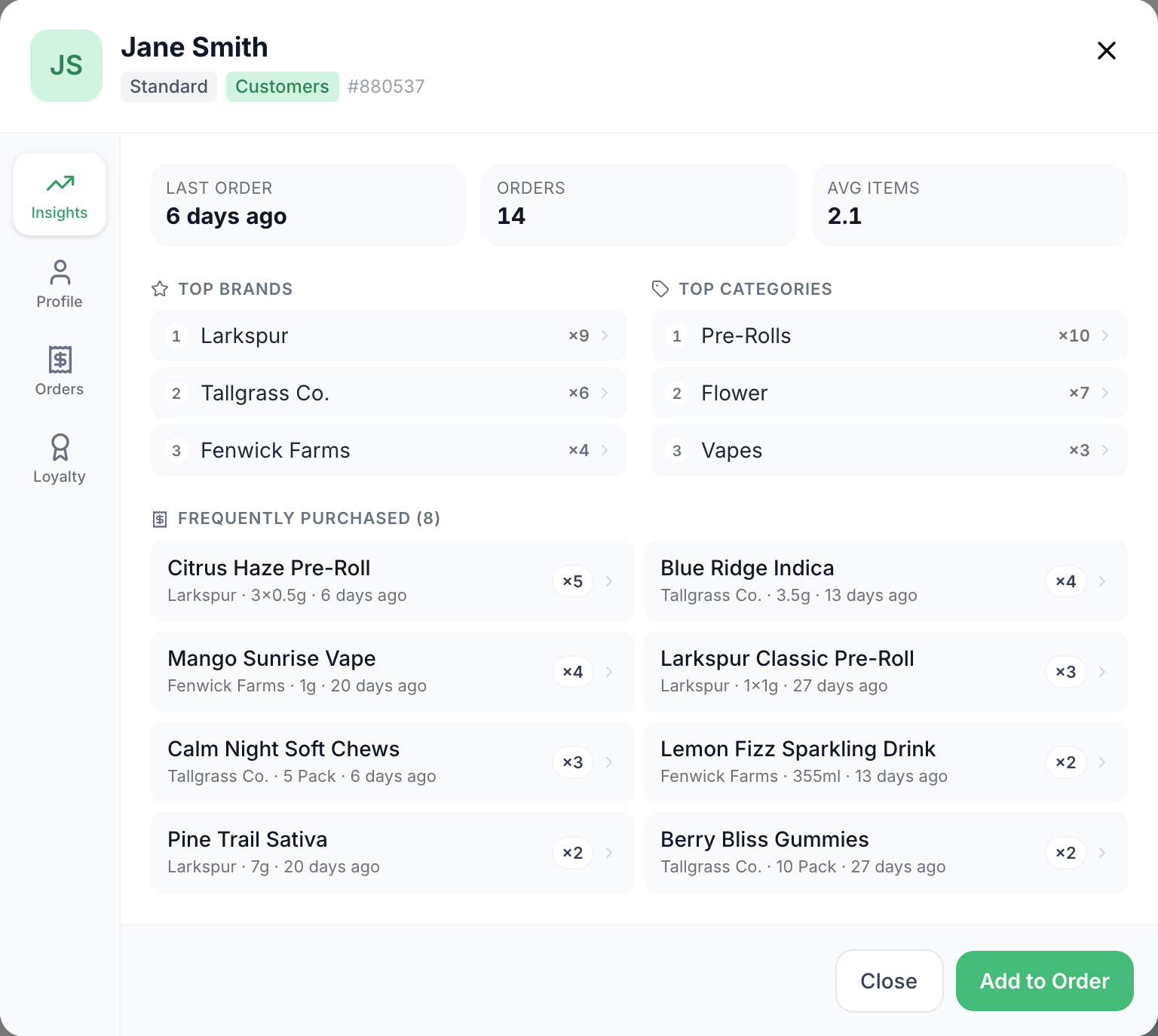
Insights opens first: their last order, how many orders they’ve made, their top brands and categories, and what they buy most often. Tap a brand, category or product to find it on Products.
-
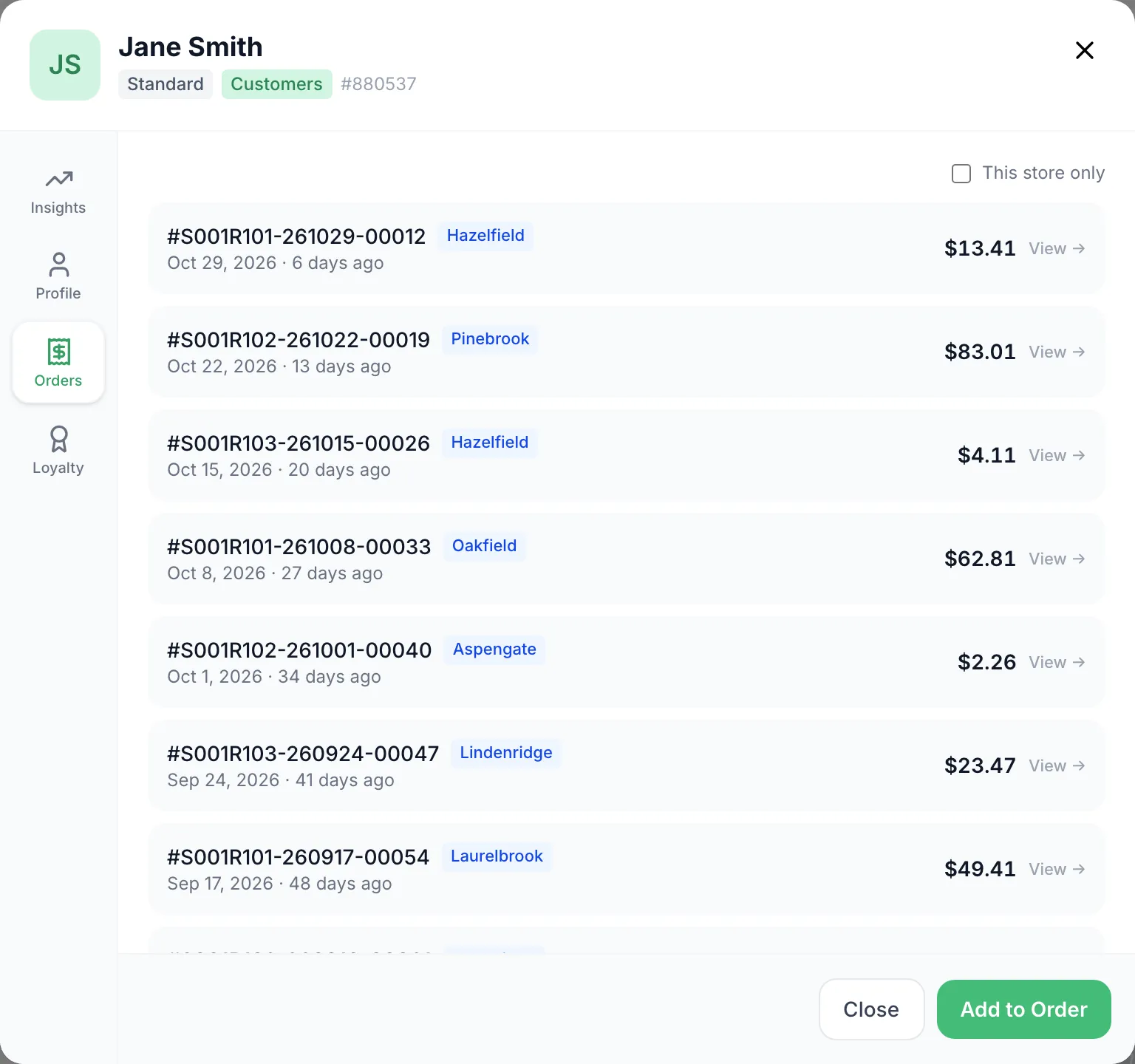
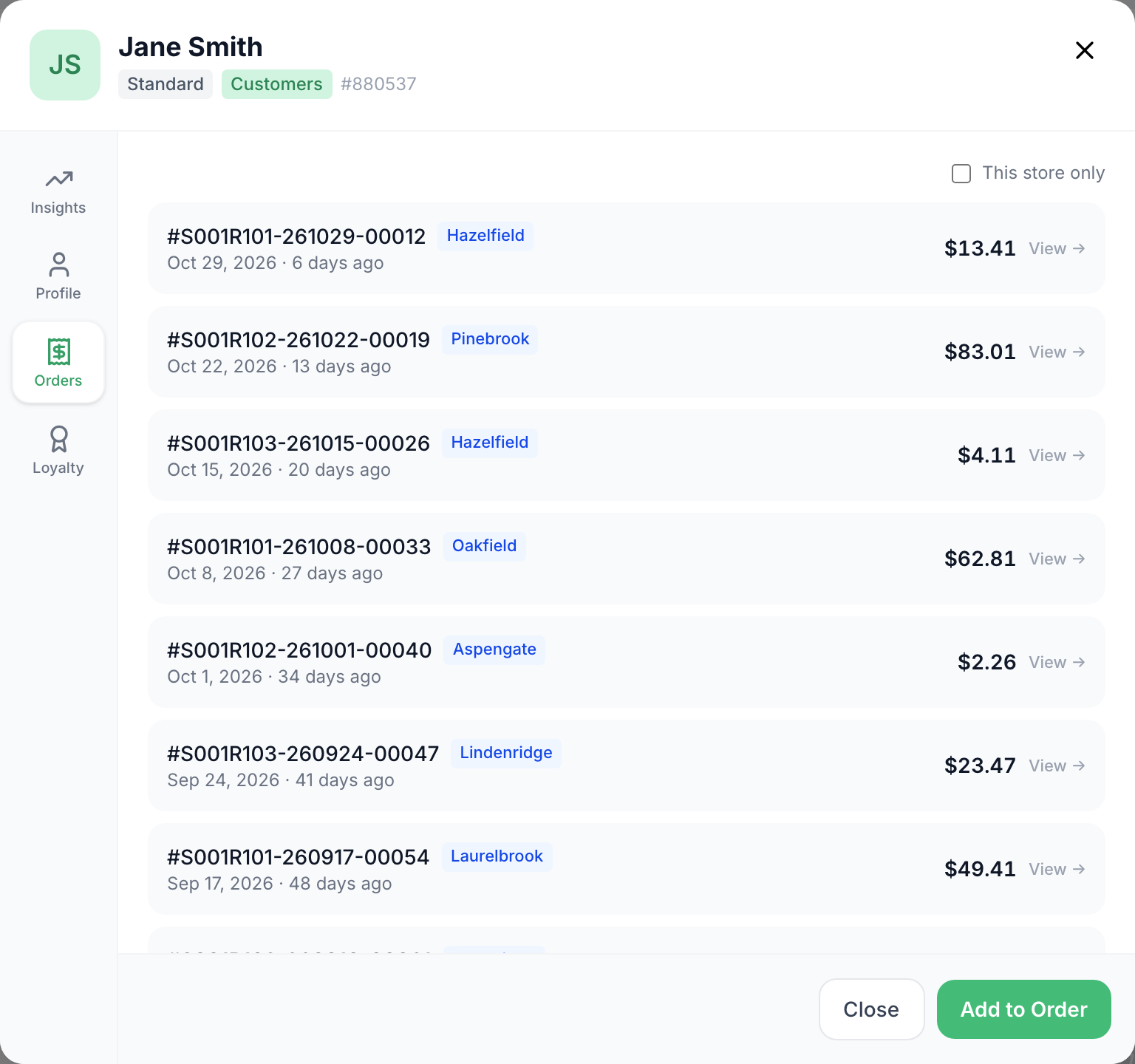
Tap Orders for their past sales, newest first, with the date and total. A sale from another store has that store’s name beside the receipt number. Tap Load more at the bottom for older ones.
-
Tap a sale to open it.
-
Tap Close when you’re done, or Add to Order to put them on the current sale.
Good to know
Section titled “Good to know”- Orders shows sales from every store. Tick This store only to see just yours.
- A sale from another store opens read-only. Refunds and reprints happen at the store that rang it.
- Insights count every store too.