
Add or edit a vendor
Every purchase order and receiving invoice is against a vendor. Add one here before you order from them, or change the details of one you have.
Add a vendor
Section titled “Add a vendor”-
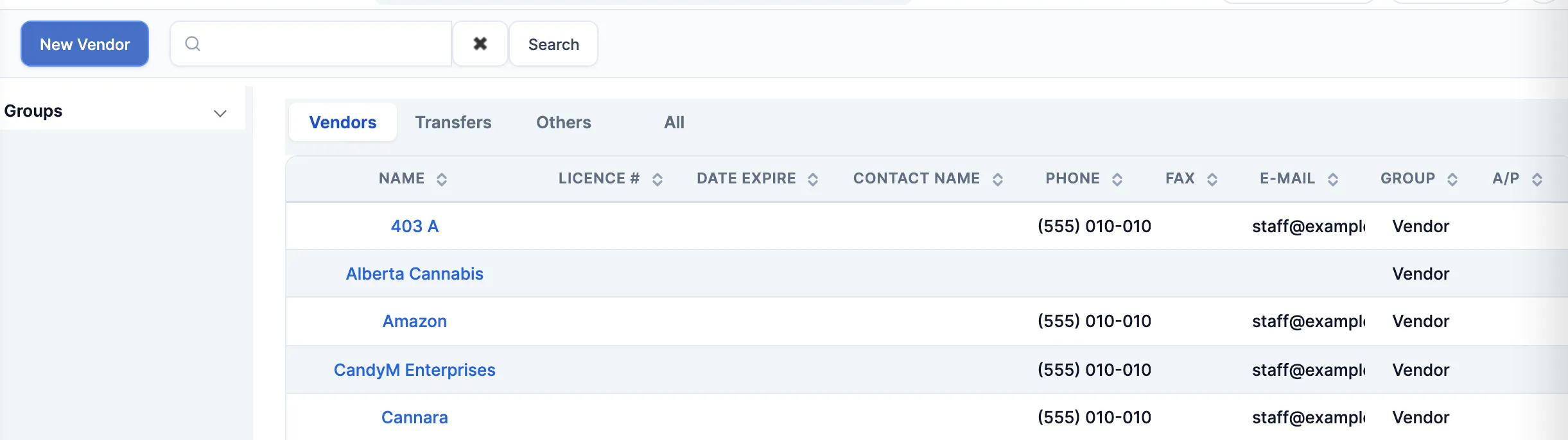
In the menu, click Vendors, then Vendors.
-
Click New Vendor (top left).
-
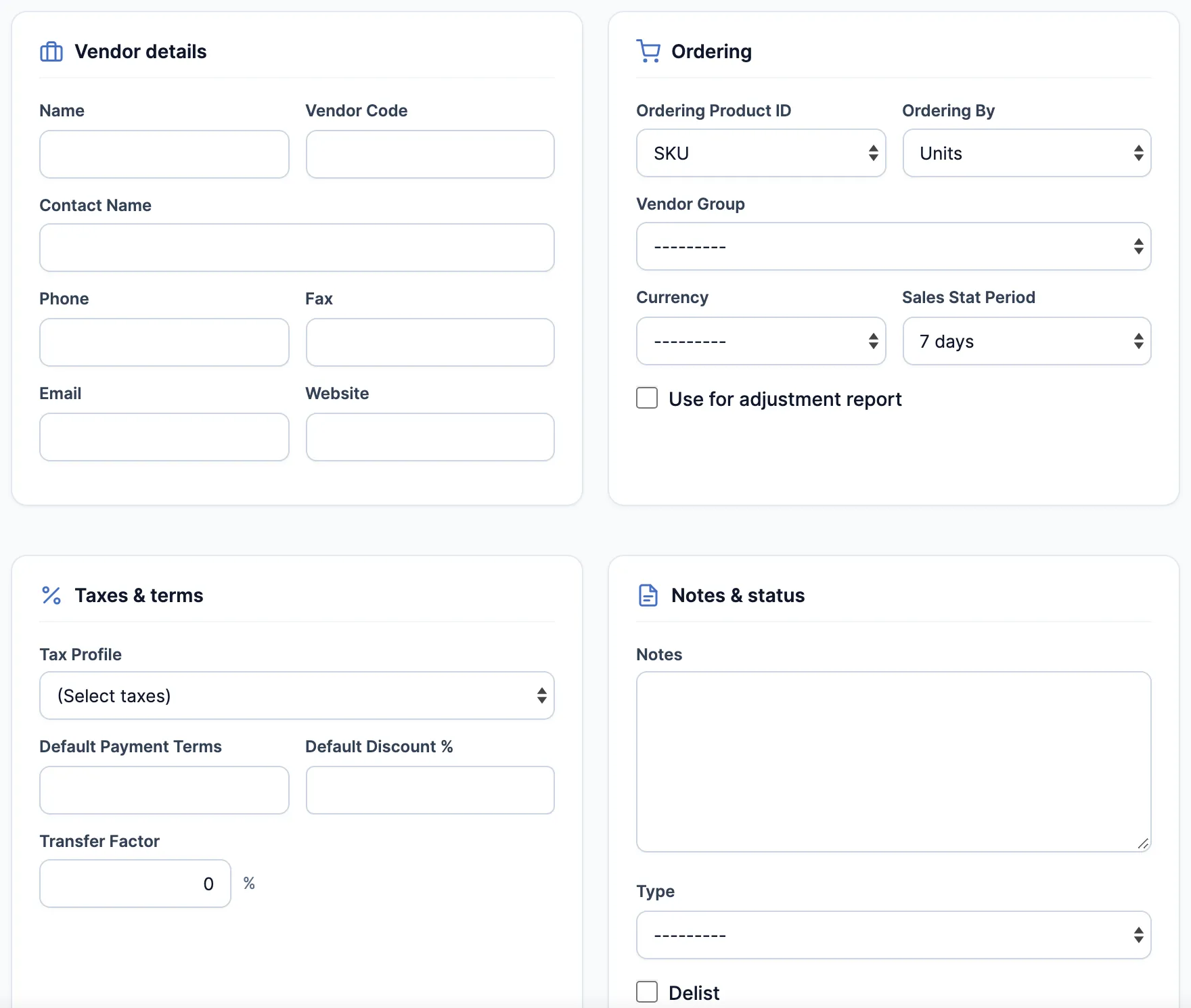
Under Vendor details, type the Name. Add the Vendor Code if the vendor has one (see below), and their Email: it’s where purchase orders are sent.
-
Pick the Vendor Group and Currency.
-
Pick the Tax Profile, then tick the taxes this vendor charges.
-
If you order from them by the case, set Ordering By to Cases.
-
Type their usual terms in Default Payment Terms, like “Net 30”. It’s printed on their purchase orders.
-
Click Save changes.
Name, Vendor Group, Currency and Tax Profile are required. If one is missing, the portal says so when you save.
Edit a vendor
Section titled “Edit a vendor”- In the menu, click Vendors, then Vendors.
- Click the vendor’s name. The editor opens on General.
- Make the change and click Save changes.
The Vendor Code
Section titled “The Vendor Code”The Import menu on a purchase order or receiving invoice reads the code. Type OCS, LDB or AGLC for those vendors, and their own file formats appear under Import. Any other vendor gets Invoice and CSV (SKU, Qty). See Import a supplier shipment file.
Two vendors can’t share a code.
Local Supplier
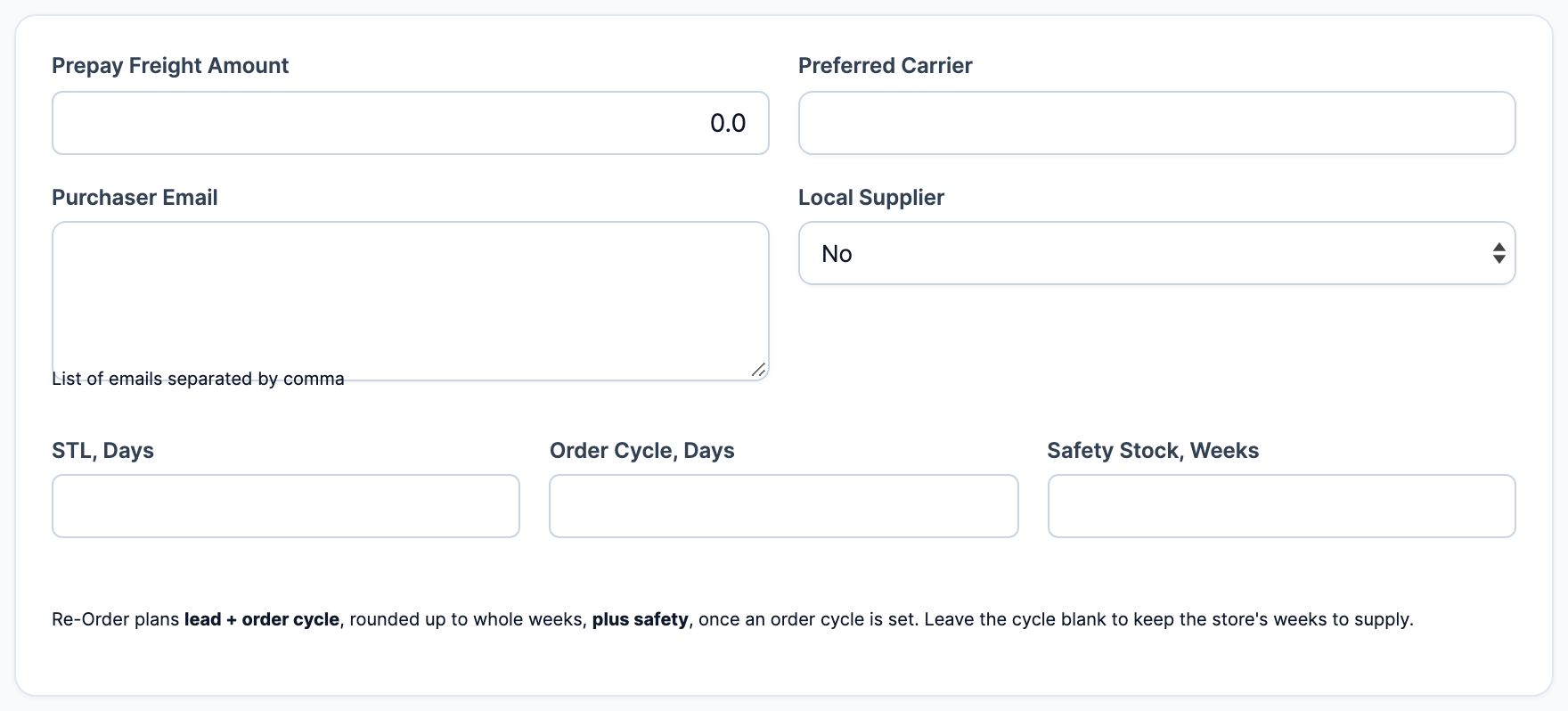
Section titled “Local Supplier”On Other Information, set Local Supplier to Yes for a vendor that staff without the Send Purchasing Order permission may still email orders to.
Product codes and costs for this vendor
Section titled “Product codes and costs for this vendor”To give a product this vendor’s item code and cost, add the vendor on the product’s Alt Barcodes/SKUs tab. See Add an alternative SKU or barcode. The product then shows when you click Load all items for the vendor on their purchase orders.
Good to know
Section titled “Good to know”- Ordering By and Ordering Product ID change for every store, not just yours.
- Saving a new vendor with the Vendor Code of a deleted vendor brings that vendor back with the new details.
- You can also add a vendor while making a purchase order: search in Select Vendor, and click Create new vendor when nothing matches.