
Sign in to the portal
Use this to get into the portal at the back desk or at home. At the register you sign in to the POS with your PIN instead: see Sign in to the POS.
-
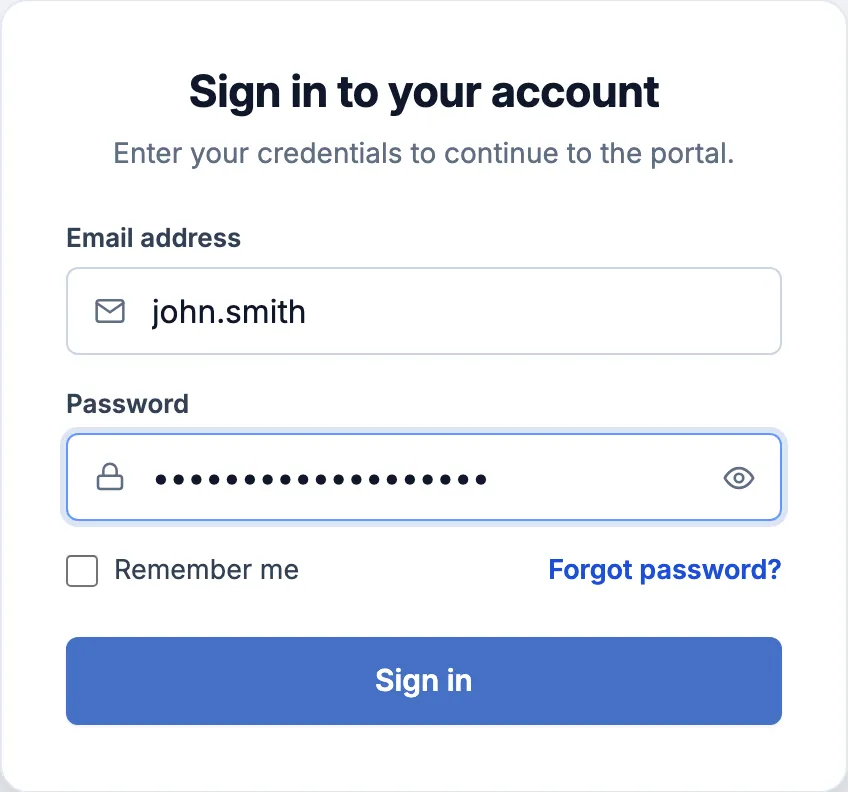
Open your company’s portal address in a browser.
-
In Email address, type your email address or your username.
-
In Password, type your password. If your company signs in with access codes, type your access code here. The eye at the right shows what you typed.
-
Click Sign in.
-
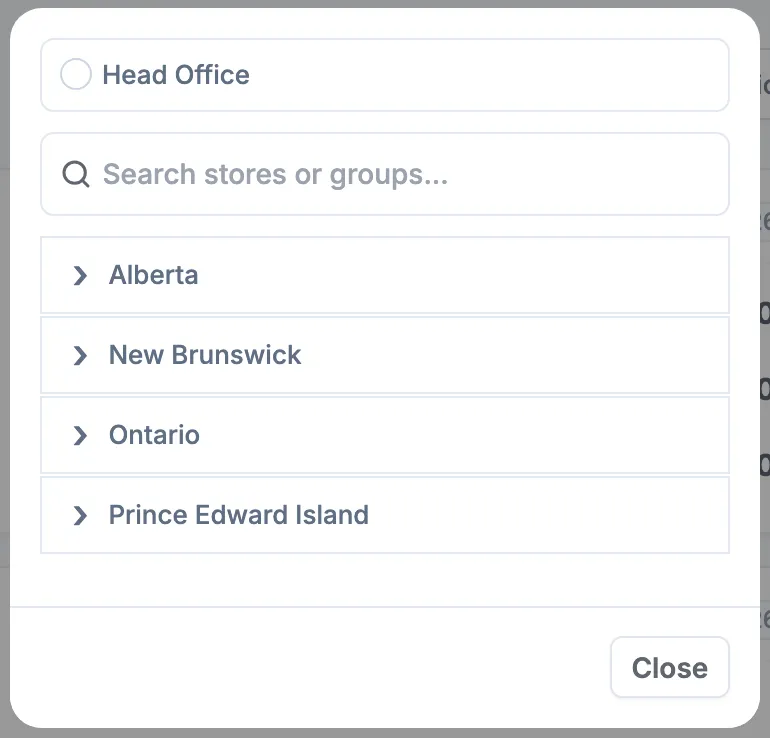
If a list of stores opens, pick the store you’re working at, or click Close to stay where you are. Only staff with Multi-Store Access see it.
If you forgot your password
Section titled “If you forgot your password”-
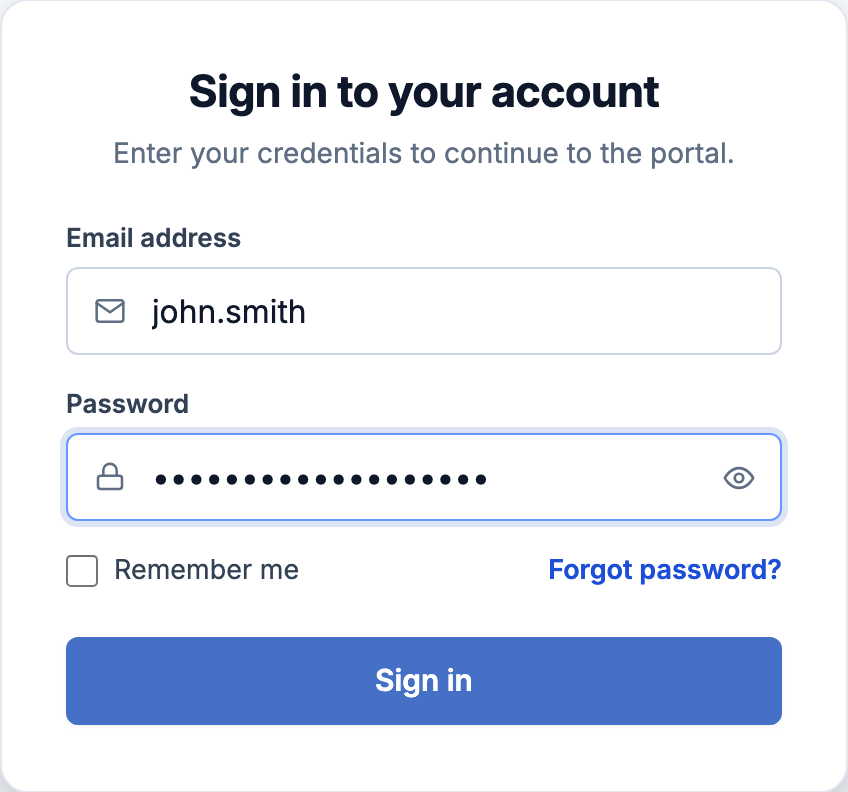
On the sign-in page, click Forgot password?.
-
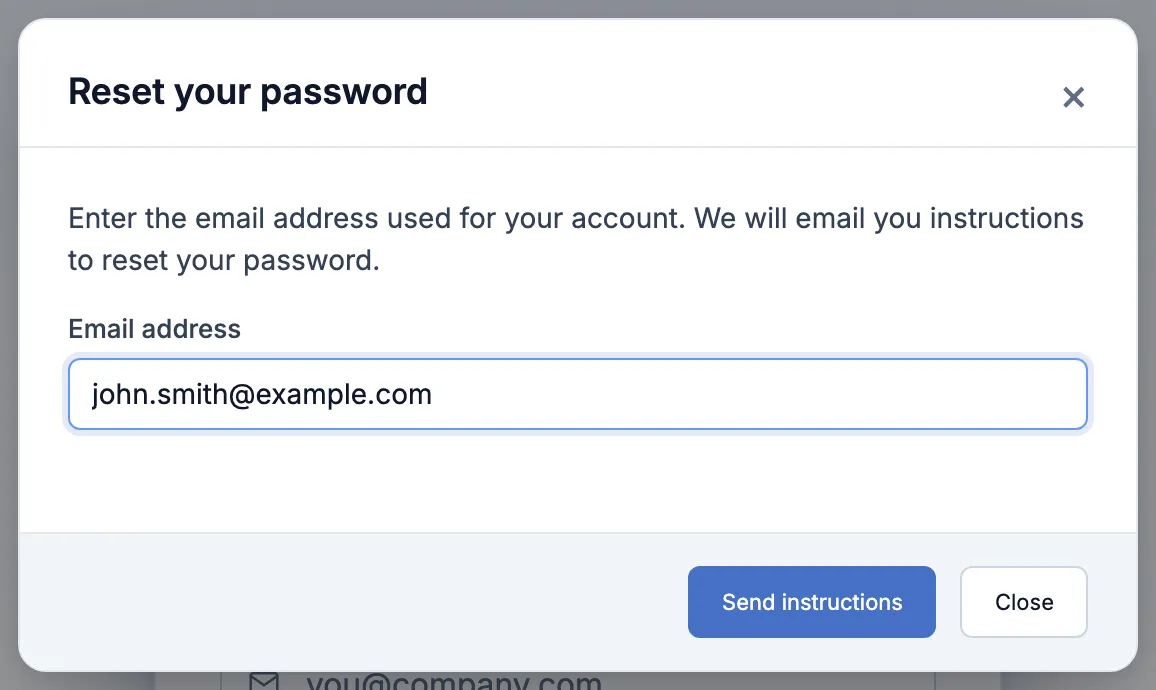
Type the email address on your staff record, in lower case, and click Send instructions.
-
Open the Reset your password email and click Reset password. The link works once, for 2 hours.
-
Type the new password in both boxes and click Save new password, then sign in with it. A password needs 9 to 16 characters, including one special character such as
!or#, and can’t be your username or your old password. If your company uses access codes, the page asks for a new access code instead, numbers only.
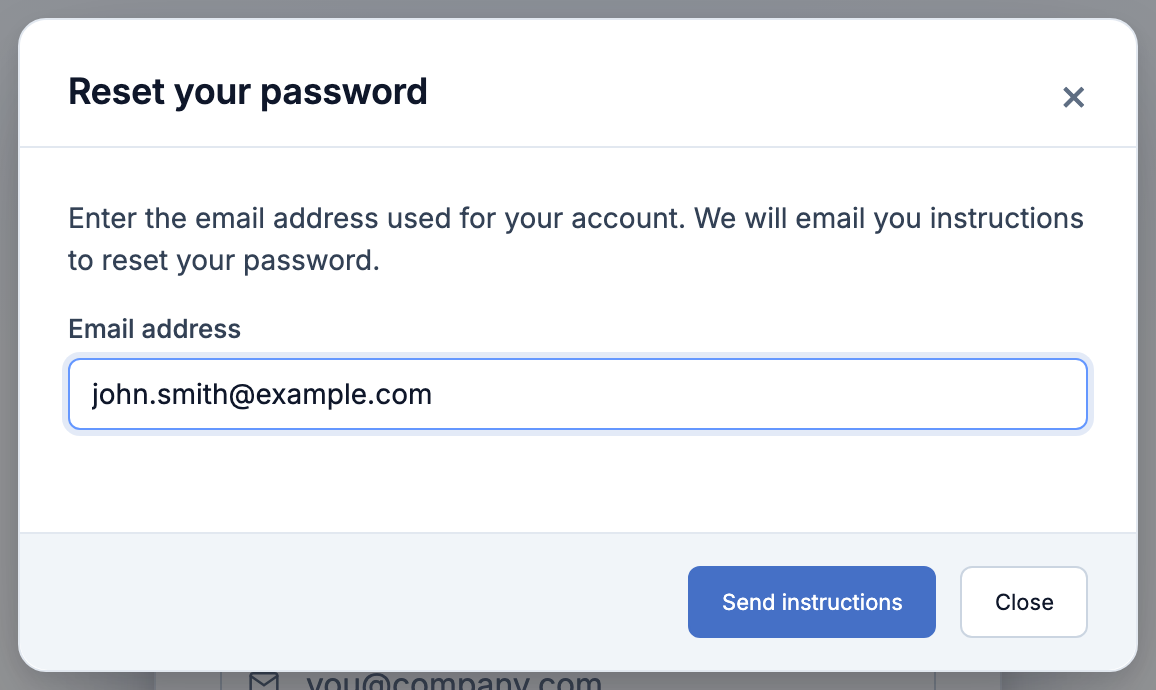
If no email comes, ask a manager to check the Email on your staff record.
Good to know
Section titled “Good to know”- If signing in takes you to the POS instead of the portal, Portal Access is off for you. A manager turns it on in the Access tab of your staff record.
- If you see an error, check your username and password, capitals included. If it still won’t let you in, ask a manager to check that your staff record is active.