
Sign in to the POS
A register remembers its store and register, so most days staff only see the PIN screen. A manager sets up a register once, or again after it was signed out completely.
Set up a register
Section titled “Set up a register”A manager does this once per register.
-
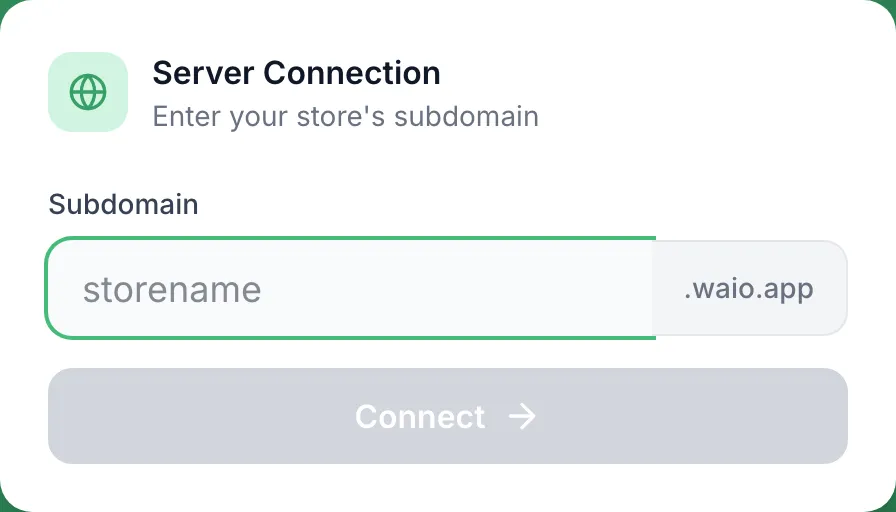
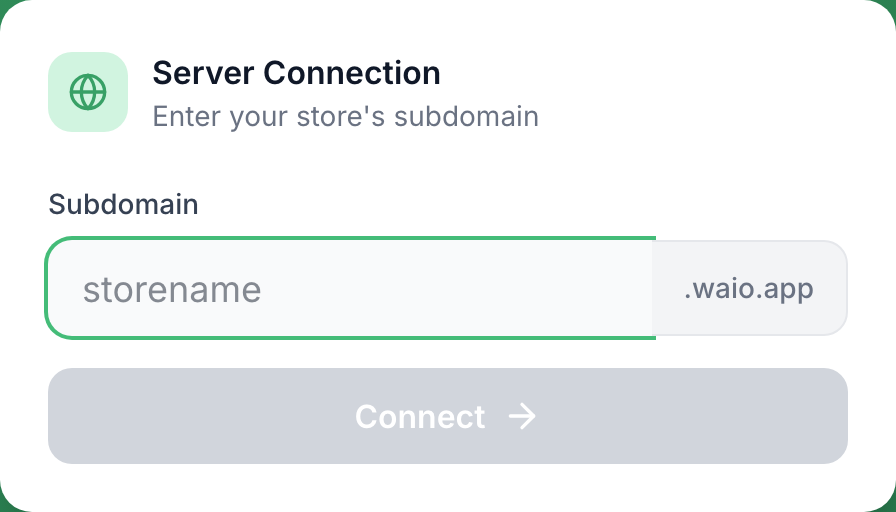
Open the POS. Under Server Connection, type your store’s subdomain, the part before .waio.app, and tap Connect.
-
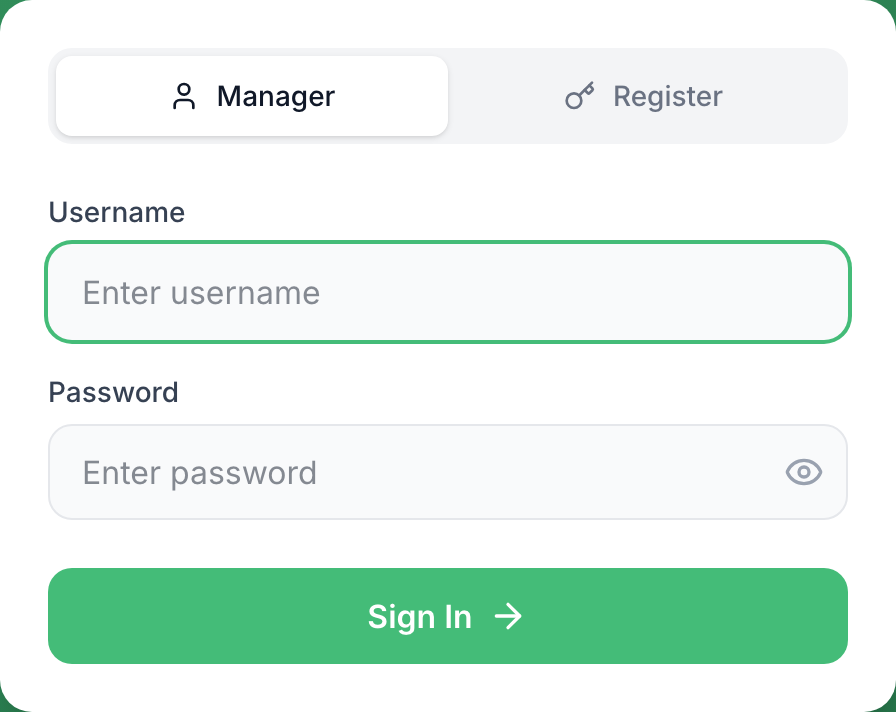
On the Manager tab, enter your portal Username and Password and tap Sign In.
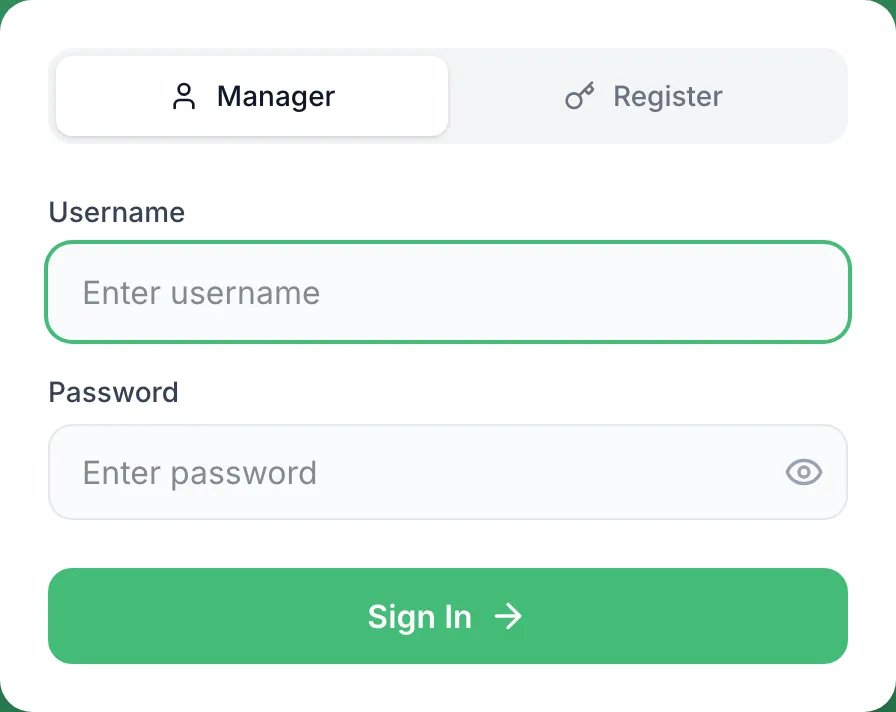
If your store gave this register an API key, use the Register tab and enter the API Key and API Password instead.
-
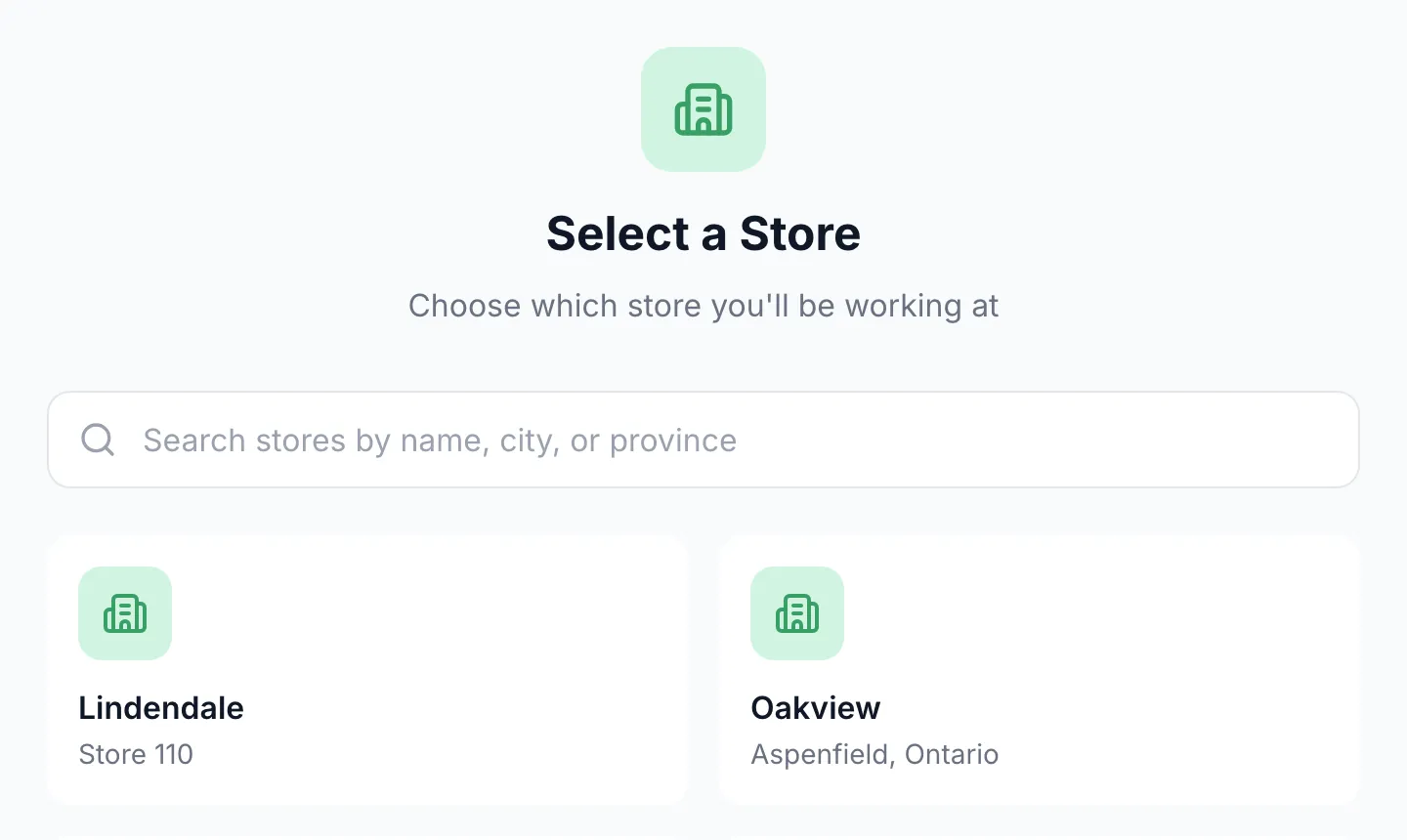
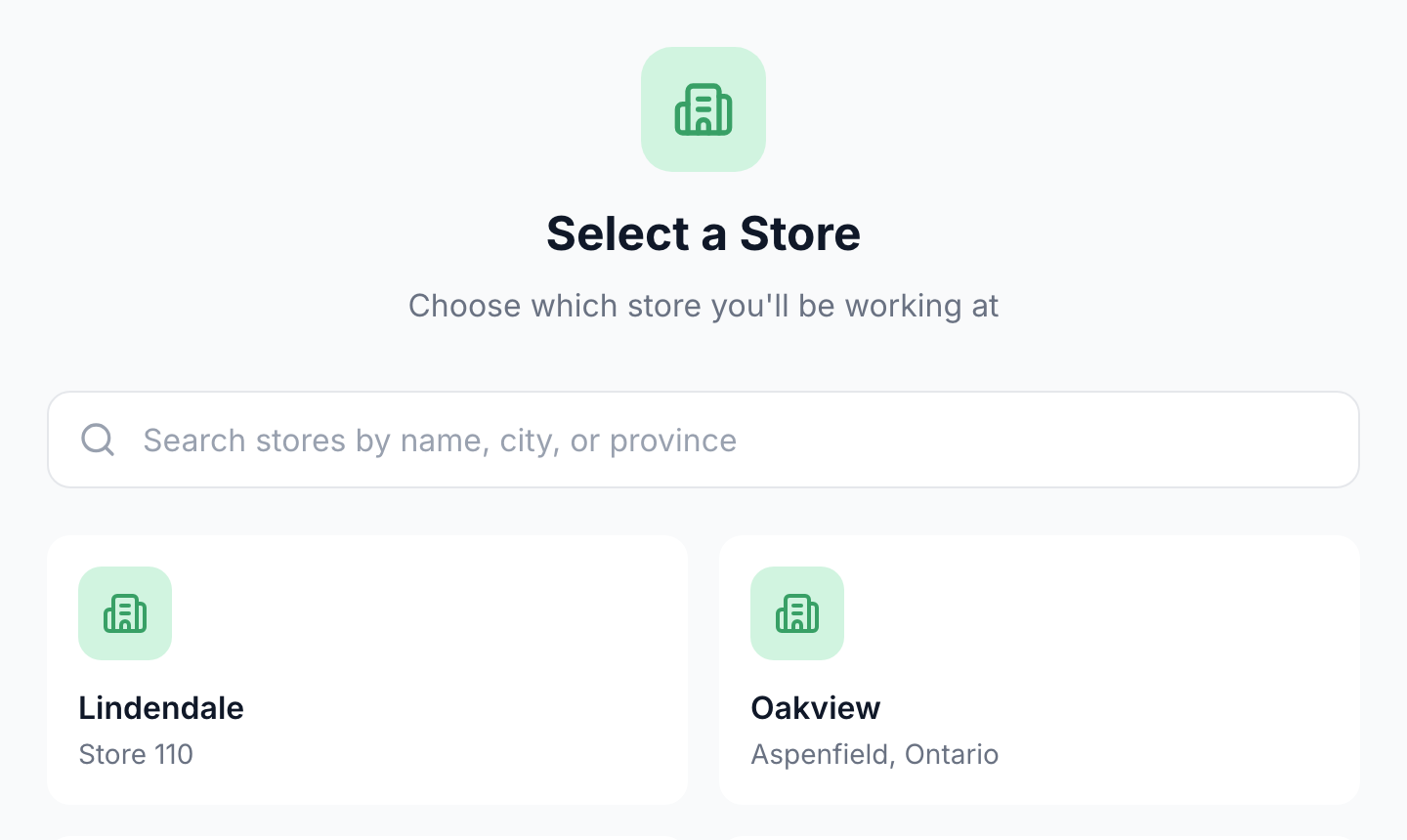
Under Select a Store, search for your store and tap it. You won’t see this if you only have access to one store.
-
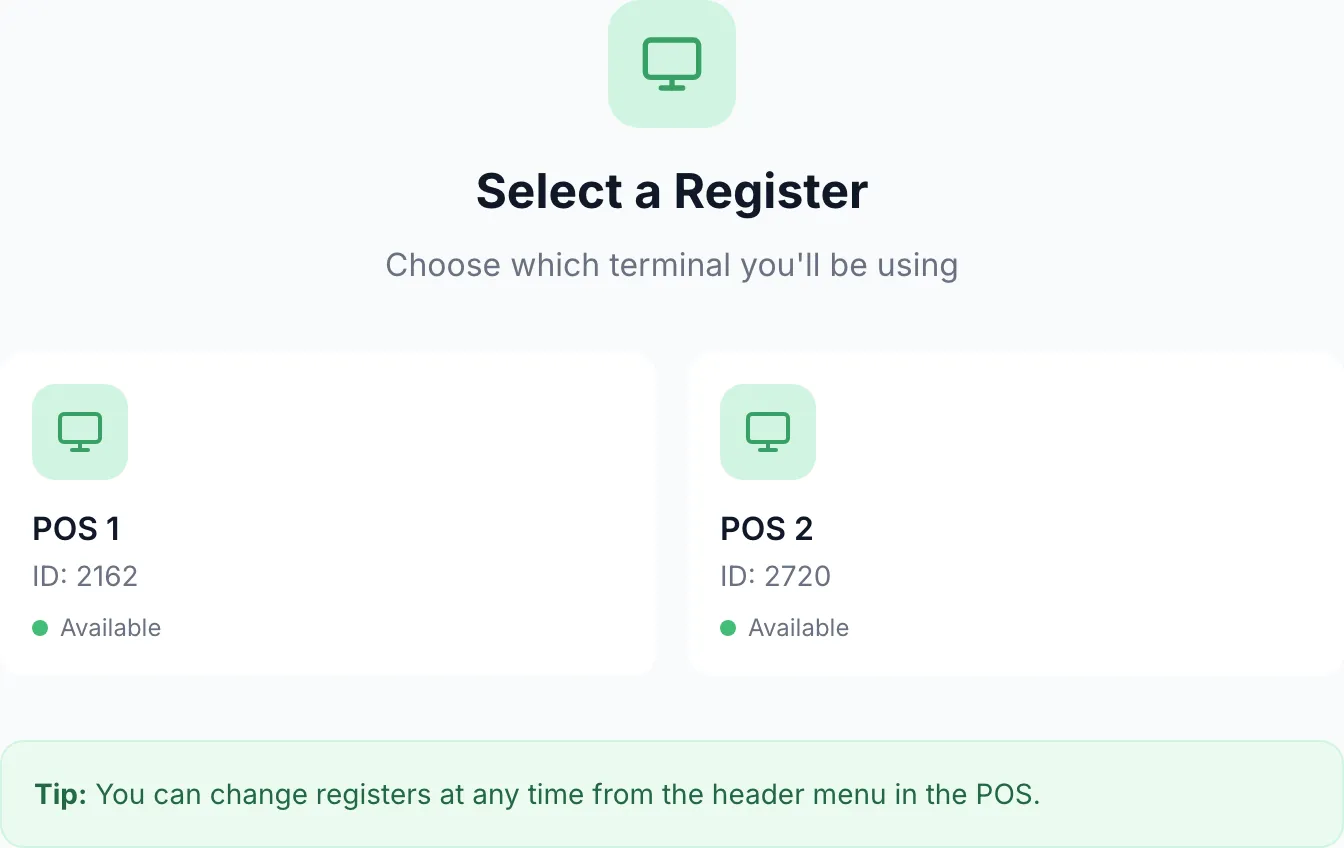
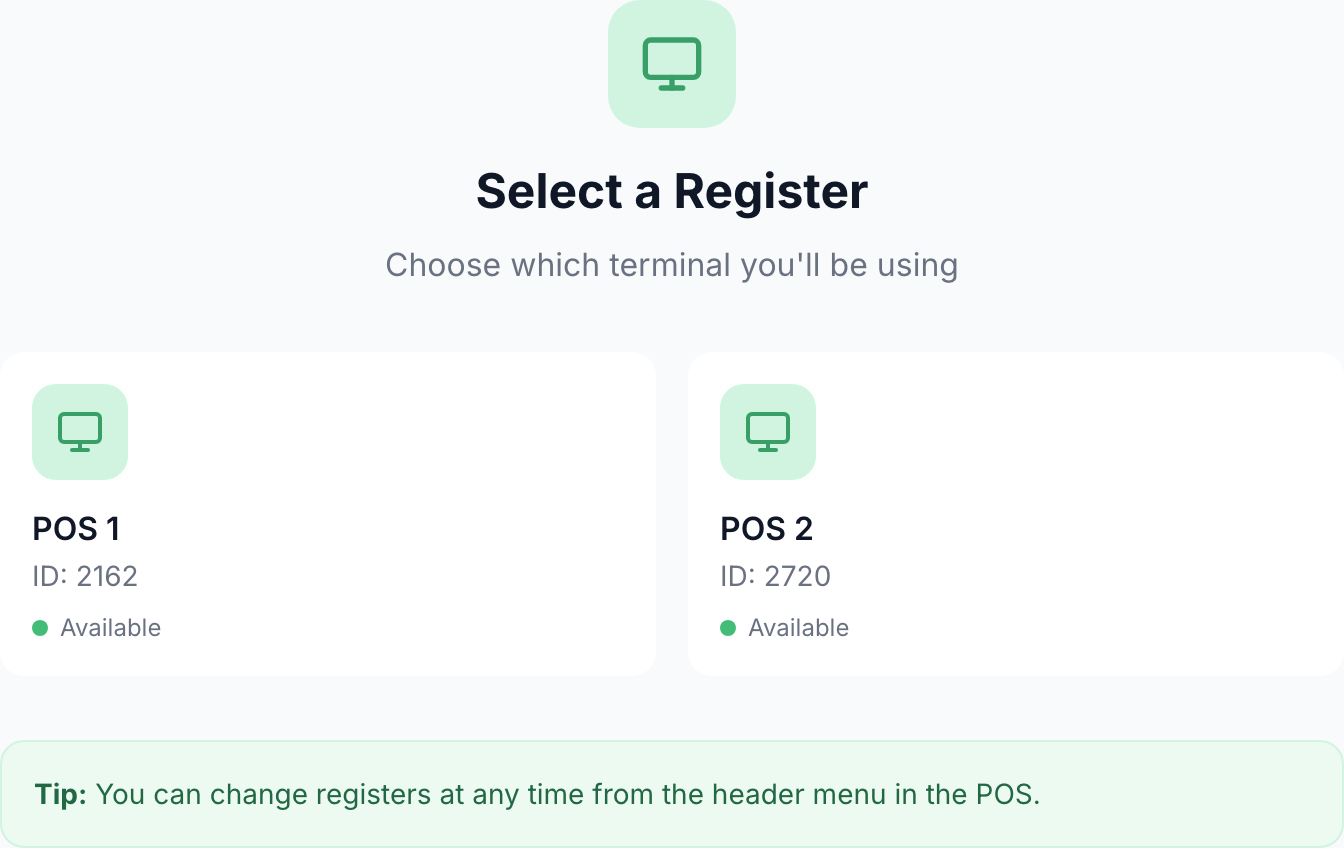
Under Select a Register, tap the register you’re standing at. You won’t see this if the store has only one register.
Sign in with your PIN
Section titled “Sign in with your PIN”-
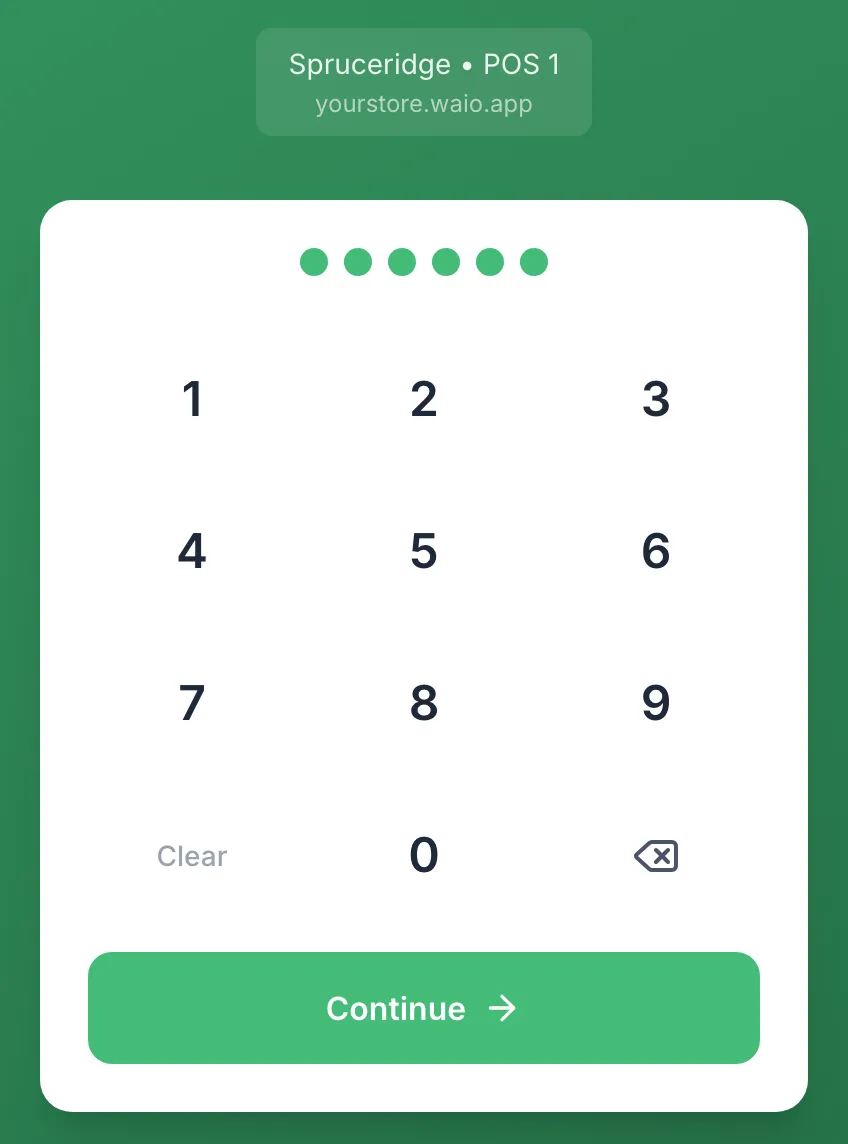
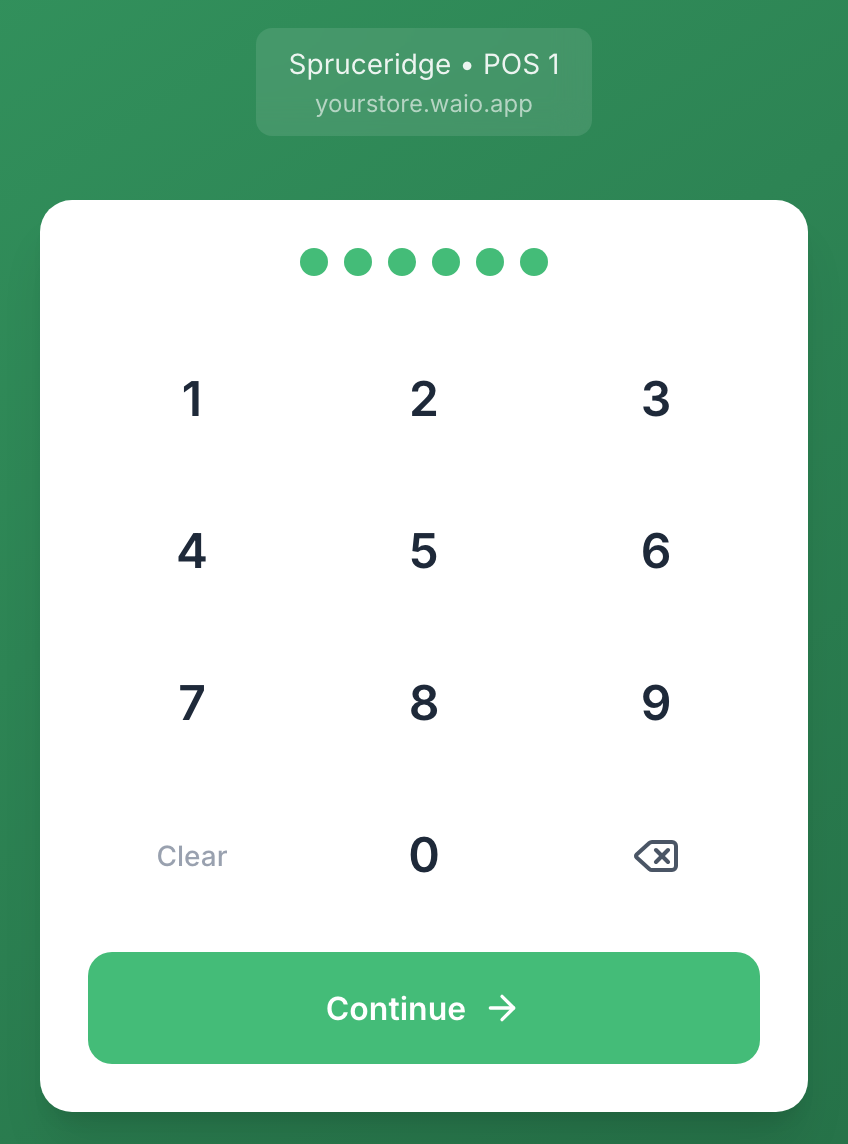
On the PIN screen, check the store and register at the top, enter your PIN and tap Continue.
-
If Cash IN opens, count the drawer. See Cash in at the start of a shift.
Switch staff or sign out
Section titled “Switch staff or sign out”-
Tap the sign-out button at the far right of the top bar.

-
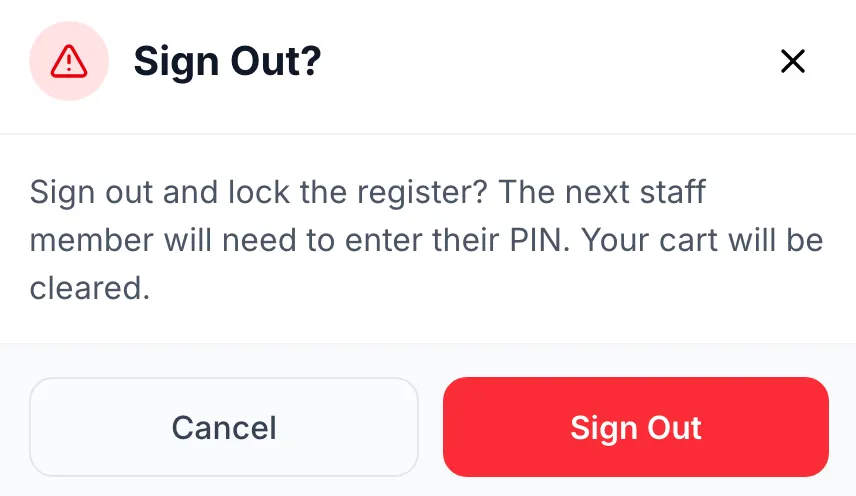
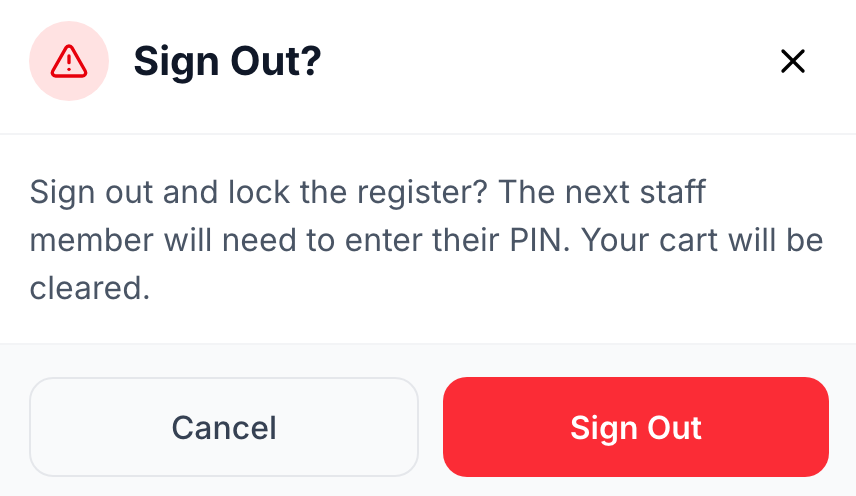
Tap Sign Out. The cart is cleared and the PIN screen opens for the next staff member.

Move to another register
Section titled “Move to another register”- Tap the store name in the top bar.
- Under Select a Register, tap the register you’re moving to. The back arrow returns you to the POS without changing anything.
- PIN Sign-In opens. Enter your PIN and tap Continue.
Good to know
Section titled “Good to know”- Invalid PIN for this store. means no staff member at this store has that PIN. You have no permission to use POS. means POS Login is off for them in the staff editor.
- The POS signs you out after a set time with no activity if your store has that turned on. Enter your PIN to carry on.
- To sign a register out completely, for example to connect it to another store: on the PIN screen tap Change Register (or Change Store), then your name at the top right, then Logout. On a store with one register the PIN screen may show Logout itself.