
Deactivate someone who left
Turn off Is Active when someone stops working for you. They can’t sign in to the portal or the POS any more, and their sales, receipts and time records stay under their name.
-
In the menu, click Staff.
-
In Search (right), type their name or username, then click their name.
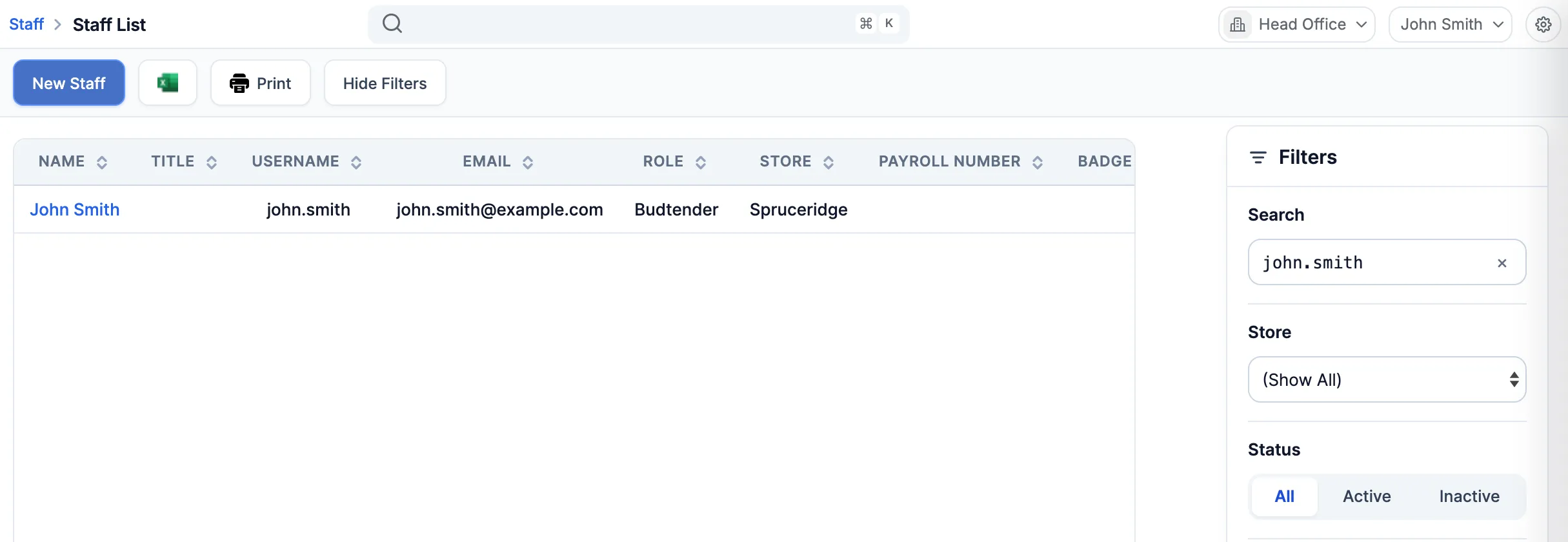
-
On the General tab, scroll to the bottom and turn off Is Active. The label beside their name changes to Inactive.
-
Click Save Changes.
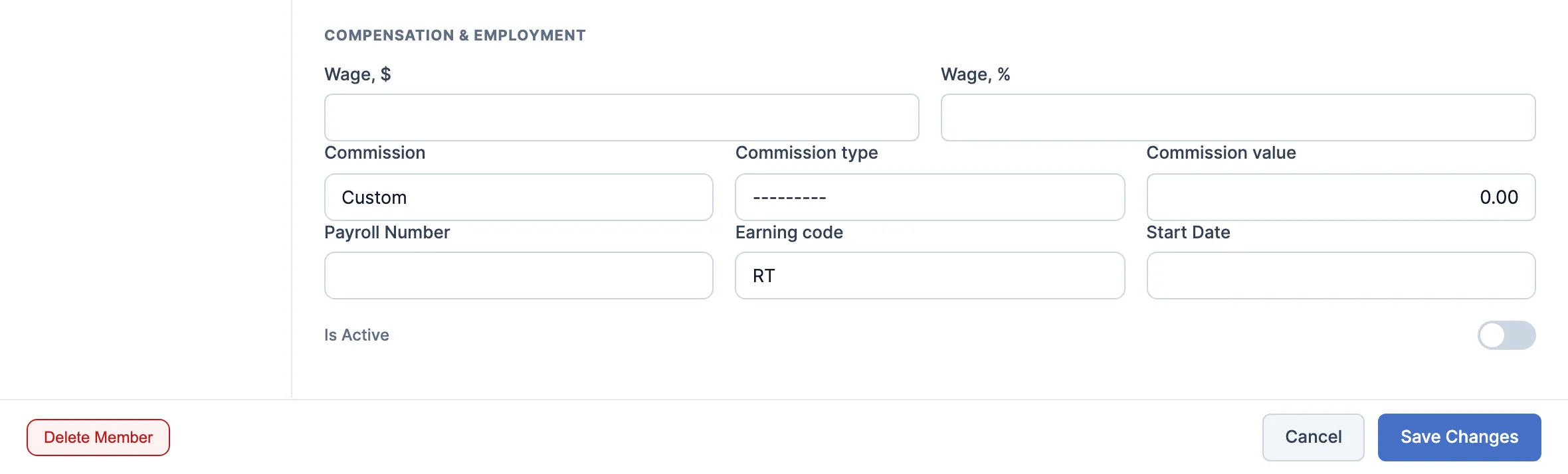
-
If they’re signed in at a register, sign them out there.
Once saved:
- Their PIN no longer works on the POS, including for manager approvals.
- They can’t sign in to the portal, the POS as a manager, or the Inventory app.
Bring someone back
Section titled “Bring someone back”- In the menu, click Staff.
- Under Status (right), click Inactive.
- Click their name, turn on Is Active and click Save Changes. Their username, password and PIN work again as they were.
Good to know
Section titled “Good to know”- Don’t use Delete Member for someone who left. A deleted staff member disappears from the staff list and can’t be brought back from the portal, and their username and PIN can then be given to someone else.
- While someone is inactive, nobody else can be given their username or PIN.