
Discount an item or the whole sale
Use an item discount when one product is cheaper for this customer, for example a price match. Use a sale discount for money off everything in the cart. Add the customer to the sale first: changing the customer afterwards can clear the discounts you entered.
One item
Section titled “One item”-
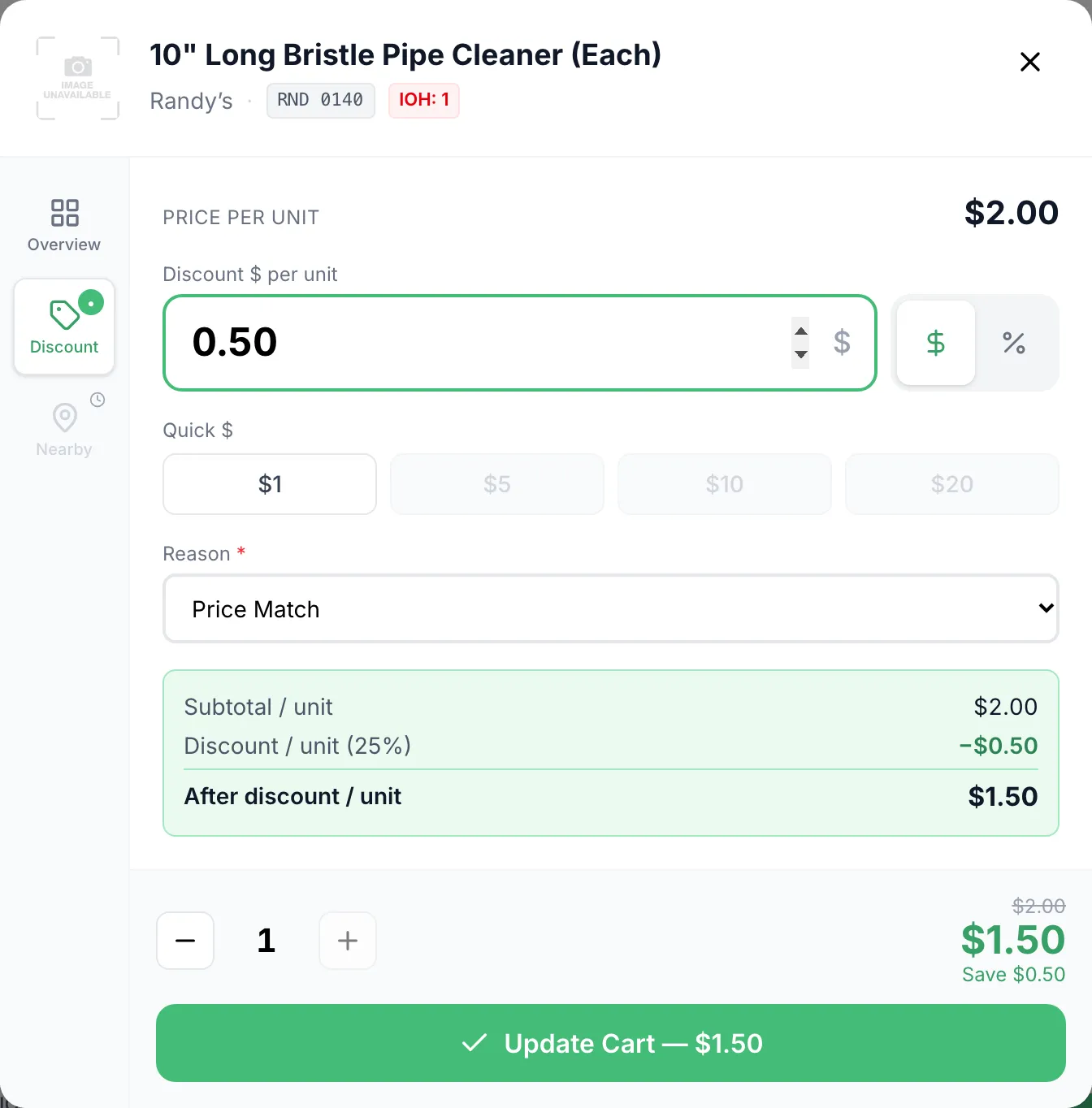
Tap the item in the cart. Its product window opens.
-
Tap Discount (left side).
-
Type the discount per unit. It starts in dollars; tap % to enter a percent instead. Quick $ and Quick % fill in common amounts.
-
Pick a Reason, for example Price Match. An item discount can’t be saved without one.
-
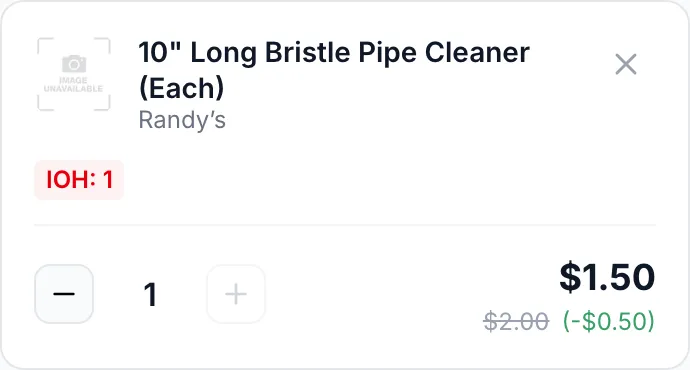
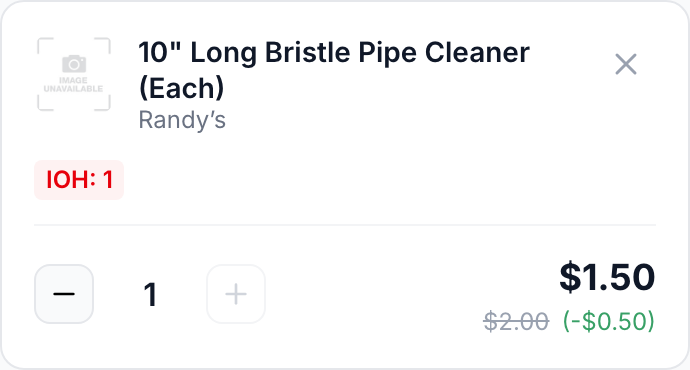
Tap Update Cart. The cart shows the old price struck out and the saving beside it.
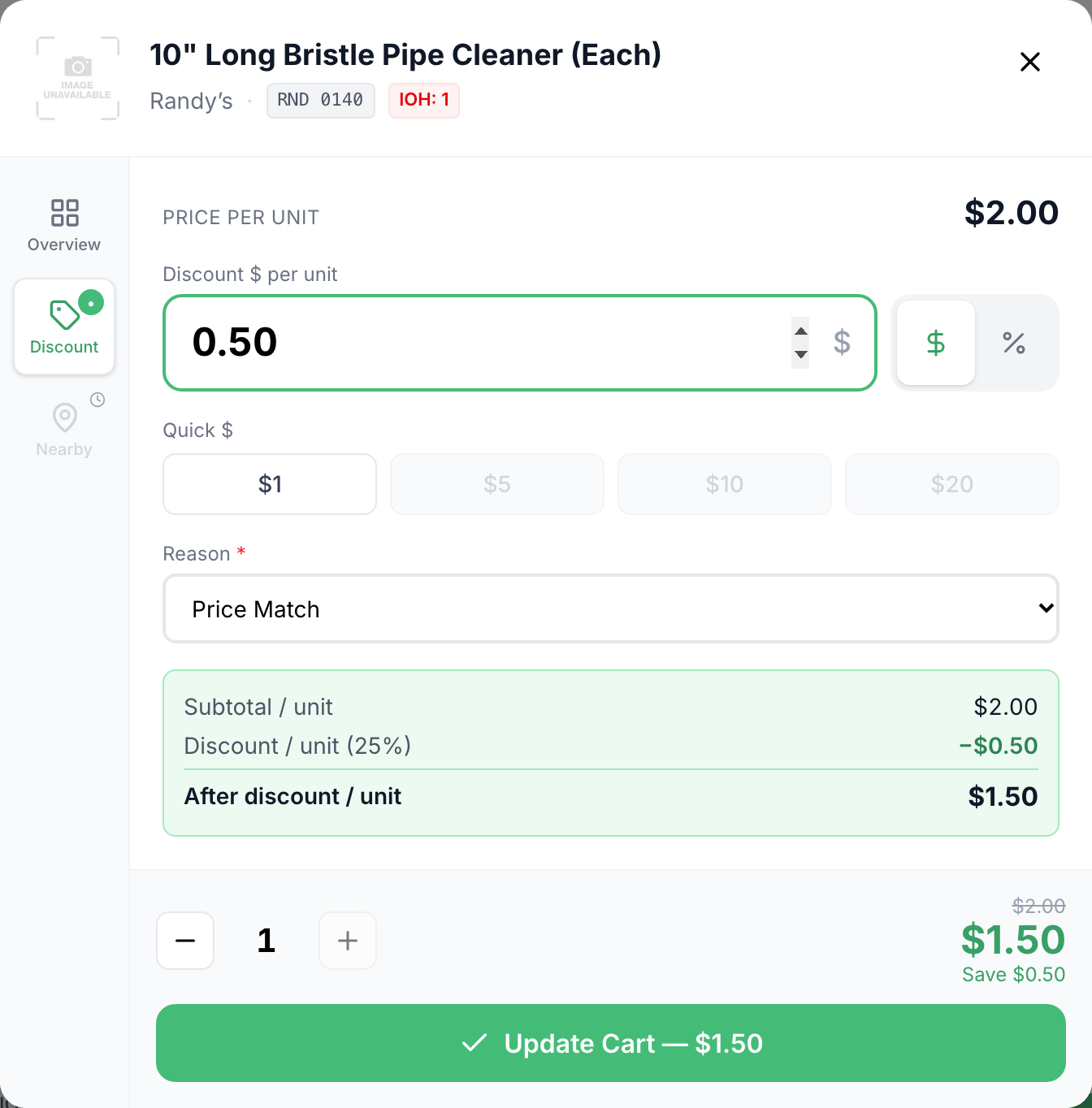
You can also discount an item before it goes in the cart: tap the product on Products and use the same Discount tab before Add to Cart.
The whole sale
Section titled “The whole sale”-
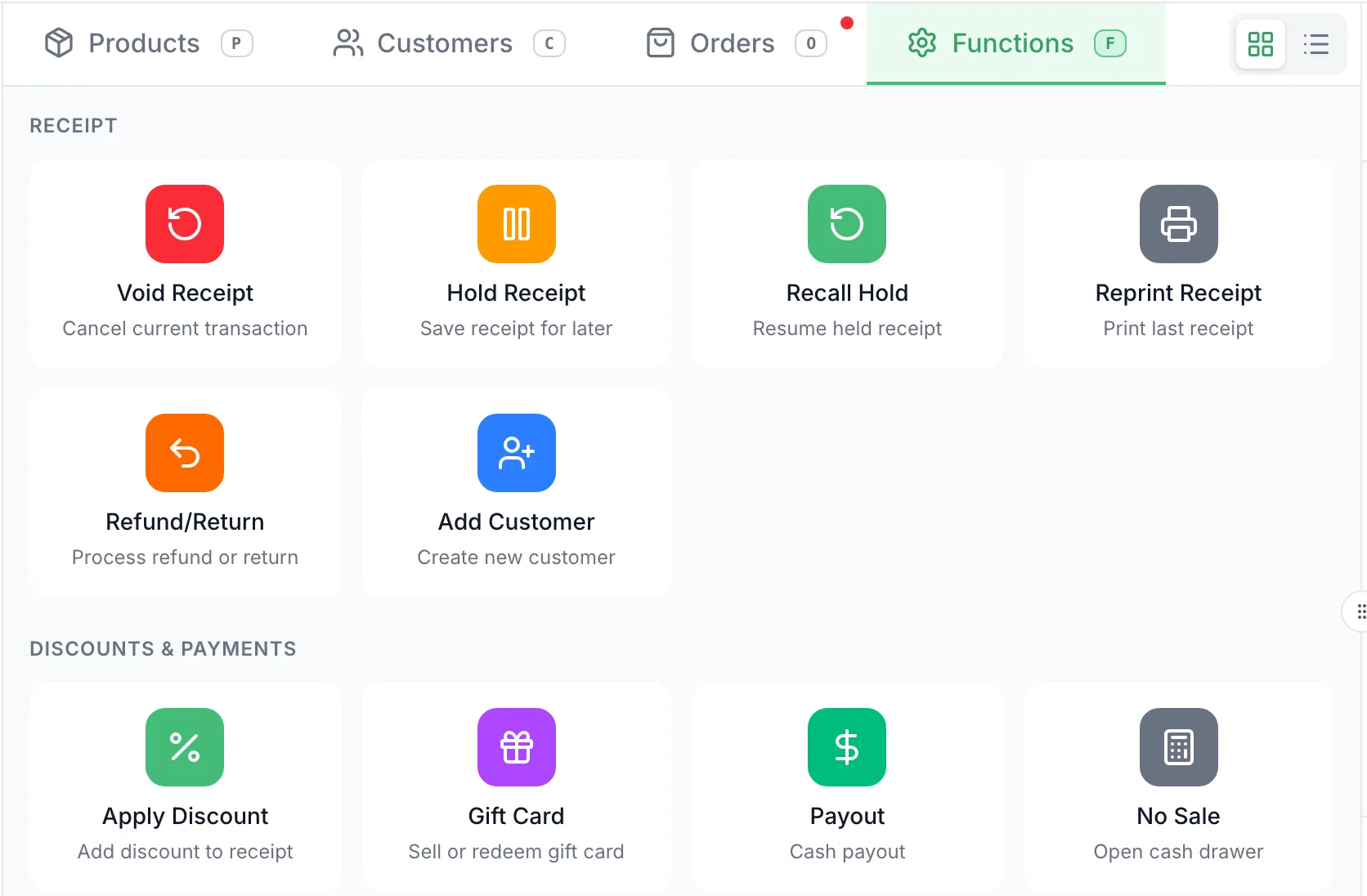
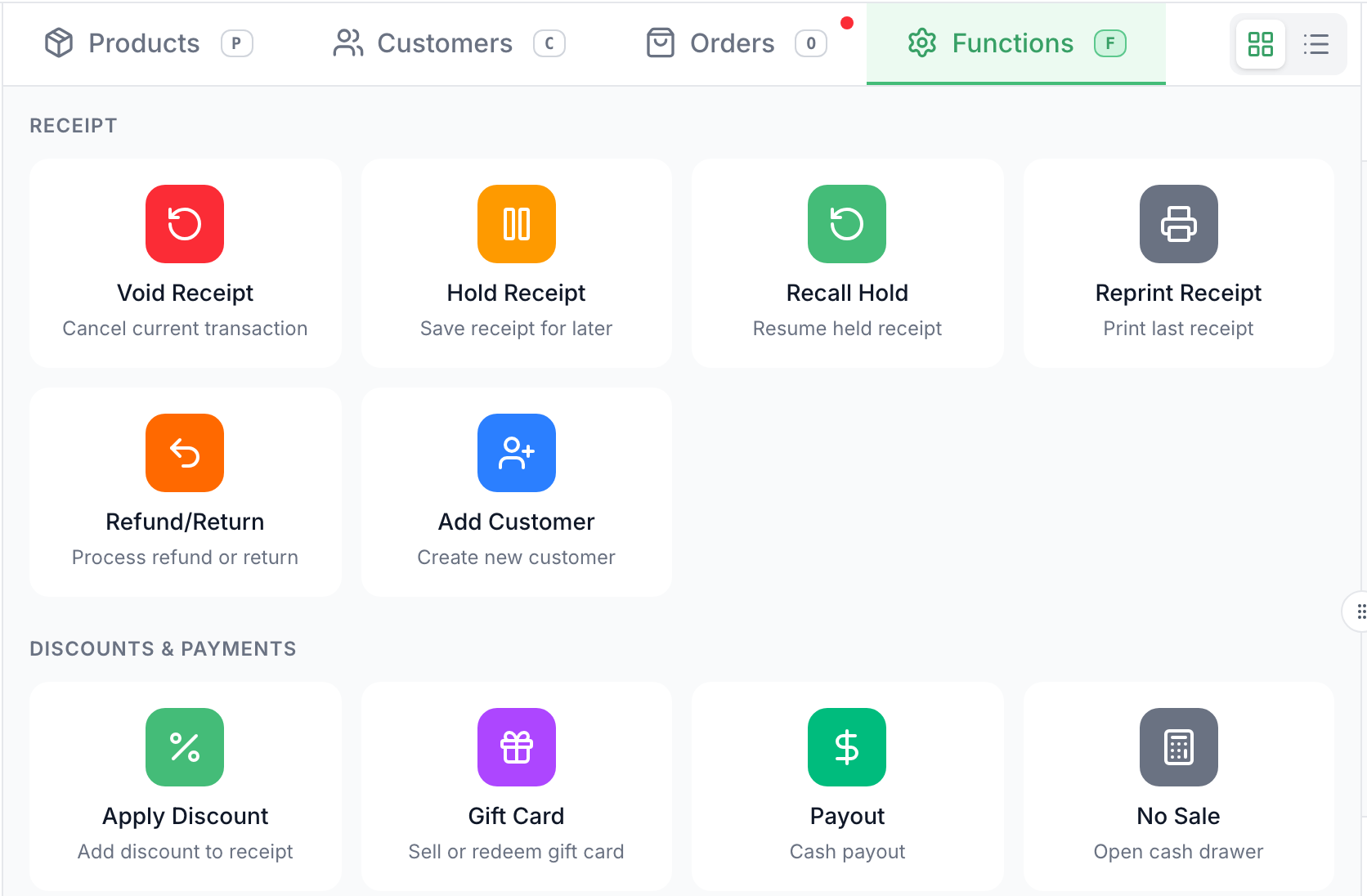
Open Functions and tap Apply Discount.
-
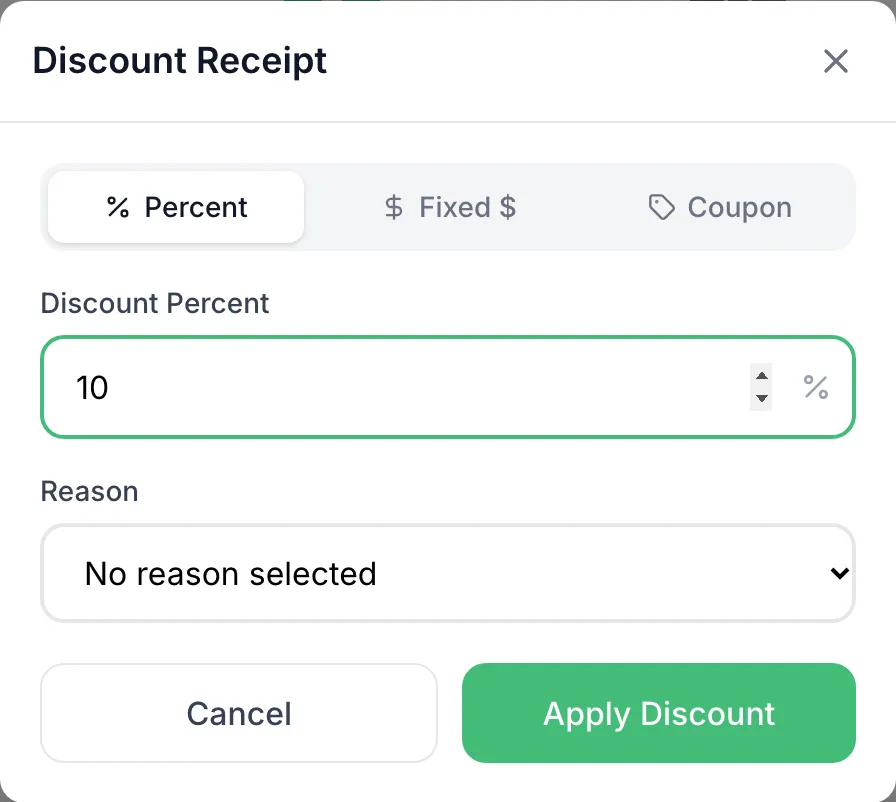
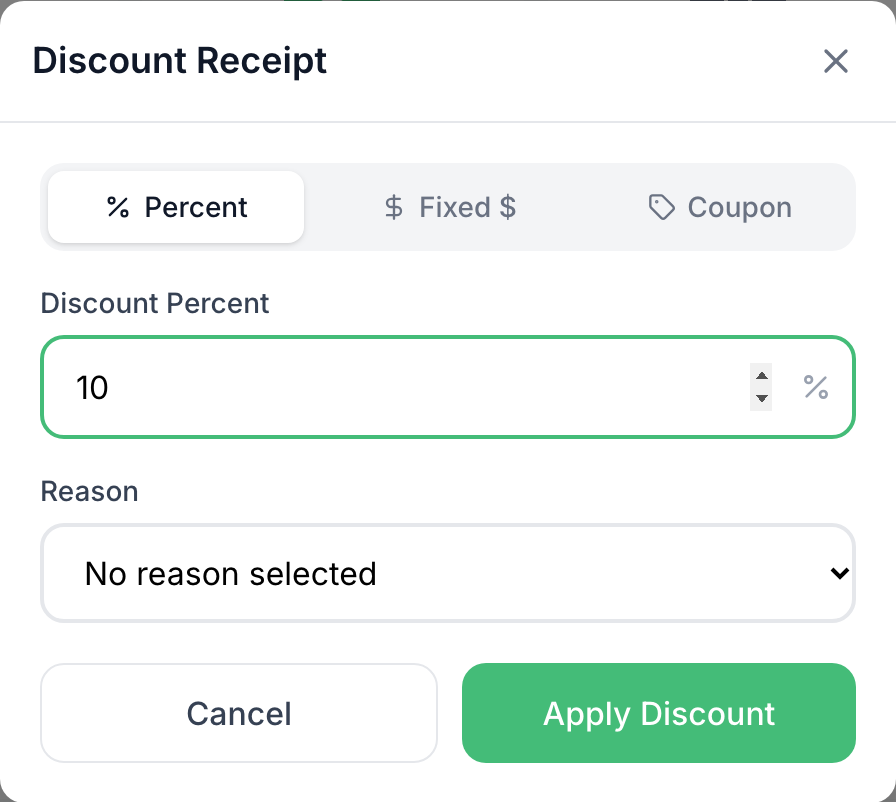
In Discount Receipt, pick Percent or Fixed $, then type the amount. A Reason is optional here.
- A customer’s coupon code goes under Coupon instead.
-
Tap Apply Discount. The cart gets a Discount line under the subtotal. To take it off, tap the × beside it.


When it’s over your limit
Section titled “When it’s over your limit”Each staff member can have a discount limit, set as a percent on their staff profile. A discount over it needs a manager.
-
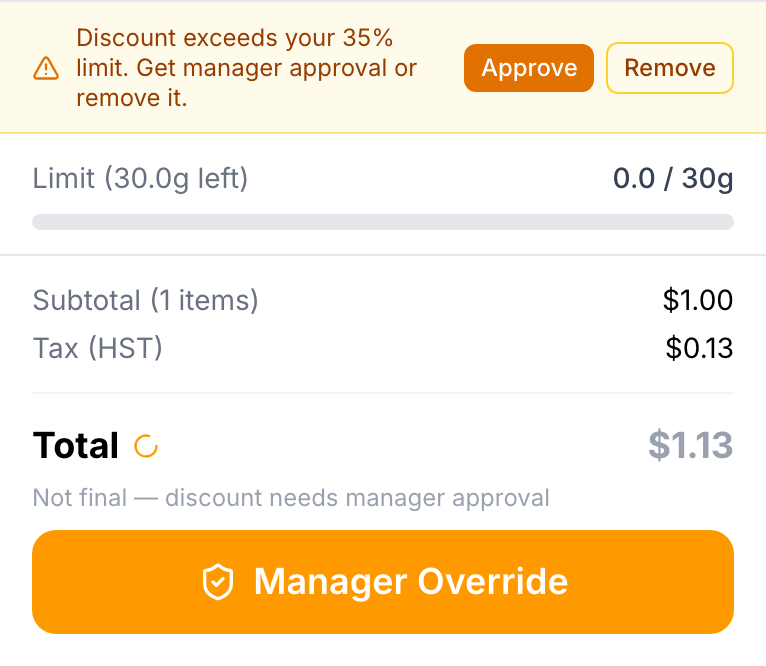
If the cart shows Discount exceeds your …% limit, tap Approve (or Manager Override, where Checkout usually is). To drop the discount instead, tap Remove.
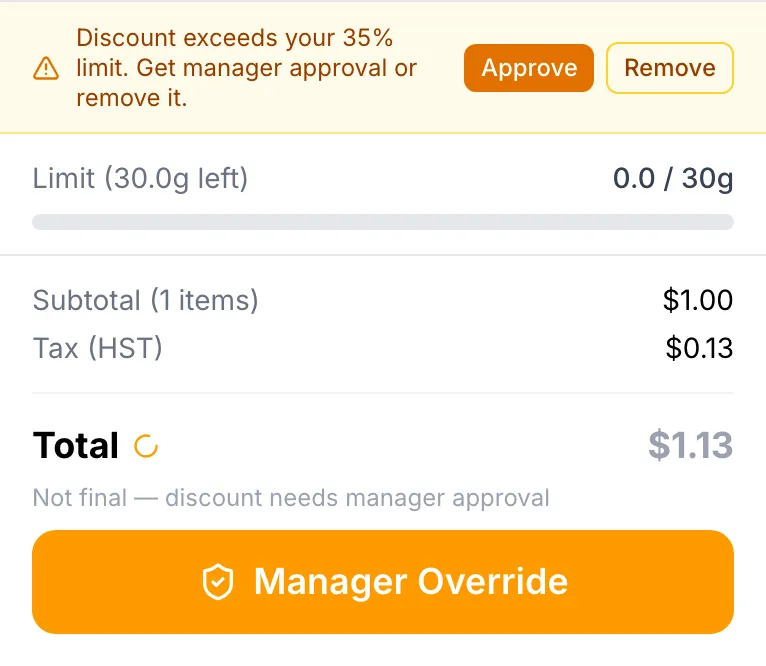
-
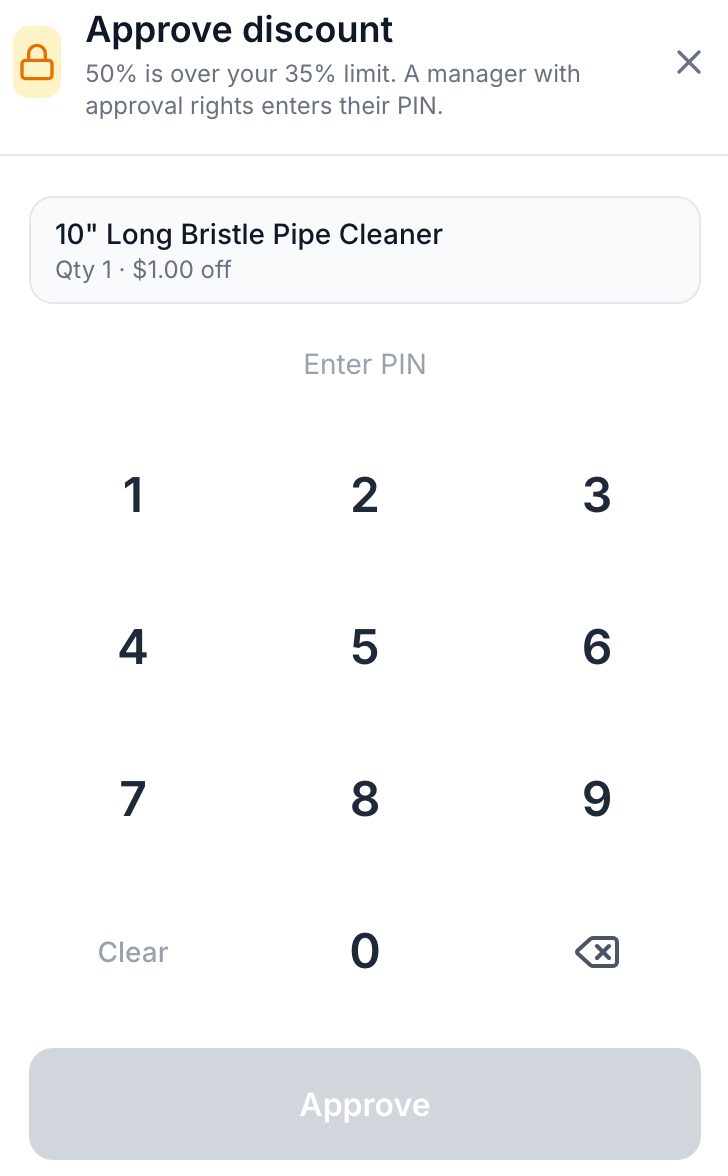
A manager enters their PIN and taps Approve. The window lists exactly what they’re approving.
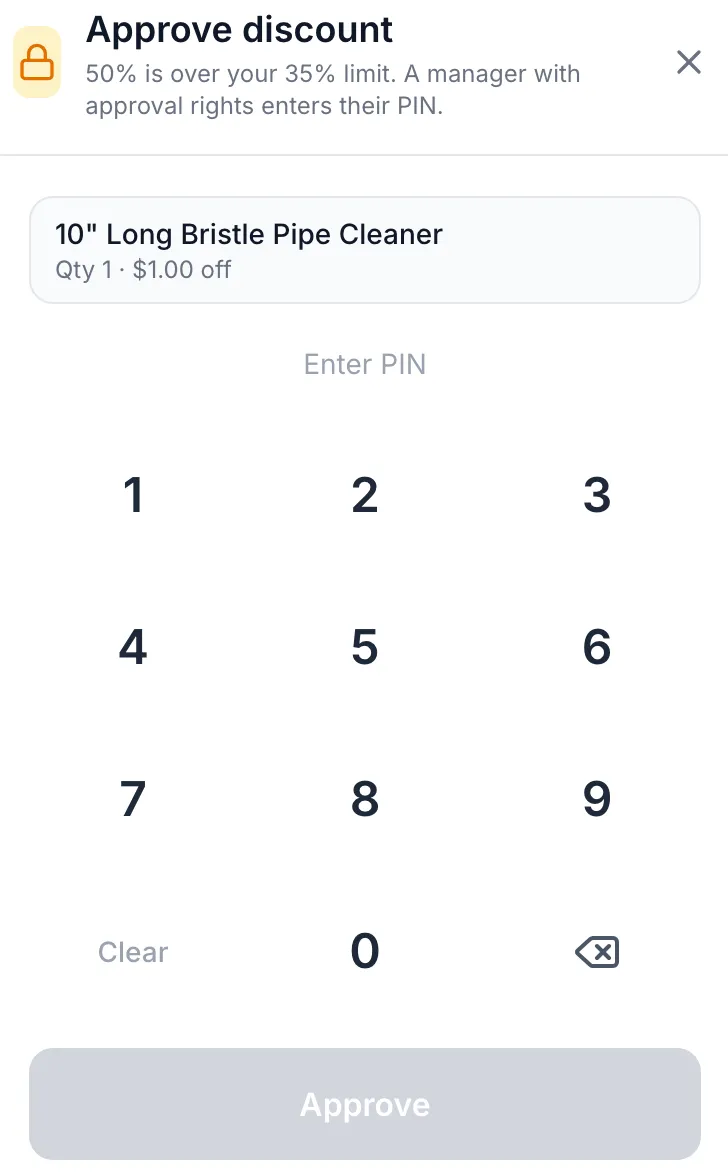
The discount stays on the sale and the cart shows who approved it. If the POS already knows your limit, the button in the discount window reads Needs manager approval and asks for the PIN straight away.
Good to know
Section titled “Good to know”- An item discount and a sale discount don’t add up. While a sale discount is on, item discounts are left off; remove the sale discount to use them.
- Once part of the sale is paid, discounts are locked. Void that payment in Checkout first.
- The reasons in the list are your company’s own. Ask your manager which one to use.