
Sell or check a gift card
Use this to sell or load a card, or to tell a customer what’s left on one. To pay for a sale with a gift card, pick Gift Card at checkout (see Take a payment).
-
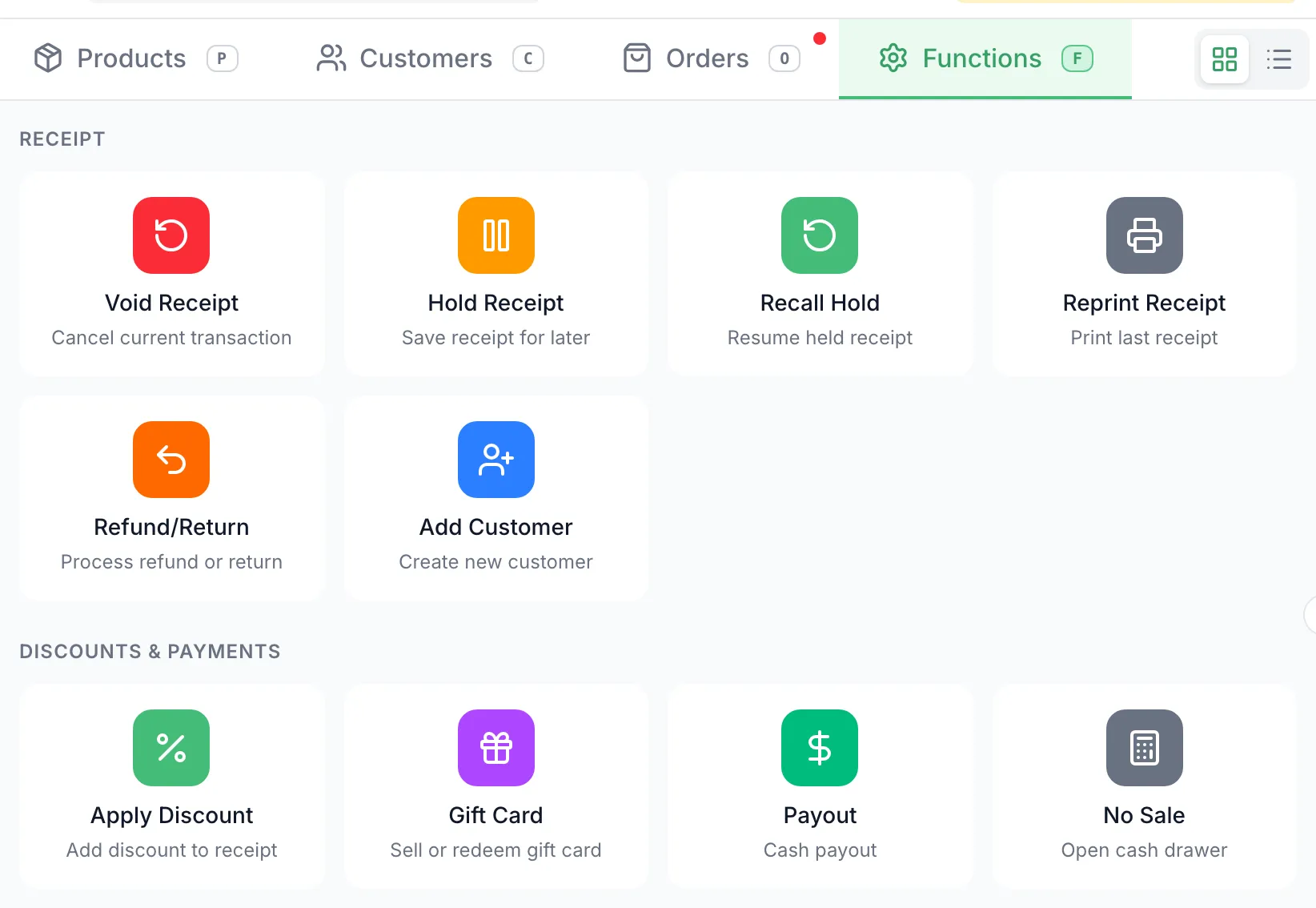
Open Functions and tap Gift Card.
-
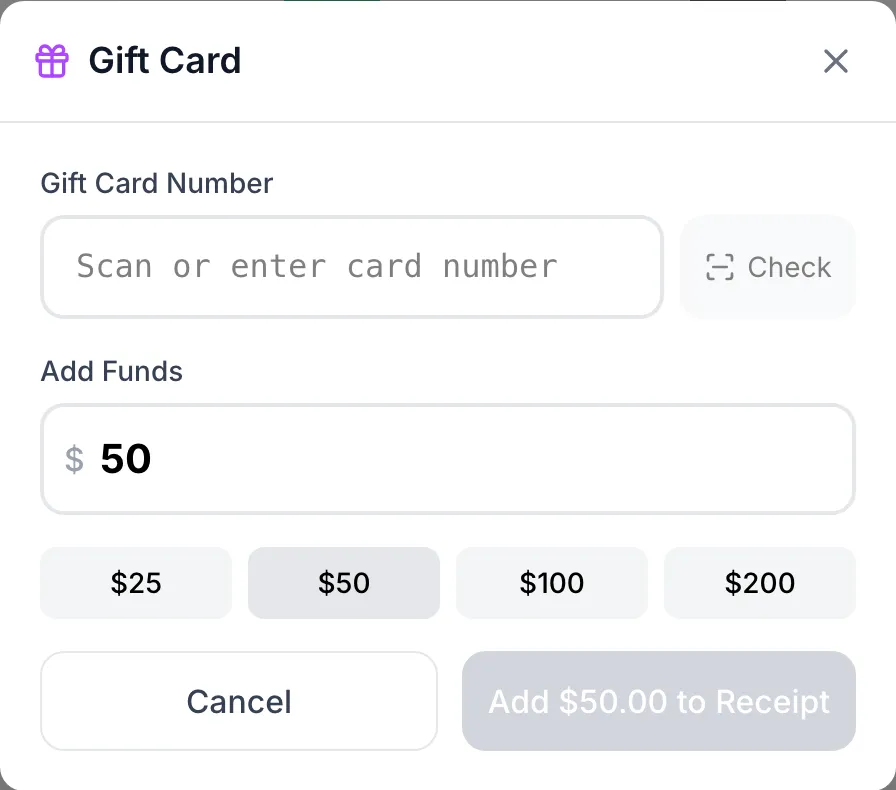
Scan the card, or type its number in Gift Card Number and tap Check. The POS shows one of these:
- New card — will be created on checkout. The number isn’t on file yet.
- Current balance: $… for a card that already has money on it.
- isn’t recognised: the number is wrong, or the card can’t be sold at this store. Scan it again or retype it.
To check a balance only, stop here and tap Cancel.
-
Type the amount in Load Amount (a new card) or Add Funds, or tap $25, $50, $100 or $200.
-
Tap Add $… to Receipt. The card goes into the cart as a line.
-
Ring up anything else and take the payment as usual. The card is created or topped up when the sale is paid.
Good to know
Section titled “Good to know”- At a store whose gift cards come from an outside provider, the balance shows via Birchmount, and paying with one of those cards also asks for the PIN printed on the card.
- The same card can’t go on one receipt twice. The POS shows This card is already on the current receipt.