
How roles and permissions work
Every staff member has one role. The role decides what they can do, and you can turn single permissions on or off for one person on top of it.
Built-in and custom roles
Section titled “Built-in and custom roles”The built-in roles, lowest to highest: Clerk, Accountant, Assistant Manager, Supervisor, Executives, Special Access. You can change what they allow, but not rename or delete them. In the Staff Roles list, Assistant Manager shows as Manager.
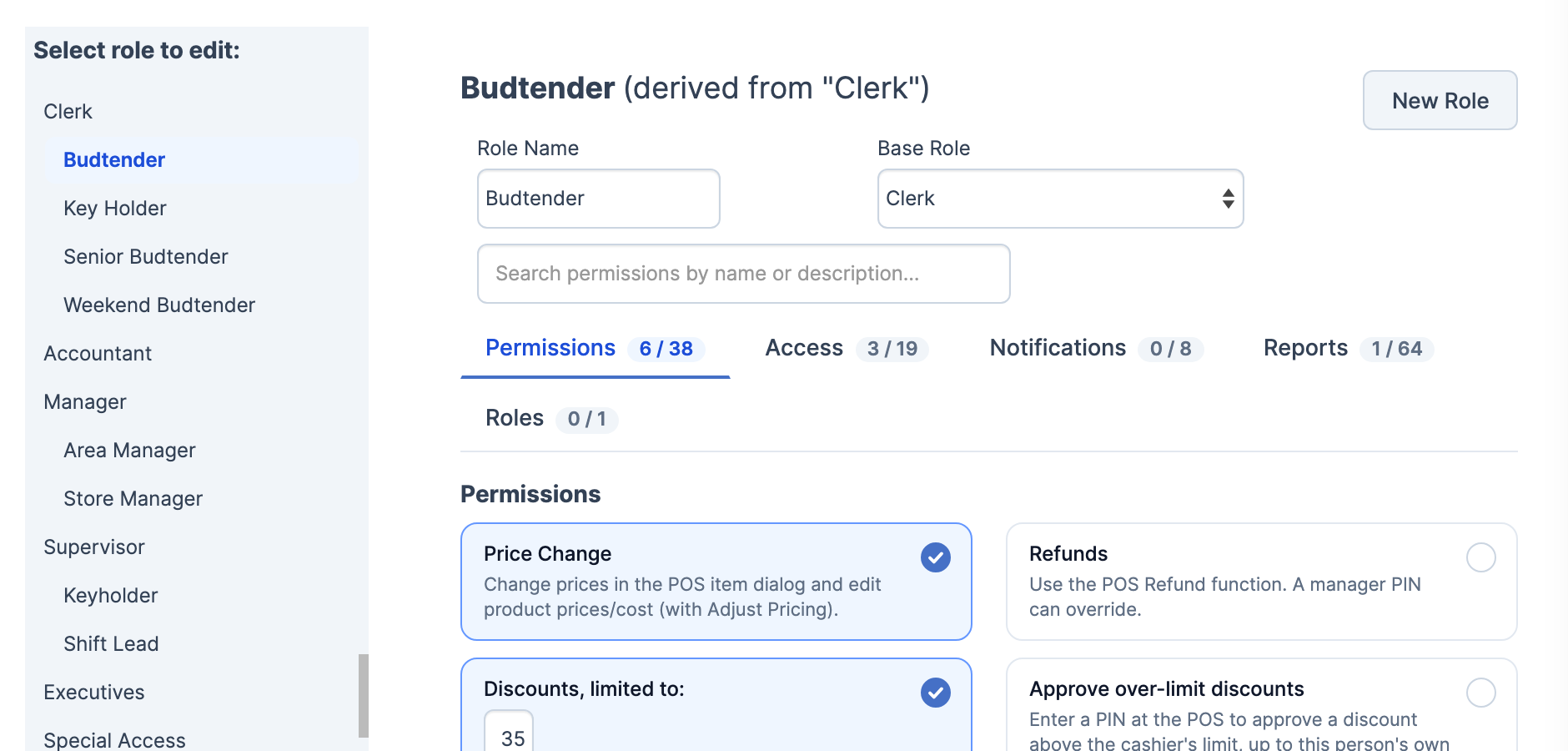
A custom role, like Budtender or Key Holder, has a Role Name and a Base Role. It starts with its base role’s permissions and ranks at its base role’s level. It’s listed under its base role.
Rank matters in the staff editor: you can only give roles at your level or below, and only delete staff whose role you could give.
The role first, then the person
Section titled “The role first, then the person”- A new staff member gets their role’s permissions. See Add a staff member.
- In the staff editor you can switch single permissions on or off for one person. See Change a role or permissions.
- A change for one person lasts until either:
- their Role is changed in the staff editor. Every switch reloads from the new role.
- someone saves their role on Staff Roles. Every active staff member with that role gets the role’s settings, changes for one person included.
So for one person, use the staff editor. For everyone in a role, edit the role.
Where each permission is
Section titled “Where each permission is”| What it covers | Staff editor tab | Staff Roles tab |
|---|---|---|
| Register and back-office actions: Refunds, Price Change, discounts, counts | Permissions | Permissions |
| Which parts of the portal and POS they can open: POS Login, Portal Access, Staff Maintenance | Access | Access |
| Which stores they can work at (Head Office only) | Access to Locations | Not on the role |
| Single reports | Reports | Reports |
| Emails WAIO sends them | Email Triggers | Notifications |
| Edit Roles | Access | Roles |
| Can Set Roles and Select Roles | Not in the staff editor | Roles |
On Staff Roles, the switches for portal screens stay greyed out until Portal Access is on.
Who can change what
Section titled “Who can change what”- Staff Maintenance opens the Staff menu and the staff list.
- Edit Staff & Permissions opens the staff editor and its Save Changes. Every built-in role has it to start with.
- Edit Roles opens Staff Roles. No role has it unless your company turned it on. Only someone with Edit Roles can give it to a staff member or take it away.
- Can Set Roles limits the roles that role’s staff can give to the ones picked in Select Roles. Every other role shows as (Not Allowed) in the staff editor. With Can Set Roles on, Save is refused until at least one role is picked.
Editing a role
Section titled “Editing a role”- In the menu, click Staff, then Staff Settings. Staff Roles opens.
- Click the role under Select role to edit:.
- Change its switches. To find one, type in Search permissions by name or description….
- Click Save.
The other buttons under the role:
- New Role makes a custom role. Give it a Role Name and a Base Role, then Save. Changing Base Role loads that role’s settings over the ones on screen.
- Load defaults puts back the base role’s built-in settings. Nothing changes until you click Save.
- Copy settings and Paste settings copy one role’s settings to another role, here or on another WAIO portal. Paste shows what will change before you pick Apply to the role on screen or Create role. Nothing is saved until you click Save.
- Delete Role (custom roles only). Staff with that role move to its base role.
What’s recorded
Section titled “What’s recorded”History shows who saved or deleted the role, when, and what changed. Recent changes shows the same for every role, deleted ones included. Only changes made on Staff Roles are there, and only since the history was added. Changes made in the staff editor, to a person’s role or to their own switches, aren’t in it.