
Receive a purchase order or enter an invoice
Use this when a delivery arrives. Receive it against the purchase order if there is one, and enter a receiving invoice if there isn’t. Do it at the store that took the delivery: at Head Office, switch to that store first (store name, top right).
Against a purchase order
Section titled “Against a purchase order”-
In the menu, click Inventory, then Purchase Orders.
-
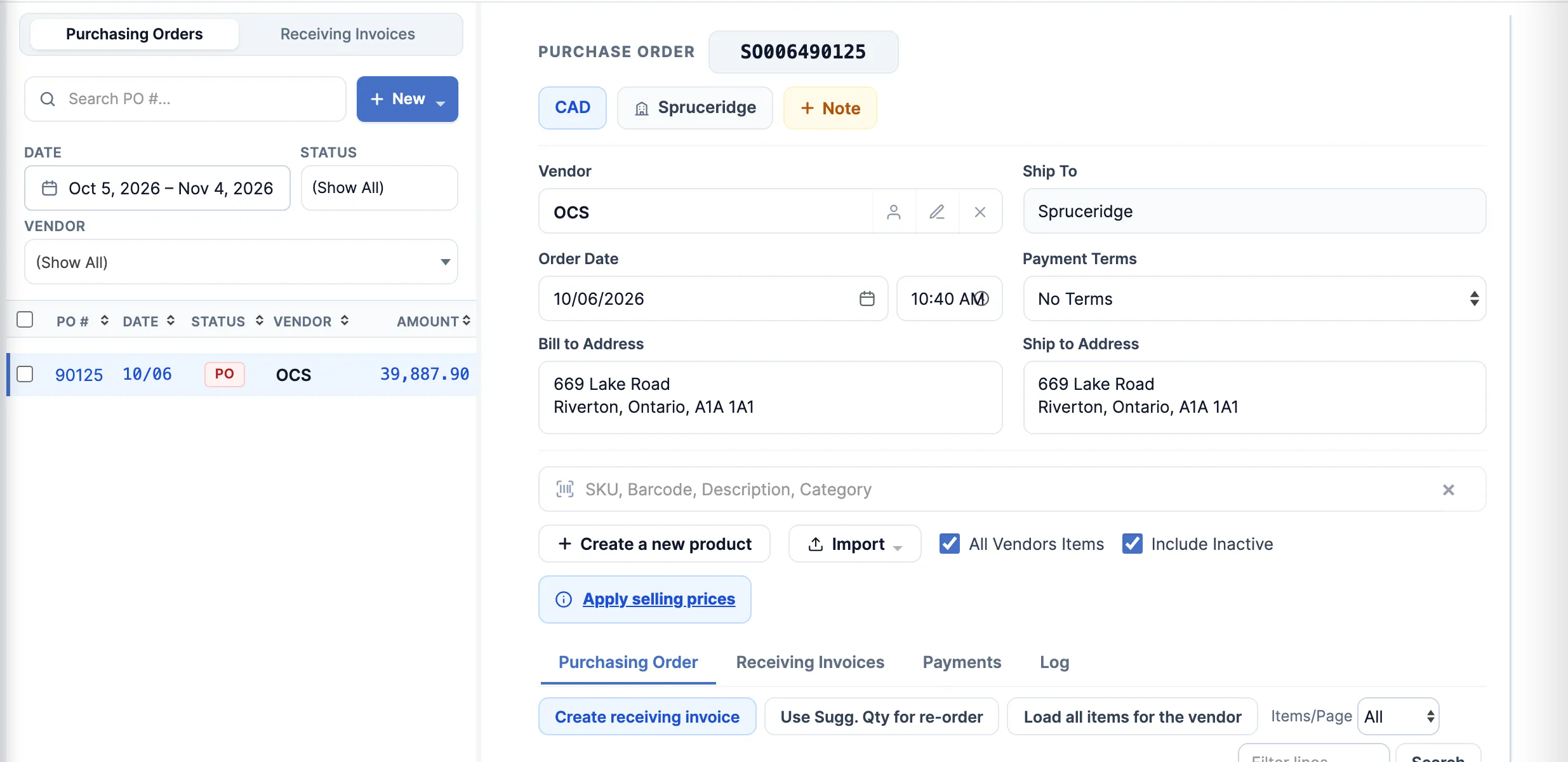
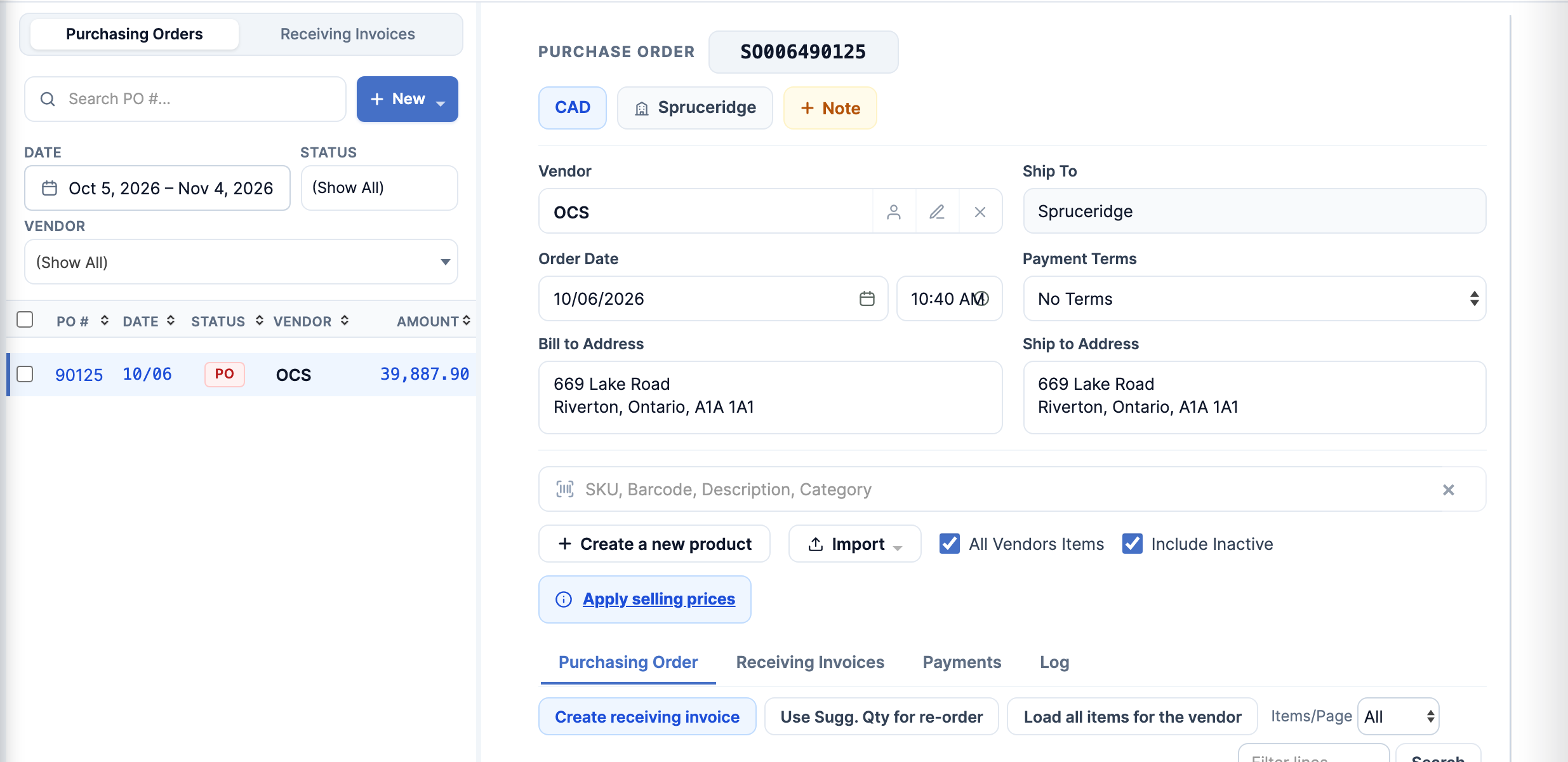
Click the order in the list.
-
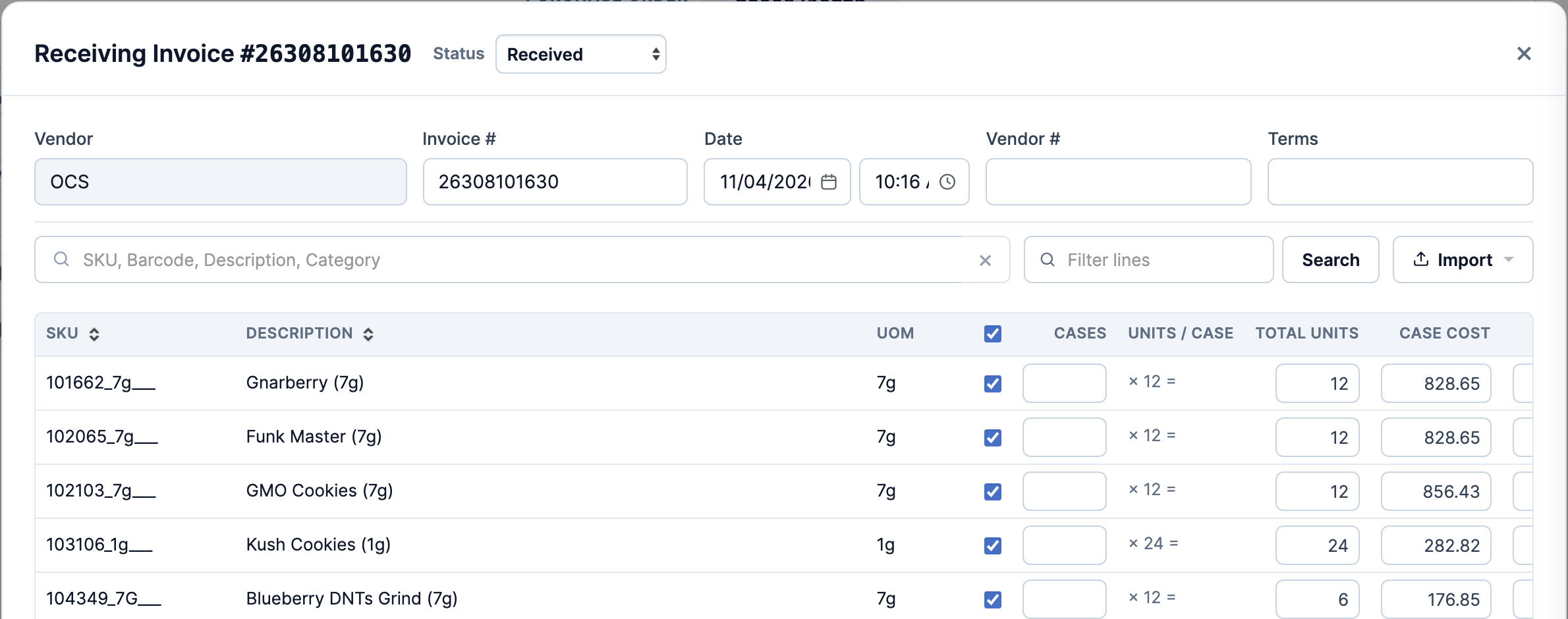
On the Purchasing Order tab, click Create receiving invoice. The Receiving Invoice window opens with each line at the quantity still to come.
-
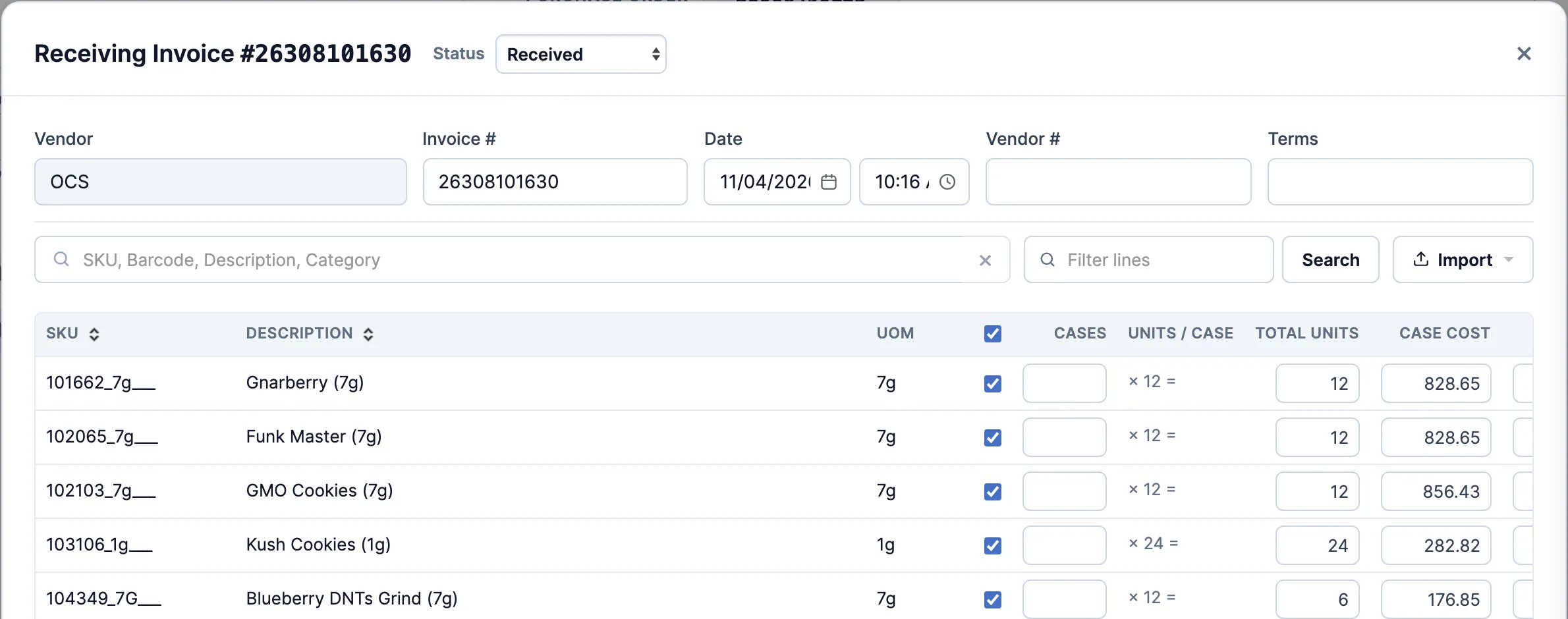
Leave Invoice # as it is. Type the vendor’s invoice number in Vendor #, and check the Date.
-
Set each line’s quantity to what arrived, and check its cost. Untick a line that didn’t come. To add a product that came but wasn’t ordered, search for it in the box above the lines.
-
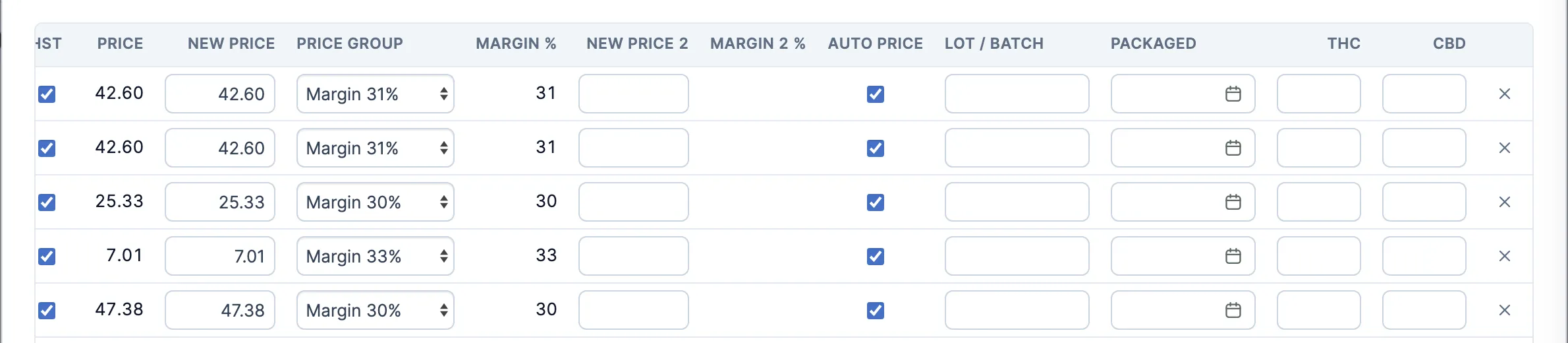
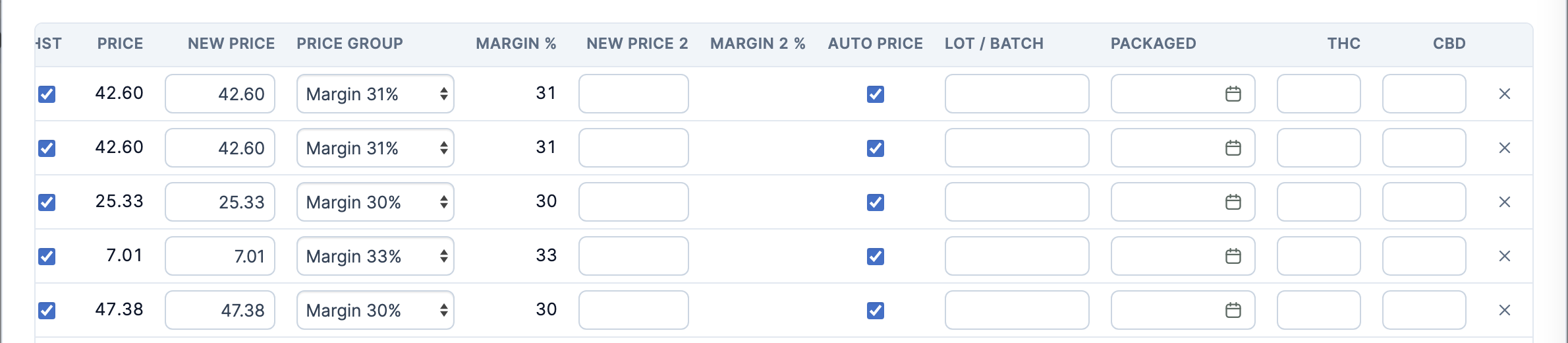
Scroll the lines to the right and fill in Lot / Batch and Packaged for each one.
-
Leave Status (top of the window) on Received and click Create Receiving Invoice. The stock is on hand at your store.
Without a purchase order
Section titled “Without a purchase order”-
In the menu, click Inventory, then Receiving Invoices.
-
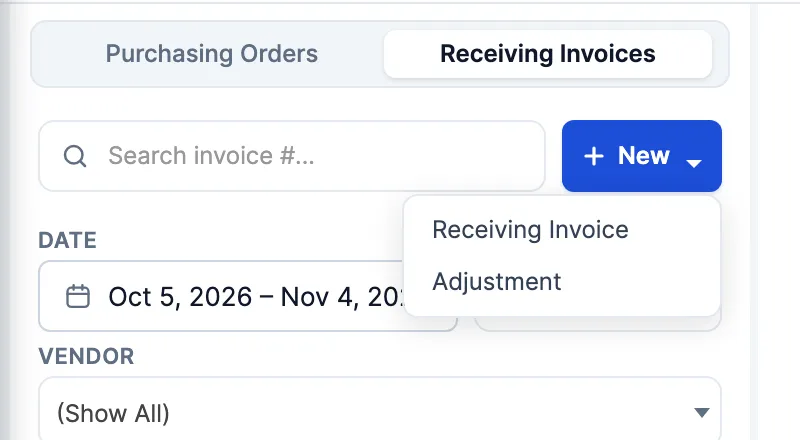
Click New, then Receiving Invoice. Pick the vendor when Select Vendor opens.
-
Type the vendor’s invoice number in Vendor inv. (top, beside the invoice number), and check the Date.
-
Add the lines. Either:
- Scan or type a SKU, barcode or description in the search box.
- Click Import and pick the vendor’s file: ASN Invoice (XLSX) for OCS, or Invoice or CSV (SKU, Qty) for other vendors.
-
Check each line’s quantity, cost, Lot Code/Batch No. and Packaged on Date.
-
Click Save Invoice.
If the search can’t find a product, tick All Vendors Items (otherwise it lists only this vendor’s products) and Include Inactive.
Good to know
Section titled “Good to know”- Short delivery: receive what came. The order shows Backorder until the rest arrives. Then open it and click Create receiving invoice again. The quantities start at what’s still to come.
- Receiving makes each line’s cost the store’s cost for that product. A line left at $0 is received at $0.
- Give every receiving invoice its own Invoice #. Before you save, check the number isn’t already on another invoice at this store.