
Ring up a sale
Use this to build the sale in the cart. When everything is in, take the payment.
-
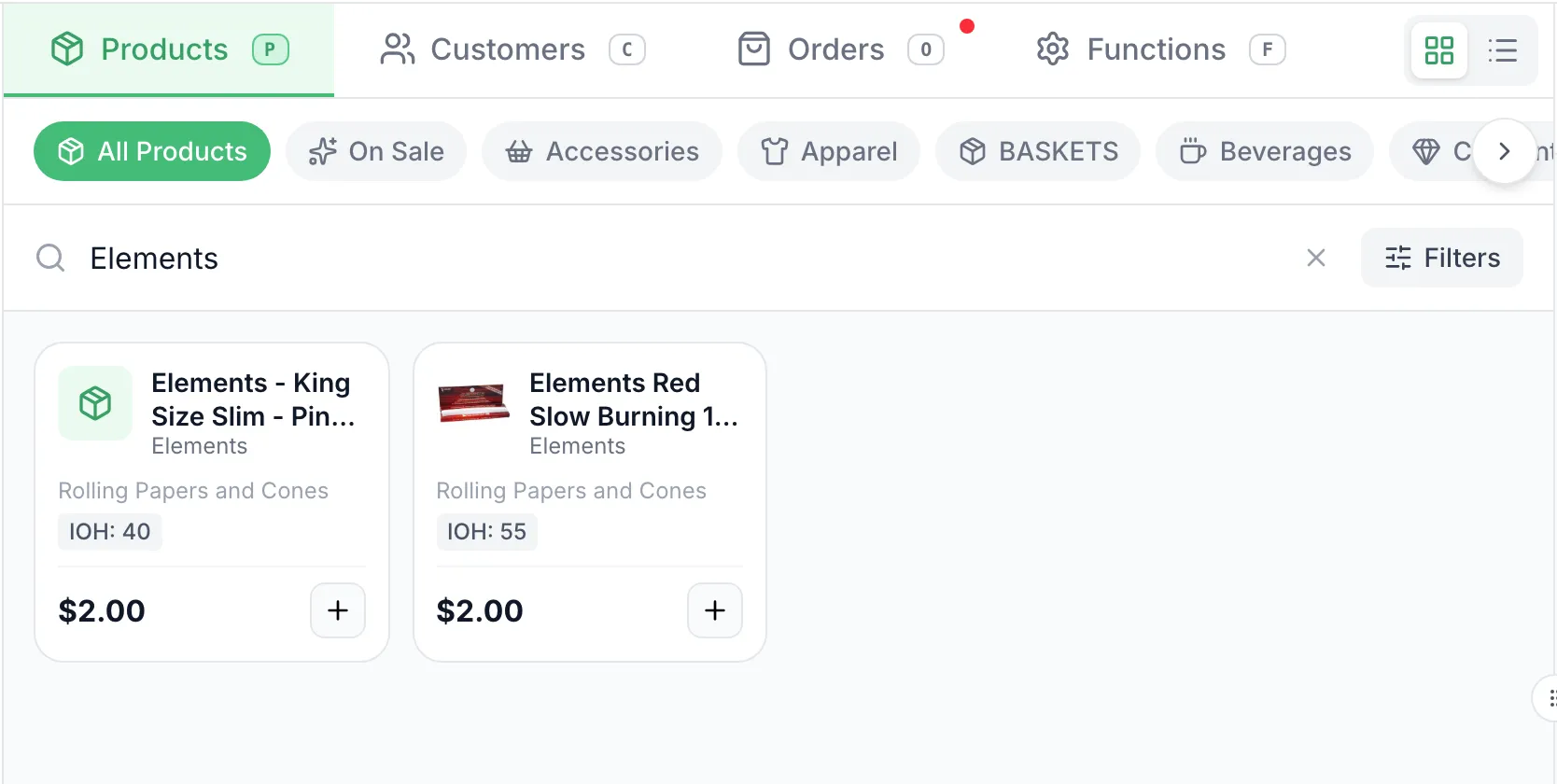
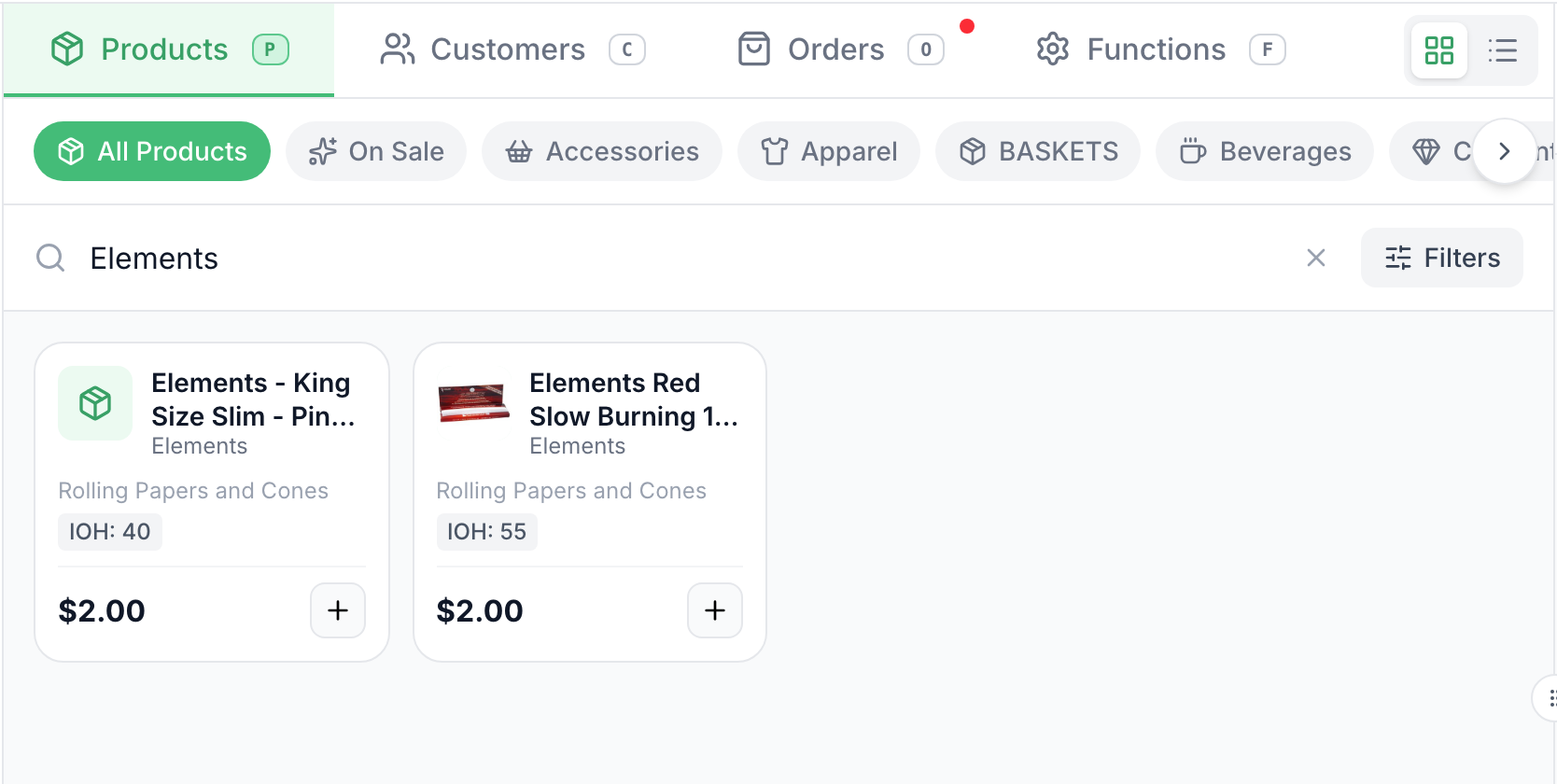
On Products, type part of the product’s name, brand or SKU in Search products by name or brand…. To browse instead, tap a category along the top (All Products, On Sale or one of your store’s categories) or use Filters.
-
Tap + on the product’s card. It goes in the cart on the right.
To scan instead, scan the barcode with any tab open. The POS shows Added to Cart, or Item Not Found if no product has that code.
-
Add the rest of the items the same way. Tapping + again on a product already in the cart adds 1 more. Depending on your store’s settings, that goes on the same line or a new one.
-
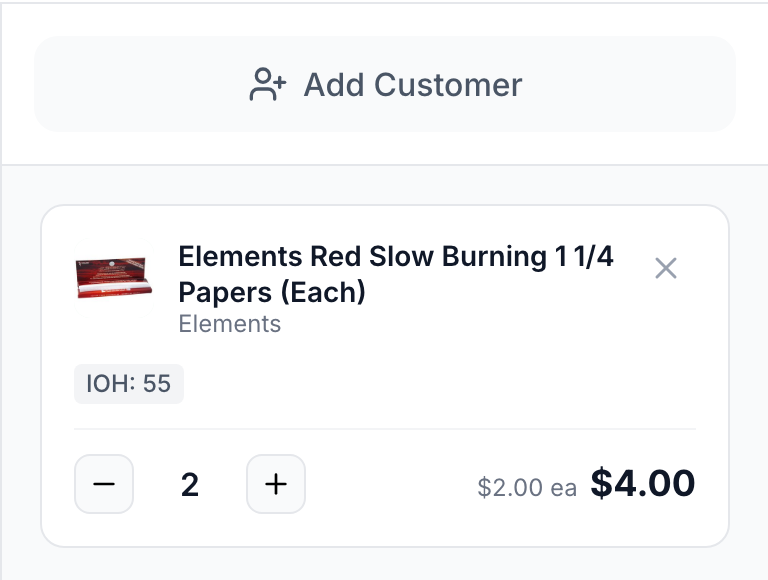
To change a quantity, use the line’s controls in the cart:
- + adds 1. It greys out at the stock on hand.
- − takes 1 off. At 1 it takes the line out of the cart.
- X takes the whole line out.
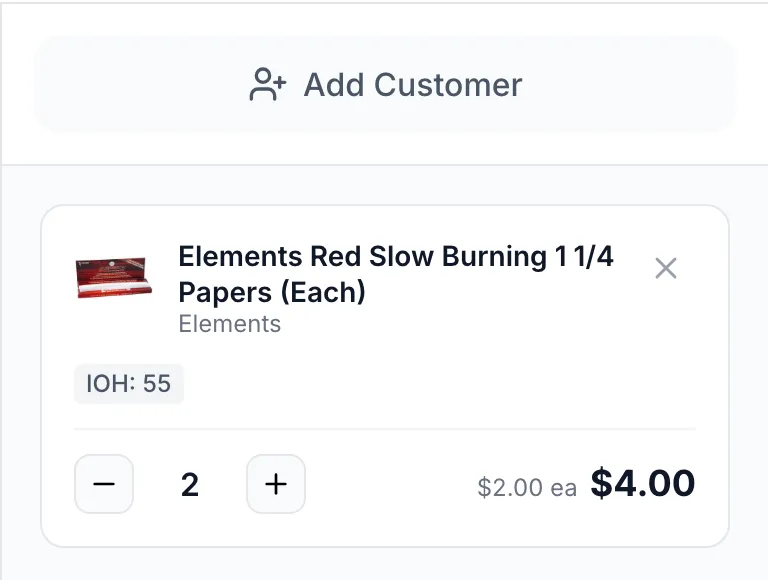
You can also tap the line to open the product, set the quantity there and tap Update Cart.
-
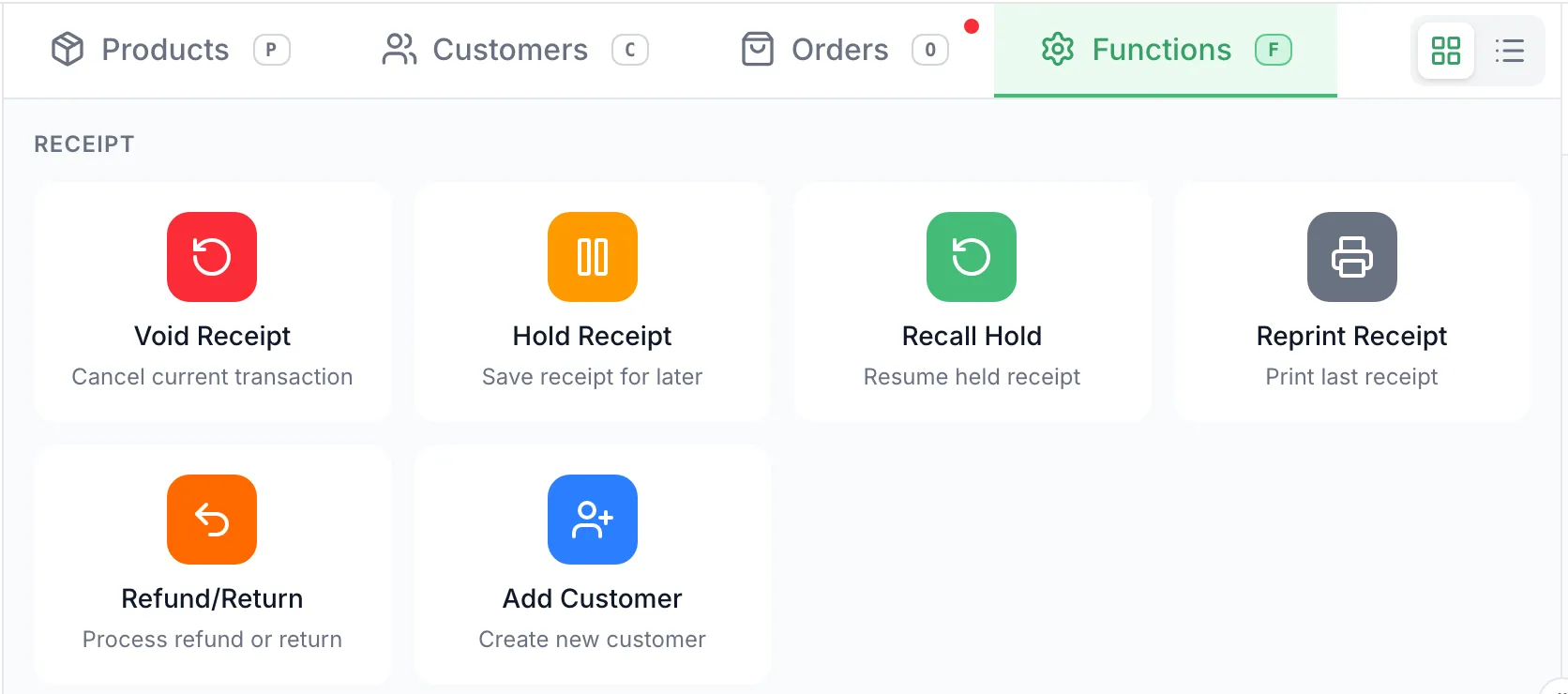
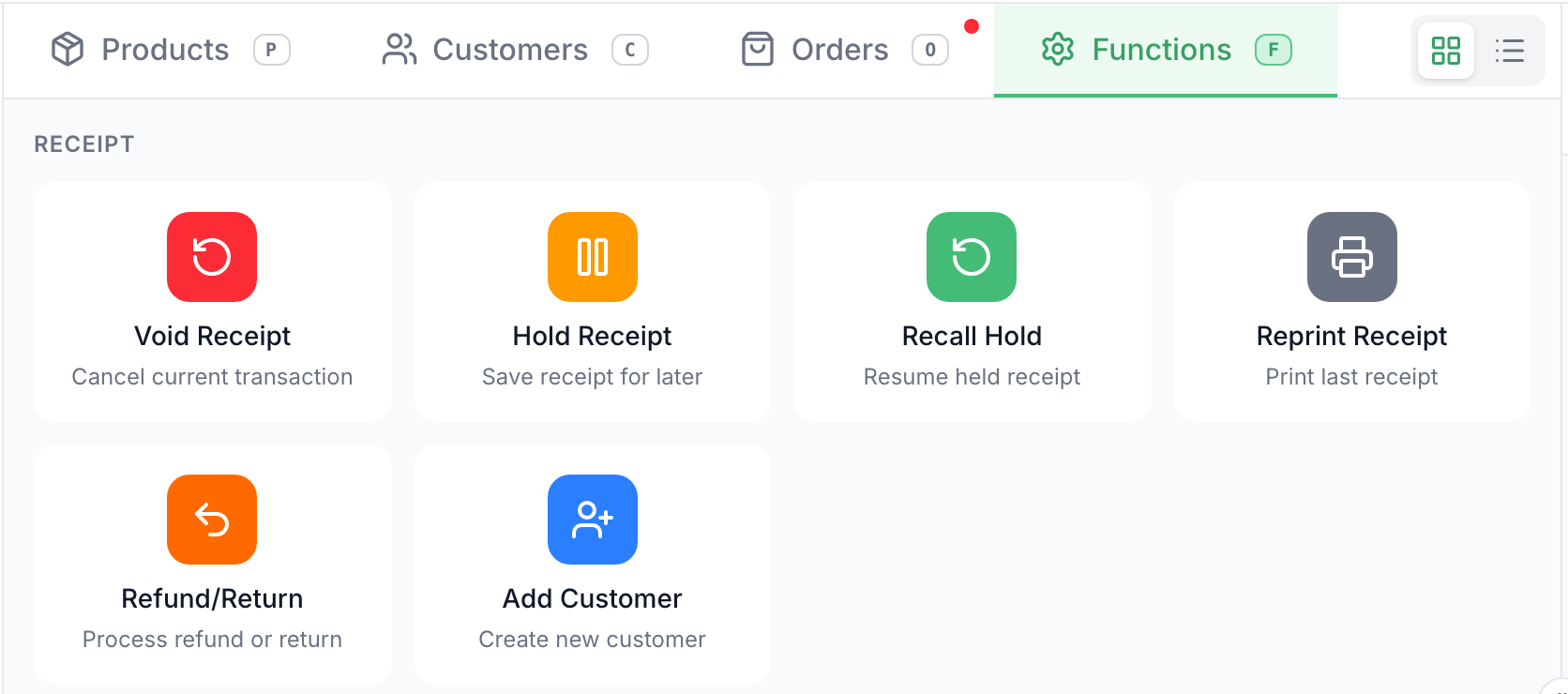
To throw the whole sale away, open Functions and tap Void Receipt. The cart and any customer on it clear at once, with no question first.
Good to know
Section titled “Good to know”- Void, Hold and Recall down the left edge are shortcuts for the Functions tiles.
- IOH on a card or cart line is the stock on hand at this store. It turns red at 1 or less.
- A sale you need to set aside for a few minutes can be held instead of voided. See Hold and recall a sale.