
Send a screenshot to support
Support Chat can’t take pictures or files. Send them to the support team through the support messenger instead.
-
Take the screenshot:
- Windows: press Windows key + Shift + S and drag over the part of the screen you want. It’s copied, and Windows 11 also saves it in Pictures > Screenshots.
- Mac: press Cmd + Shift + 4 and drag. It’s saved on the Desktop.
- Register or phone screen: take a photo with your phone.
-
In the menu, under Apps, click Support Chat.

-
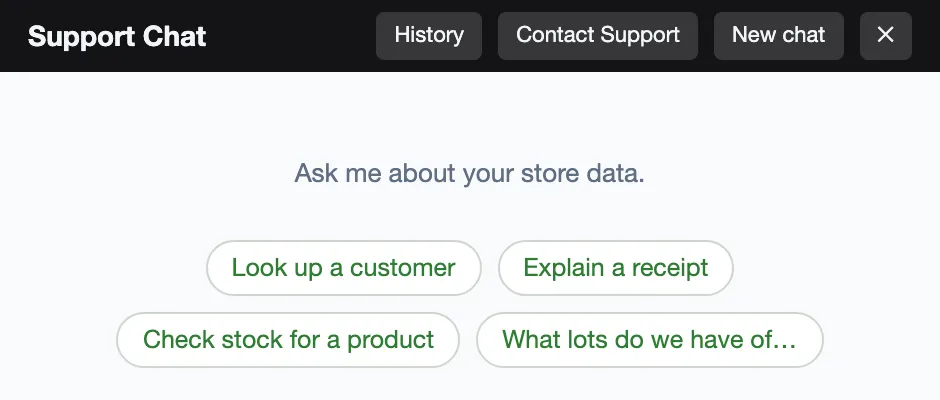
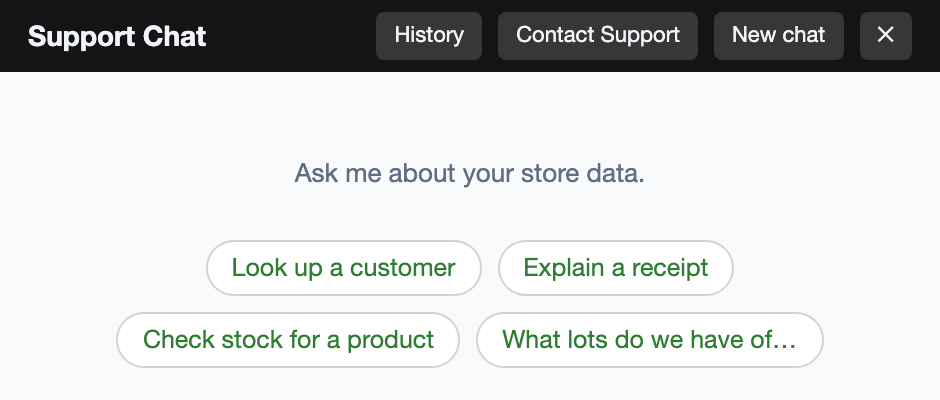
Click Contact Support at the top of the chat. The chat closes and the support messenger opens with your store and what you were asking about already filled in.
-
Add the screenshot or file to the message, write a line on what it shows, and send.

Good to know
Section titled “Good to know”- If you only want the assistant to look something up, type it instead of sending a picture: the receipt number, the SKU or barcode, or the exact error message.