
Refund a receipt
Use this when a paid sale needs money given back. A sale that isn’t paid yet gets voided instead: Void Receipt on Functions, or for a held order, Orders, On Hold, open it, Cancel.
-
Finish, hold or void any sale in the cart. The POS won’t start a refund on top of one.
-
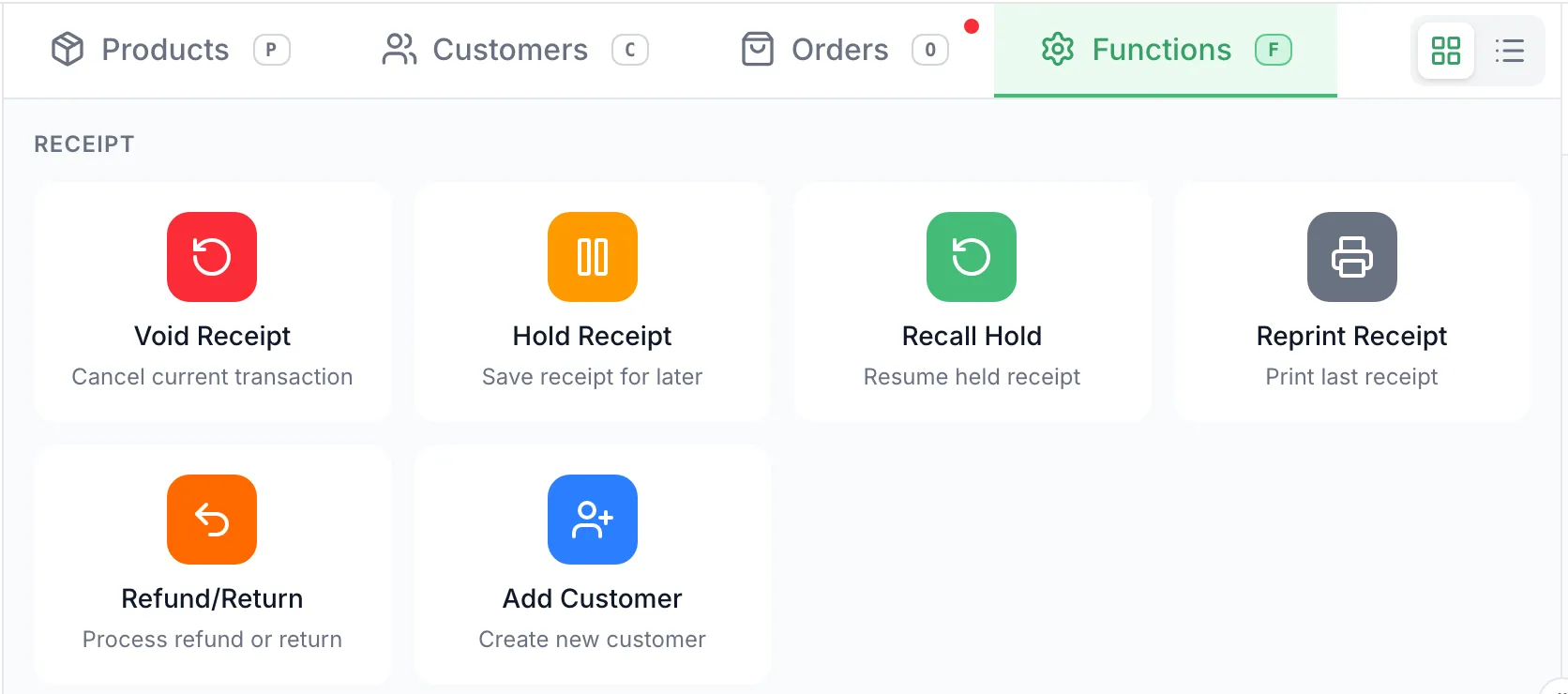
Open Functions and tap Refund/Return.
-
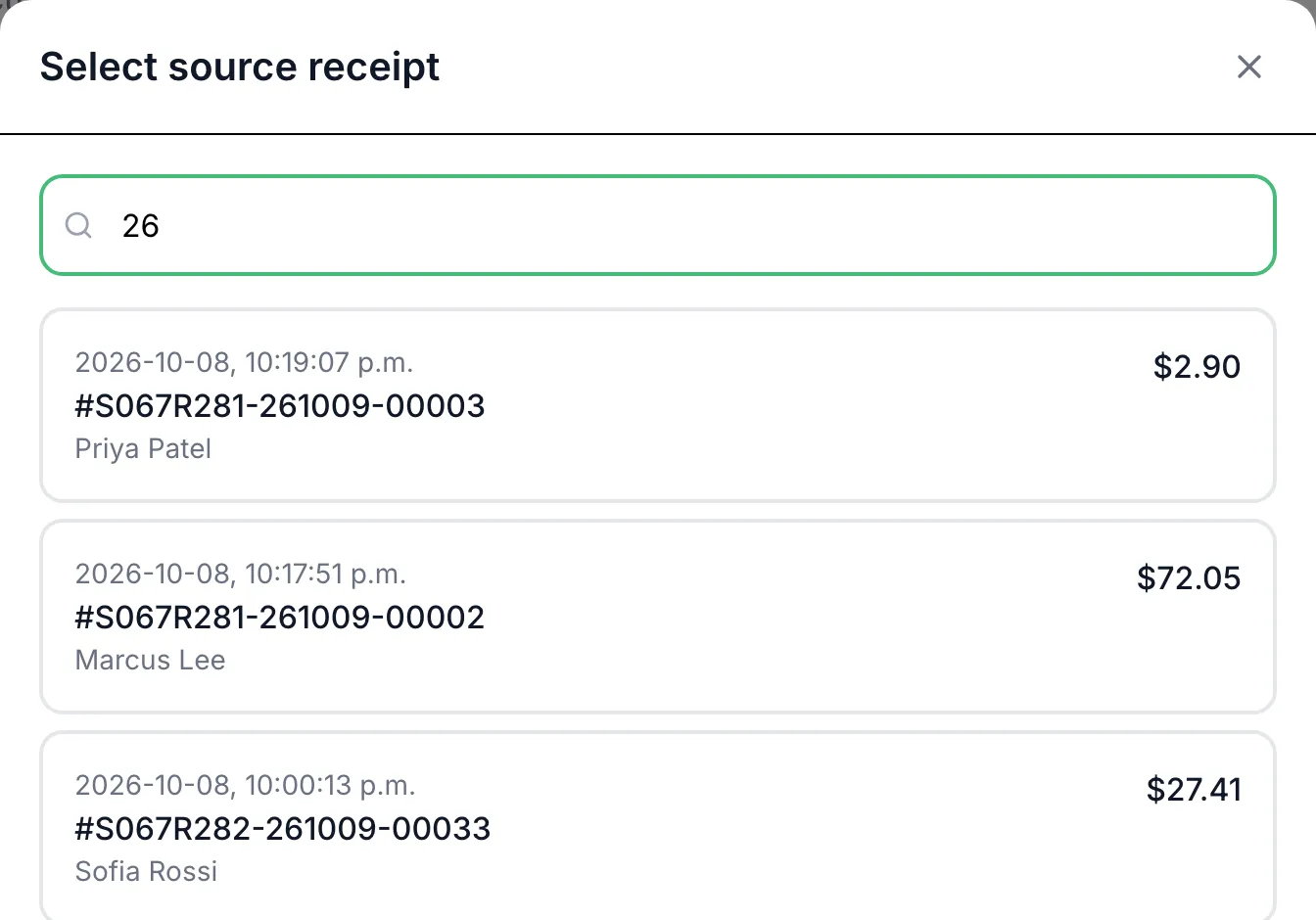
In Select source receipt, type at least 2 characters of the receipt number or the customer’s name, then tap the sale. Only paid sales from this store are listed, newest first.
You can also start from the sale itself: open Orders, find it under Recent or with the search box, open it and tap Refund.

-
The POS switches to refund mode. The top bar shows Refunding Receipt #… and the cart holds the sale’s items in red. To stop before any money moves, tap the X on that bar.
-
Leave only what’s coming back:
- X on a line takes it out of the refund.
- − returns fewer of an item. It stops at 1; use X to remove the line.
- + goes back up, but never past what the customer bought.
You can’t add items to a refund. Scanning the returned product shows Refund in progress and adds nothing.
-
Tap Process Refund $….
-
Under Select refund method:, pick how the money goes back. Only the ways the customer paid can be picked, and each shows up to $…:
- Cash: tap Complete Cash Refund and hand over the cash.
- Credit/Debit: the refund goes to the card terminal. Follow the prompts on screen.
- Standalone: pick the card type, run the refund on the standalone terminal, then tap Approved — Complete Sale only if the terminal showed APPROVED. If it didn’t, tap Declined / Didn’t Work. Nothing is recorded.
- Gift Card, when the sale was paid with one.
- Online Card, for an order paid online: tap Refund to Online Card. The customer sees it on their card in a few business days. An online order can also be refunded in Cash.
-
If the customer paid more than one way, the POS shows Partial Refund with the balance left and goes back to the methods. Refund the next share the same way.
-
When nothing is left to refund, the POS shows Payment Successful!. Tap Done.

Good to know
Section titled “Good to know”- For an exchange, refund the item coming back, then ring the replacement as a new sale.
- An online order that hasn’t been refunded at all gets two choices under Refund: Full refund to card, which cancels the order, or Choose items, which is the steps above. Paid online but not picked up yet? Open it in Orders and tap Cancel instead.
- No refund method available means the original payments were already refunded, for example by an earlier try at the same refund. Trying again won’t change it. Contact support.