
Find and run a report
Every report opens the same way: pick it from the Reports list, set the filters, click Apply. For the reports that close a day, see Check the end of day.
-
In the menu, click Reports.
-
Type part of the name in Search Reports, or pick a category on the left. Click the report’s name to open it.

-
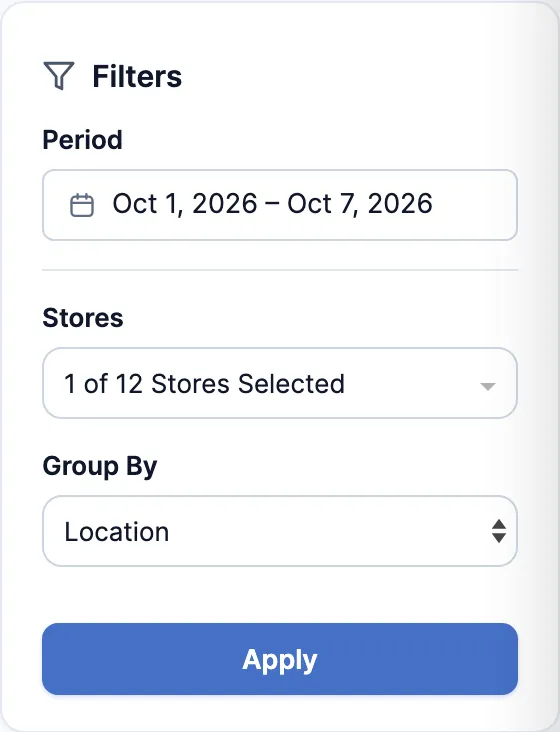
Under Filters, click the dates under Period and pick a range:
- is in the last: a number of days, weeks or months.
- is equal to: one day.
- is between: two dates.
-
Pick the stores:
- Stores (Head Office): tick the stores and click Ok. Nothing ticked means every store.
- Store: reports that run for one store at a time.
-
Set any other filter the report has, then click Apply.
-
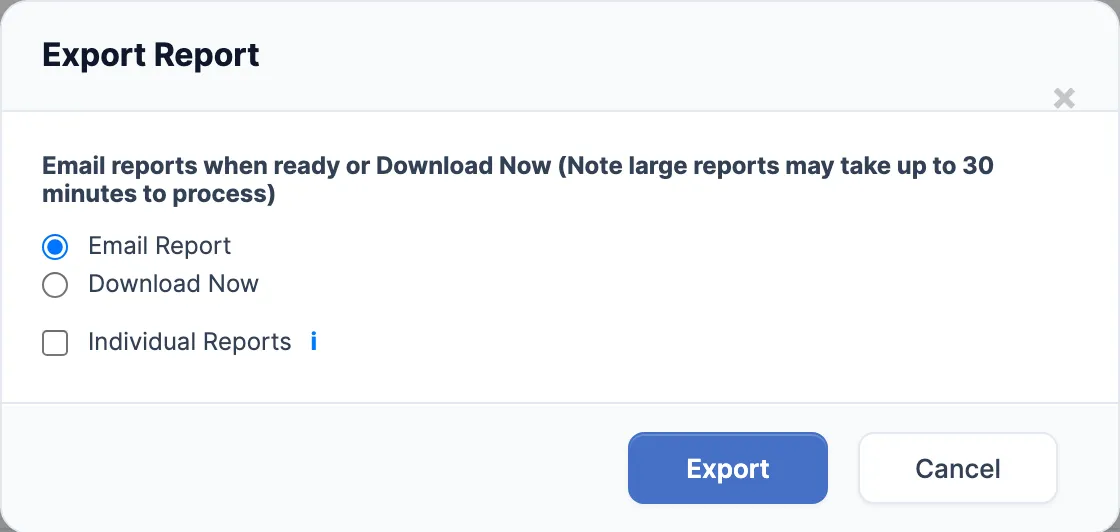
To keep a copy, click Print or Export (top right). Export opens Export Report:
- Email Report: the file is emailed to you when it’s ready.
- Download Now: the file downloads in your browser.
Click Export.

Good to know
Section titled “Good to know”- An emailed export can take up to 30 minutes. Report Status (top right of the Reports list) shows each export, with Download once it’s ready.
- Save as default keeps the Columns you’ve picked and the Report Settings switches. It doesn’t keep the filters.
- Turn on Pinned in a report’s row to find it under Pinned. Recent lists the reports you opened last.