
Void or edit a receiving invoice
If only some quantities, costs or lots are wrong, update the invoice. If the whole invoice shouldn’t be there, delete it: that voids it, keeps the record, and takes the stock it added back off on hand.
-
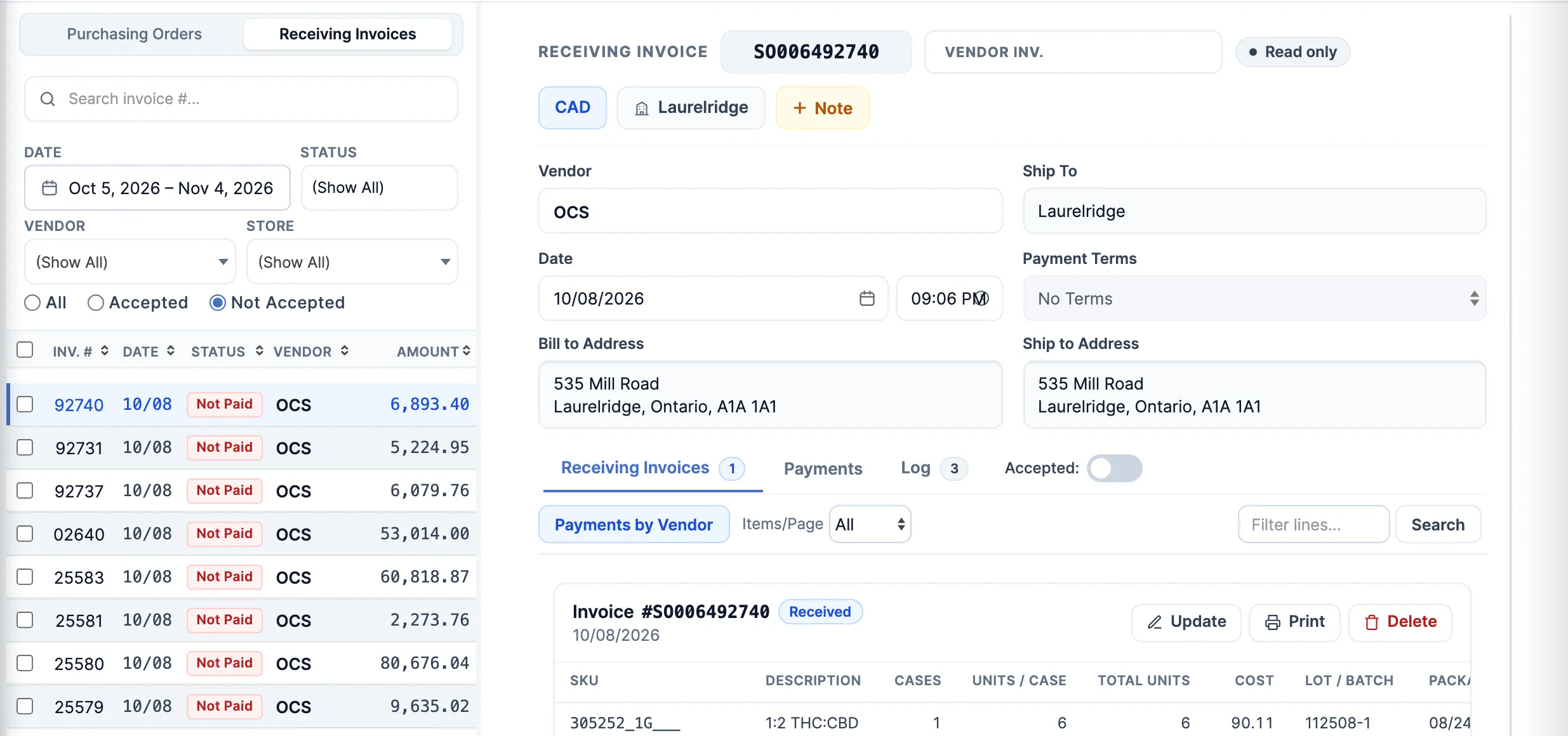
In the menu, click Inventory, then Receiving Invoices.
-
Find the invoice. The list starts on the last 30 days: widen Date for older ones, or type the number in Search invoice #….
-
Click the invoice. Its order opens on the Receiving Invoices tab, with the invoice shown as a card.
Fix the lines
Section titled “Fix the lines”- On the card, click Update. The Receiving Invoice window opens.
- Fix the quantities, costs, Lot / Batch or Packaged dates. To take a line off, click its ×.
- Click Update Invoice. On hand, average cost and what you owe the vendor are worked out again from the new lines.
Void the invoice
Section titled “Void the invoice”- On the card, click Delete.
- Click Yes at “Are you sure you want to delete this invoice?”. The stock comes off on hand, and the order’s Log tab records who deleted it.
There’s no undo. To put the stock back, receive it again.
Good to know
Section titled “Good to know”- Update and Delete are greyed out while Accepted (beside the tabs) is on. Whoever accepted the invoice has to switch it off first.
- If a vendor payment is recorded against the invoice, the Update window has no Update Invoice button. Delete still works, and voids those payments with it.
- In the Update window, a new Invoice #, Date or vendor is saved as soon as you change it, and changing the number or vendor closes the window. Make those changes on their own, then reopen Update for the lines.