
Import a supplier shipment file
Use this when the vendor sends the delivery as a file. Importing it fills in the lines, including lot numbers and packaged dates when the file has them, so you only check them before saving.
Import the file
Section titled “Import the file”-
In the menu, click Inventory, then Receiving Invoices.
-
Click New, then Receiving Invoice, and pick the vendor. (You can also import into an open receiving invoice or purchase order.)
-
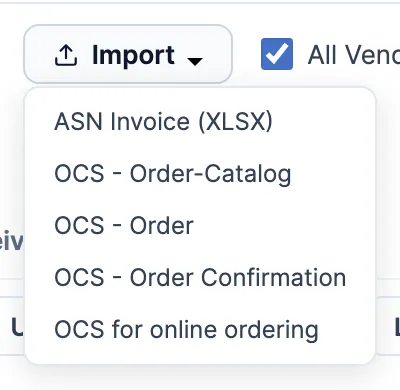
Click Import (beside Create a new product) and pick the item that matches the file. The items depend on the vendor; see the list below.
-
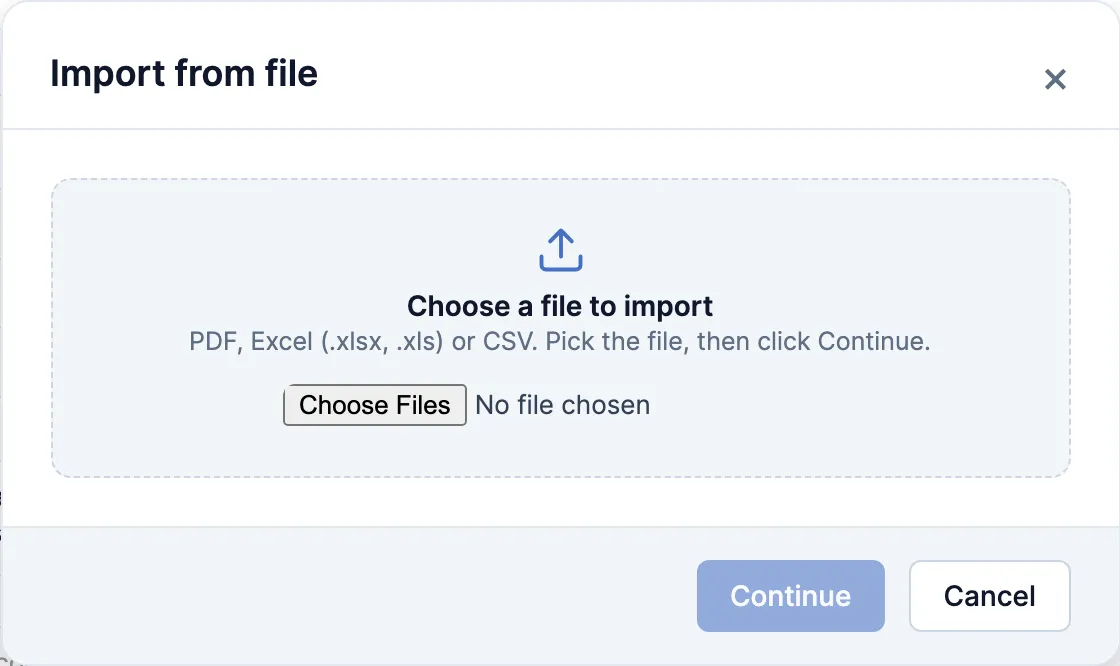
Click Choose a file to import and pick the file. The window reads it and shows how many lines it found, plus the vendor’s invoice number and date. Correct those two if they’re wrong.
-
Click Continue. If the file has products you don’t carry yet, Add new products opens: check them and click Continue to create them.
-
Check each line’s quantity, cost, Lot Code/Batch No. and Packaged on Date.
-
Click Save Invoice. The stock is on hand.
For a PDF, the window also checks the lines against the invoice’s total. If they don’t agree, or it can’t find a total, it says so and asks before importing.
Which item to pick
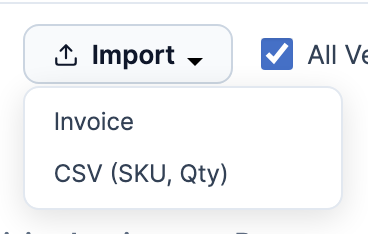
Section titled “Which item to pick”Most vendors get Invoice and CSV (SKU, Qty). OCS, the LDB and AGLC get their own items.
-
ASN Invoice (XLSX): OCS’s shipment sheet. Only on OCS orders.
-
Invoice: any other vendor’s invoice, as a PDF, Excel (.xlsx, .xls) or CSV file.
-
LDB Invoice (XLS): the LDB’s invoice, on LDB orders. Same window as Invoice.
-
AGLC: the AGLC pack list or invoice, on AGLC orders. Pick the file and click OK. The lines are saved onto the order straight away and the page reloads.
-
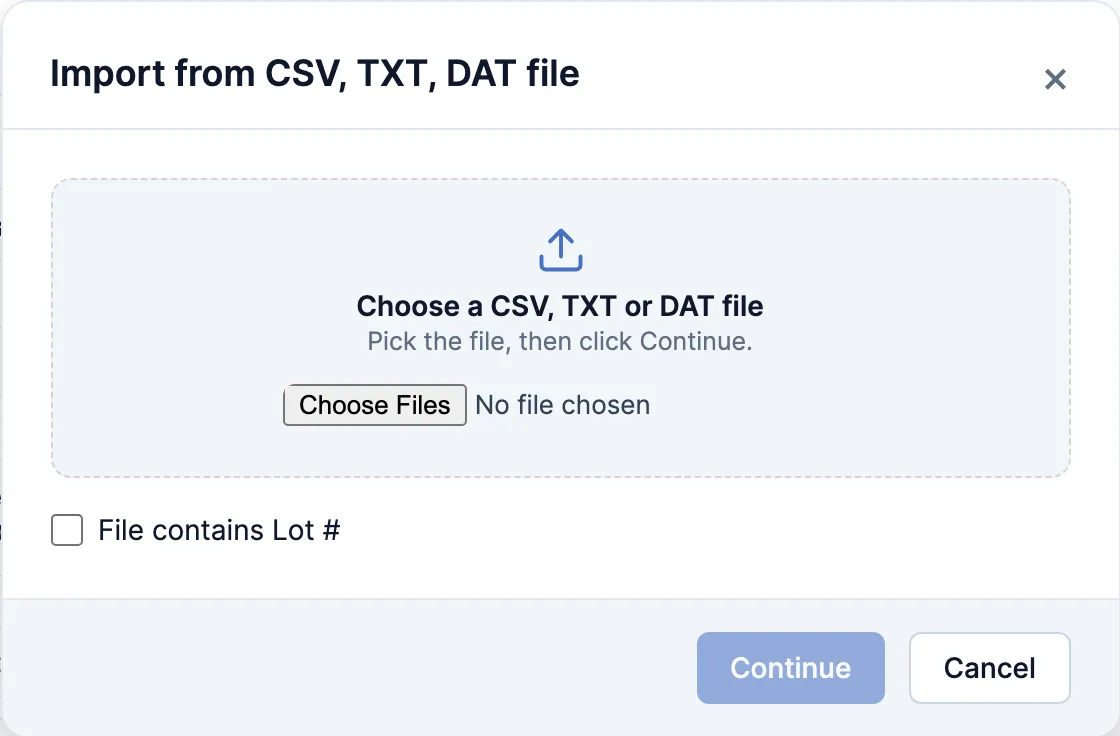
CSV (SKU, Qty): a list you make yourself. One product per row: the SKU, then the quantity. A third column is units per case, or the lot number if you tick File contains Lot #.
The OCS - … items read OCS’s ordering spreadsheets onto a purchase order. They aren’t for shipments.
Good to know
Section titled “Good to know”- Importing replaces the lines already on the invoice. If it has some, the portal asks first.
- The file’s codes are matched to the product’s SKU, then its alternative SKUs, never its barcode. If a vendor’s code keeps showing up as a new product, add it as an alternative SKU.
- Which items Import offers depends on the vendor’s Vendor Code (OCS, LDB, AGLC). If an OCS or AGLC order only offers Invoice, check the code on the vendor.