
Change a receipt's payment type
Use this when the money was taken but recorded as the wrong type, for example a Visa sale rung as Cash. It only changes the label. If money has to go back to the customer, refund the receipt instead. The POS can’t change a payment type: do it in the portal.
-
In the menu, click Sales Transactions.
-
Set the dates and stores the sale falls in, then click Apply.
-
In the Receipt column, click the receipt number. Its details open on the right.
-
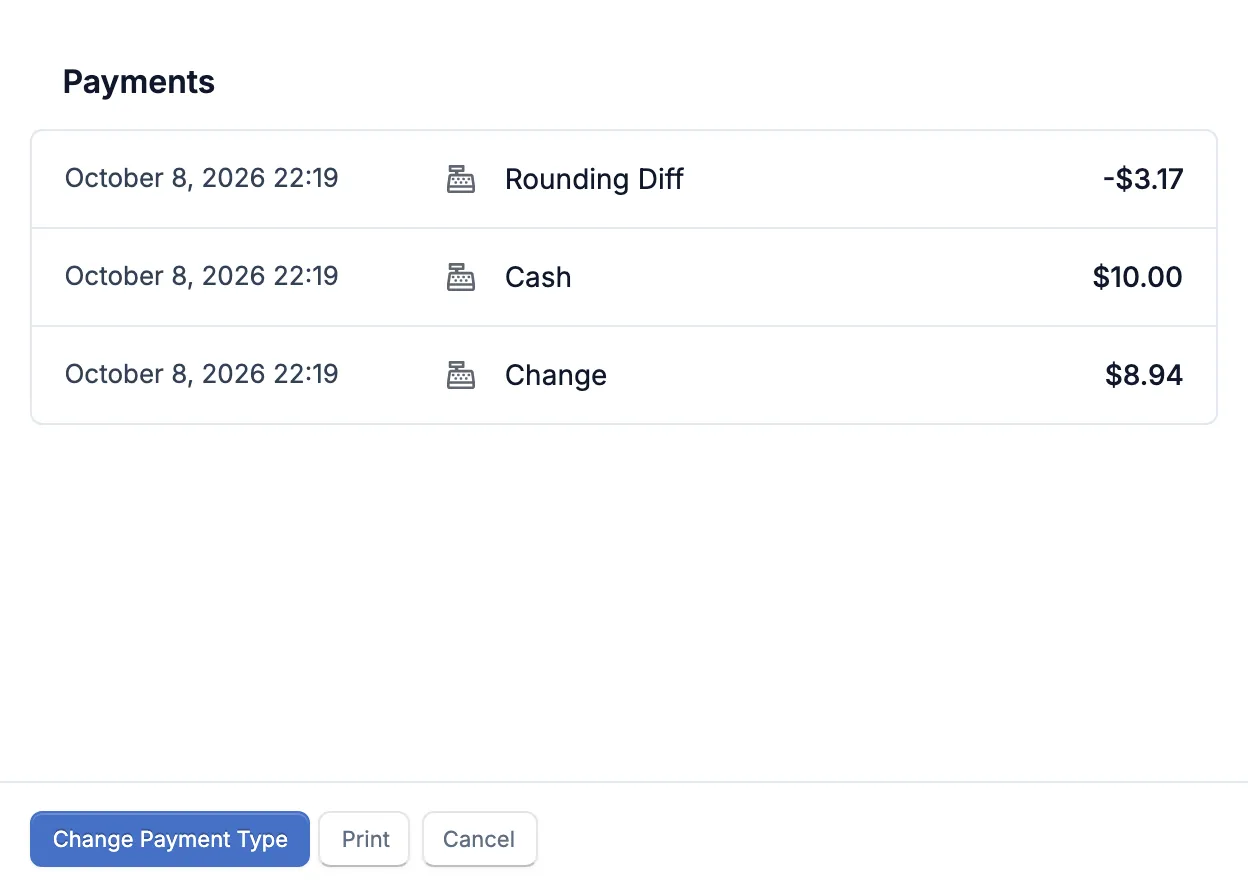
Click Change Payment Type (bottom left).
-
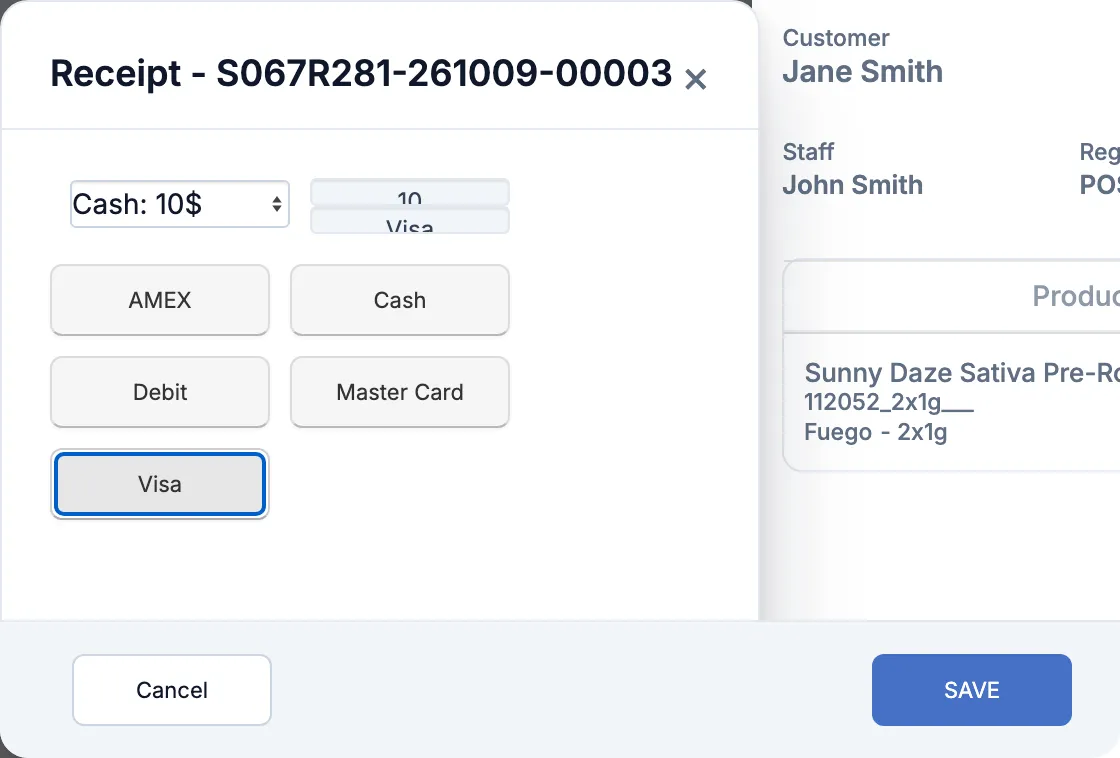
In the list that starts (Receipts Payment), pick the payment to fix. Only payments that can be changed are listed.
-
Click the correct type, for example Visa. The box beside the list shows the new type.
-
Click SAVE. The report reloads with the new type.
Good to know
Section titled “Good to know”- Cash, cheque, debit and card payments can be changed. Change, rounding, gift card and points lines can’t.
- A card payment that went through the terminal can only change to another card type, for example Debit to Visa. A payment made online can’t change.
- WAIO records who changed each payment and what it was before.