
Record a destruction
Use this when cannabis is thrown out (broken, expired, recalled or returned unsellable): it takes the stock off on hand at the store you’re signed in to and keeps a destruction record. For a miscount, adjust inventory on hand instead.
-
In the menu, click Products, and search for the product.
-
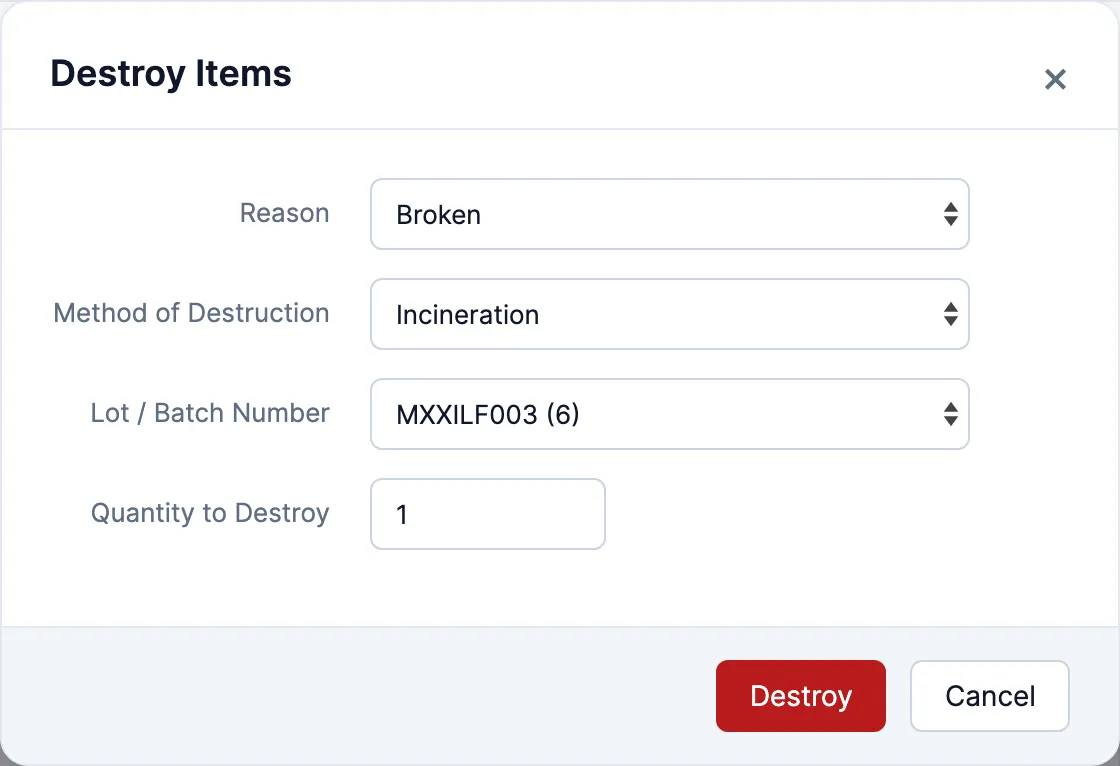
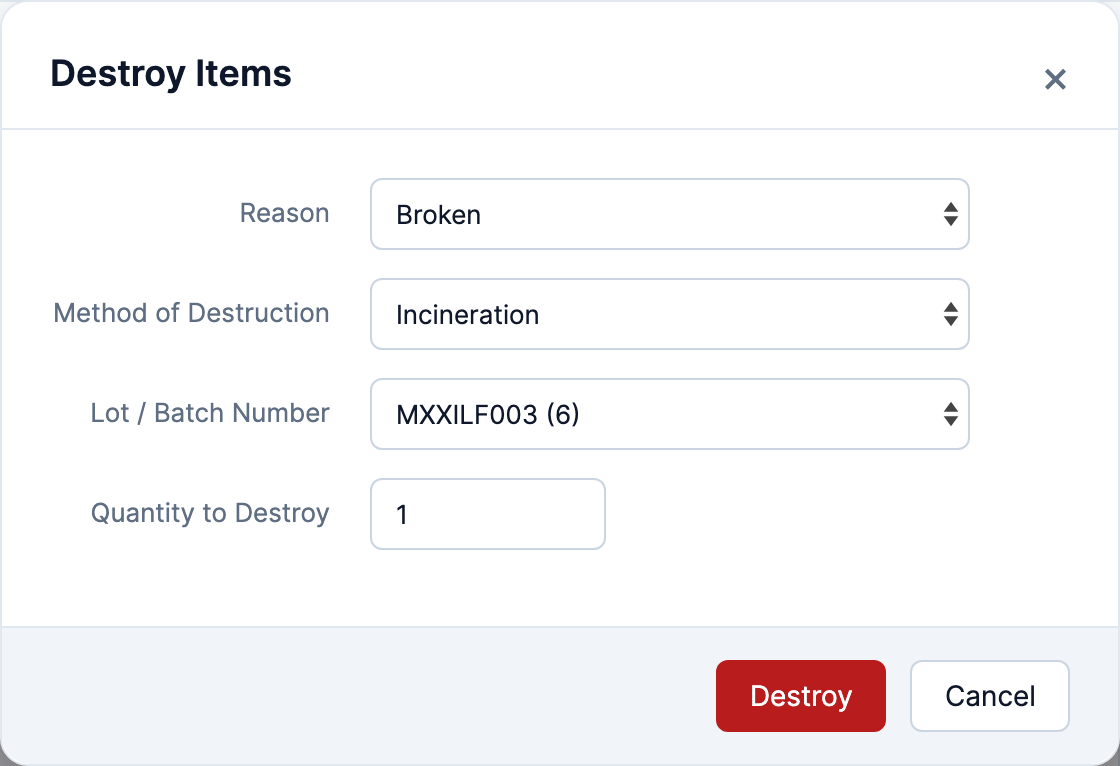
Tick the product’s box. Destroy appears in the bar over the list. Click it. The Destroy Items window opens.

-
Pick a Reason. For one that isn’t in the list, leave (Other) and type it in Message.
-
Pick the Method of Destruction, or leave (Other) and type it in Specify Method. You can’t destroy without one.
-
Pick the Lot / Batch Number. Its quantity on hand is in brackets.
-
Enter the Quantity to Destroy.
-
Click Destroy. The stock comes off on hand, dated now.

Fix a destruction record
Section titled “Fix a destruction record”You need Edit Destruction Records, and Reports Menu & Home Page and Destruction Packages Report to open the report.
-
Click Reports, then Destruction Packages Report.
-
Set the Period to when it was destroyed. Each record has an Update button at the end of its row.

-
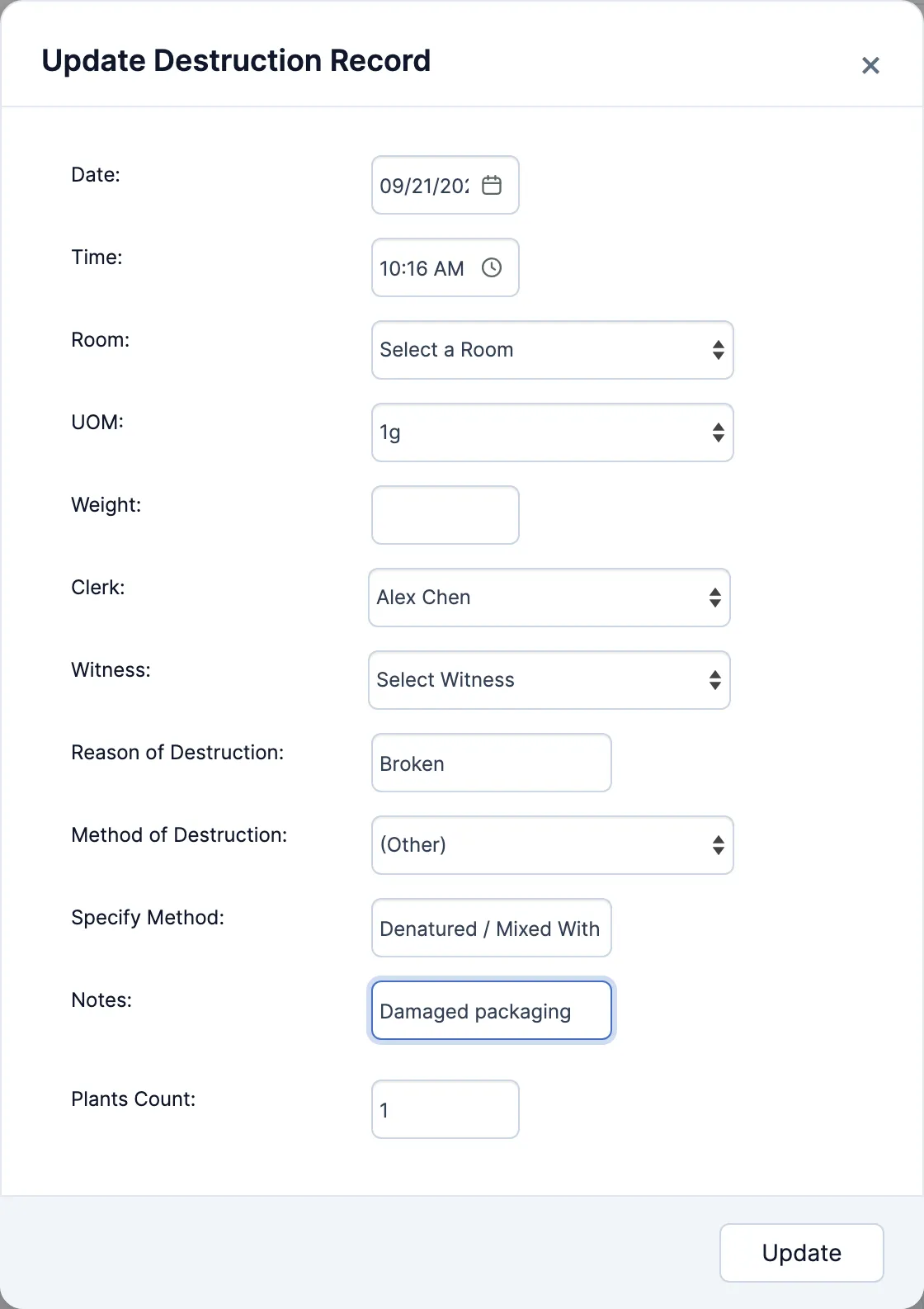
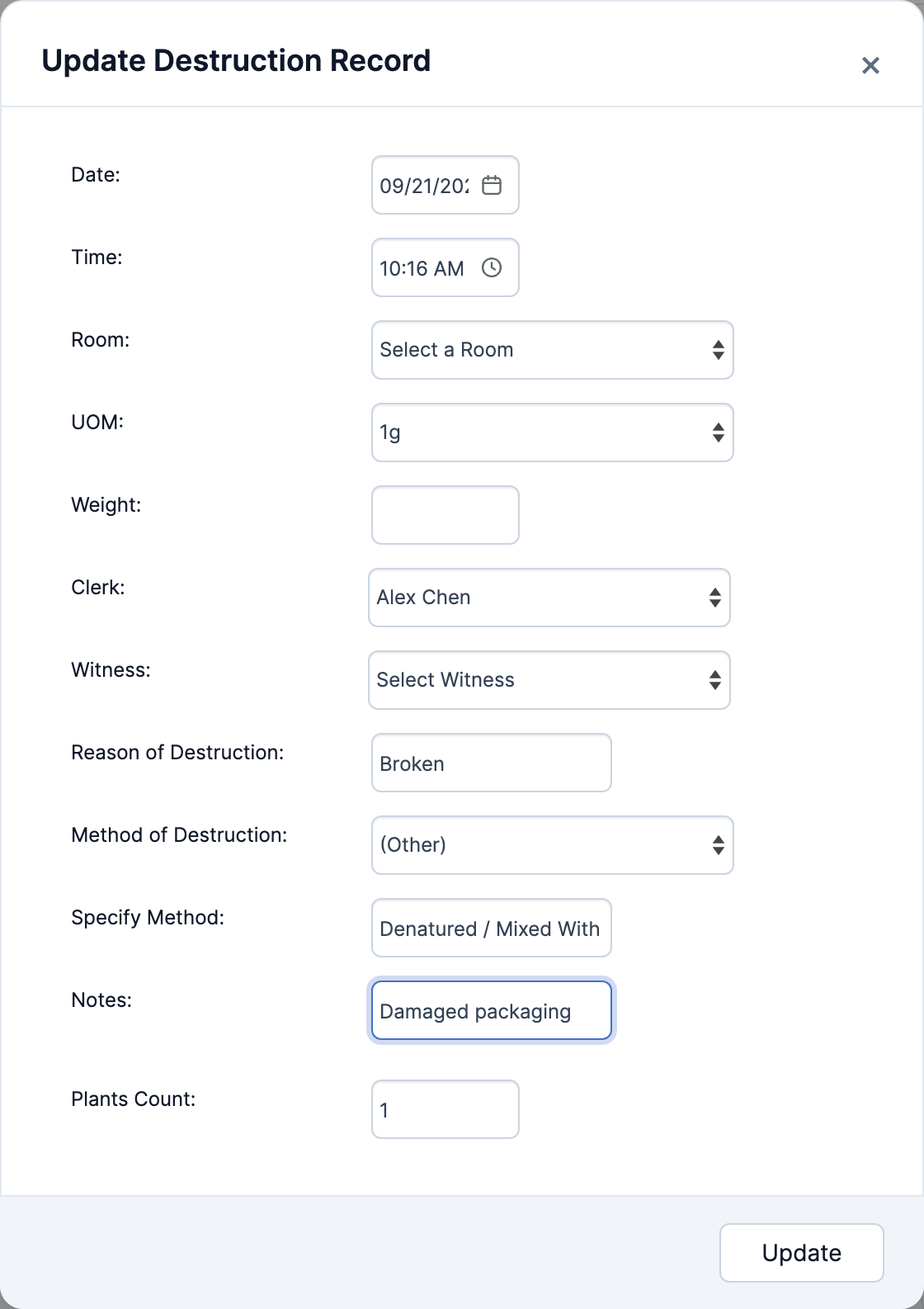
Click Update. The Update Destruction Record window opens.
-
Change what’s wrong: Date, Time, Clerk, Witness, Reason of Destruction, Method of Destruction or Notes.
-
Click Update.

Good to know
Section titled “Good to know”- Destroying is dated now. To record one from an earlier day, destroy it, then fix the Date and Time with Update.
- Witness can only be added with Update. The Destroy Items window doesn’t ask for one.
- To correct a destruction’s quantity or plants count, report a problem.