
Add a staff member
Use this when someone new starts. If they’ve worked for you before, find them in the staff list and turn Is Active back on instead.
-
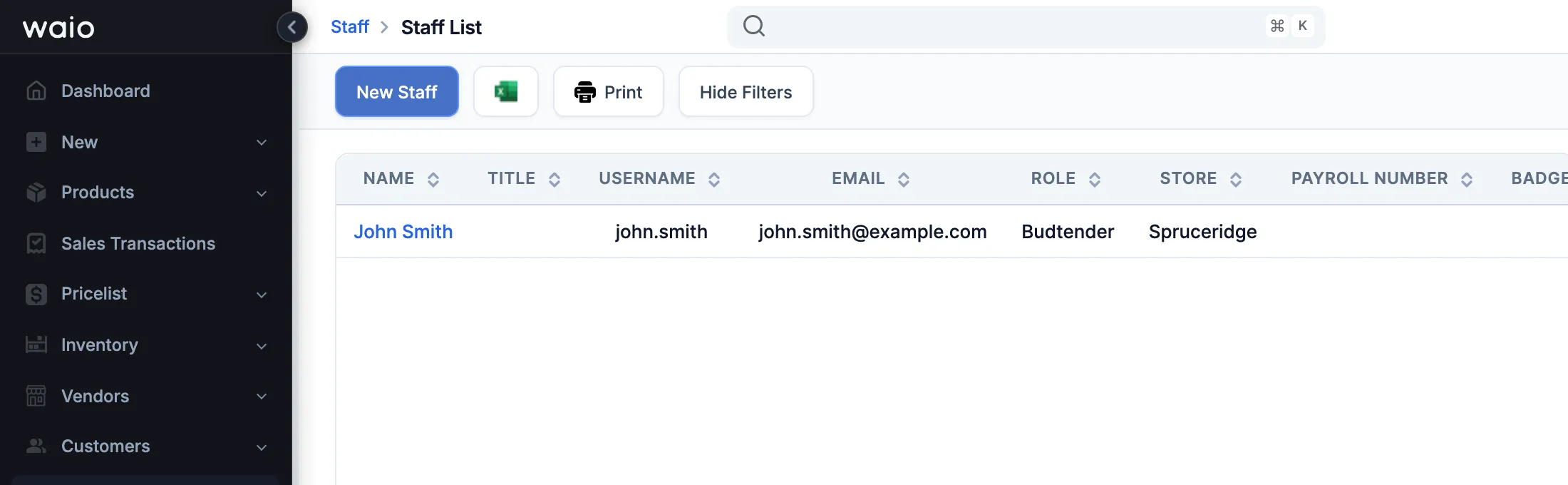
In the menu, click Staff.
-
Click New Staff.
-
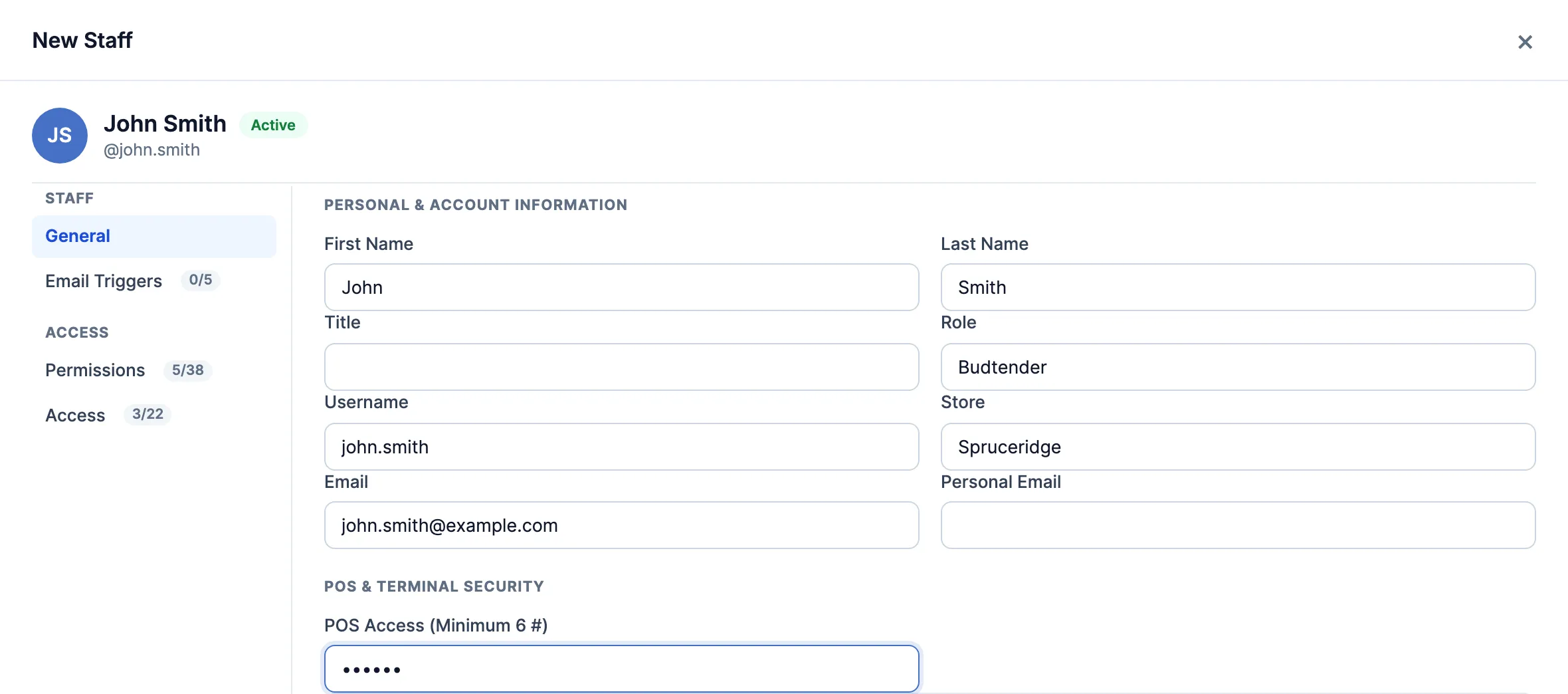
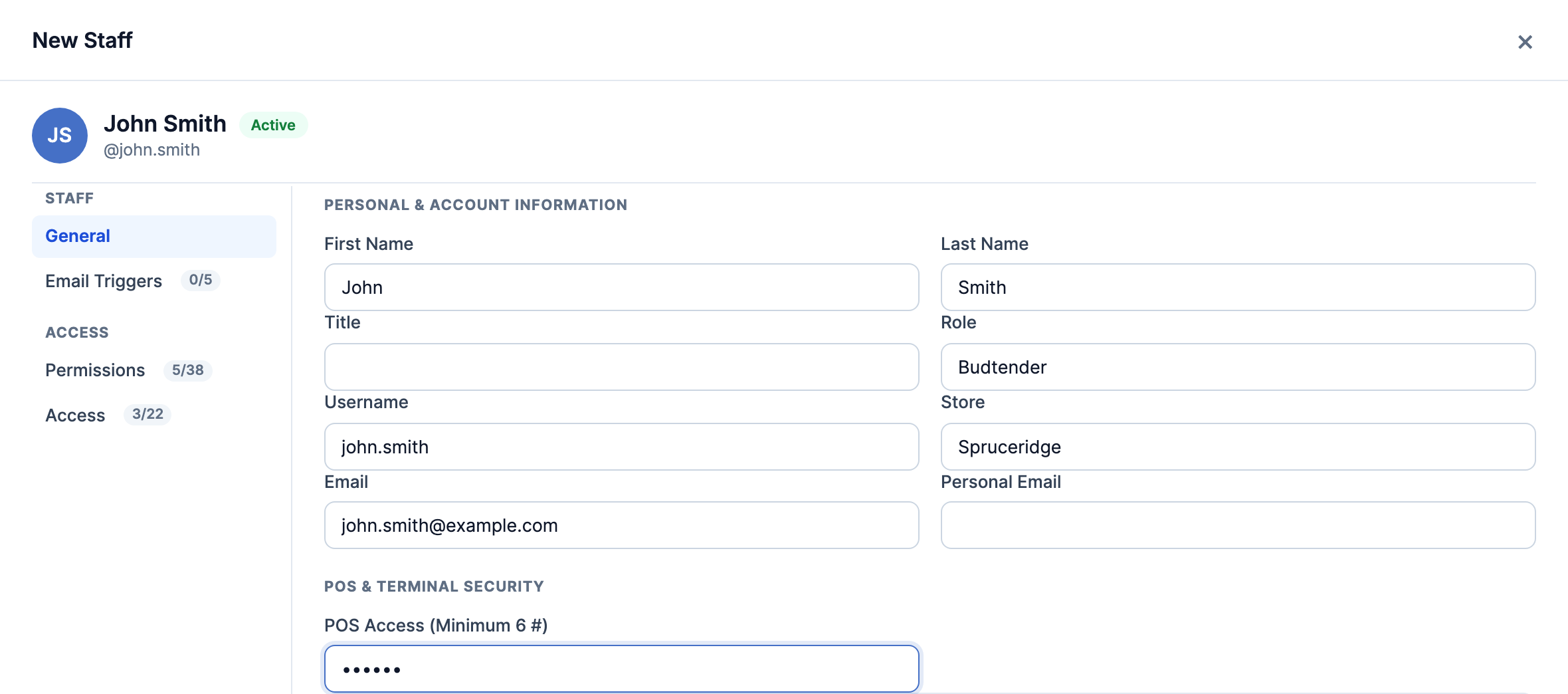
On the General tab, fill in:
- First Name and Last Name.
- Role. It sets their starting permissions. Roles you aren’t allowed to give are marked (Not Allowed) and can’t be picked.
- Username. They use it to sign in to the portal.
- Email. Password resets and report emails go here.
- POS Access (Minimum 6 #). Their PIN for the POS: digits only, and no two staff can have the same one. Use 6 or more digits. On some stores this box is called Access Code (Numeric only).
- Store, if you’re at Head Office. It’s their home store.
-
Open Permissions, then Access, and check what the role turned on. Two on Access that get missed:
- Portal Access. Without it they can use the POS but not the portal.
- Waio AI. No role turns it on. Switch it on if they should use the AI chat. You’ll only see it if the AI chat is on for your store.
-
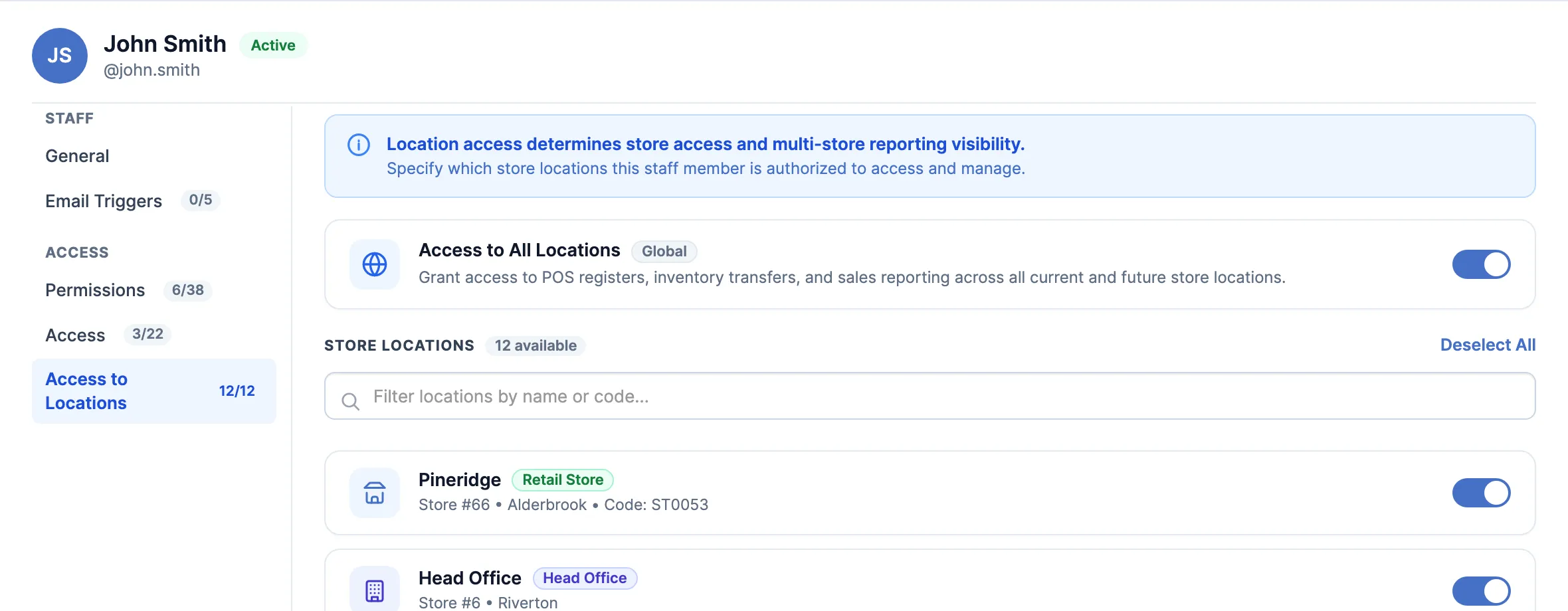
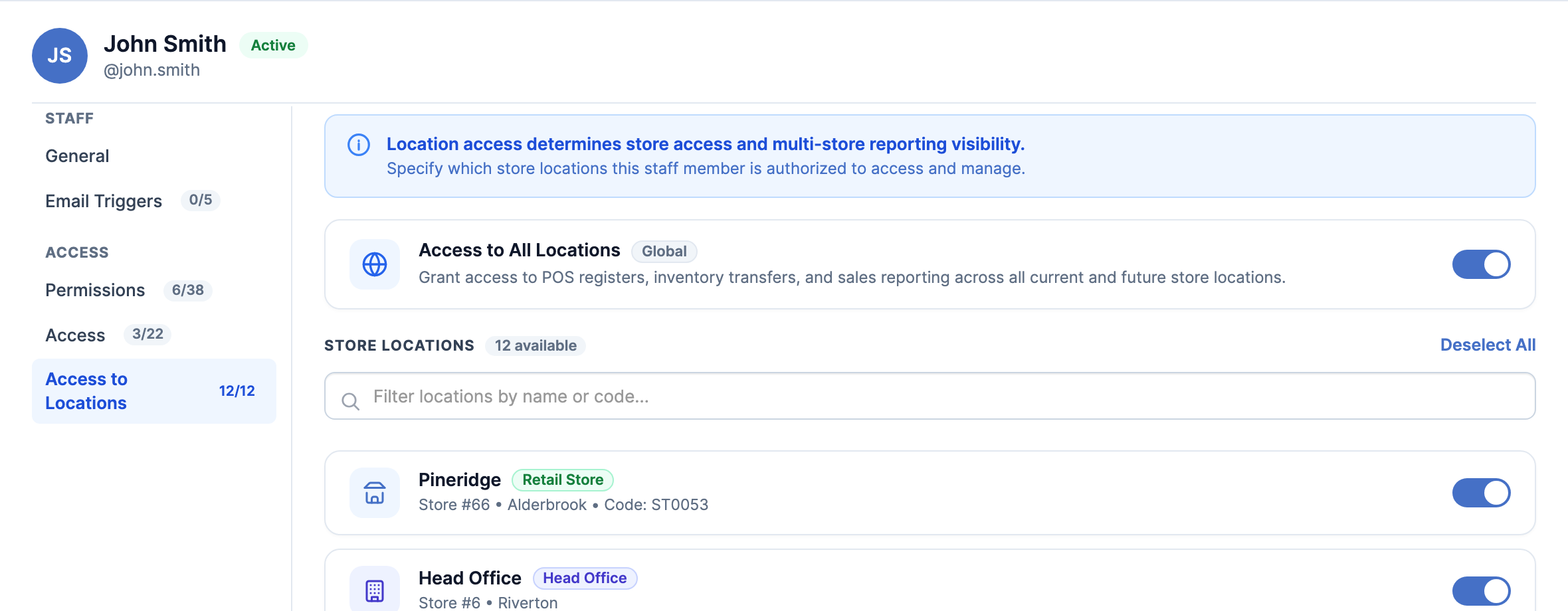
At Head Office, if they work at more than one store: turn on Multi-Store Access on the Permissions tab. The Access to Locations tab opens. Access to All Locations is on to start. To limit them to some stores, turn it off, then switch on each store they work at.
-
Click Save Changes.
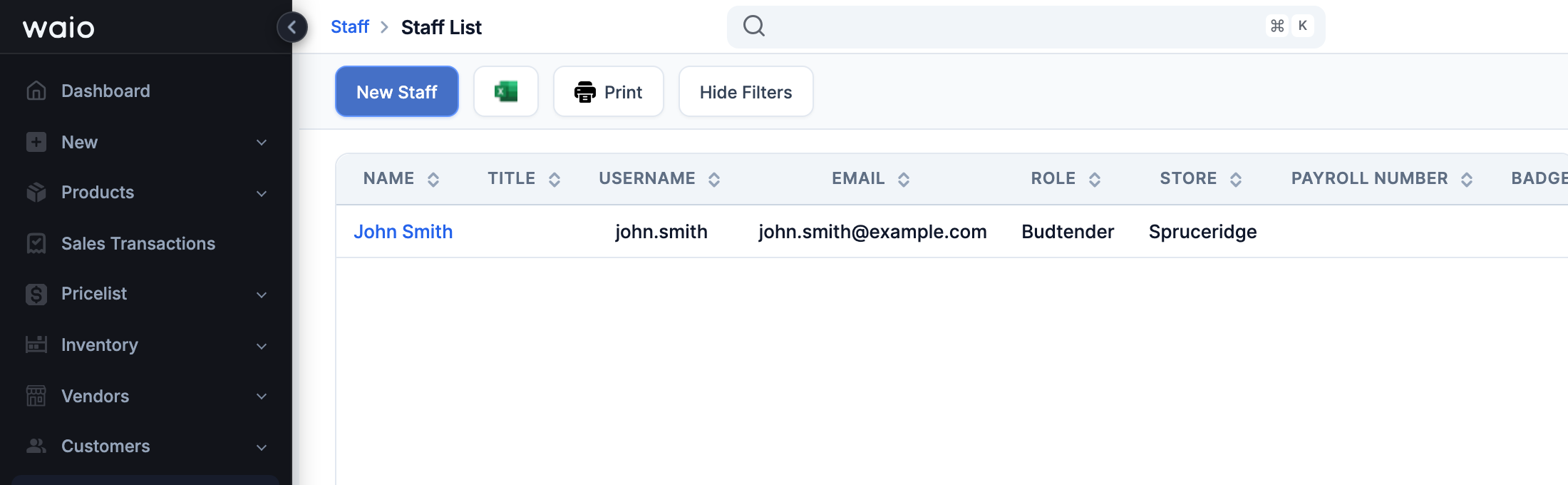
They can sign in to the POS with that PIN straight away.
Good to know
Section titled “Good to know”- If the editor opens but you can’t change anything, your company only lets Head Office add staff. Ask Head Office to add them.
- If your company signs in to the portal with a password, you don’t set it here. They get an email with a link to set their own.
- Changing someone’s Role later resets their Permissions and Access tabs to that role’s defaults. Recheck anything you changed by hand.
- When someone leaves, turn off Is Active instead of deleting them. Their sales and time records stay under their name.