
Manage or cancel a count
Use this on a count that’s still open. To start one, see Run an inventory count.
Change who’s counting
Section titled “Change who’s counting”-
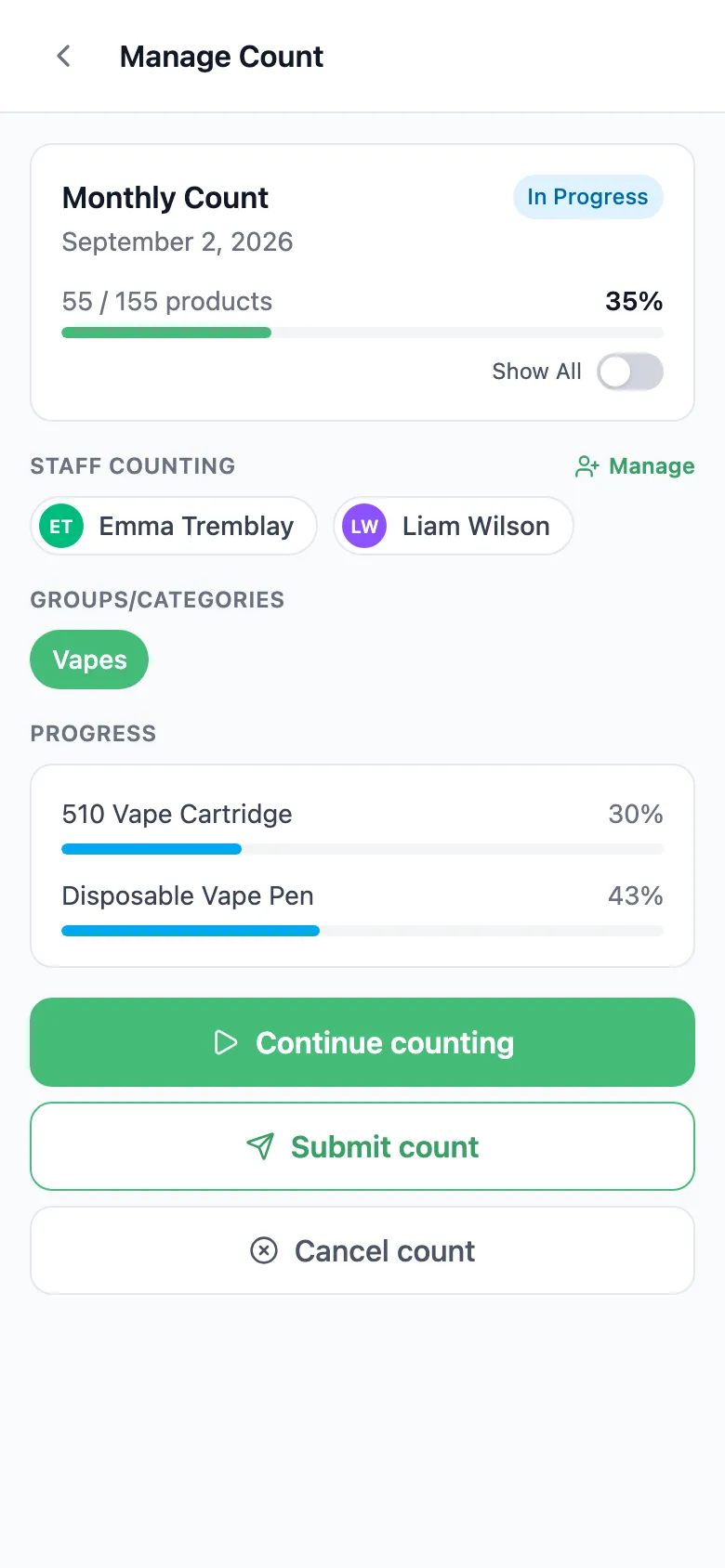
In the Inventory app, open the count.
-
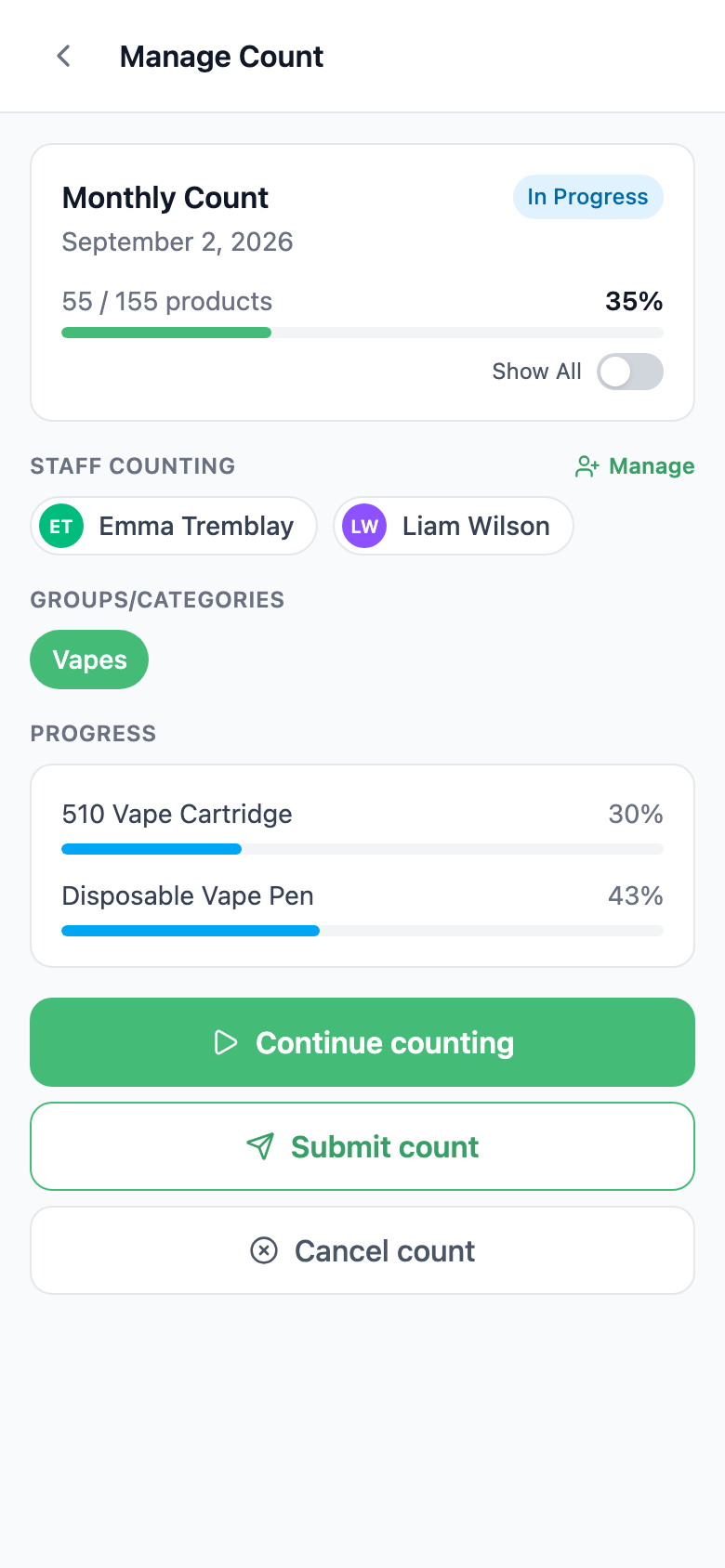
Next to Staff Counting, tap Manage.
-
Tap people to tick or untick them, then tap Save. Anyone added gets an email about the count, and anyone removed gets one saying they’ve been unassigned.
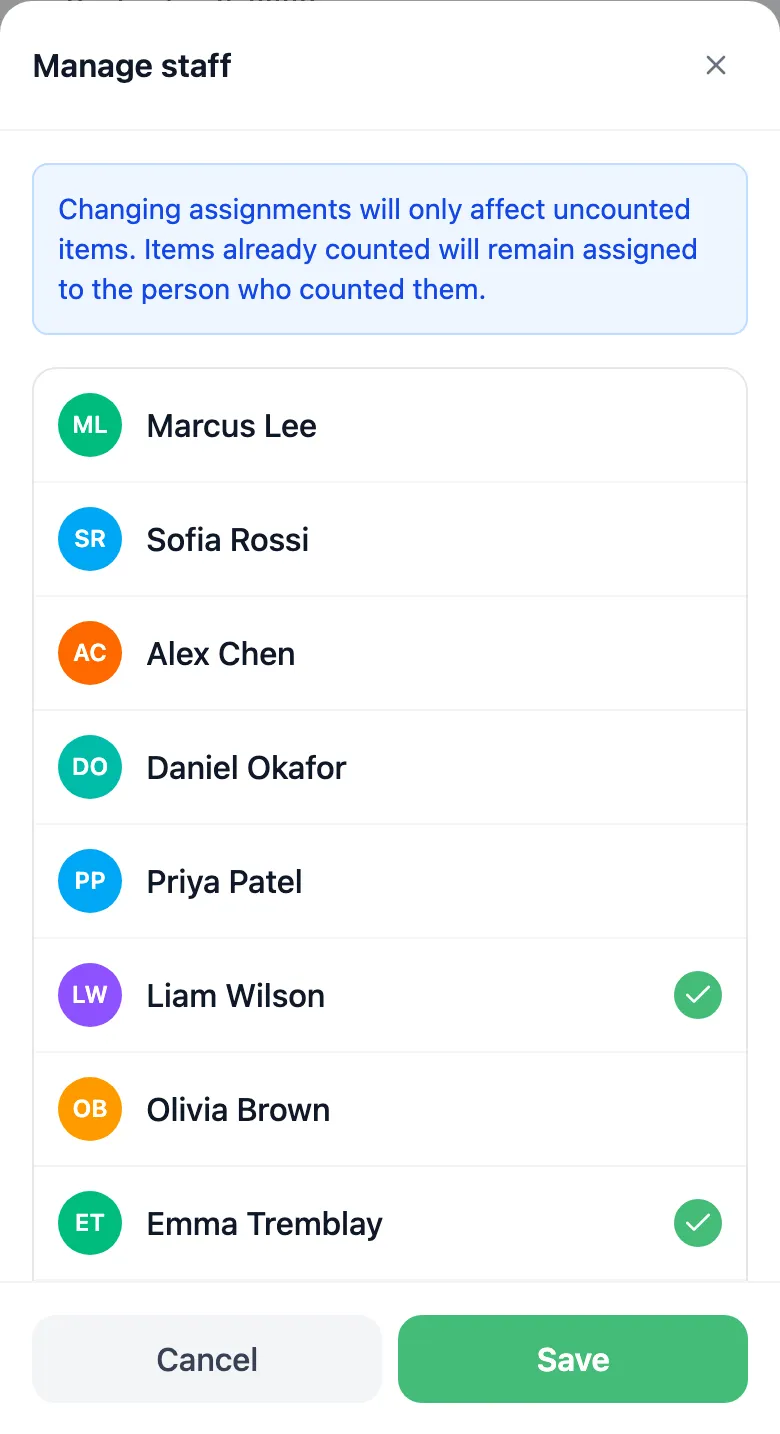
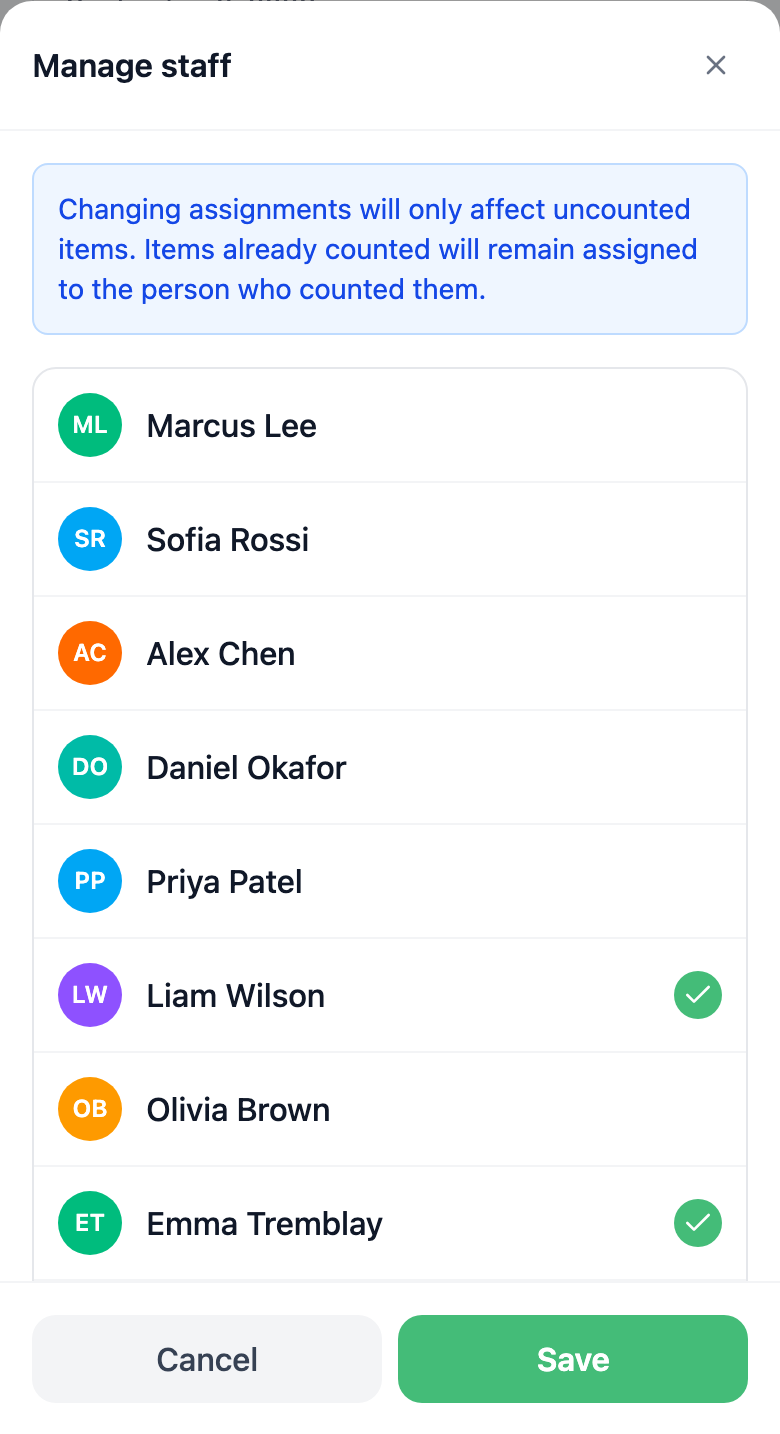
The list only shows staff with Inventory Counts & Adjustments who can access this store. Ticking someone doesn’t stop others counting: anyone with that permission at the store can open the count. Only a percentage split limits who counts what.
Split the products by percentage
Section titled “Split the products by percentage”-
In Manage staff, turn on Advanced Settings, then Assign % Count to Staff.
-
Type a percentage for each person. Tap Add Staff Member to add someone, or the X to take them off. Save stays grey until the total is 100%.
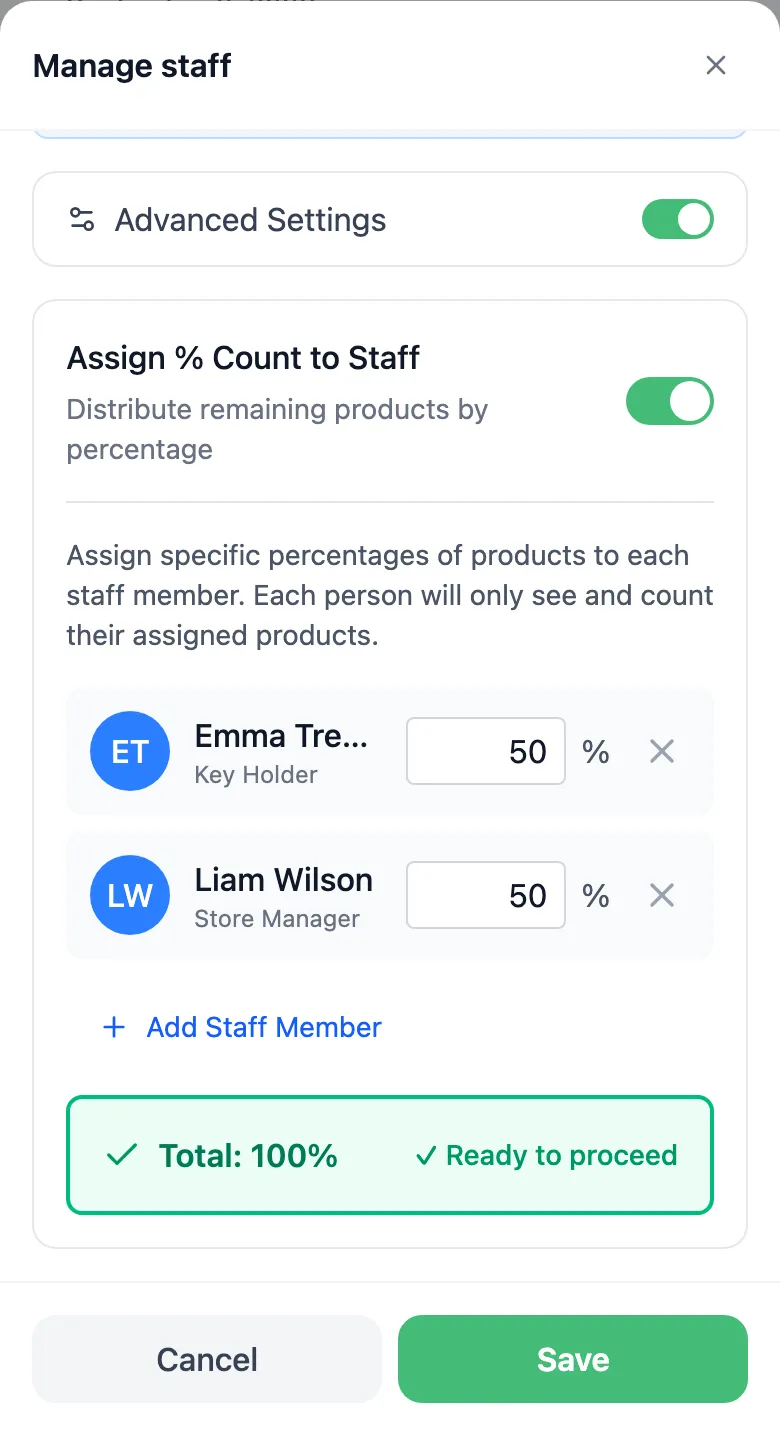
-
Tap Save. The products nobody has counted yet are shared out by those percentages, and counted ones stay with whoever counted them. Each person now sees and counts only their own products. By Staff on the count’s page shows how far each one has got.
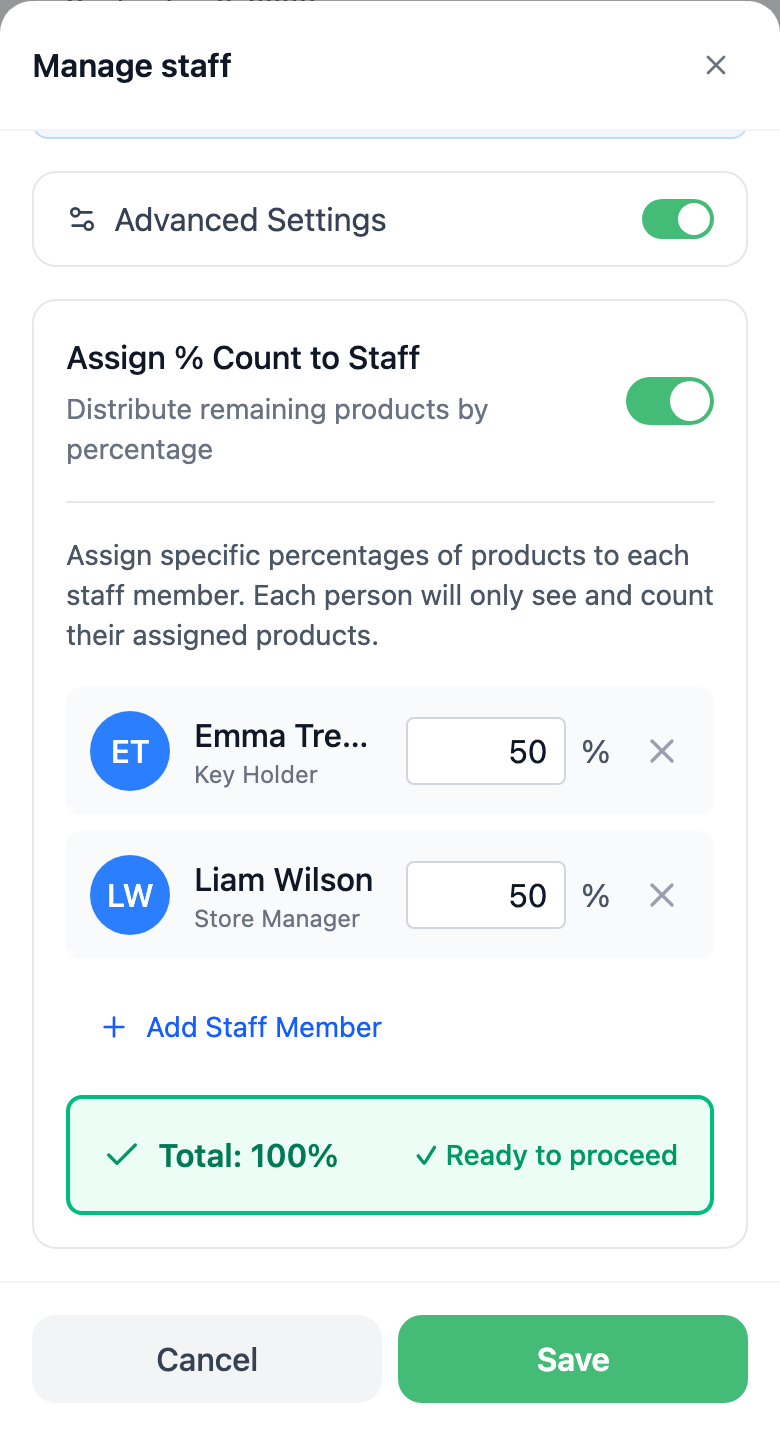
Staff with Manage Inventory Counts still see the whole count, can count any product in it and can add products. Everyone else can’t add products to a split count.
Due date and blind counts
Section titled “Due date and blind counts”- Due Date is set when the count is created and can’t be changed after. It shows on the count and in the assignment email. Nothing happens when it passes.
- Blind counting is set per staff member, not per count. Give someone Blind Count (hide expected qty) in their staff profile and the Inventory app hides expected quantities, and with them over and short, from that person on every count. To keep their counts blind, don’t also give them the portal’s Inventory Counts page.
Cancel a count
Section titled “Cancel a count”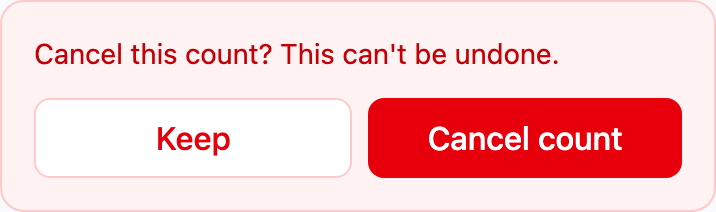
The count closes as Cancelled and stock doesn’t change. A cancelled count can’t be reopened, and a count that’s already Complete can’t be cancelled. Counts can’t be cancelled from the portal.
Automatic cancellation
Section titled “Automatic cancellation”If your company turned it on, the Inventory Counts page in the portal says so under its title, for example Counts not accepted within 72 hours are cancelled automatically. A count still New or In progress that long after it was started is cancelled on its own. The person who started it gets an email when 30% of the time is left, and the Inventory app shows when it cancels.
Staff with Manage Inventory Counts change it in the portal: open Inventory > Inventory Counts, click Settings, then set Cancel counts that are not accepted in time and Cancel count after (hours), and click Save settings. Open counts already older than the new limit are cancelled within 15 minutes, so the page asks you to confirm first.