
Add a customer to a sale
Do this at the start of the sale, before any discounts. If they aren’t in the system yet, add a new customer instead: they go on the sale as soon as you save them.
-
In the cart, tap Add Customer. The POS opens Customers.

-
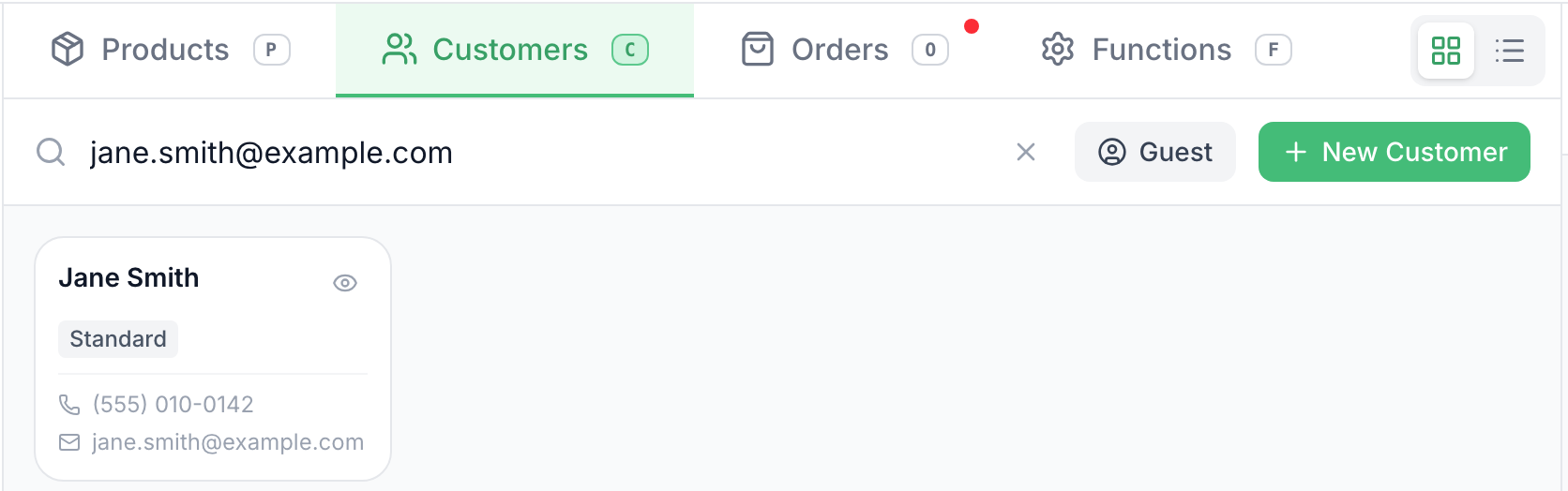
Type at least 2 characters of their name, phone number or email, for example
jane.smith@example.comfor Jane Smith. -
Tap the customer’s card.
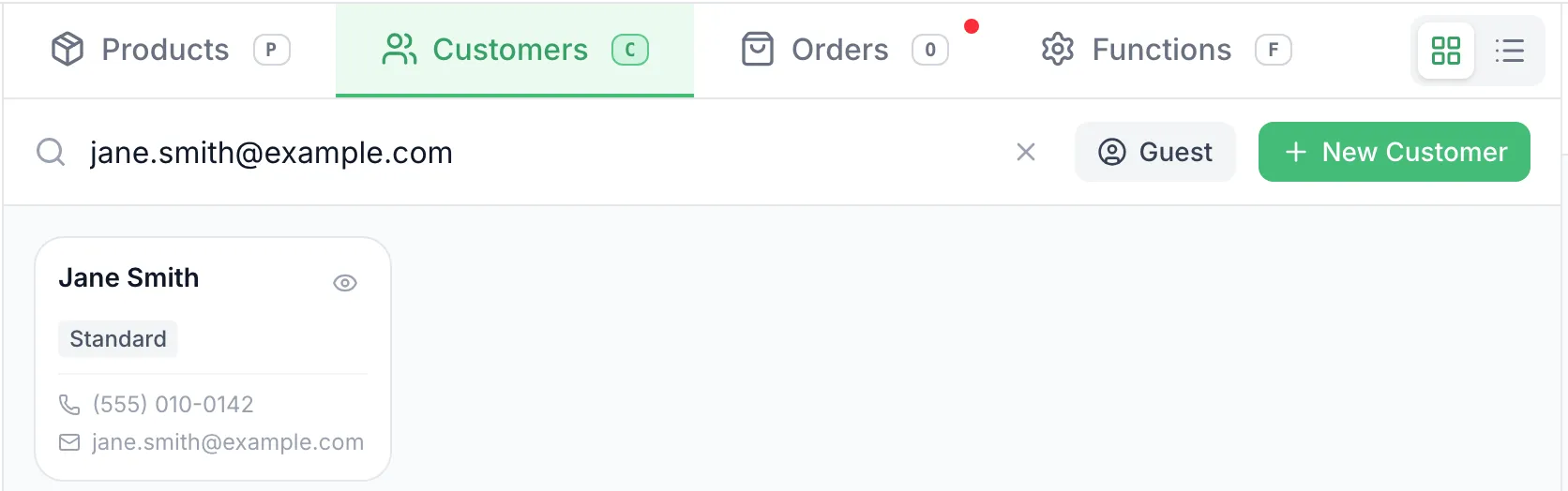
-
The POS goes back to Products and the customer’s name is at the top of the cart. To swap them for someone else, tap Change.


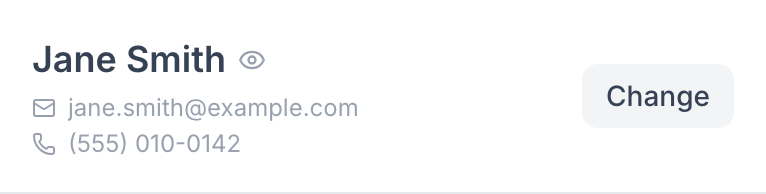
To take the customer off and ring the sale with no one on it, tap Change, then Guest.
Good to know
Section titled “Good to know”- Scanning a customer’s QR code from the app adds them straight away. The POS shows Customer Selected.
- A customer with a Blocked badge can’t complete a sale. Check the notes on their profile.
- Once part of the sale is paid, the customer can’t be changed. Void that payment in Checkout first.