
Review a count before you submit it
There’s no separate approval step. Submitting a count in the Inventory app accepts it straight away, so check it before you submit.
Check it in the Inventory app
Section titled “Check it in the Inventory app”-
Open the count and tap Continue counting (or Start counting). If a product opens, tap the back arrow (top left) to get the list.
-
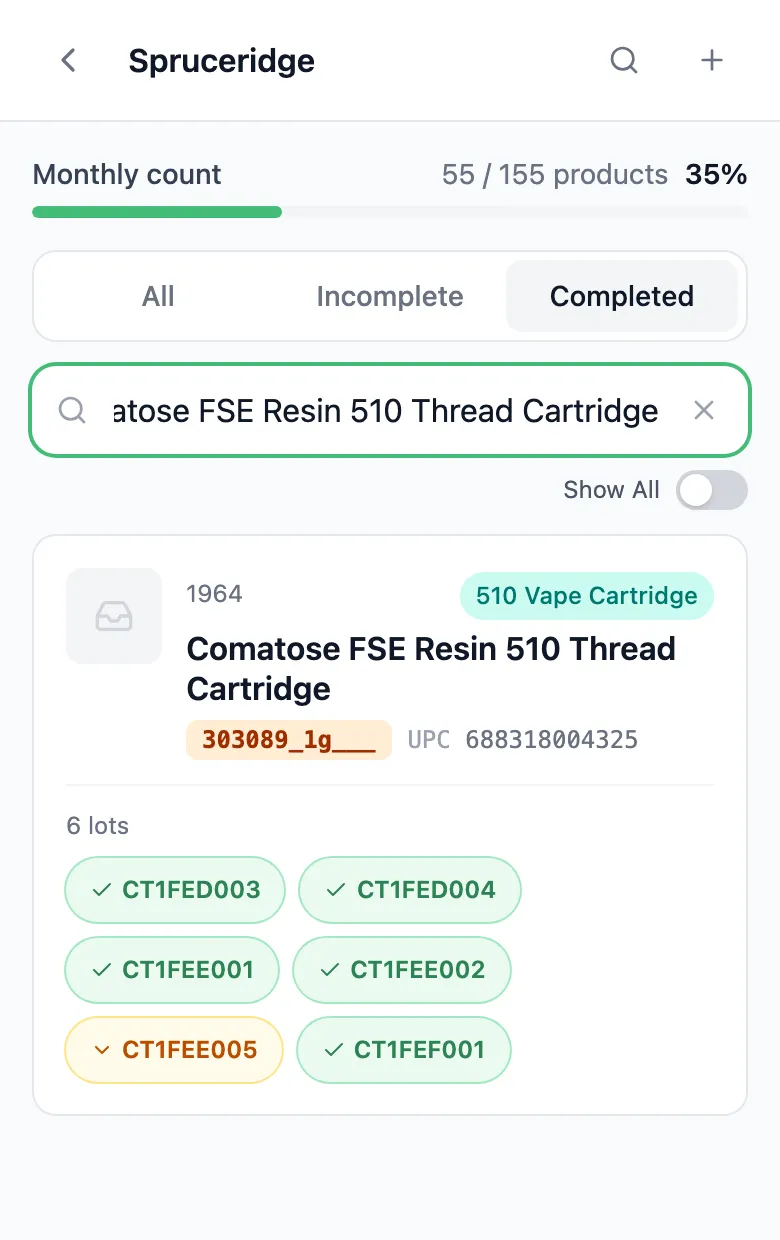
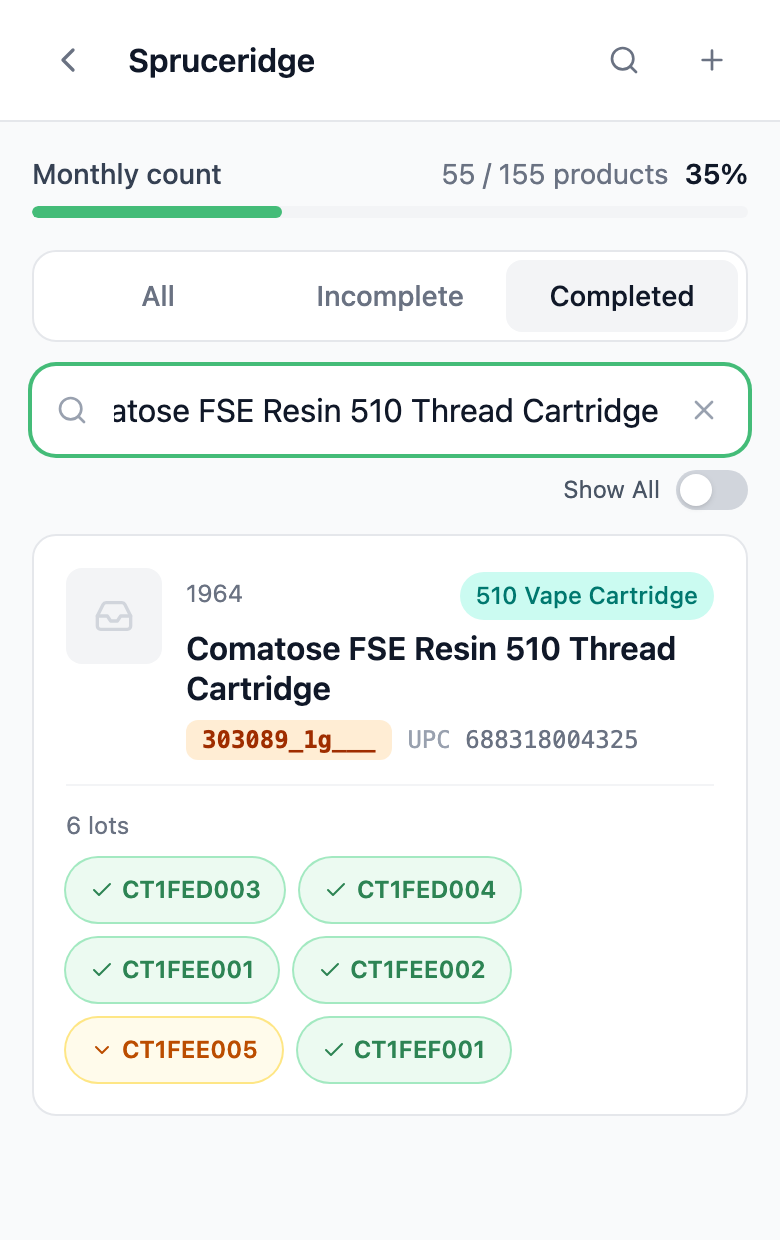
Tap Completed to see what’s been counted, or Incomplete for what’s left. Each lot shows how it compares with what the system expected:
- Green with a tick: matches.
- Amber with an arrow up or down: over or short.
- White: not counted yet.
A product without lots shows a badge instead: Matches, or the difference, like +2 Over or -1 Short.
-
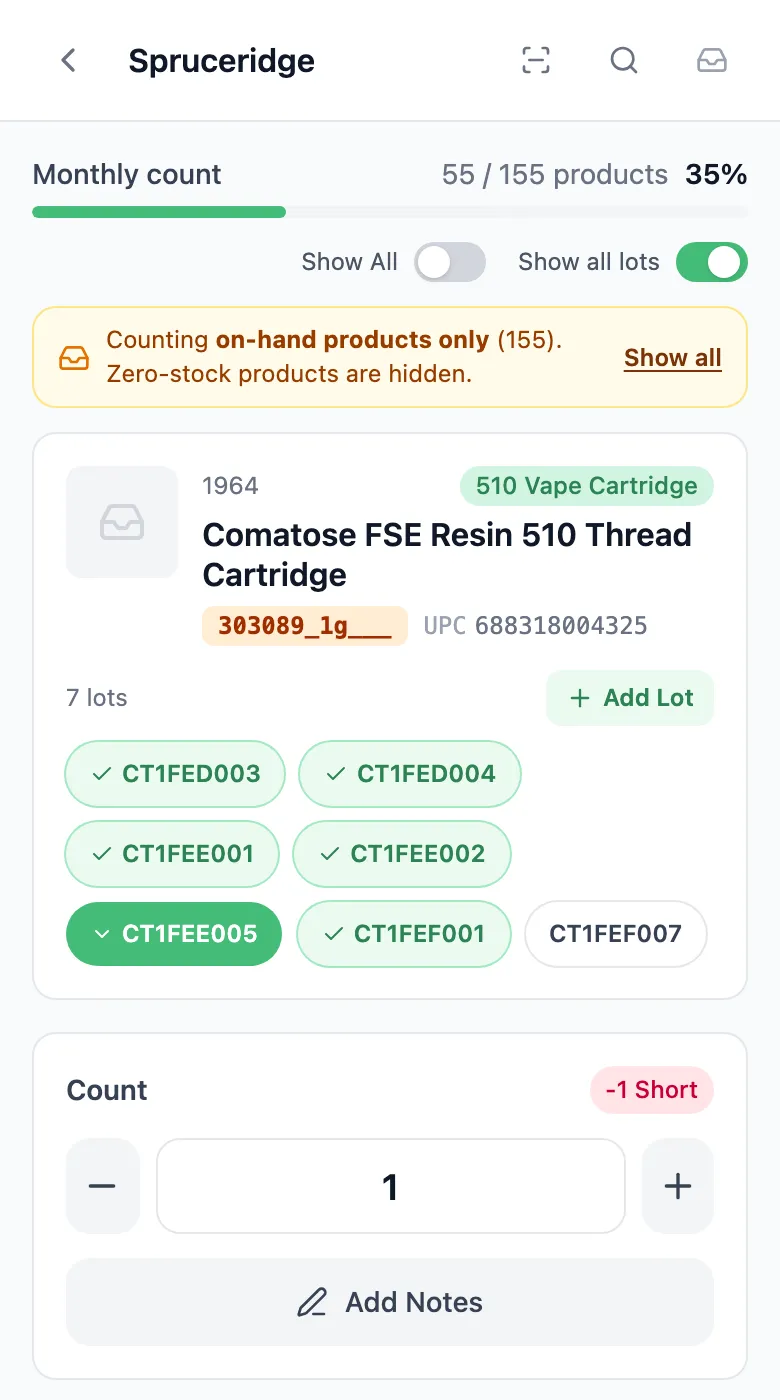
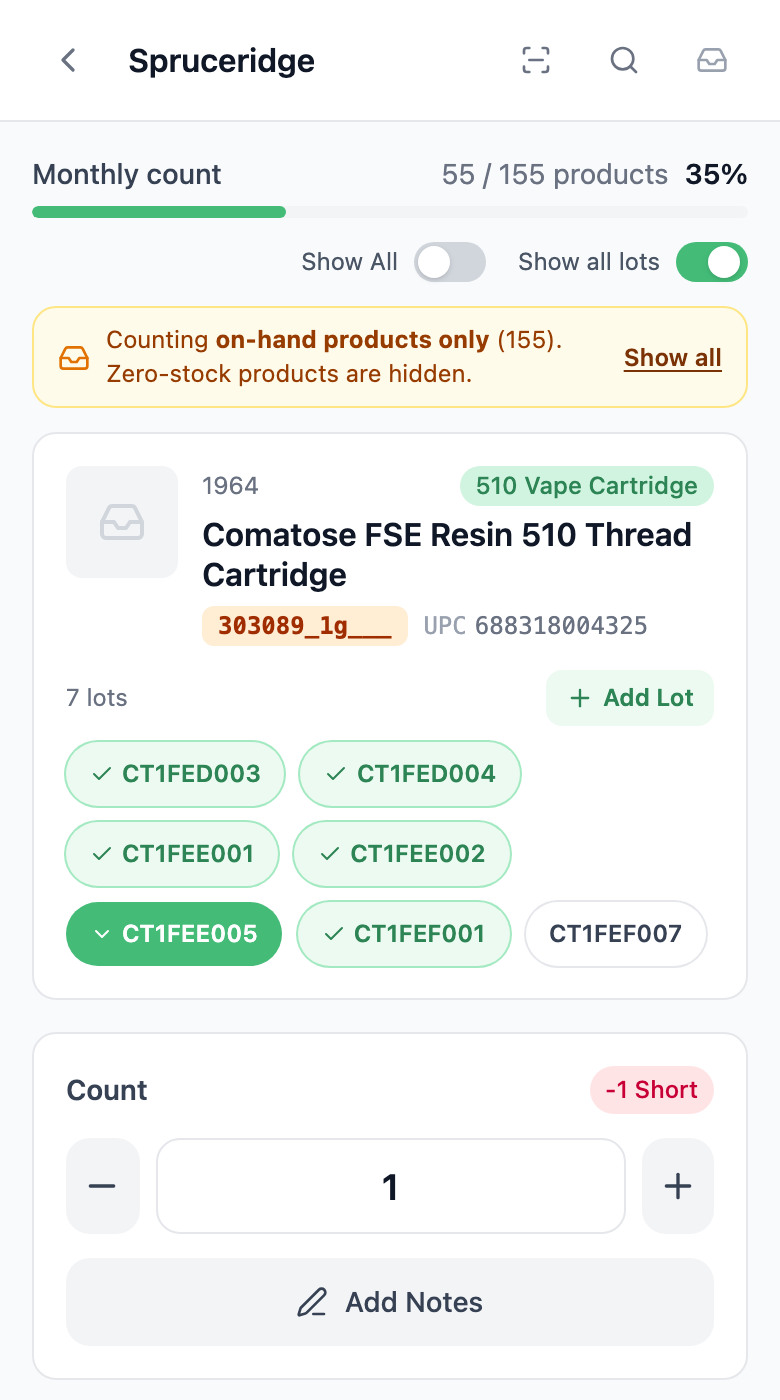
Tap the product, then tap an amber lot. The badge next to Count shows how many units it’s off.
-
If the number looks wrong, count that lot again and type the new number. It replaces the old one and Saved shows next to Count. If there are none, type 0. Emptying the box doesn’t clear a saved number.
Check it in the portal
Section titled “Check it in the portal”-
In the portal menu, open Inventory and click Inventory Counts.
-
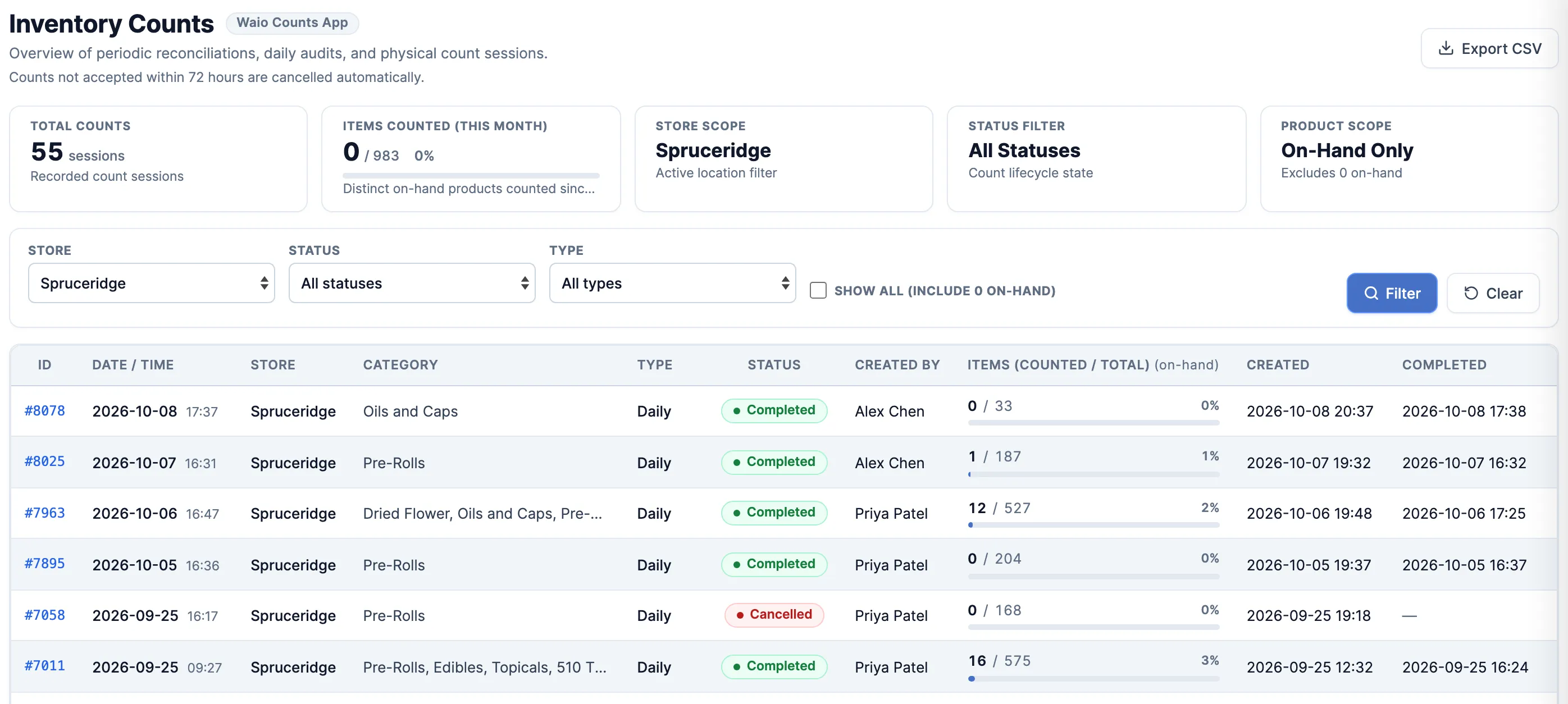
Set Status to In progress and click Filter. At Head Office, pick the Store too. Click a count to open it.
-
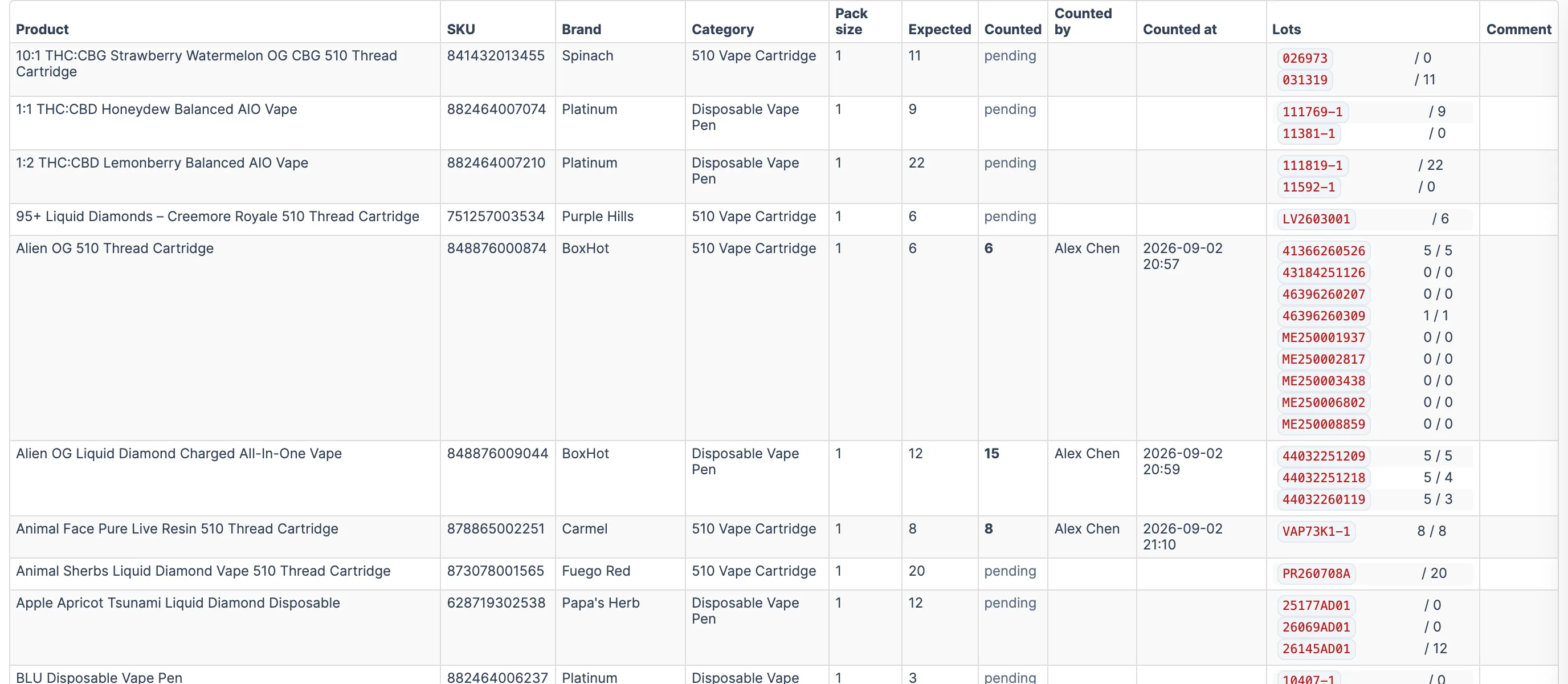
Under Items, compare Expected with Counted for each product. Lots shows each lot as counted / expected, and Counted by shows who saved the number last. pending means nobody has counted it.
-
While the count is In progress, you can fix a number here too: type it in the product’s Counted box, or in the lot’s box. It saves as you type and ✓ saved shows under it.
Accept it
Section titled “Accept it”- In the Inventory app, open the count, tap Submit count, tick the box and tap Certify & submit. The screen is shown in Run an inventory count.
When the count is accepted:
- Each product you counted is set to what you counted, as of the moment it was counted. A sale rung up after that still comes off.
- Products nobody counted keep their on-hand.
- On a product where some lots were counted, every lot left blank is set to 0.
- The count shows Complete in the app and Completed in the portal, and it can’t be changed or reopened.
The Inventory Count Discrepancies report then shows each product’s loss and gain in units and in dollars. Opening it needs the Inventory Count Discrepancies permission.
Good to know
Section titled “Good to know”- Anyone with Inventory Counts & Adjustments at the store can submit a count, including the staff who counted it. Nobody else has to sign off.
- If the Inventory Counts page says counts are cancelled automatically after a number of hours, submit before then. A cancelled count changes no stock.
- Dollar values only show after the count is accepted, in the report.