
Create a discount schedule
Use a discount schedule to put products on sale automatically at the POS and online. It can run for a date range, on certain days and hours, or only for some customer groups.
-
In the menu, click Products, then Settings.
-
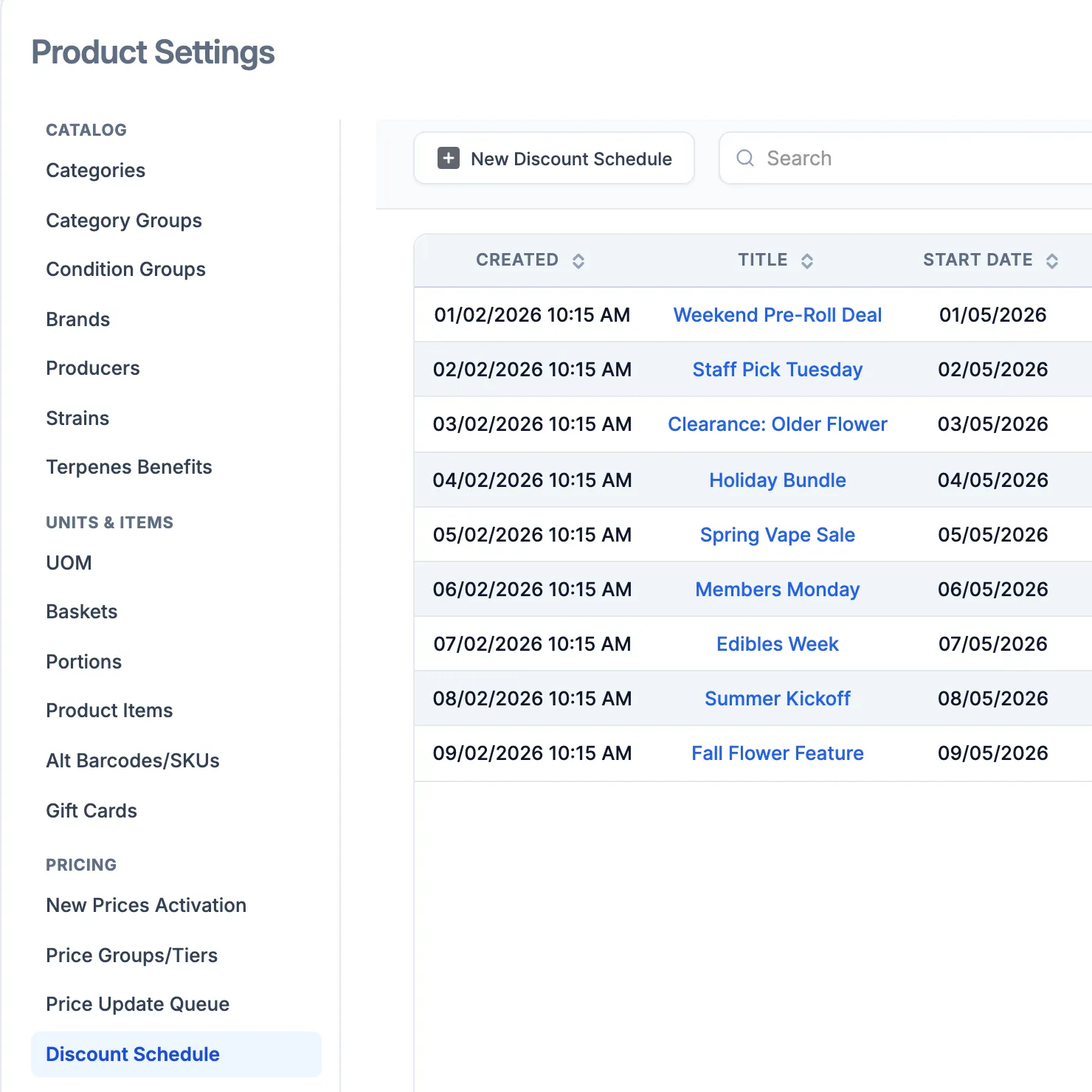
Click Discount Schedule (under Pricing), then New Discount Schedule.
-
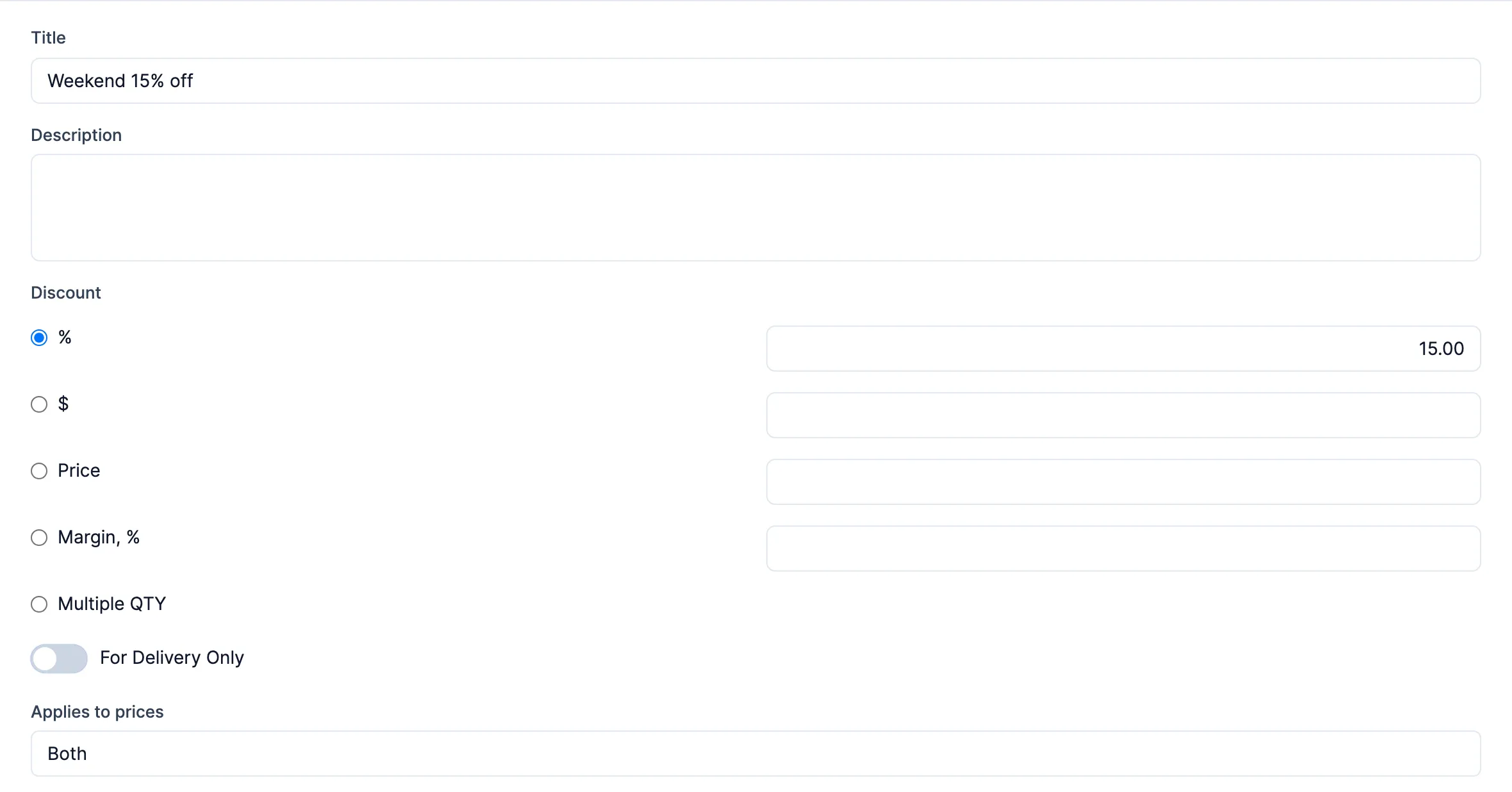
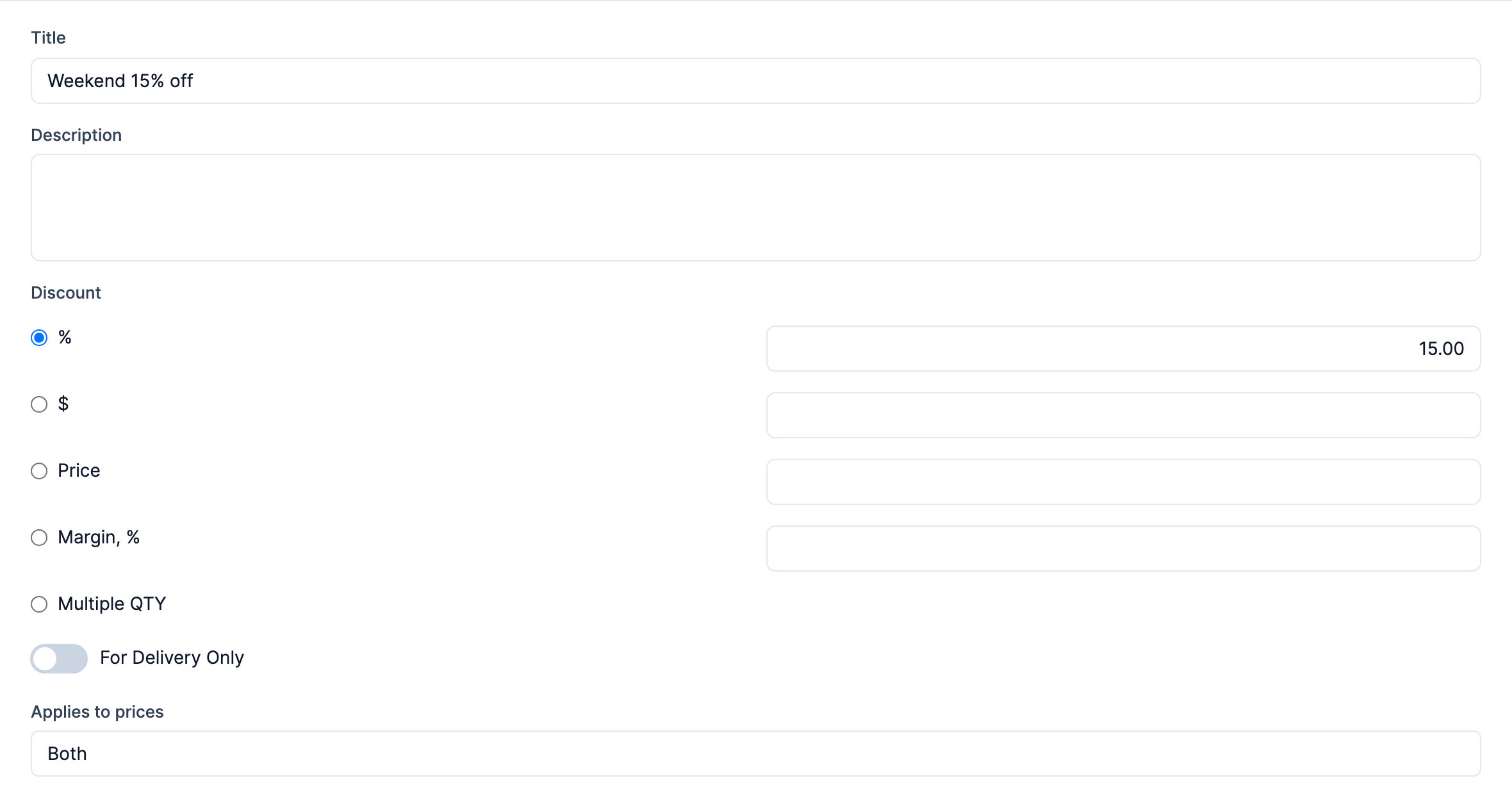
Type a Title.
-
Under Discount, pick a type and enter the amount in the box beside it:
- %. Percent off.
- $. Dollars off.
- Price. A fixed sale price. With Items, you can also set a different Disc. Price for each item in the list.
- Margin, %. The price is worked out from cost to give that margin.
- Multiple QTY. Quantity tiers. Under Multiple QTY Discount, pick %, $, Price or Buy N, Get 1 Free. Click Add Tier and fill in Qty from, To and the amount (only Buy for Buy N, Get 1 Free). You need at least one tier.
-
Set Applies to prices. A new schedule starts on Price 1. Pick Both unless the sale is only for customers on one price.
-
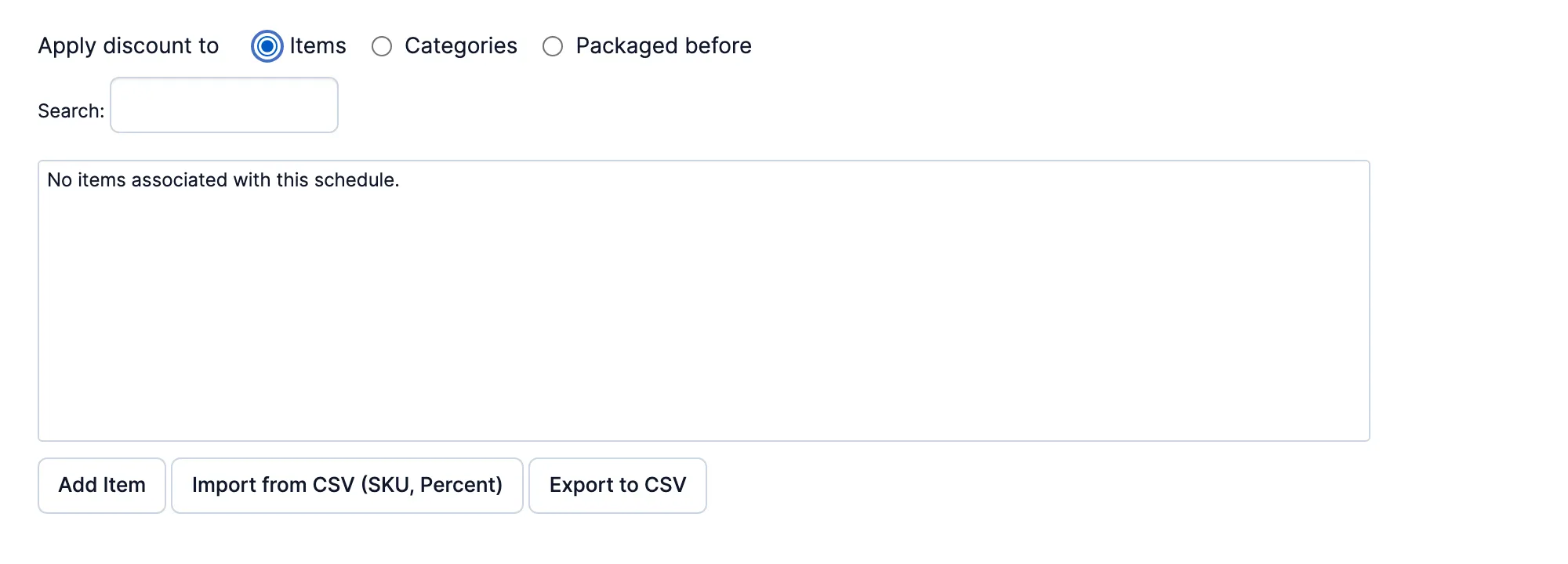
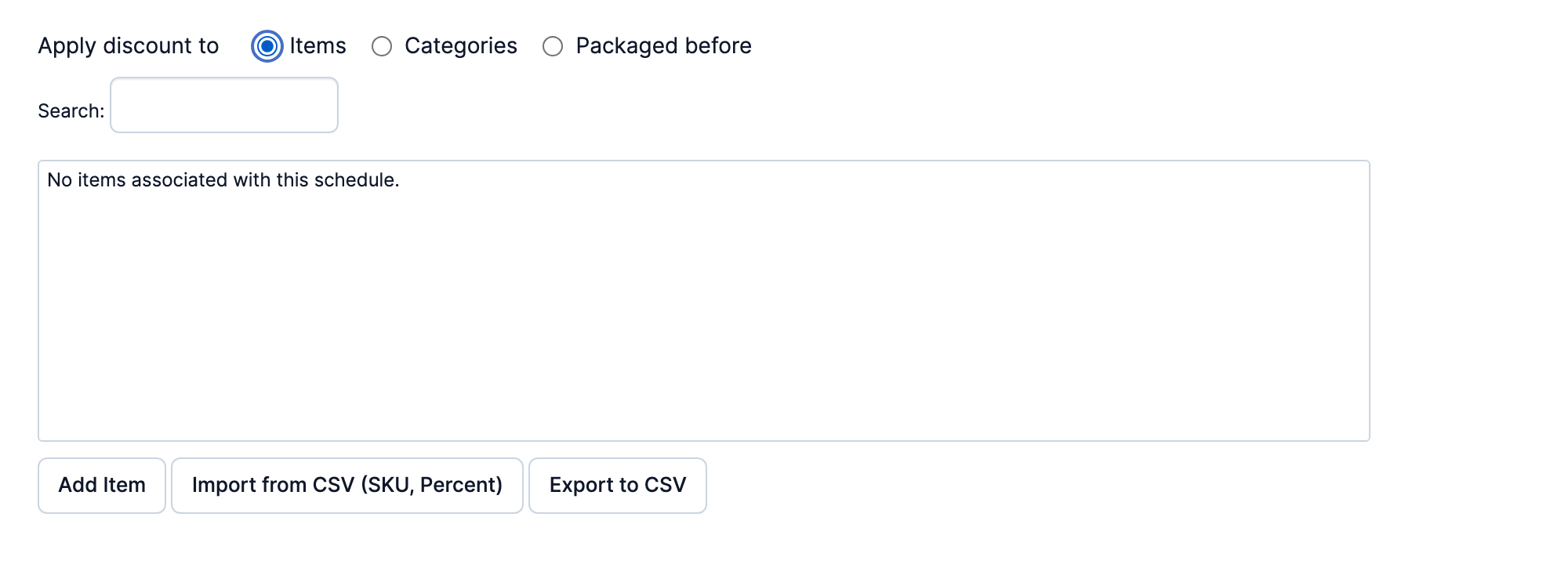
Under Apply discount to, pick one:
- Items. Click Add Item, or import a list with Import from CSV.
- Categories. Click Add Category.
- Packaged before, for aged stock. Type the age in the days ago box and click View Items to see what it covers. Items with an in-stock lot packaged on or before that date are added when you save, and the list is refreshed every hour.
-
Set any limits you need:
- Customer Groups. Leave All customers ticked, or tick only the groups that get the sale.
- Start Date and Finish Date. Leave them blank for no limit.
- Schedule days and hours. Every day, all day, to start. Switch days off or change the times for a happy hour. Reset Hours (bottom) puts the times back.
- For Delivery Only. Delivery orders only.
- Hide from Ecom. Keeps the sale off the website’s product list.
- Discount Code. The sale then applies only when someone enters the code. You need Edit Discount Schedule Code to type one.
- Points multiplier. Only shows when points are turned on.
-
Leave Schedule active on and click Save Changes.
-
At Head Office, Apply for Stores opens. Tick the stores, or All Stores, and click Ok. The schedule runs only at the stores you tick. Each store’s list shows its copy with (From HO) after the title.
Good to know
Section titled “Good to know”- An item gets one schedule discount at a time; they don’t stack. A schedule that lists the item (Items or Packaged before) beats one that covers its category. Otherwise the newest schedule wins, or, if your store has Use better discount on, the one that gives the lowest price.
- At Head Office, click Ok on Apply for Stores after every change, or the stores keep the old copy. Unticking a store removes its copy.
- To end a sale early, switch Schedule active off and save.