
How lots and package dates work
A lot (or batch) is one production run of a product, with its own lot number and package date printed on the package. WAIO counts each store’s stock lot by lot, so one product can have several lots on the shelf at once.
Where they come from
Section titled “Where they come from”Receiving. Each line of a receiving invoice has a Lot / Batch and a Packaged column, and what you type there becomes the lot’s number and package date (Receive a purchase order or enter an invoice). The lot you received last becomes the store’s current lot for that product.
Lot numbers are saved in capitals with the spaces taken out, so ab 123 and
AB123 are the same lot.
Where you see them
Section titled “Where you see them”-
Product list: Batch # is the store’s current lot. Package Date is the package dates of the lots on hand at your store, as a range (oldest to newest) when they differ, and blank when no dated lot is on hand.
-
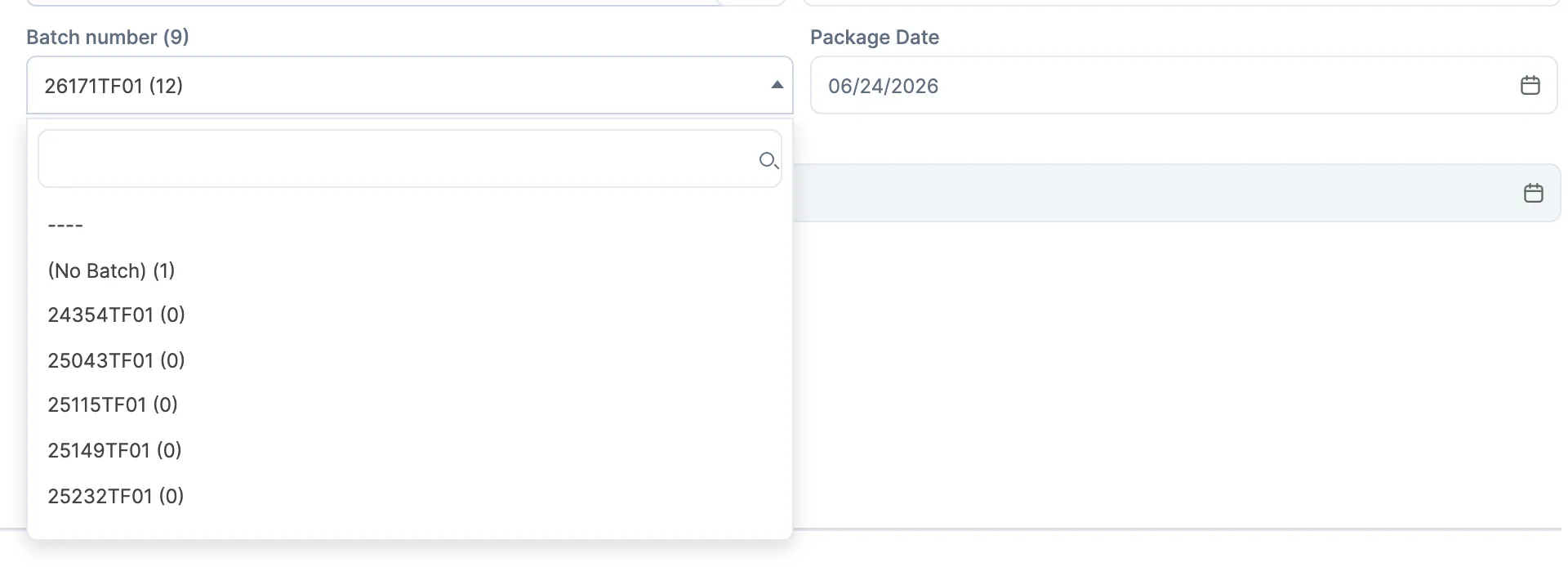
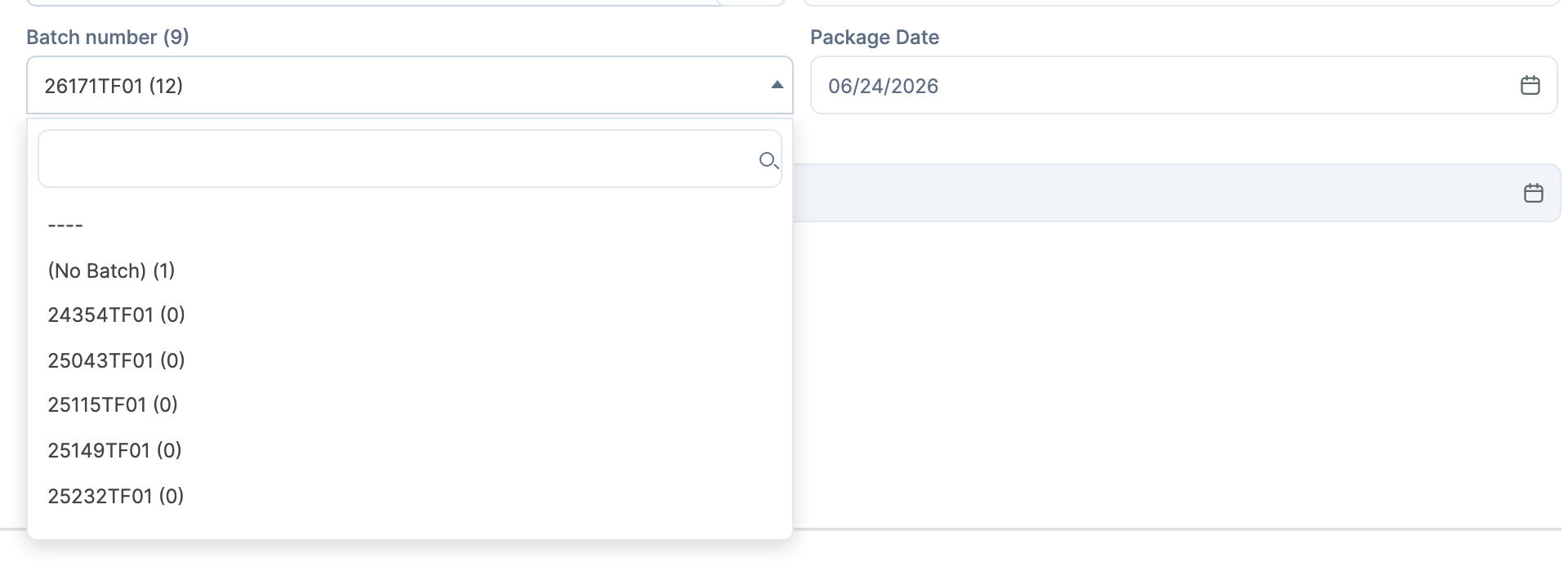
Product editor, Overview: Batch number lists your store’s lots with the on-hand in brackets. (No Batch) is stock that has no lot.
-
Reports: Inventory On Hand by Lot # has one row per lot, with its Lot # and Package Date.
-
Counts: you count each lot separately (Run an inventory count).
-
POS: the product’s Batch tab lists the lots in stock (Look up a product).
Which lot the POS sells
Section titled “Which lot the POS sells”Tap + on a product and the POS puts a lot on the line for you: a lot with no package date first, then the oldest packaged lot that has stock. Scanning a package whose barcode carries the lot number sells that lot instead.
Package dates and Packaged before discounts
Section titled “Package dates and Packaged before discounts”A Packaged before discount schedule takes a number of days. A lot gets the discount when its package date is on or before that many days ago, counted from today’s date at the store. A lot with no package date never gets it. At the POS this is decided for the lot on the sale line, so two lots of the same product can ring up at different prices (Create a discount schedule).
When a lot runs out, goes negative or is missing
Section titled “When a lot runs out, goes negative or is missing”- At 0: the lot drops off the POS and out of the product list’s Package Date. It stays in the editor’s Batch number list with (0).
- Below 0: more was sold from the lot than the store had. The POS still shows it on Batch, but never picks it for you. A count fixes it.
- No lot: stock received or sold without a lot number sits in its own bucket: (No Batch) in the editor, a blank Lot # on the report. The POS can sell from it without a lot. A count by lot doesn’t list it, and only resets it when it’s below 0. To give those units their lot, see Add a missing lot number.
Changing a lot’s package date
Section titled “Changing a lot’s package date”Open the product, pick the lot in Batch number on Overview, change Package Date and click Save Changes. The new date applies to that lot at every store. Picking a lot there also makes it your store’s current lot and copies that lot’s THC and CBD into your store’s potency, so check Potency before you save.