
Look up a product
Use this when a customer asks how many are left, what something costs or how strong it is. Looking only opens the product; nothing goes in the cart until you add it.
-
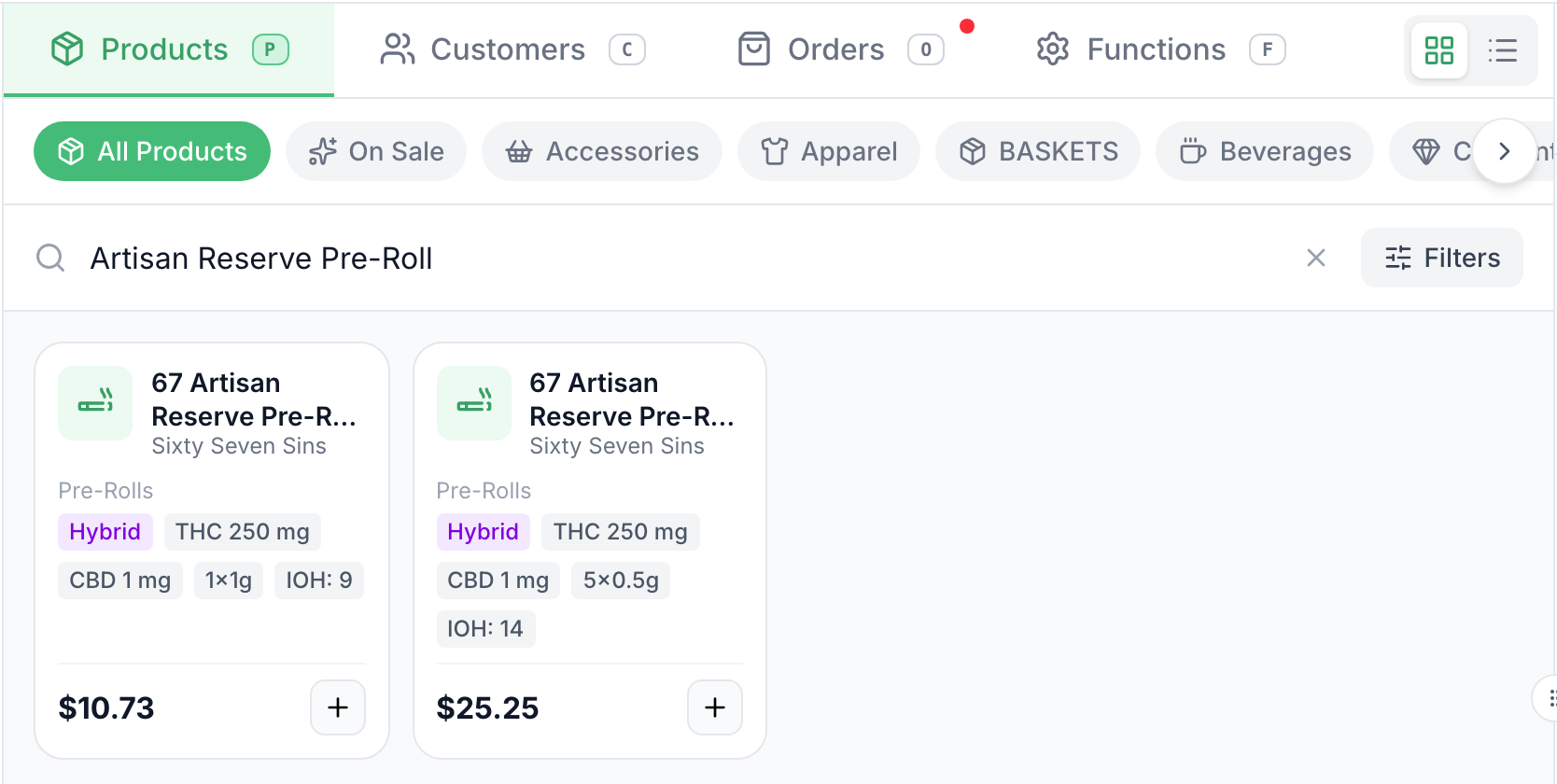
On Products, search for the product or find it in its category.
-
Tap the card itself, not its +. The + adds it to the cart.
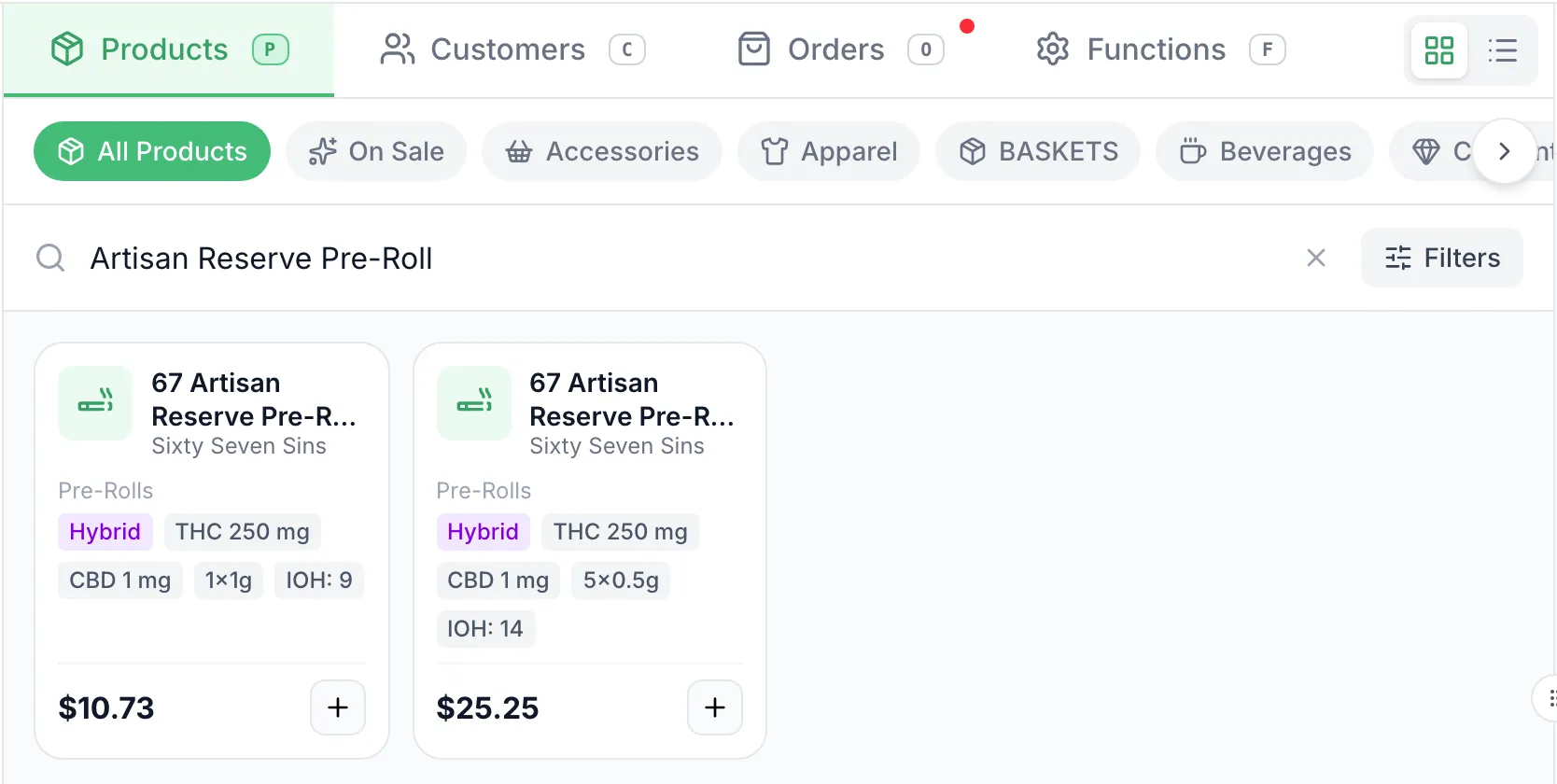
The card already shows the price and IOH, the stock on hand at this store.
-
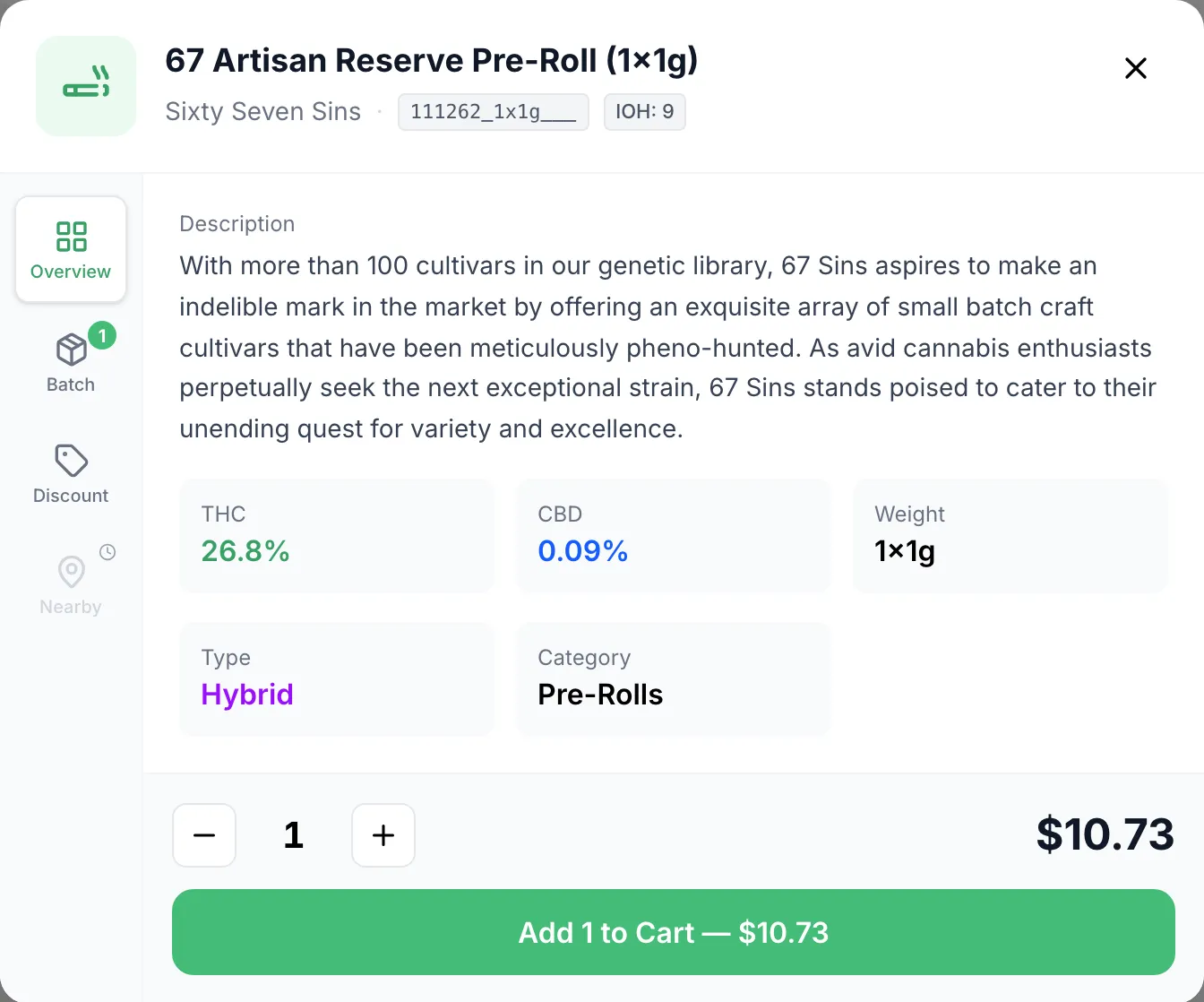
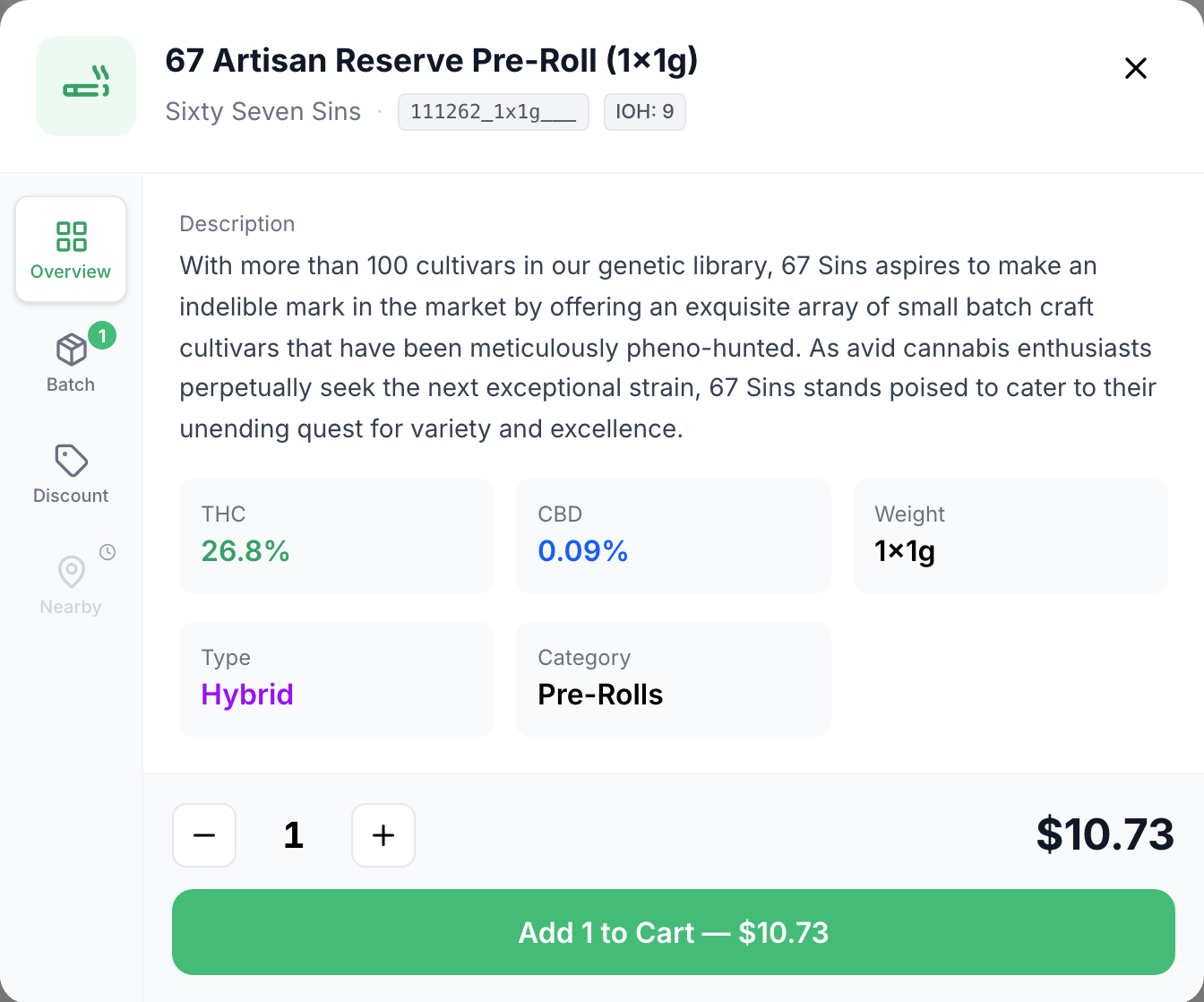
The product opens on Overview. Next to the SKU, IOH is the stock on hand. Below the description are THC, CBD and Weight, then Type, Strain and Category where the product has them. The price is at the bottom right.
-
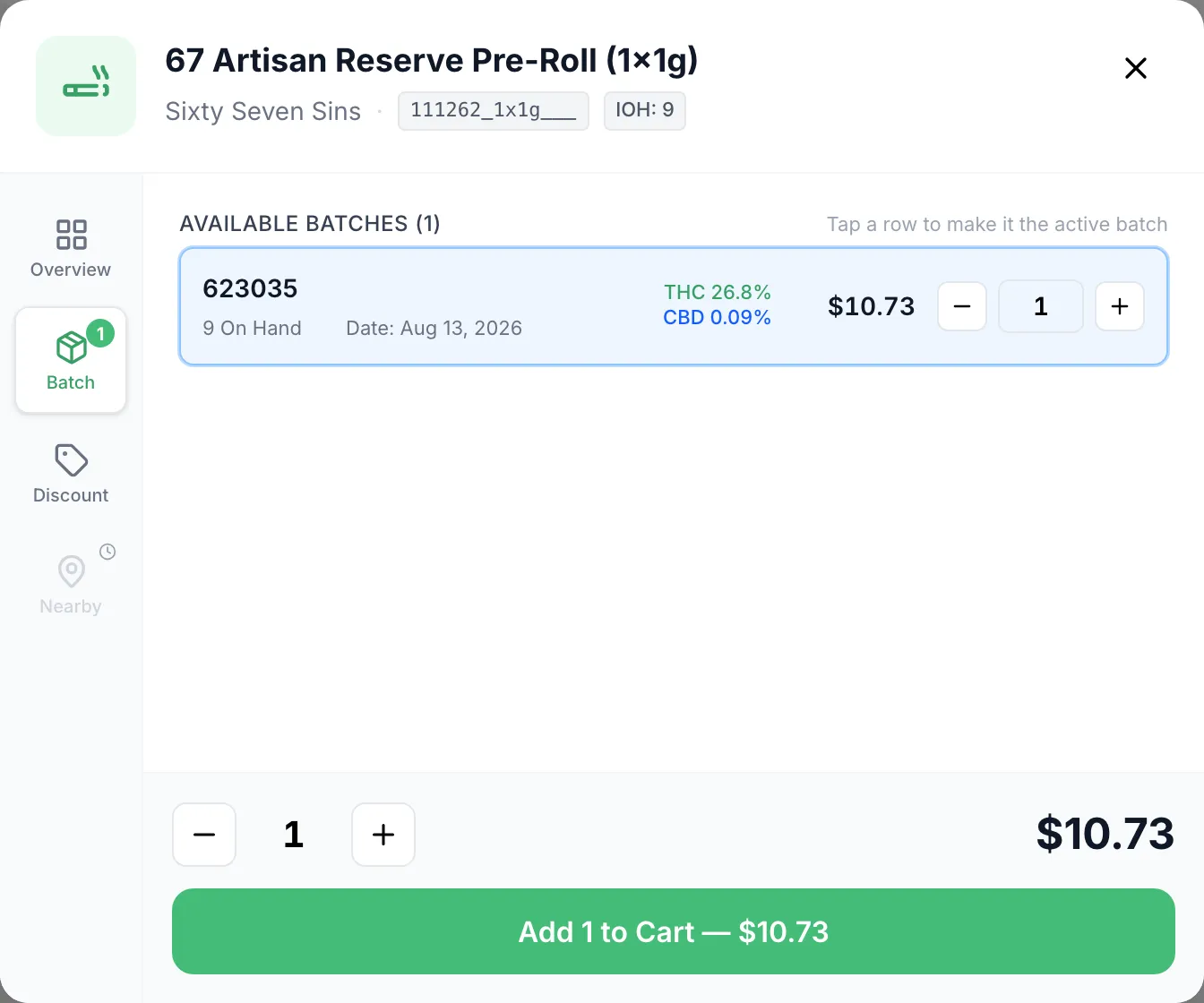
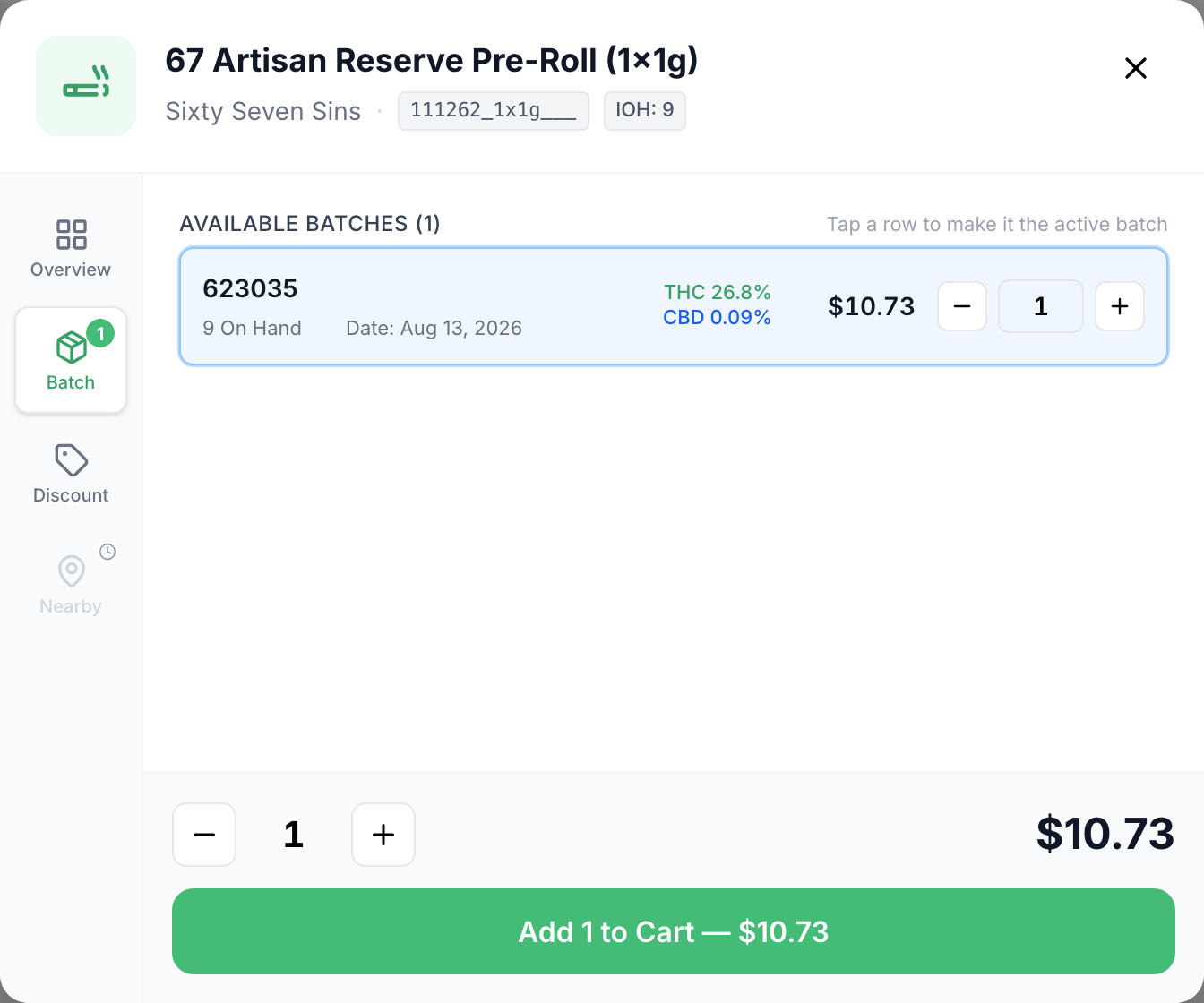
For a cannabis product, tap Batch. Each lot in stock shows its lot number, how many are On Hand, its packaged Date, its THC and CBD, and its price. Oldest packaged date is at the top.
-
Tap X (top right) to close without adding anything. To sell it instead, set the quantity and tap Add 1 to Cart (the number follows the quantity).
Good to know
Section titled “Good to know”- The Search… box at the very top of the POS (or Ctrl+K) finds a product from any tab and opens this same view.
- Tapping a line in the cart opens the same view for that item.
- Only cannabis products get a Batch tab, and only while a lot is in stock.