
Complete a pickup or online order
Use this for orders customers place on the store’s website. For where they come from and how long they stay on the list, see How online orders reach the register.
-
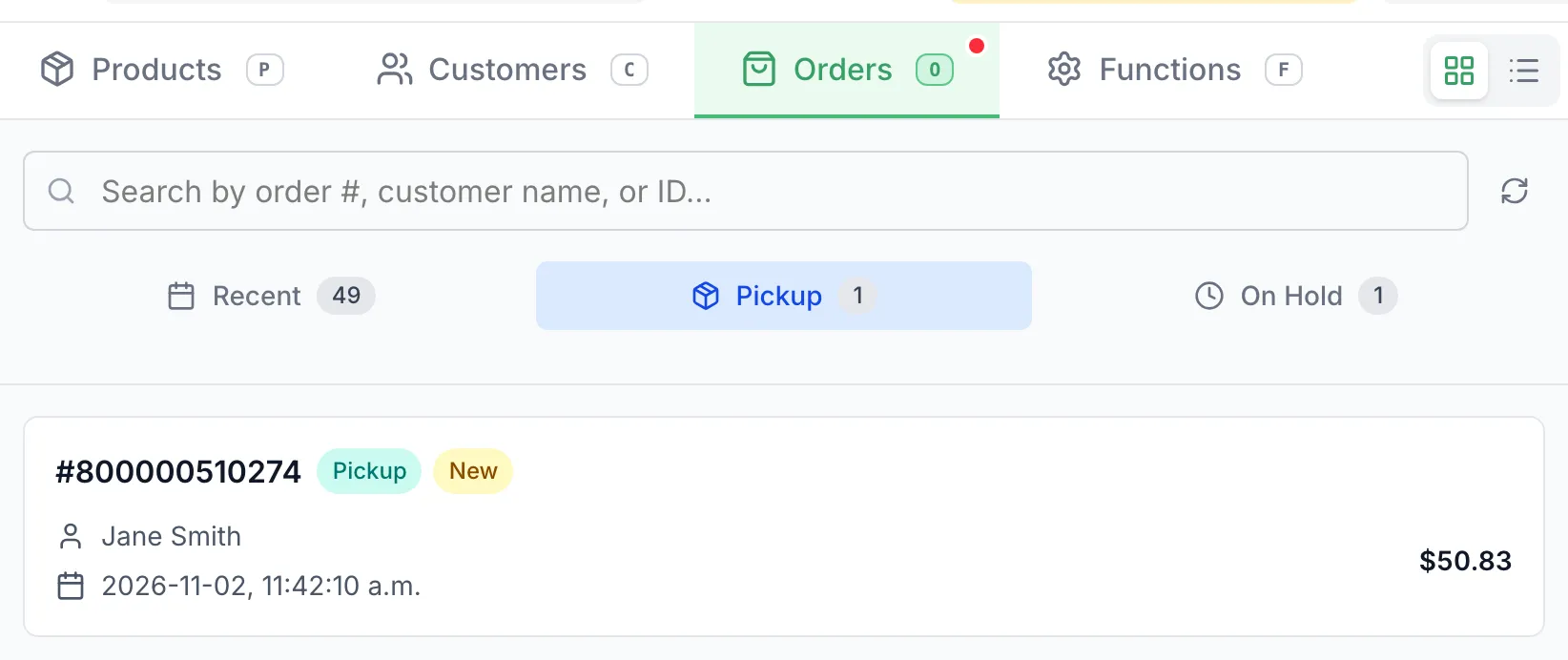
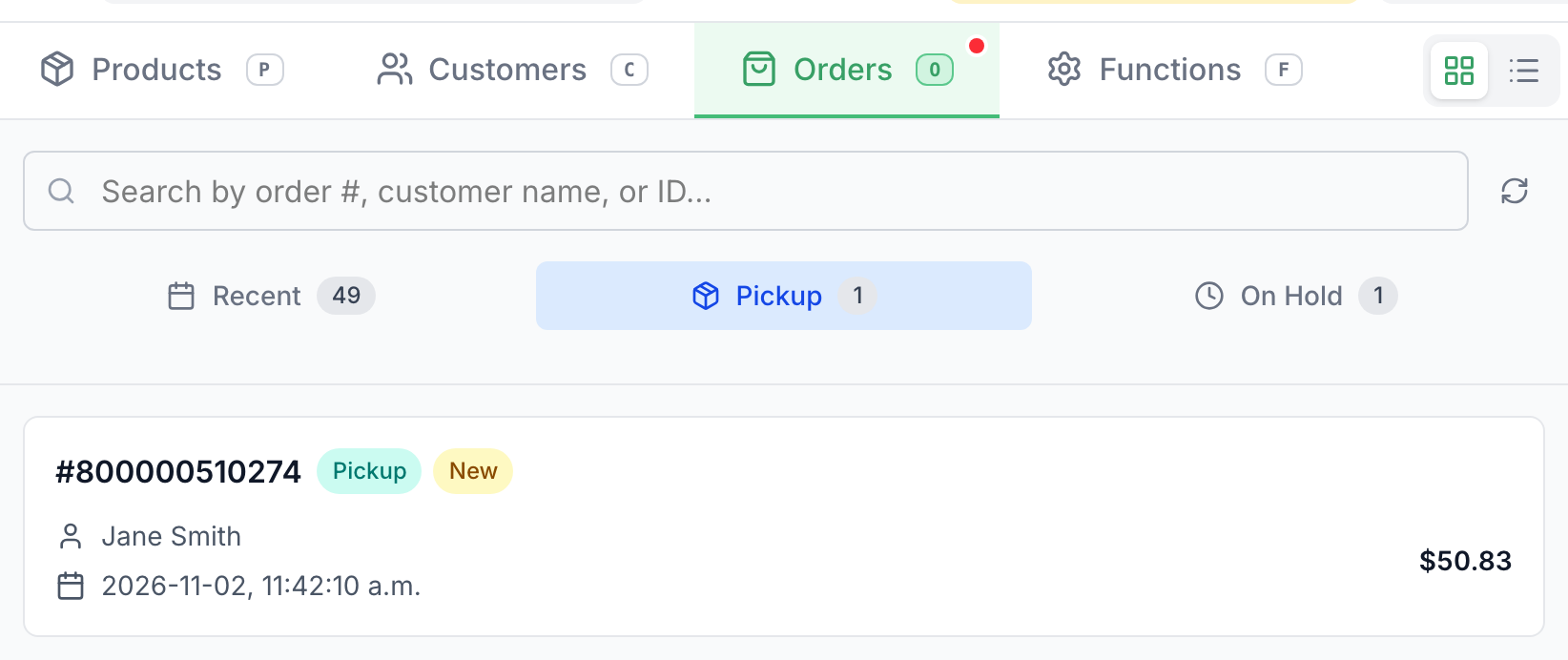
Open Orders, then Pickup. A store that delivers shows Pickup/Delivery instead. Each card shows its stage: New, Preparing or Ready. An order the customer already paid for also shows Paid.
-
Tap the order to open it.
-
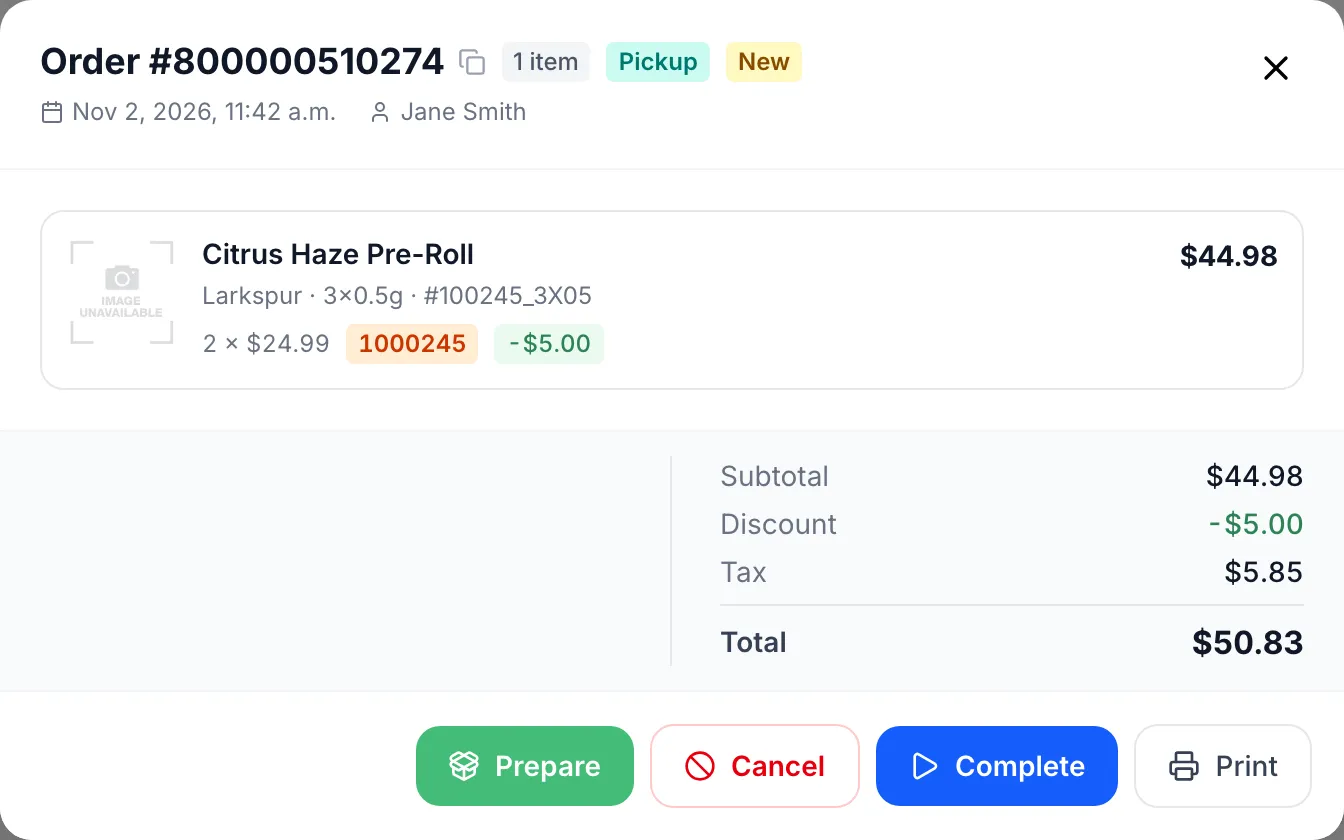
Tap Prepare when you start picking it. The order moves to Preparing and a prep slip prints. If the slip doesn’t print, use Print.
-
When it’s packed, open it again and tap Ready. Send Customer Message opens with the phone and email from the customer’s profile.
- Leave SMS, Email or both ticked and tap Send. The order moves to Ready once the message goes out.
- If the customer has no phone or email, or the text keeps failing, tap Mark ready without sending a message.
-
To remind a customer who hasn’t come in, open the order and tap Follow Up, then Send.
-
When the customer arrives, open the order:
- Paying in store: tap Complete. The order loads into the cart. Take the payment as usual (see Take a payment).
- Paid online: tap View & Complete. The items load into the cart and can’t be changed. Check them against the bag, then tap Complete $… (Paid Online). The POS shows Pickup completed. No payment is taken.
Either way the order leaves the Pickup list.
Cancel an online order
Section titled “Cancel an online order”-
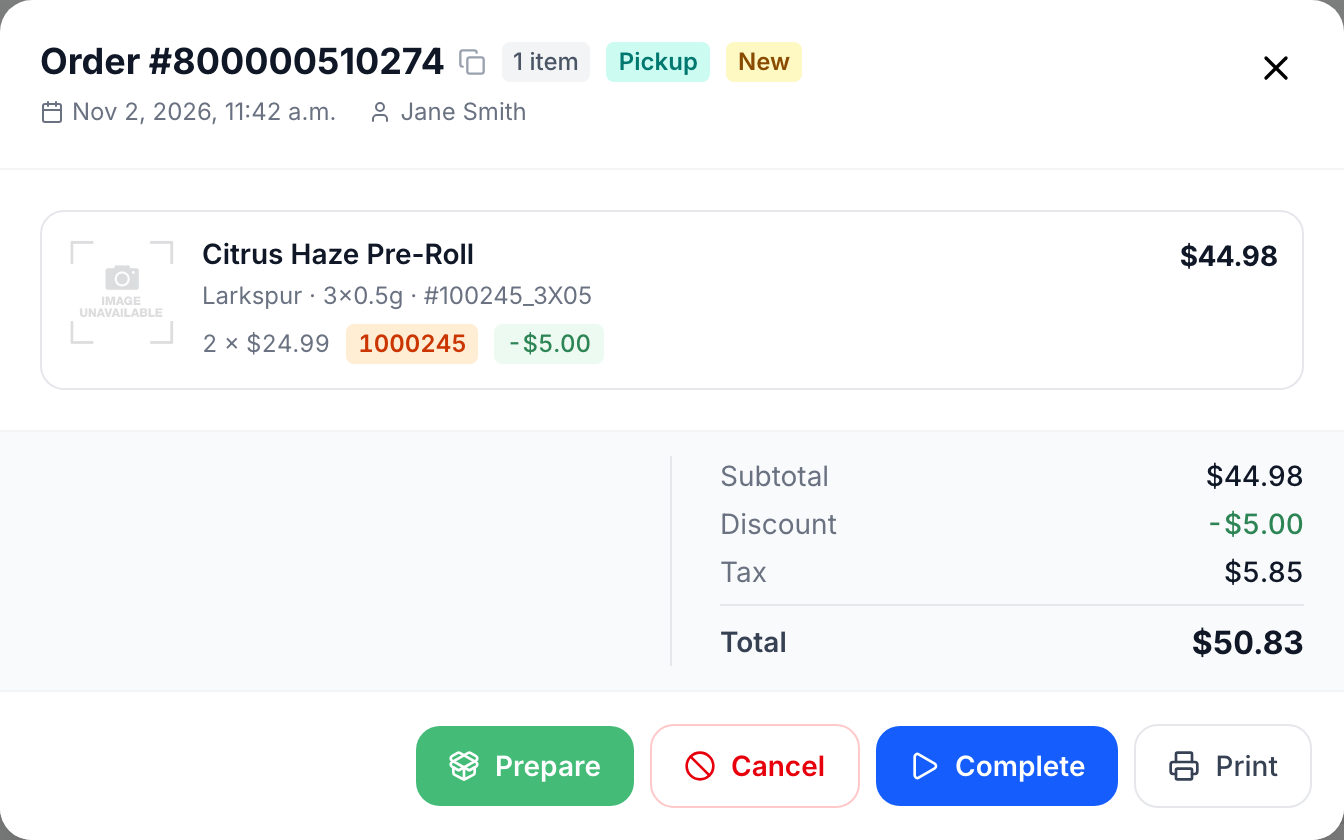
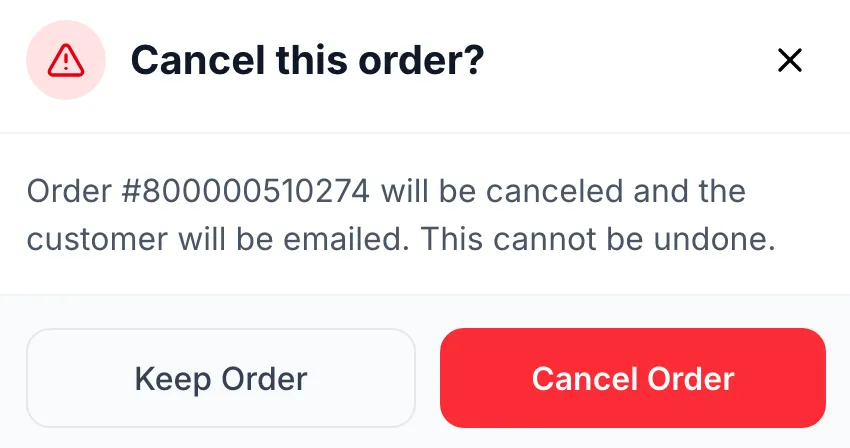
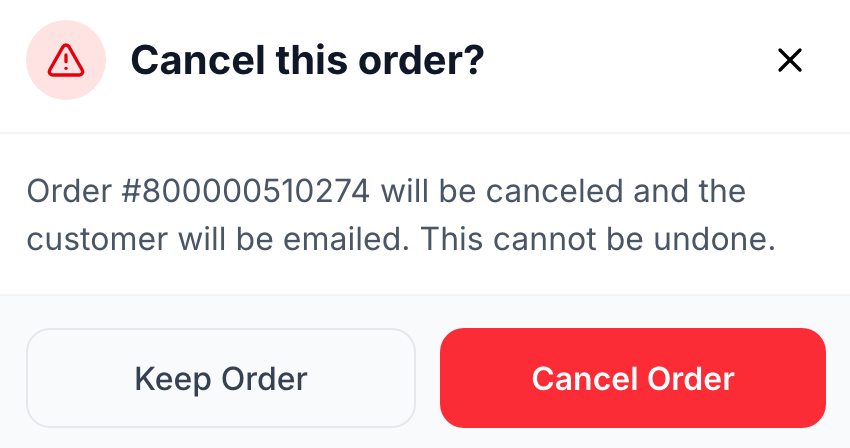
Open the order and tap Cancel.
-
Tap Cancel Order to confirm, or Keep Order to back out. A paid online order is refunded to the customer’s card first, then cancelled.
Good to know
Section titled “Good to know”- Loading an order into the cart and then tapping Void Receipt doesn’t cancel it. The POS shows Order Closed and puts the order back on the list.
- The cancel email WAIO sends goes to the store’s email address, not the customer. Let the customer know yourself.
- An order paid in store at the register is a normal sale from then on. To give money back, refund the receipt.