
Add a new customer
Search for them first: if they already have a profile, add them to the sale instead of making a second one.
-
Open Functions and tap Add Customer.
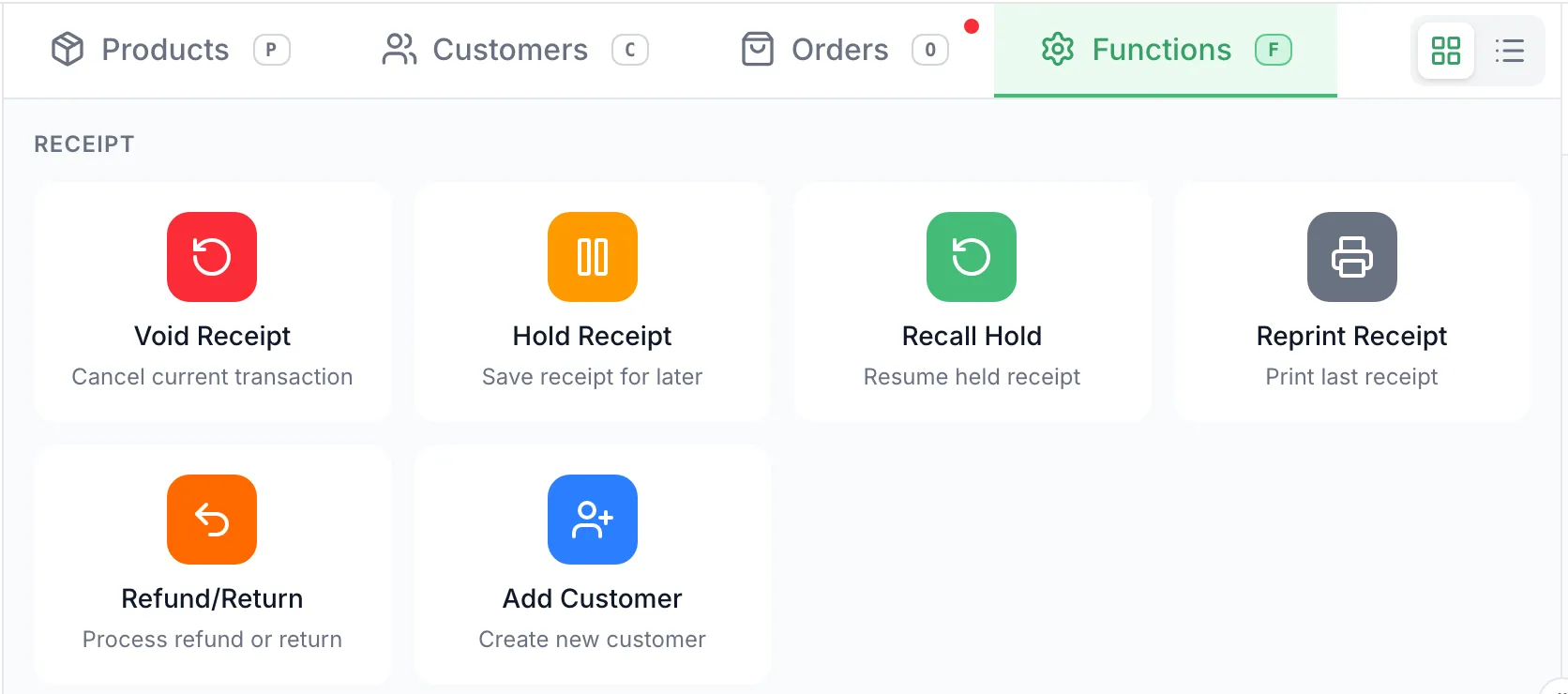
New Customer on the Customers tab opens the same form.
-
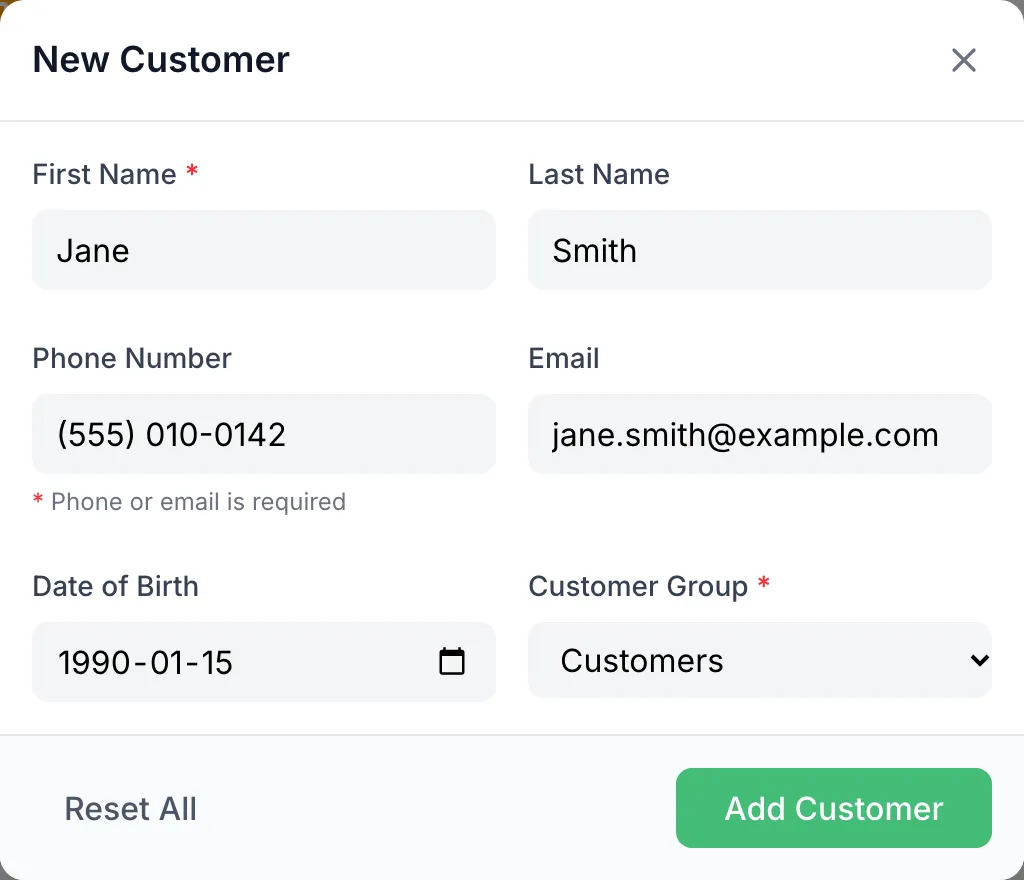
Fill in the form:
- First Name. Required.
- Last Name.
- Phone Number or Email. One of them is required. Type the phone number as digits; the POS adds the brackets and dash.
- Date of Birth, if they give it.
- Customer Group. It starts on your first group; change it if they belong in another.
-
Tap Add Customer. The form closes and they’re on the current sale.


Good to know
Section titled “Good to know”- Right after you save, the cart can show Customer instead of their name. Tap Change, search for them and tap their card to show their details.
- If Add Customer stays grey, the form is missing a first name, or a full phone number or email.
- They’re saved with this store as their home store.