
Add a missing lot number
Use this when a product has stock with no lot number, usually from a receiving line keyed without one, or when a lot was received under the wrong number. It changes the lot on the stock’s history at one store. It doesn’t add or remove units; for that, adjust the on-hand.
-
In the menu, click Reports, then Inventory On Hand by Lot #.
-
In the search box, type the product’s SKU or name and click Search. Each lot of the product is its own row. At Head Office the rows are grouped by store.
-
Find the row with stock and an empty Lot #. Click Update Lot # at the end of that row.
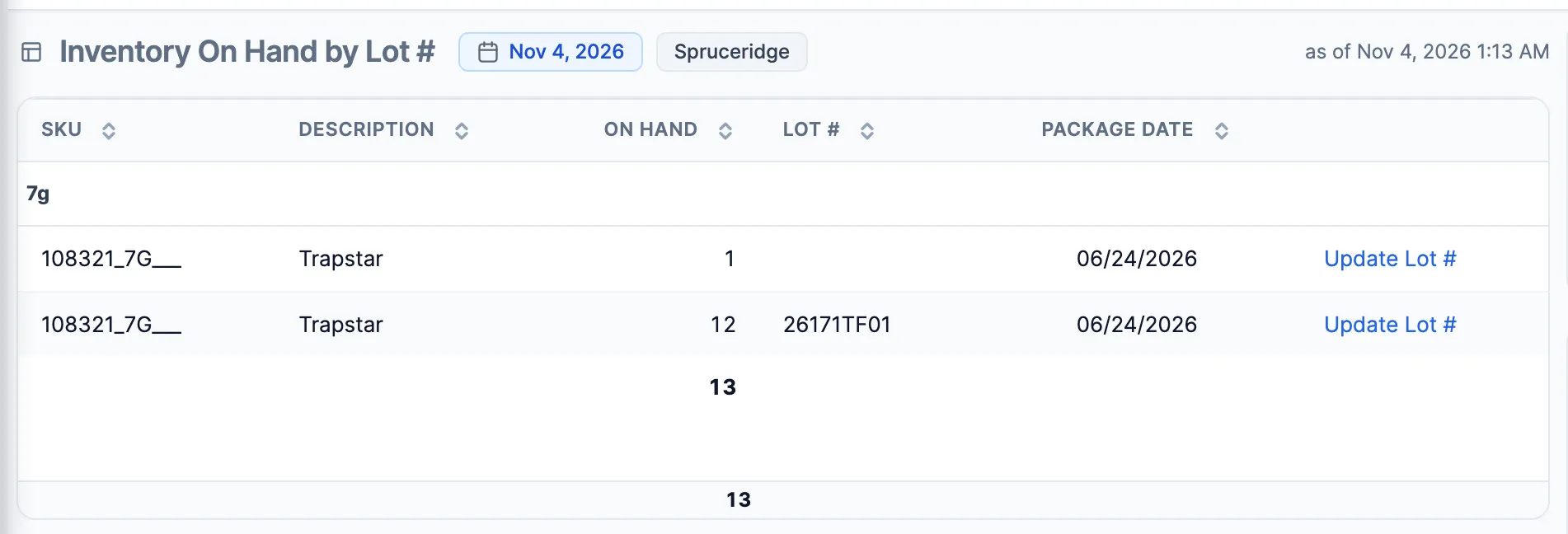
To correct a wrong lot number, click Update Lot # on that lot’s row instead.
-
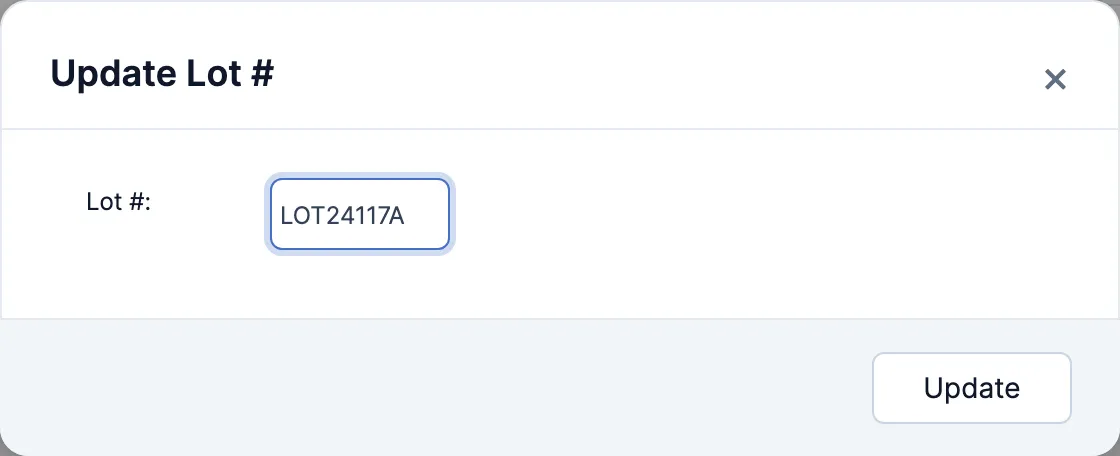
Type the lot number from the package in Lot #:.
-
Click Update. “Lot number updated” means everything moved. If part of the history couldn’t move, a message says so and asks you to reload the report.
Good to know
Section titled “Good to know”- The fix is for one store. Another store with the same problem needs its own update.
- If the update is refused because a lot has already been counted, count the product again instead, lot by lot.
- Only the lot on the stock history changes. Receipts and receiving invoices still show the lot as it was keyed.