
Adjust inventory on hand
Use this to fix one product’s on-hand when a few units are found, missing or miscounted. It changes stock at the store you’re signed in to. Stock from a vendor is received, not adjusted (Receive a purchase order or enter an invoice), and a big gap across many products needs a count (Run an inventory count).
-
In the menu, click Products, and search for the product.
-
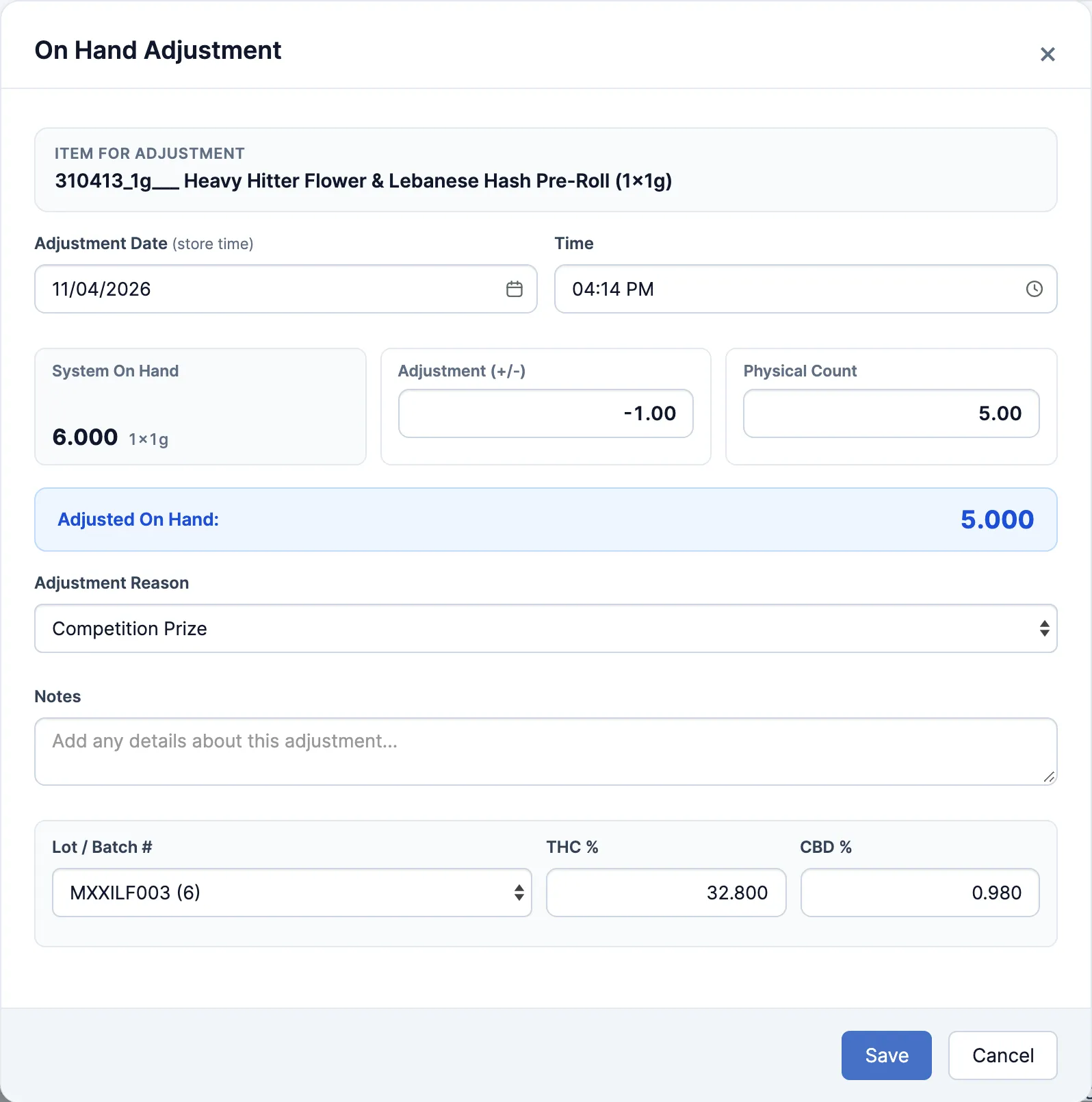
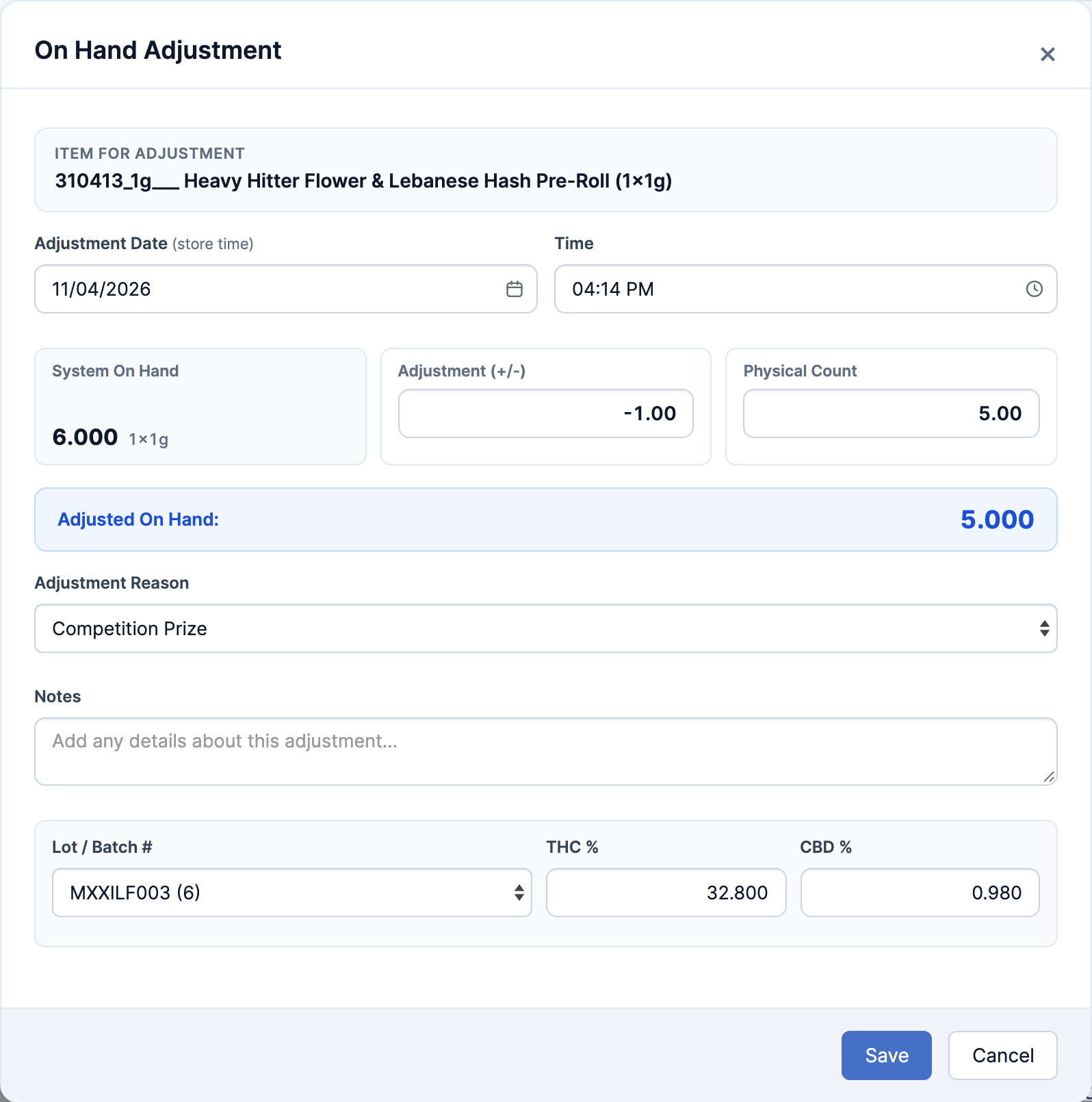
Click the product’s row once (not its name), then click Adjustment in the toolbar, next to Repacking. The On Hand Adjustment window opens. If you see “Please select an item.”, no row was selected.

-
Leave Adjustment Date and Time on now, unless you’re back-dating.
-
If Lot / Batch # is shown, pick the lot you’re fixing first. Its quantity is in brackets, and Physical Count then means that lot’s count.
-
Fill in one of the two boxes, not both:
- Adjustment (+/-): the change, like
-2to take off 2. - Physical Count: what’s actually there. The change is worked out for you.
Click outside the box. Adjusted On Hand shows the result.
- Adjustment (+/-): the change, like
-
Pick an Adjustment Reason and add Notes. The reason starts on the first one in the list, so check it.
-
Click Save. If Save stays grey:
- The change is 0, or Adjusted On Hand would go below zero.
- Lot / Batch # is shown and no lot is picked.
- The window says “The item has been listed in an inventory count for …”. An accepted count is dated after your adjustment. Use a later date.

Good to know
Section titled “Good to know”- Product not in the list? In Filters, Product status starts on Active. Pick All.
- The list’s On Hand column can take a few minutes to catch up. Don’t adjust twice: reopen Adjustment, where System On Hand is current.
- At a cannabis store, stock that’s thrown out (damaged, expired) is destroyed, not adjusted: tick the product in the list and click Destroy, which keeps a destruction record.