
Schedule a report by email
Use a schedule when someone wants the same report in their inbox every day, week or month. For a one-off copy, export the report instead: see Find and run a report.
-
Click the gear (top right), then Reports Scheduler.
-
Click New Report Schedule.
-
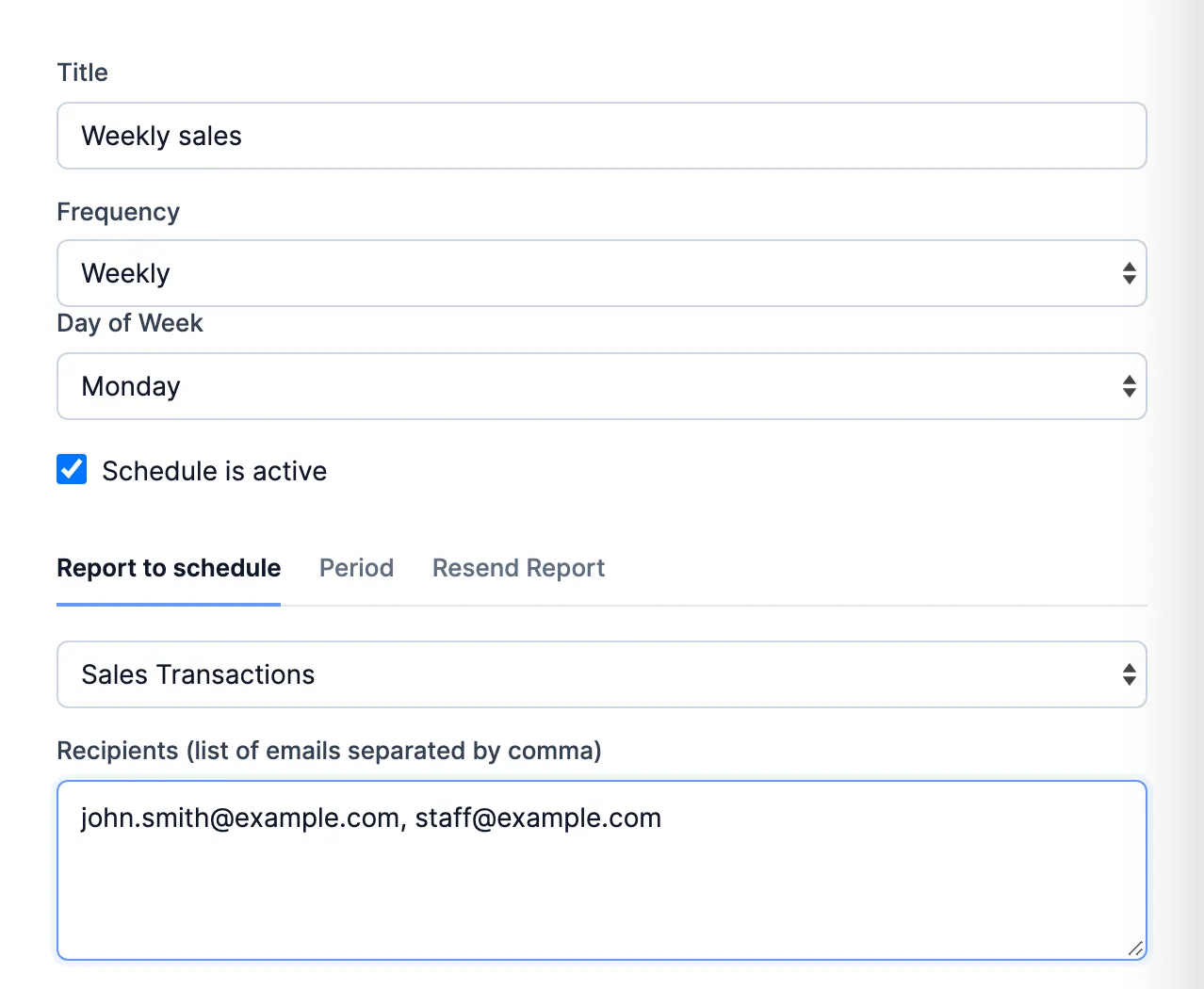
Under Report to schedule, pick the report. Its name goes into Title. Change the title if you like.
-
Pick the Frequency:
- Daily.
- Weekly: pick the Day of Week.
- Monthly: type the Day of Month.
-
Type the email addresses in Recipients, separated by commas.
-
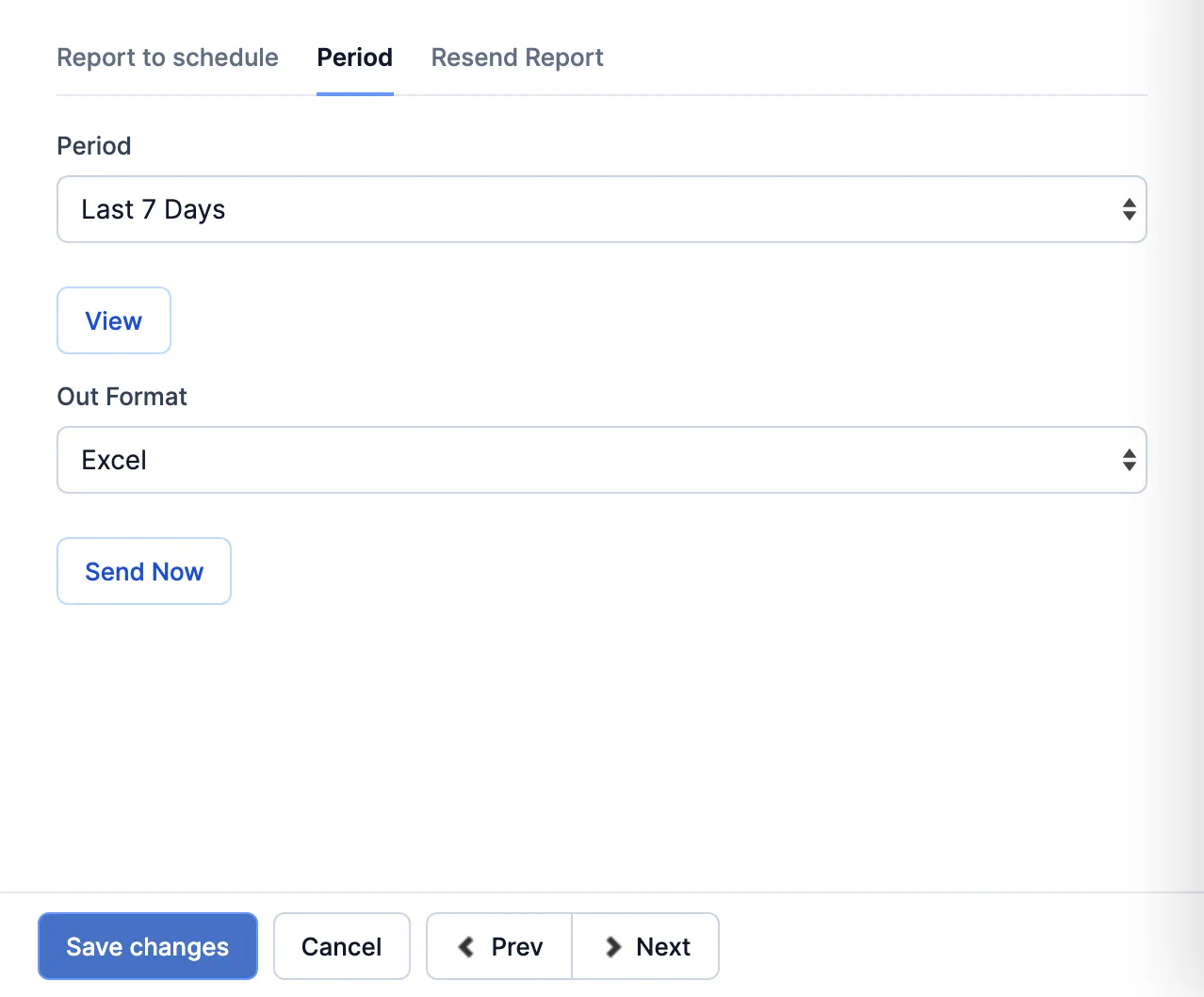
Open the Period tab and pick the dates the report covers, like Yesterday, Last 7 Days or Previous Month. Report Defaults uses the report’s own.
-
Pick the Out Format: Excel or CSV.
-
Click Save changes.
Send, change or stop a schedule
Section titled “Send, change or stop a schedule”Click the schedule’s title in the list to open it.
- Send it now: on the Period tab, click Send Now. The schedule is saved first, then emailed.
- Send a past day again: on the Resend Report tab, pick the date and click Resend.
- Change it: edit what you need and click Save changes.
- Stop it: untick Schedule is active and click Save changes, or click Delete (bottom right) to remove it.
Good to know
Section titled “Good to know”- Schedules go out at about 5:00 AM, store time. Last Run in the list shows when one last went.
- Only the Period is set here. Every other filter is the report’s default.
- A schedule is for the store you’re signed in to when you create it.