
Cash out and close the register
Do this at the end of each shift on a register. Cash taken out during the shift is a cash drop, not a cash out.
-
Finish, hold or void any sale in the cart.
-
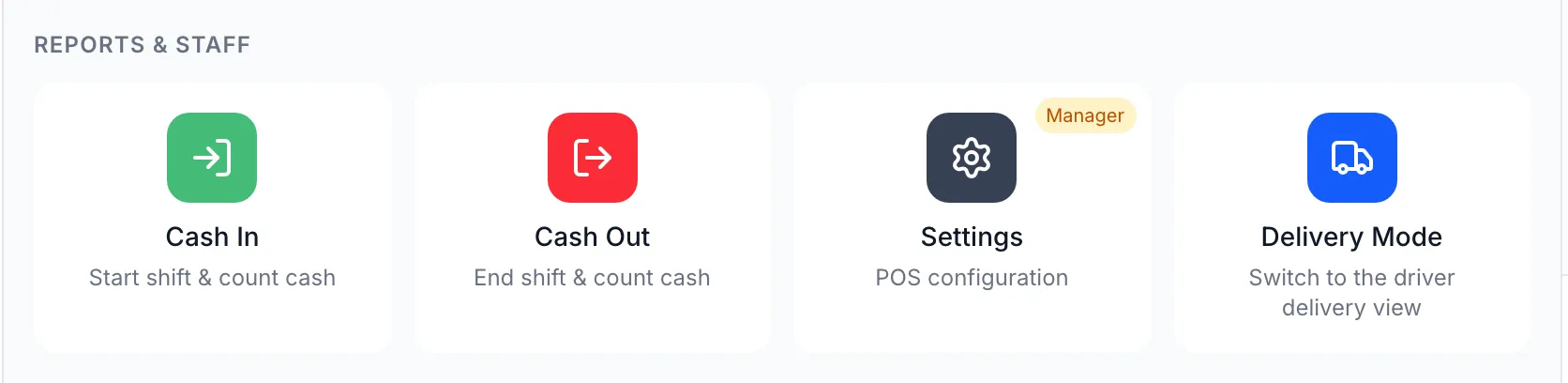
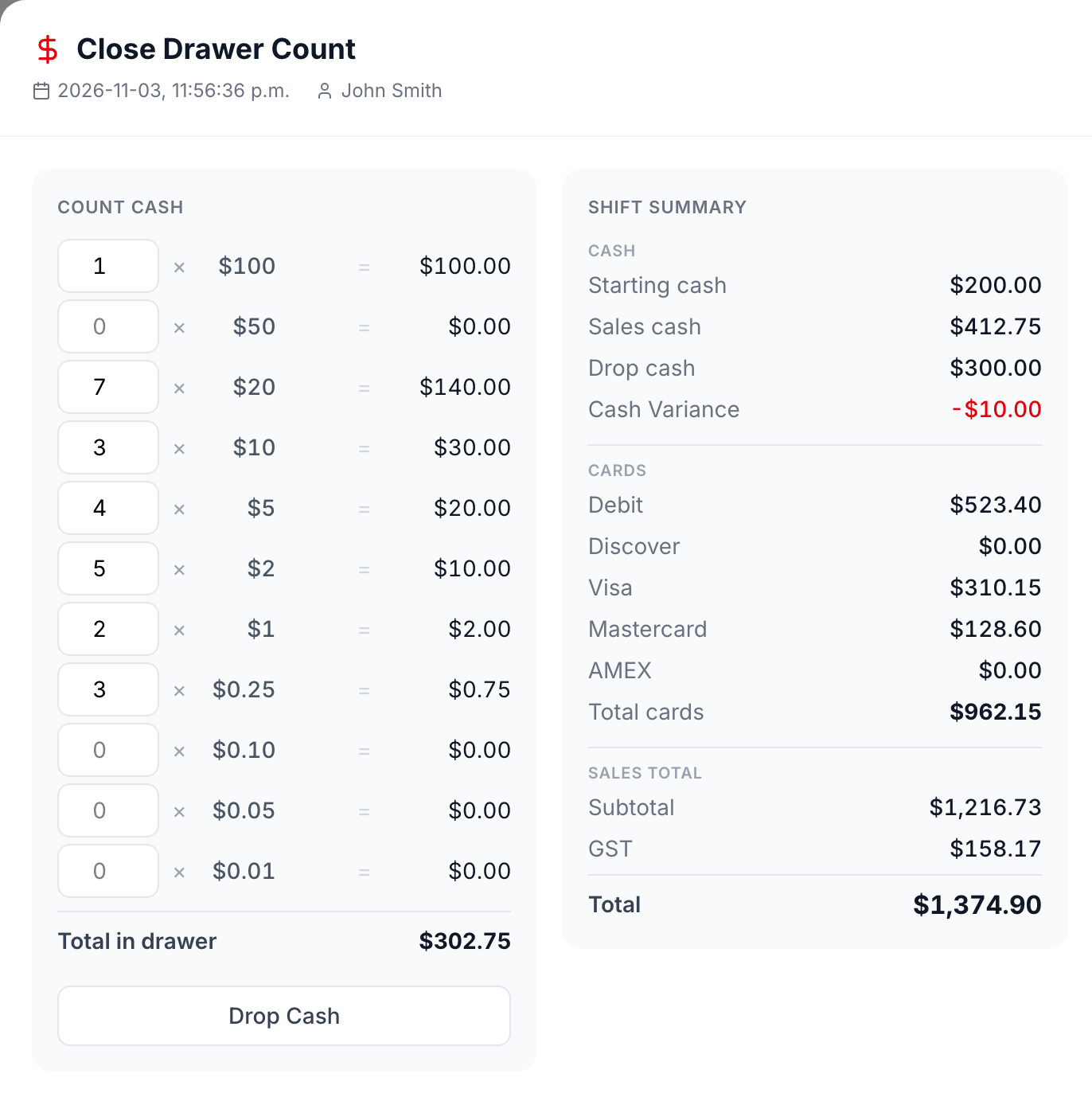
Open Functions and tap Cash Out. Close Drawer Count opens.
-
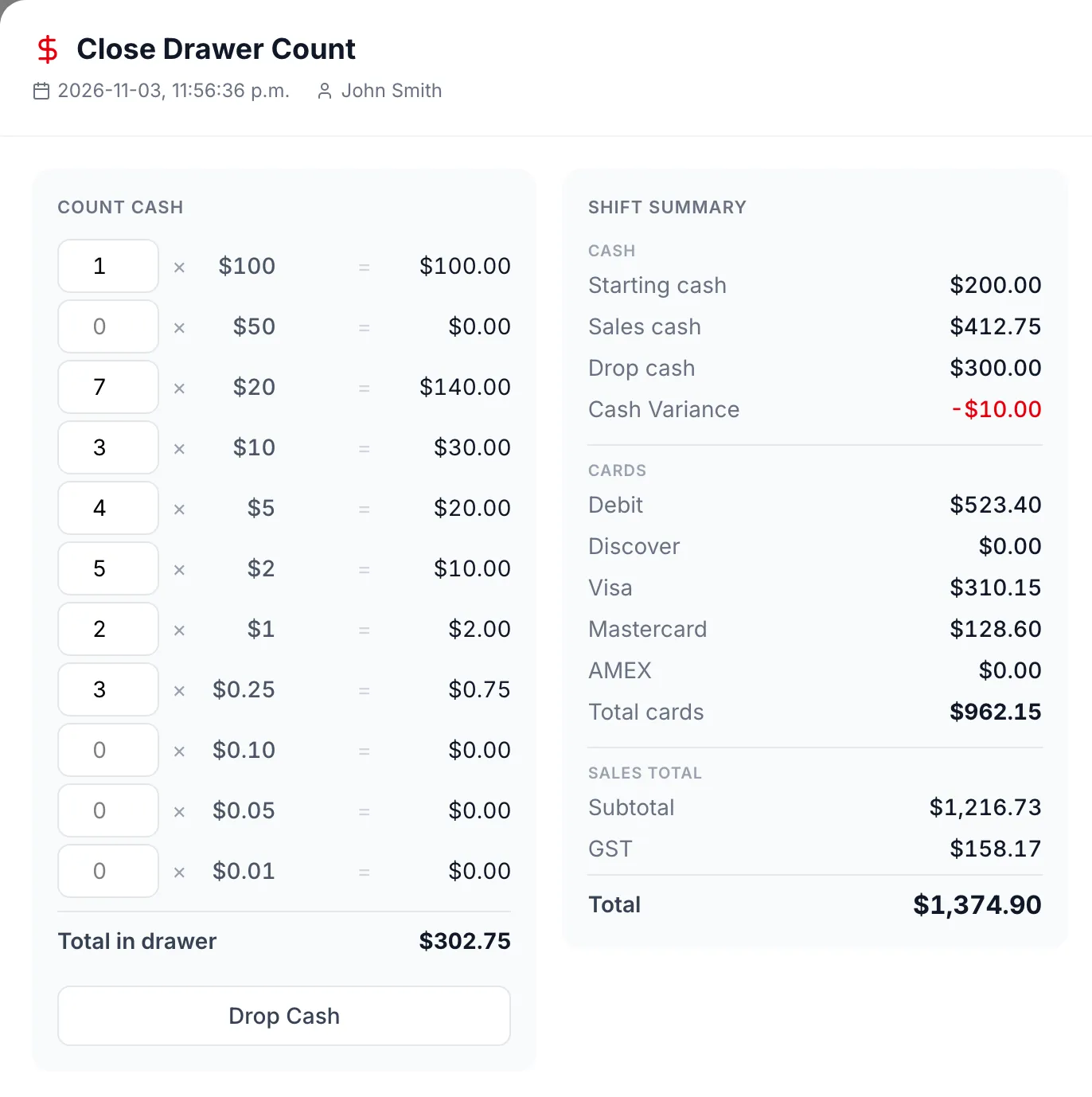
Under Count Cash, type how many of each bill and coin are in the drawer. Total in drawer adds them up.
-
Check Cash Variance under Shift Summary. The POS expects Starting cash plus Sales cash minus Drop cash, and the variance is how far your count is from that. If it’s off, count again.
-
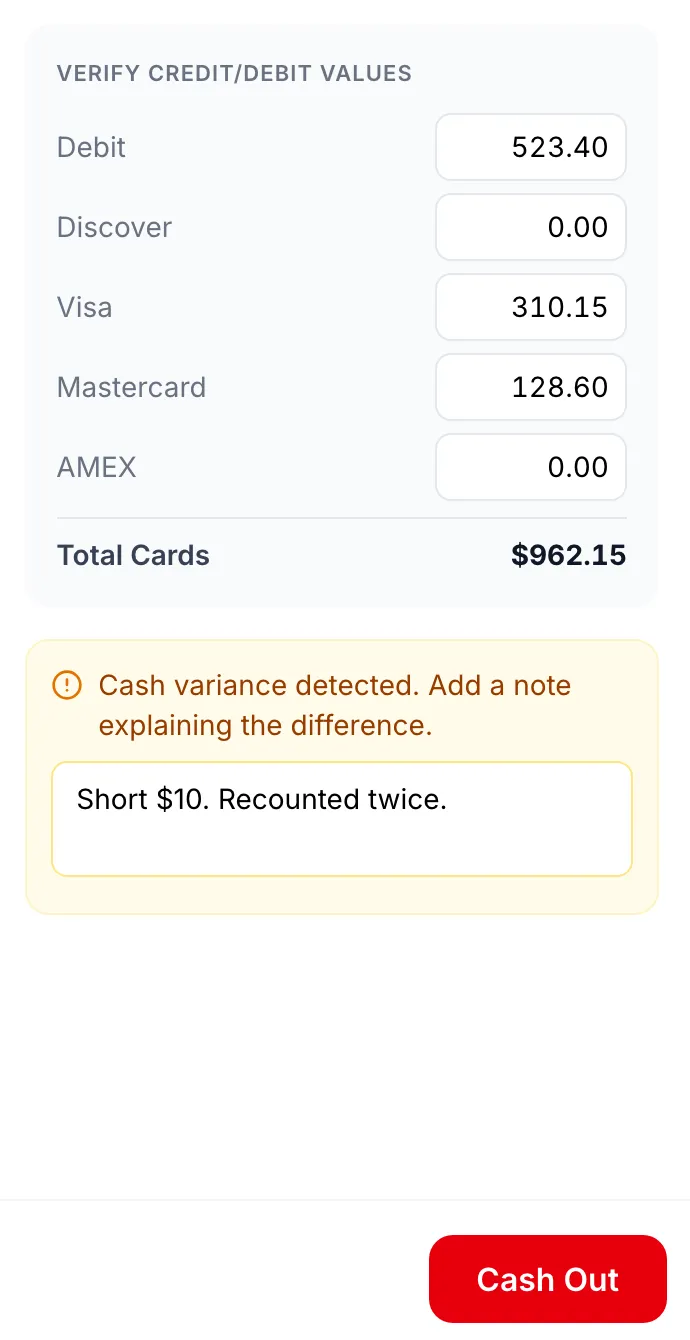
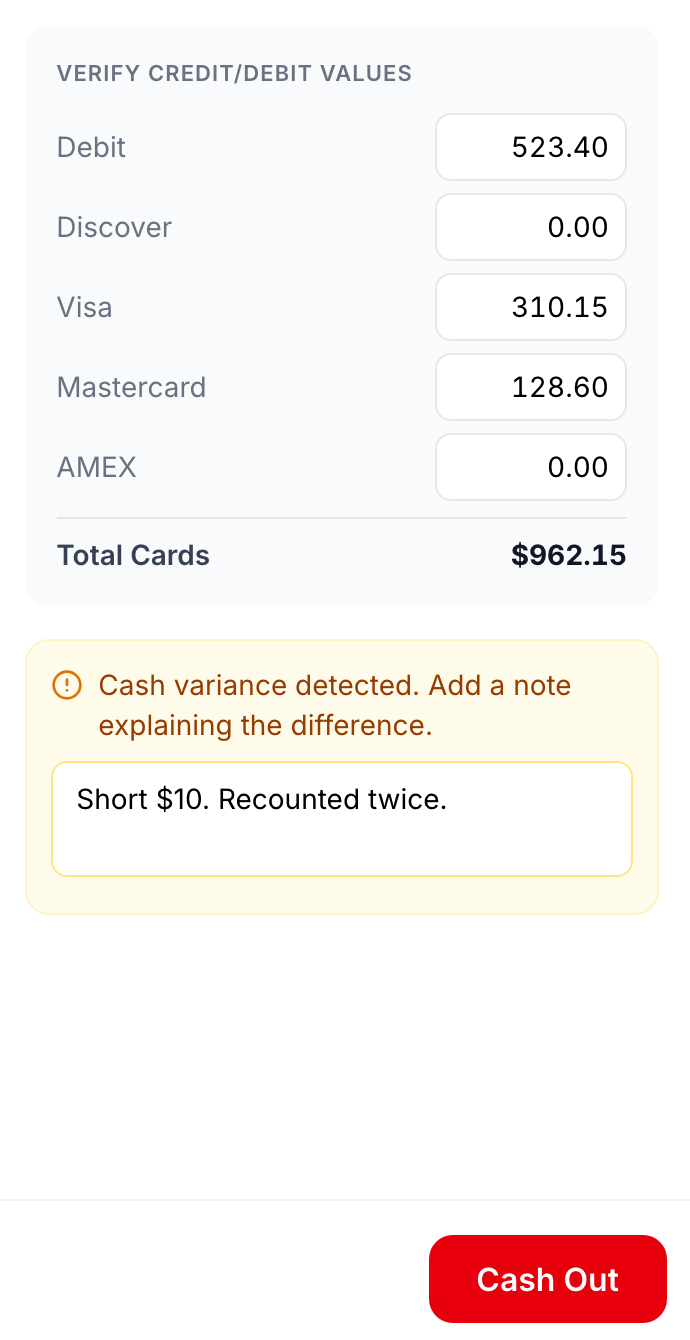
Under Verify Credit/Debit Values, the POS fills in the total it expects for each card type. Change one only if your card terminal’s totals are different.
-
If the cash or cards don’t match, type what happened in the yellow box. You can’t tap Cash Out until you do.
-
Tap Cash Out. The cash-out slip prints. Tap Print for another copy, then Close.
-
Sign out. See Sign in to the POS.
Good to know
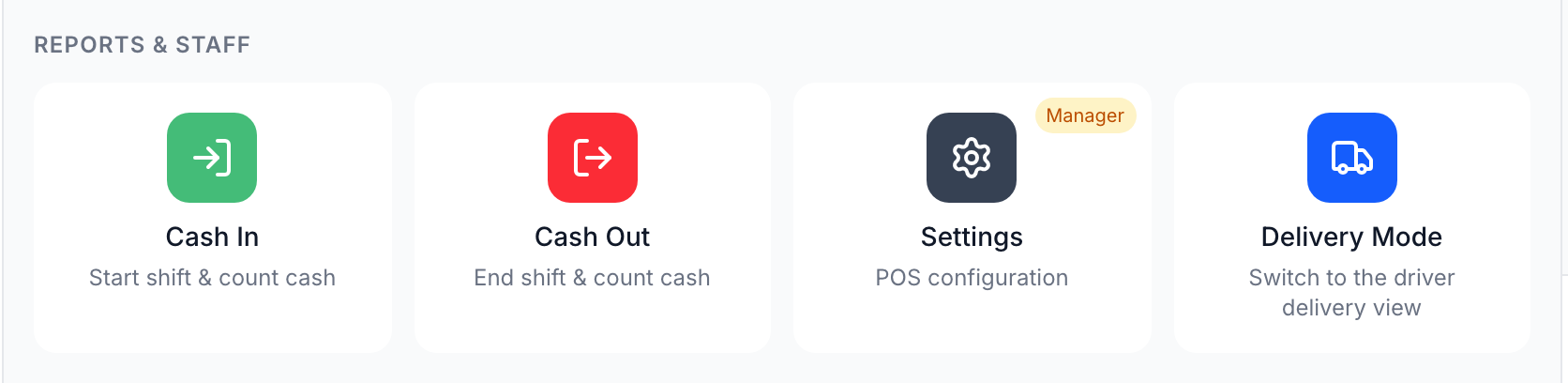
Section titled “Good to know”- After the cash out, Cash Out shows Read-Only: Last Drawer Count with Print until the next cash in. The count can’t be changed from the POS.
- The next shift starts with a new cash in. If your store has Cash Out does not Clock Out on and no safe, the POS opens the next shift at $0 by itself.
- No slip? See Fix a receipt printer that isn’t printing, then tap Print.