
Add a product
Use this for an item you don’t carry yet. If the item is already in the list and only its code is new, add the code to it instead: Add an alternative SKU or barcode.
-
In the menu, click Products, then Products.
-
Click New Product (top).

-
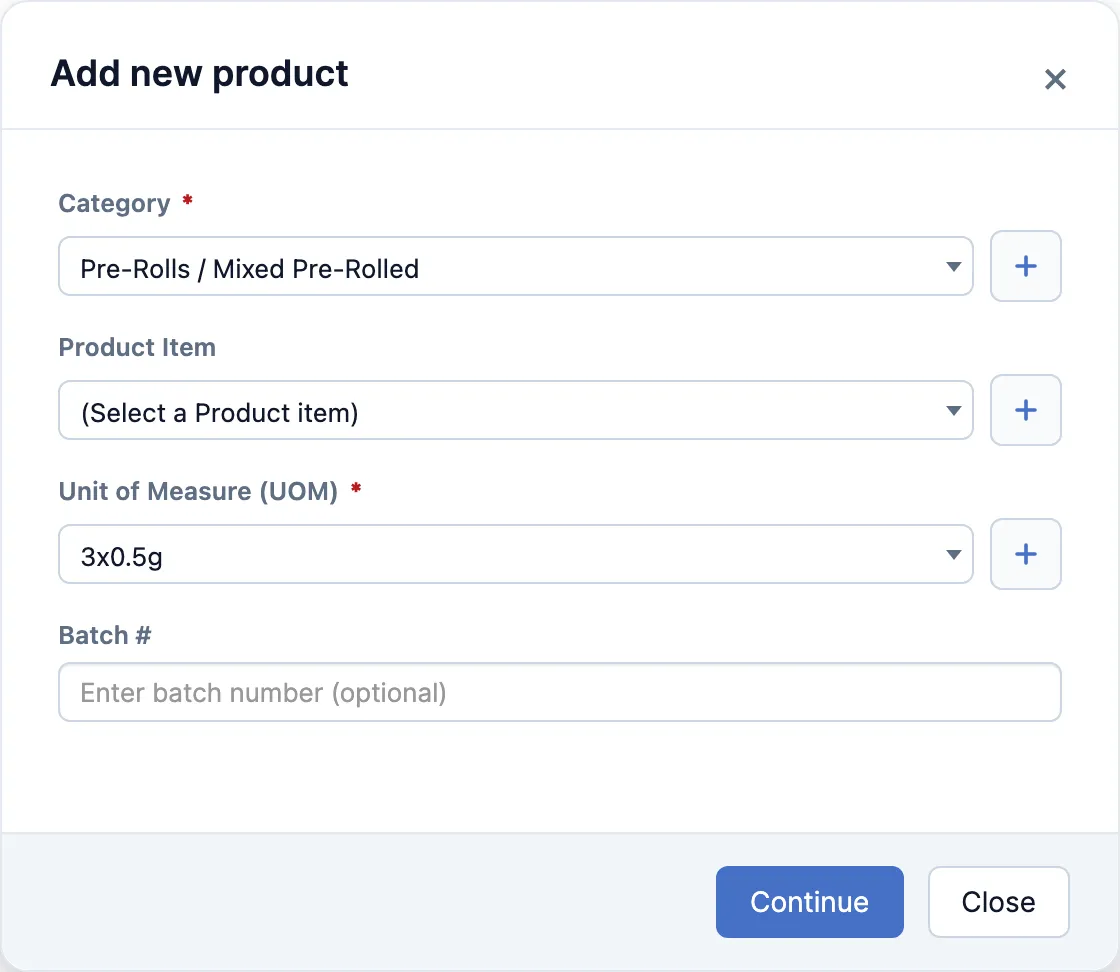
At Head Office, Add new product opens first. Pick the Category and the Unit of Measure (UOM), then click Continue. Product Item and Batch # can stay blank.
At a store, the editor opens straight away.
-
If it asks Would you like to apply taxes to all stores?, click Yes.
-
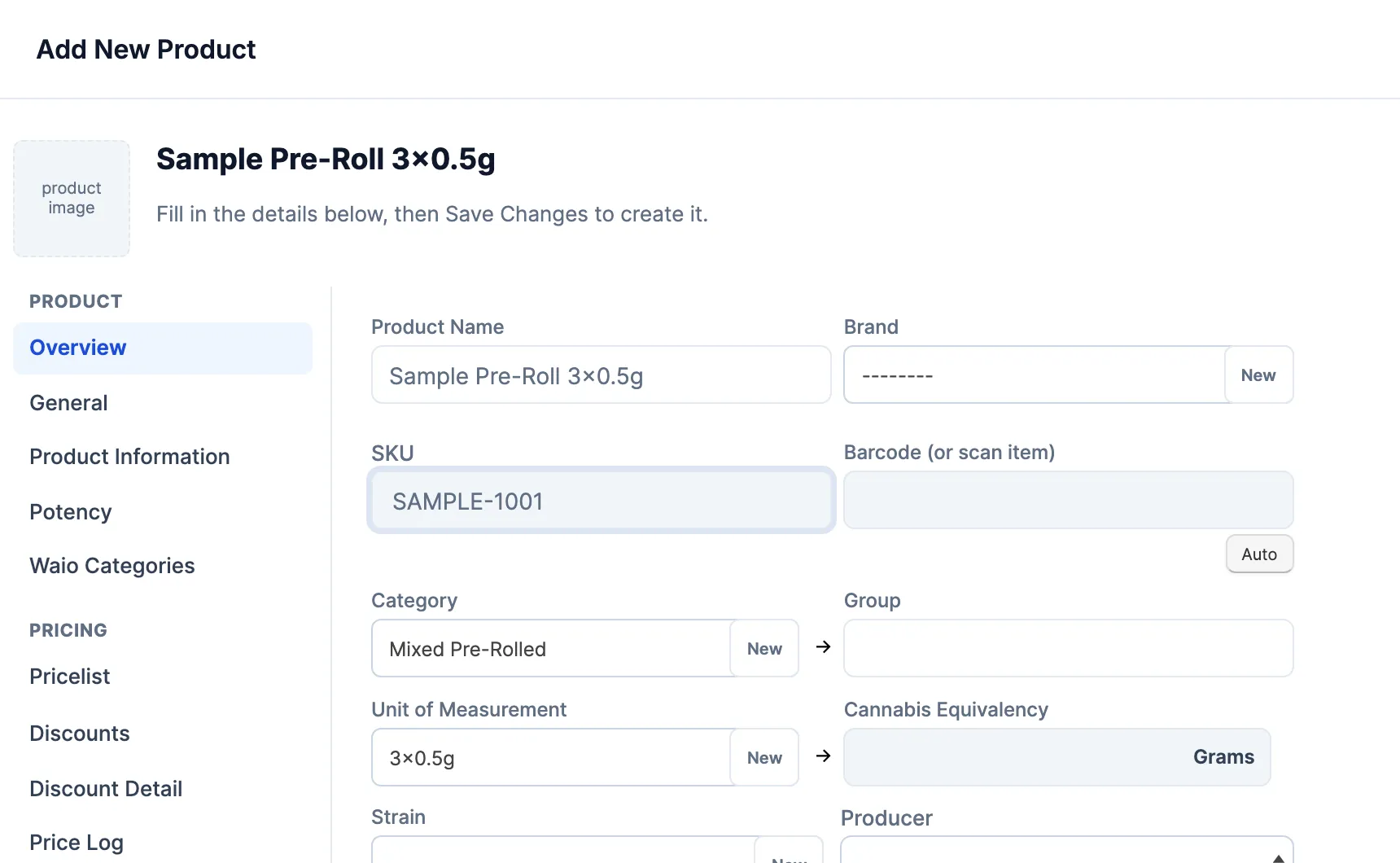
On Overview, type the Product Name.
-
Type the SKU and scan the barcode into Barcode (or scan item). No barcode on the item? Click Auto to make one. If you fill in only one of the two, the other gets the same code when you save.
- On a cannabis category the barcode box is called Tag.
-
Fill in what else you have: Brand, Producer and Vendor. On cannabis, also Cannabis Equivalency (grams) and Strain.
-
Click Save Changes.

Put it in your stores
Section titled “Put it in your stores”A product made at Head Office is only at Head Office until you add it to stores (receiving it at a store adds it there too).
- Search the product list for it and tick it.
- Click Update 1 item, then Add to Stores.
- Tick the stores and click Add to Stores.
- Set its price: see Change a price or price group.
Good to know
Section titled “Good to know”- Each SKU belongs to one product. A SKU that’s already taken stops the save with The same SKU already exists, and a link to the other product. Two products can share a barcode.
- Leading zeros are dropped from the SKU and the barcode when you save.
- The name, SKU, category and the other Overview details belong to the product, so every store sees the same ones.